

































































Cloth panel
Cloth simulation tries to simulate the look and behaviour of fabric. For example a flag in the wind. Or a shirt.
Cloth Simulation
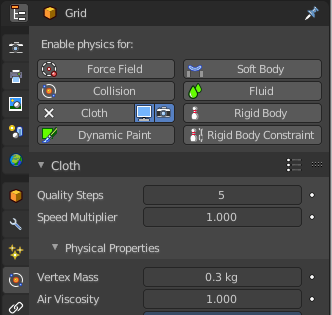
Cloth simulation tries to simulate the look and behaviour of fabric. For example a flag in the wind. Or a shirt.
Cloth simulation requires a mesh object. It can be closed or open. Beware of the backside of faces then. And for closed meshes you better use soft bodies.
Once you add a cloth to a mesh a modifier gets created in the modifier properties tab. Here you can add other modifiers that may interact with the cloth simulation, like an SDS modifier. And order them in the proper way. It makes a difference if the SDS modifier is added before or after the cloth modifier.
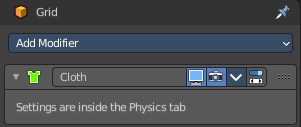
And you can apply the cloth modifier, which freezes the simulation at the current frame. But the cloth settings are just accessible from the physics tab.
Workflow
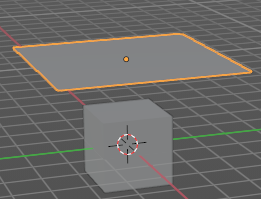
Add a cube.
Add a grid plane. Move it up and scale it a bit bigger. So that it is above the cube.
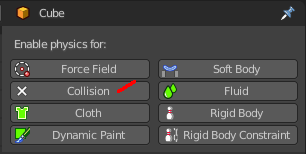
Add a collision physics to the cube. It is then set as a collider for the cloth simulation.
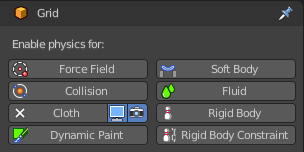
Add a cloth physics to the grid plane.
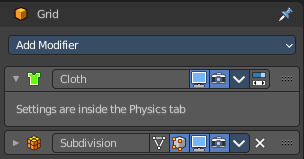
Add a subdivision surface modifier to the grid plane, and set it to simple.
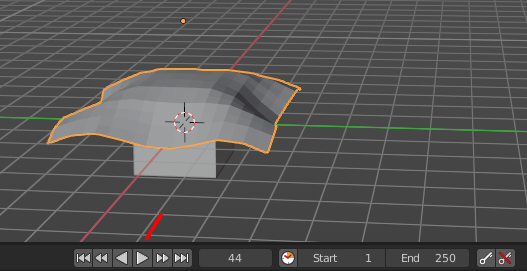
Now play the simulation. Playing it creates the simulation frames. Don't jump to frames. This will skip frames for the simulation.
The cloth will fall down now, collide with the cube, and deform like a fabric.
Adjust the cloth settings to your needs.
Pinning
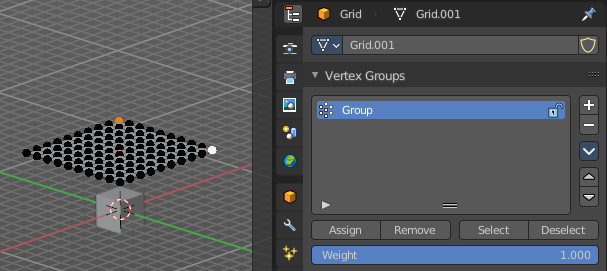
Enter edit mode with the grid mesh. Grab one or more vertices. Add them to a vertex group. Don't forget to press Assign ...
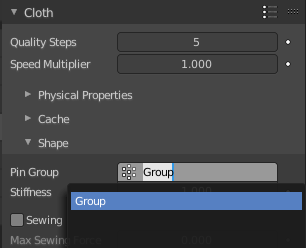
In the Shape subpanel, choose the vertex group int the Pin Group.
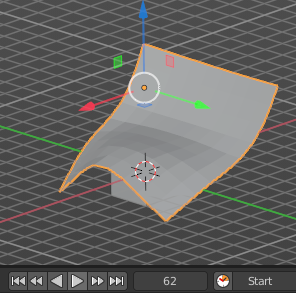
Switch to object mode. Play the animation again. You will notice that the two vertices in the vertex group are now pinned. And don't move down anymore.
For a character you could now weight the pinned vertices to a bone. And the pinned vertices would move with the bone then.
Note: When animating or posing the character you must begin from the bind pose. Move the character to its initial pose over several frames so the physics engine can simulate the clothing moving. Very fast movements and teleport jumps can break the physics simulation.
Cloth Panel
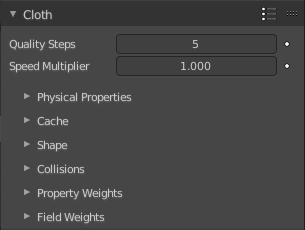
Presets
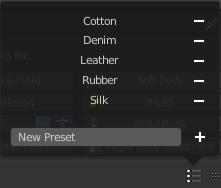
Cloth presets.
To add your own preset type in a name and click at the plus button behind the edit box. To remove a preset click at the minus button behind the preset.
| Entry | What it does |
|---|---|
| Quality Steps | Set the number of simulation steps per frame. Higher values result in better quality, but is slower. |
| Speed multiplier | The cloth speed is multiplied by this value. |
Physical Properties subpanel
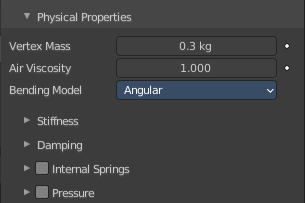
The physical settings for the cloth.
| Entry | What it does |
|---|---|
| Vertex Mass | The mass of the cloth material. |
| Air Viscosity | Air has some thickness which slows falling things down. |
Bending Model

Some settings are just available in angular bending model. Some just in linear bending model.
| Entry | What it does |
|---|---|
| Angular | Cloth model with angular bending springs. |
| Linear | Cloth model with linear bending springs (old). |
Stiffness sub subpanel
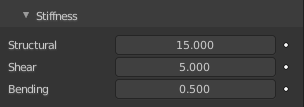
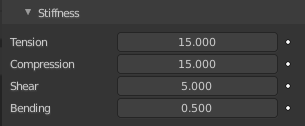
| Entry | What it does |
|---|---|
| Tension | Angular bending. How much the material resists stretching. |
| Compression | Angular Bending. How much the material resists compression. |
| Structural | Linear bending. Overall stiffness of the cloth. |
| Shear | How much the material resists shearing. |
| Bending | Wrinkle coefficient. Higher creates more large folds. |
Damping sub subpanel
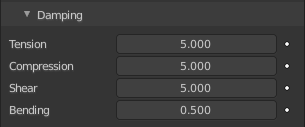
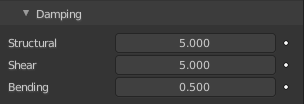
| Entry | What it does |
|---|---|
| Tension | Angular bending. Amount of damping in stretching behavior. |
| Compression | Angular bending. Amount of damping in compression behavior. |
| Structural | Linear bending. Amount of damping in stretching behavior (only in linear bending model). |
| Shear | Amount of damping in shearing behavior. |
| Bending | Amount of damping in bending behavior. |
Internal Springs sub subpanel
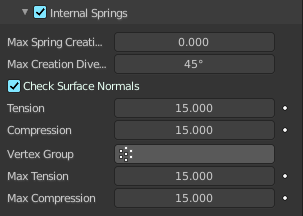
Cloth physics are simulated through Springs connecting vertices on the surface of a mesh. But these springs only interact on the surface and only apply to 2D surfaces. 3D or Internal Springs can be used to make a mesh behave similarly to a Soft Body. Internal springs can be enabled by toggling the checkbox in the Internal Springs panel header.
You need to use the bending model Angular.
| Entry | What it does |
|---|---|
| Max Spring Creation Length | The maximum length an internal spring can have during creation. If the distance between internal points is greater than this, no internal spring will be created between these points. A length of zero means that there is no length limit. |
| Max Creation Diversion | The maximum angle that is allowed to use to connect the internal points can diverge from the vertex normal. |
| Check Surface Normals | Requires the points the internal springs connect to have opposite normal directions. |
| Tension | How much the material resists stretching. |
| Compression | How much the material resists compression. |
| Vertex Group | The Tension and Compression of internal springs can be controlled via a Vertex Group to specify which the portions of the mesh have internal springs or the spring strength. |
| Max Tension | Maximum tension stiffness value. |
| Max Compression | Maximum Compression stiffness value. |
Pressure sub subpanel
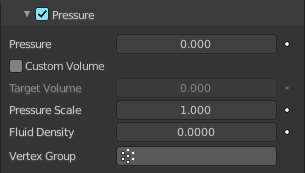
Cloth pressure allows the simulation of soft-shelled objects such as balloons or balls that are filled with some sort of fluid. Cloth pressure can be enabled by toggling the checkbox in the Pressure panel header.
Note: Non-manifold meshes will work with cloth pressure. But pressure will escape out of the mesh holes and cause drifting or propulsion forces. One way to get around this is by using the Vertex Group to exclude the non-manifold portions of the mesh.
| Entry | What it does |
|---|---|
| Pressure | The uniform pressure that is constantly applied to the mesh. This value can be negative to simulate implosions or any other case where an object has outside pressure pushing inwards. |
| Custom Volume | Use the Target Volume parameter as the initial volume for the cloth. This avoids having to use the Pressure to first inflate the object. |
| Target Volume | The mesh volume where the inner/outer pressure will be the same. If set to zero the volume will not contribute to the total pressure. |
| Factor | Scalar control over the overall pressure. |
| Vertex Group | Cloth pressure can be controlled via a Vertex Group to specify which the portions of the mesh to apply pressure. Zero weight means no pressure while a weight of one means full pressure. Note, faces with a vertex that has zero weight will be excluded from the Target Volume calculation. |
Cache subpanel
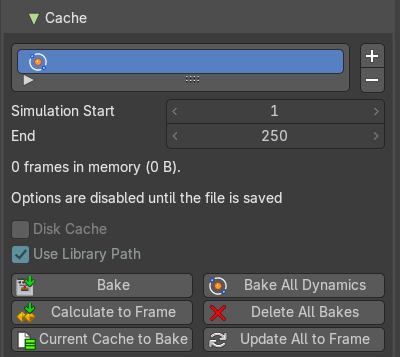
The cloth simulation can be cached in memory or stored on a drive. This improves real-time response and avoids unnecessary recalculation of particles. But creates also big files.
The cloth system uses a unified system for caching and baking (together with Soft Body and Emitter particle).
Important: The file needs to be saved after baking. When the file is not saved then some options are not available. Important: The cloth settings becomes unavailable once the particle cache is baked. You need to remove the bake when you want to change the settings.
Hints
The simulation is only calculated for positive frames in between the Start and End frames of the Cache panel, whether you bake or not. So if you want a simulation that is longer than the default frame range, you have to change the End frame.
When an animation is played, each physics system writes each frame to the cache. Note that for the cache to fill up, one has to start the playback before or on the frame that the simulation starts.
The cache is cleared automatically on changes. But not on all changes, so it may be necessary to free it manually. For example if you change a force field.
The system is protected against changes after baking. If for example the mesh changes the simulation is not calculated anew.
The bake result can be cleared by clicking on the Free Bake button in the simulation cache settings.
A simulation can only be edited in Particle Edit Mode when it has been baked in memory. And cannot be edited if the Disk Cache is used.
If you are not allowed to write to the required sub directory caching will not happen. For example if your blend-file path is very long and your operating system has a limit on the path length that is supported.
Be careful with the sequence of modifiers in the modifier stack. You may have a different number of faces in the 3D Viewport and for rendering (For example when using subdivision surface). Then the rendered result may be very different from what you see in the 3D Viewport.
Caches List

The list of available caches. The caches have no name by default. Double click to add a name.
You can store and manage multiple caches at once for the same physics object. The active cache is the one that gets used.
| Entry | What it does |
|---|---|
| Drag Handler | The two vertical lines at the end is a handler with which you can expand the list. |
| Search Field | You can expand a search field at the bottom of the list. Type in your term and hit enter to filter for your term. · Invert: Exclude the search term instead of searching for it. · Sort by Name: Sort the List by name. |
| Entry | What it does |
|---|---|
| Add New Cache | Add a new cache. |
| Delete current Cache | Deletes the selected cache. |
| Simulation start | The start frame of the simulation. |
| End | The end frame of the simulation. |
| Info string | An info string. Gives different messages, dependent of the status. |
Disk Cache
Save the cache externally in a folder instead inside of the blend file. The cache of a baked simulation will be stored inside the blend-file when you save it. A folder named blendcache_[filename] will then be created alongside the blend-file. The blend-file must be saved first and then again.
Use Library Path
Share the disk cache when the physics object is linked into another blend-file.
When this option is enabled, linked versions of the object will reference the same disk cache. Otherwise linked versions of the object will use independent caches.
Compression
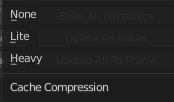
The compression level for cached files.
| Entry | What it does |
|---|---|
| None | Do not compress the cache. |
| Light | Compression will optimize the speed of compressing/decompressing operations over file size. |
| Heavy | Compression will result in smaller cache files, but requires more CPU power to compress / decompress. |
Bake / Delete Bake
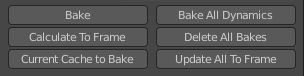
Start baking. Once you have baked the cache the button turns into a Delete bake button. And allows you to remove the bake.
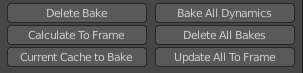
The baking progress can be seen in the footer. You need to be in Object Mode to bake.

| Entry | What it does |
|---|---|
| Calculate To Frame | Bake only up to the current frame. Limited by End frame set in the cache settings. |
| Current Cache to Bake | Store any temporarily cached simulation data as a bake. Note that playing the animation will try to simulate any visible physics simulations. Depending on the physics type, this data may be temporarily cached. Normally such temporary caches are cleared when an object or setting is modified, but converting it to a bake will “save” it. |
| Bake All Dynamics | Bake all physics systems in the scene, even those of different types. Useful for baking complex setups involving interactions between different physics types. |
| Delete All Bakes | Free bakes of all physics systems in the scene, even those of different types. |
| Update All To Frame | Bake all physics systems in the scene to the current frame. |
Shape subpanel
Pin Group
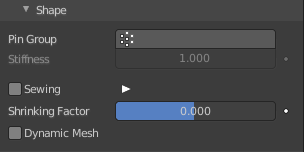
Vertex group to use for pinning.
The shape of the cloth can be controlled by pinning cloth to a Vertex Group. There are several ways of doing this including Weight Painting areas you want to pin. The weight of each vertex in the group controls how strongly it is pinned.
Stiffness
Target position stiffness.
Sewing

Another method of restraining cloth similar to pinning is sewing springs. Sewing springs are virtual springs that pull vertices in one part of a cloth mesh toward vertices in another part of the cloth mesh. This is different from pinning which binds vertices of the cloth mesh in place or to another object. A clasp on a cloak could be created with a sewing spring. The spring could pull two corners of a cloak about a character’s neck. This could result in a more realistic simulation than pinning the cloak to the character’s neck since the cloak would be free to slide about the character’s neck and shoulders.
Sewing springs are created by adding extra edges to a cloth mesh that are not included in any faces. They should connect vertices in the mesh that should be pulled together. For example the corners of a cloak.
Sewing Force Max
Maximum force that can be applied by sewing springs. Zero means unbounded, but it is not recommended to leave the field at zero in most cases, as it can cause instability due to extreme forces in the initial frames where the ends of the sewing springs are far apart.
Shrinking Factor
Factor by which to shrink the cloth, specifying a negative value controls the amount for the cloth to grow.
Dynamic Mesh
Allows animating the rest shape of cloth using shape keys or modifiers (e.g. an Armature modifier or any deformation modifier) placed above the Cloth modifier. When it is enabled, the rest shape is recalculated every frame, allowing unpinned cloth to squash and stretch following the character with the help of shape keys or modifiers, but otherwise move freely under control of the physics simulation.
Normally cloth uses the state of the object in the first frame to compute the natural rest shape of the cloth, and keeps that constant throughout the simulation. This is reasonable for fully realistic scenes, but does not quite work for clothing on cartoon style characters that use a lot of squash and stretch.
Collisions subpanel

In most cases, a piece of cloth collides with other objects in the environment. To ensure proper simulation, there are several items that have to be set up and working together.
- The Cloth object must be told to participate in collisions.
- Optionally (but recommended) tell the cloth to collide with itself.
- Other objects must be visible to the Cloth object via shared layers.
- The other objects must be mesh objects.
- The other objects may move or be themselves deformed by other objects (like an armature or shape key).
- The other mesh objects must be told to deflect the cloth object.
- The blend-file must be saved in a directory so that simulation results can be saved.
- You then Bake the simulation. The simulator computes the shape of the cloth for a frame range.
- You can then edit the simulation results, or make adjustments to the cloth mesh, at specific frames.
- You can make adjustments to the environment or deforming objects, and then re-run the cloth simulation from the current frame forward.
Troubleshooting
If you encounter some problems with collision detection, there are a few ways to fix them:
The fastest solution is to increase the Distance for Object/Self Collisions. This will be the fastest way to fix the clipping; however, it will be less accurate and will not look as good. Using this method tends to make it look like the cloth is resting on air, and gives it a very rounded look.
A second method is to increase the Quality (in the Cloth panel). This results in smaller steps for the simulator and therefore to a higher probability that fast-moving collisions get caught. You can also increase the Collisions Quality to perform more iterations to get collisions solved.
If none of the methods help, you can easily edit the cached/baked result in Edit Mode afterwards.
If the Cloth is torn by the deforming mesh; increase the stiffness settings.
Quality
A general quality setting. Higher numbers take more time but ensure less tears and penetrations through the cloth.
Object Collisions sub subpanel
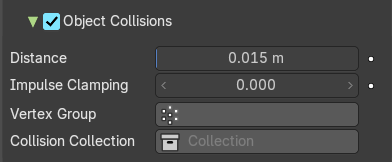
If the cloth object needs to be deflected by some other object. To deflect a cloth, the object must be enabled as an object that collides with the cloth object. To enable objects to collide with cloth objects enable collision physics for the collider object (not on the cloth object).
Note: If your colliding object is not a mesh object, such as a NURBS surface, or a text object, you must convert it to a mesh object first.
| Entry | What it does |
|---|---|
| Distance | The distance another object must get to the cloth for the simulation to repel the cloth out of the way. Smaller values might give errors but gives some speed-up while larger will give unrealistic results if too large and can be slow. It is best to find a good in between value. |
| Impulse Clamping | Prevents explosions in tight and complicated collision situations by restricting the amount of movement after a collision. |
| Vertex Group | Triangles with all vertices in this group are not used during object collision. |
| Collision Collection | Only objects that are a part of this Collection can collide with the cloth. Note that these objects must also have Collision physics enabled. |
Self-Collisions sub subpanel
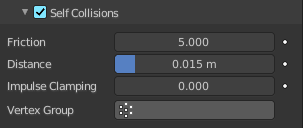
Real cloth cannot penetrate itself, so you normally want the cloth to self-collide. Enable this to tell the cloth object that it should not penetrate itself. This adds to the simulation’s compute time, but provides more realistic results.
Tip: A flag, viewed from a distance does not need this enabled, but a close-up of a cape or blouse on a character should have this enabled.
| Entry | What it does |
|---|---|
| Friction | A coefficient for how slippery the cloth is when it collides with itself. For example, silk has a lower coefficient of friction than cotton. |
| Distance | As cloth at this distance begins to repel away from itself. Smaller values might give errors but gives some speed-up while larger will give unrealistic results if too large and can be slow. It is best to find a good in between value. |
| Impulse Clamping | Prevents explosions in tight and complicated collision situations by restricting the amount of movement after a collision. |
| Vertex Group | Only vertices that are a part of this Vertex Group can collide with each other. |
Property Weights subpanel
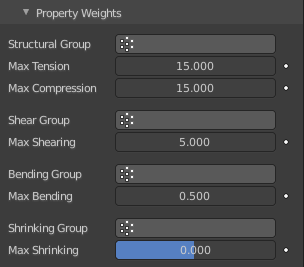
This panel is used to constrain certain cloth properties to a certain vertex group. The properties that they control can be found in a combination of the Physical Properties and Shape panels.
| Entry | What it does |
|---|---|
| Structural Group | Defines a vertex group to control over structural stiffness. |
| Max Tension | Maximum tension stiffness value. |
| Max Compression | Maximum Compression stiffness value. |
| Shear Group | Vertex group for fine control over shear stiffness. |
| Max Shearing | Maximum shear scaling value. |
| Bending Group | Vertex group for fine control over bending stiffness. |
| Max Bending | Maximum bending stiffness value. |
| Shrinking Group | Vertex group for shrinking cloth. |
| Max Shrinking | Max amount to shrink cloth by, specifying a negative value controls the max amount for the cloth to grow. |
Field Weights subpanel
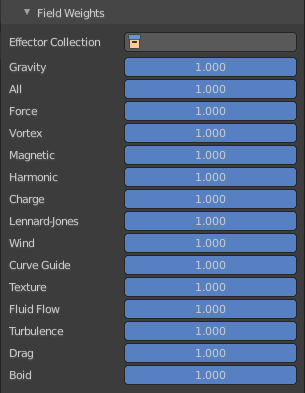
Cloth simulation is also influenced by external force effectors. This panel allows you to adjust these forces.