

































































Hair - Children panel
Children are Hair or Emitter particles originating from individual particles. They allow to work with a relatively low amount of Parent particles. Which reduces the calculation effort.
Children panel

Children are Hair or Emitter particles originating from individual particles. They allow to work with a relatively low amount of Parent particles. Which reduces the calculation effort.

If you activate children, then the parents are no longer rendered. They can be re-enabled in the Render panel in the Extras subpanel. Parent Particles. By default, parent particles are not rendered because the shape of the children can be quite different from that of their parents.
Children panel - Type None
Child Type
None
No children are generated. No settings.
Children panel - Type Simple
Simple
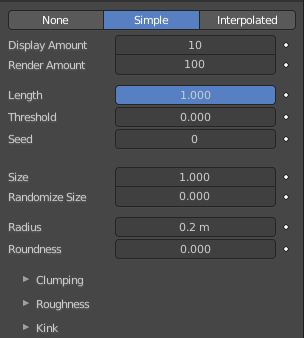
Children are emitted from the parent position.
| Entry | What it does |
|---|---|
| Display Amount | The number of children in the 3D Viewport. |
| Render Amount | The number of children to be rendered. |
| Length | Length of child paths. |
| Threshold | Amount of particles left untouched by child path length. |
| Seed | Offset in the random number table for child particles, to get a different randomized result. |
| Size | A multiplier for children size. |
| Random Size | Random variation to the size of child particles |
| Radius | The radius in which the children are distributed around their parents. This is 3D, so children may be emitted higher or lower than their parents. |
| Roundness | The roundness of the children around their parents. Either in a sphere (1.0) or in-plane (0.0). |
Children panel - Type Simple - Clumping subpanel
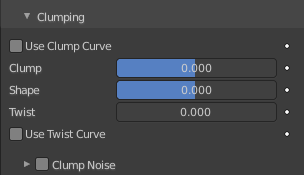
Clumping allows as the name says to break the even look, and clump particles together.
Use Clump Curve
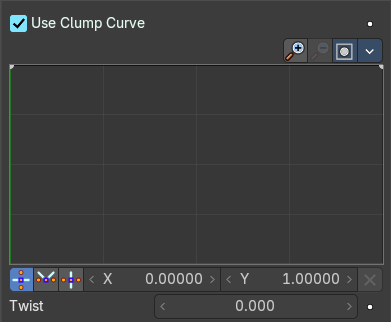
Use a Curve instead of parameters to adjust the clumping.
| Entry | What it does |
|---|---|
| Adding Points | You can add new curve points by simply left clicking at the curve. Move the mouse to position them where you need it. |
| Selecting Points | You can select curve points by clicking at them. Selected points can be moved around. Left click at them, hold the mouse button down and move them to a new location. |
Navigation elements
The navigation elements at the top are described from left to right.
Zoom in and out
The two buttons with the magnifying glass at it zooms in and out in the curve window.
Clipping
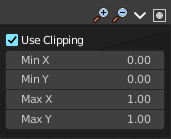
Clipping options. Set up clipping for the stroke.
| Entry | What it does |
|---|---|
| Delete Points | Deletes selected curve points. |
| Tools | Tools is a menu where you can find some curve related tools. · Reset View: Resets the curve windows zoom. · Extend horizontal: Extend the curve horizontally before the first and after the last curve point. · Extend vertical: Extend the curve vertically before the first and after the last curve point. · Reset Curve: Resets the curve to the initial shape. |
| Vector Handle | Set handle type to Vector. |
| Auto Handle | Set handle type to Auto. |
| Auto Clamped Handle | Set handle type to Auto Clamped. |
| X / Y values | The x and y position of the current selected curve point. |
| Delete Points | Delete the current selected curve point. |
| Twist | Number of turns around parent along the strand. |
| Entry | What it does |
|---|---|
| Clump | Clumping amount along child strands. The children may meet at their tip (1.0) or start together at their root (-1.0). |
| Shape | Form of Clump. Either inverse parabolic (0.99) or exponentially (-0.99). |
| Twist | Number of turn around parent along the strand. |
Use Clump Curve
Use a Curve instead of parameters to adjust the clumping.
| Entry | What it does |
|---|---|
| Adding Points | You can add new curve points by simply left clicking at the curve. Move the mouse to position them where you need it. |
| Selecting Points | You can select curve points by clicking at them. Selected points can be moved around. Left click at them, hold the mouse button down and move them to a new location. |
Navigation elements
The navigation elements at the top are described from left to right.
Zoom in and out
The two buttons with the magnifying glass at it zooms in and out in the curve window.
Clipping
Clipping options. Set up clipping for the stroke.
| Entry | What it does |
|---|---|
| Delete Points | Deletes selected curve points. |
| Tools | Tools is a menu where you can find some curve related tools. · Reset View: Resets the curve windows zoom. · Extend horizontal: Extend the curve horizontally before the first and after the last curve point. · Extend vertical: Extend the curve vertically before the first and after the last curve point. · Reset Curve: Resets the curve to the initial shape. |
| Vector Handle | Set handle type to Vector. |
| Auto Handle | Set handle type to Auto. |
| Auto Clamped Handle | Set handle type to Auto Clamped. |
| X / Y values | The x and y position of the current selected curve point. |
| Delete Points | Delete the current selected curve point. |
Children panel - Type Simple - Clump Noise subpanel
Clump Noise subpanel
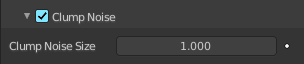
Creates random clumps around the parent hair.
Clump Noise Size
The size of clump noise.
Children panel - Type Simple - Roughness subpanel
Give the particles a roughness.
Use Roughness Curve
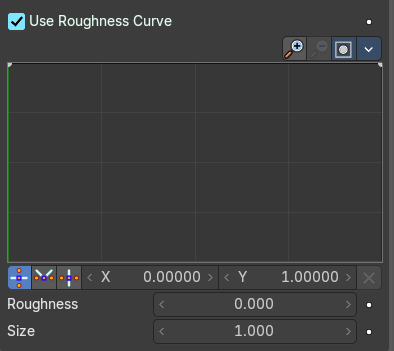
Use Curve Widget instead of parameters.
| Entry | What it does |
|---|---|
| Adding Points | You can add new curve points by simply left clicking at the curve. Move the mouse to position them where you need it. |
| Selecting Points | You can select curve points by clicking at them. Selected points can be moved around. Left click at them, hold the mouse button down and move them to a new location. |
Navigation elements
The navigation elements at the top are described from left to right.
Zoom in and out
The two buttons with the magnifying glass at it zooms in and out in the curve window.
Clipping
Clipping options. Set up clipping for the stroke.
| Entry | What it does |
|---|---|
| Delete Points | Deletes selected curve points. |
| Tools | Tools is a menu where you can find some curve related tools. · Reset View: Resets the curve windows zoom. · Extend horizontal: Extend the curve horizontally before the first and after the last curve point. · Extend vertical: Extend the curve vertically before the first and after the last curve point. · Reset Curve: Resets the curve to the initial shape. |
| Vector Handle | Set handle type to Vector. |
| Auto Handle | Set handle type to Auto. |
| Auto Clamped Handle | Set handle type to Auto Clamped. |
| X / Y values | The x and y position of the current selected curve point. |
| Delete Points | Delete the current selected curve point. |
Roughness
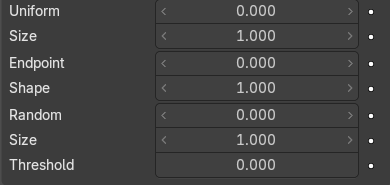
Amount of location dependent roughness.
| Entry | What it does |
|---|---|
| Size | Size of location dependent roughness. |
| Uniform | “Rough End” randomizes path ends (a bit like random negative clumping). Shape may be varied from <1 (parabolic) to 10.0 (hyperbolic). |
| Size | It is based on children location so it varies the paths in a similar way when the children are near. |
| Endpoint | “Rough End” randomizes path ends (a bit like random negative clumping). Shape may be varied from <1 (parabolic) to 10.0 (hyperbolic). |
| Shape | “Rough End” randomizes path ends (a bit like random negative clumping). Shape may be varied from <1 (parabolic) to 10.0 (hyperbolic). |
| Random | It is based on a random vector so it is not the same for nearby children. The threshold can be specified to apply this to only a part of children. This is useful for creating a few stray children that will not do what others do. |
| Size | It is based on a random vector so it is not the same for nearby children. The threshold can be specified to apply this to only a part of children. This is useful for creating a few stray children that will not do what others do. |
| Threshold | It is based on a random vector so it is not the same for nearby children. The threshold can be specified to apply this to only a part of children. This is useful for creating a few stray children that will not do what others do. |
Children panel - Type Simple + Interpolated - Kink subpanel
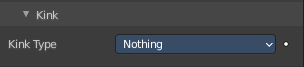
With Kink you can rotate the children around the parent.
Kink Type
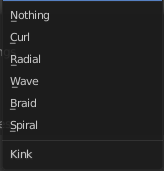
Nothing
Deactivated.
Curl, Radial, Wave, Braid
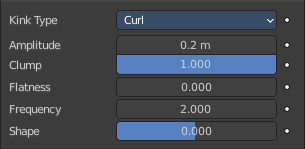
Curl - Children grow in a spiral around the parent hairs.
Radial - Children form around the parent a wave shape that passes through the parent hair.
Wave - Children form a wave, all in the same direction.
Braid - Children braid themselves around the parent hair.
| Entry | What it does |
|---|---|
| Amplitude | The amplitude of the offset. |
| Clump | How much clump effects kink amplitude. |
| Flatness | How flat the hairs are. |
| Frequency | The frequency of the offset (1/total length). The higher the frequency the more rotations are done. |
| Shape | Where the rotation starts (offset of rotation). |
Spiral
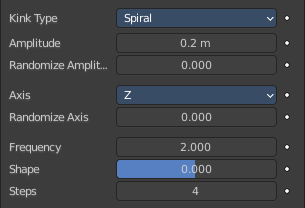
Generates a spiral at the end of each hair.
| Entry | What it does |
|---|---|
| Amplitude | The amplitude of the offset. |
| Randomize Amplitude | Give the amplitude a random variation. |
Axis
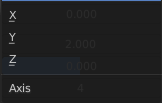
Which axis to use for offset.
| Entry | What it does |
|---|---|
| Randomize Axis | Randomize the orientation. |
| Frequency | The frequency of the offset (1/total length). The higher the frequency the more rotations are done. |
| Shape | Where the rotation starts (offset of rotation). |
| Steps | Extra steps for resolution of special kink features. |
Children panel - Type Interpolated
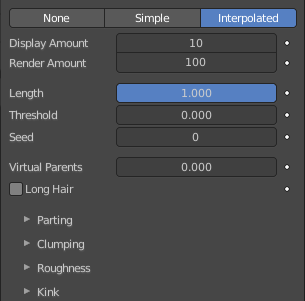
Children are emitted between the Parent particles on the faces of a mesh. They interpolate between adjacent parents. This is especially useful for fur, because you can achieve an even distribution. Some of the children can become virtual parents, which are influencing other particles nearby.
| Entry | What it does |
|---|---|
| Display Amount | The number of children in the 3D Viewport. |
| Render Amount | The number of children to be rendered. |
| Length | Length of child paths. |
| Threshold | Amount of particles left untouched by child path length. |
| Seed | Offset in the random number table for child particles, to get a different randomized result. |
| Virtual Parents | Relative Amount of virtual parents. |
| Long Hair | Belongs to Hair particles. Calculate children that suit long hair well. |
Children panel - Type Interpolated - Parting subpanel
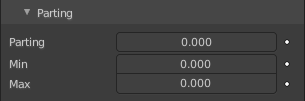
This panel belongs to Hair particles.
| Entry | What it does |
|---|---|
| Parting | Creates parting in the children based on parent strands. |
| Min | Minimum root to tip angle. Tip distance / root distance for long hair. |
| Max | Maximum root to tip angle. Tip distance / root distance for long hair. |
Children panel - Type Interpolated - Clumping subpanel
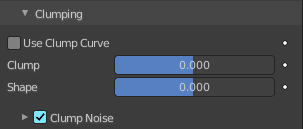
Clumping allows as the name says to break the even look, and clump particles together.
Use Clump Curve
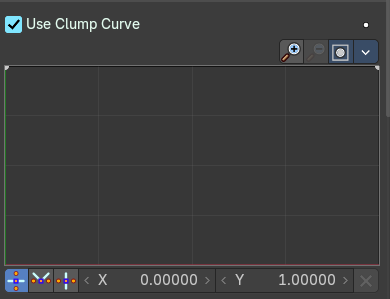
Use a Curve instead of parameters to adjust the clumping.
| Entry | What it does |
|---|---|
| Adding Points | You can add new curve points by simply left clicking at the curve. Move the mouse to position them where you need it. |
| Selecting Points | You can select curve points by clicking at them. Selected points can be moved around. Left click at them, hold the mouse button down and move them to a new location. |
Navigation elements
The navigation elements at the top are described from left to right.
Zoom in and out
The two buttons with the magnifying glass at it zooms in and out in the curve window.
Clipping
Clipping options. Set up clipping for the stroke.
| Entry | What it does |
|---|---|
| Delete Points | Deletes selected curve points. |
| Tools | Tools is a menu where you can find some curve related tools. · Reset View: Resets the curve windows zoom. · Extend horizontal: Extend the curve horizontally before the first and after the last curve point. · Extend vertical: Extend the curve vertically before the first and after the last curve point. · Reset Curve: Resets the curve to the initial shape. |
| Vector Handle | Set handle type to Vector. |
| Auto Handle | Set handle type to Auto. |
| Auto Clamped Handle | Set handle type to Auto Clamped. |
| X / Y values | The x and y position of the current selected curve point. |
| Delete Points | Delete the current selected curve point. |
| Entry | What it does |
|---|---|
| Clump | Clumping amount along child strands. The children may meet at their tip (1.0) or start together at their root (-1.0). |
| Shape | Form of Clump. Either inverse parabolic (0.99) or exponentially (-0.99). |
Clump Noise subpanel
Creates random clumps around the parent hair.
Clump Noise Size
The size of clump noise.