

































































Hair - Cache Panel
Particle data can be cached in memory or stored on a drive. This improves real-time response and avoids unnecessary recalculation of particles. But creates also big files.
Cache Panel
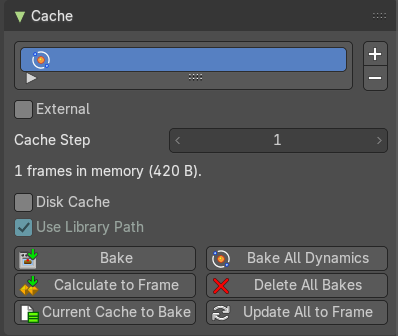
Particle data can be cached in memory or stored on a drive. This improves real-time response and avoids unnecessary recalculation of particles. But creates also big files.
The Emitter particle system uses a unified system for caching and baking (together with Soft Body and Cloth).
Important: The file needs to be saved after baking. When the file is not saved then some options are not available. Important: The particle settings becomes unavailable once the particle cache is baked. You need to remove the bake when you want to change the settings.
Hints
The simulation is only calculated for positive frames in between the Start and End frames of the Cache panel, whether you bake or not. So if you want a simulation that is longer than the default frame range, you have to change the End frame.
When an animation is played, each physics system writes each frame to the cache. Note that for the cache to fill up, one has to start the playback before or on the frame that the simulation starts.
The cache is cleared automatically on changes. But not on all changes, so it may be necessary to free it manually. For example if you change a force field.
The system is protected against changes after baking. If for example the mesh changes the simulation is not calculated anew.
The bake result can be cleared by clicking on the Free Bake button in the simulation cache settings.
A simulation can only be edited in Particle Edit Mode when it has been baked in memory. And cannot be edited if the Disk Cache is used.
If you are not allowed to write to the required sub directory caching will not happen. For example if your blend-file path is very long and your operating system has a limit on the path length that is supported.
Be careful with the sequence of modifiers in the modifier stack. You may have a different number of faces in the 3D Viewport and for rendering (For example when using subdivision surface). Then the rendered result may be very different from what you see in the 3D Viewport.
Caches List
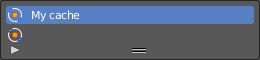
The list of available caches. The caches have no name by default. Double click to add a name.
You can store and manage multiple caches at once for the same physics object. The active cache is the one that gets used.
| Entry | What it does |
|---|---|
| Drag Handler | The two vertical lines at the end is a handler with which you can expand the list. |
| Search Field | You can expand a search field at the bottom of the list. Type in your term and hit enter to filter for your term. · Invert: Exclude the search term instead of searching for it. · Sort by Name: Sort the List by name. |
| Entry | What it does |
|---|---|
| Add New Cache | Add a new cache. |
| Delete current Cache | Deletes the selected cache. |
External
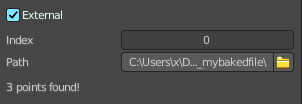
Allows you to read the cache from a drive using a user-specified file path.
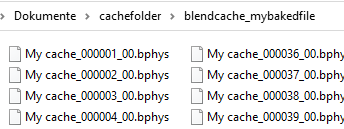
Note: The cache name in Caches List and the Index Number has to exactly match the external cache files name in order to work. The cache files name format is name_frame_index.bphys.
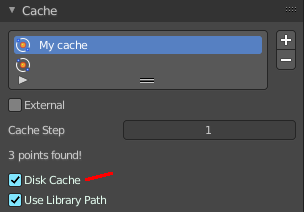
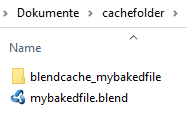
You can create such cache files when you tick Disk cache with External off, and save the blend file. Then the bphys files gets created in a folder besides the blend file.
| Entry | What it does |
|---|---|
| Index Number | The index number of cache files. (The last two digits of the files name.) |
| File Path | Select the directory path to the cache files. |
| Info string | An info string. Gives different messages, dependent of the status. |
| Entry | What it does |
|---|---|
| Cache Step | The interval for storing simulation data. Note! Some physics systems (such as particles) allow for positions to be stored only on every nth frame, letting the positions for in-between frames be interpolated. Using a cache step greater than one will result in a smaller cache, but the result may differ from the original simulation. |
| Info string | An info string. Gives different messages, dependent of the status. |
Disk Cache
Save the cache externally in a folder instead inside of the blend file. The cache of a baked simulation will be stored inside the blend-file when you save it. A folder named blendcache_[filename] will then be created alongside the blend-file. The blend-file must be saved first and then again.
Use Library Path
Share the disk cache when the physics object is linked into another blend-file.
When this option is enabled, linked versions of the object will reference the same disk cache. Otherwise linked versions of the object will use independent caches.
Bake / Delete Bake
Start baking. Once you have baked the cache the button turns into a Delete bake button. And allows you to remove the bake.
The baking progress can be seen in the footer. You need to be in Object Mode to bake.

| Entry | What it does |
|---|---|
| Calculate To Frame | Bake only up to the current frame. Limited by End frame set in the cache settings. |
| Current Cache to Bake | Store any temporarily cached simulation data as a bake. Note that playing the animation will try to simulate any visible physics simulations. Depending on the physics type, this data may be temporarily cached. Normally such temporary caches are cleared when an object or setting is modified, but converting it to a bake will “save” it. |
| Bake All Dynamics | Bake all physics systems in the scene, even those of different types. Useful for baking complex setups involving interactions between different physics types. |
| Delete All Bakes | Deletes all bakes of all physics systems in the scene, even those of different types. |
| Update All To Frame | Bake all physics systems in the scene to the current frame. |