

































































Output Properties Tab
The Output properties contains all the settings to render the final image or movie. Most o fthe settings are the same for all three available render engines.
Output Properties Tab
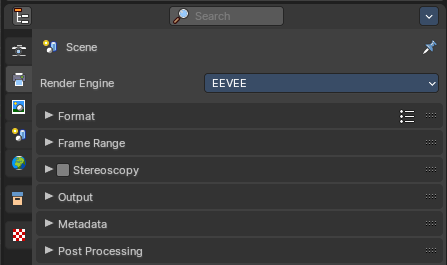
The Output properties contains all the settings to render the final image or movie. Most o fthe settings are the same for all three available render engines.
Render Engine
Shows the active render engine. Specific renderer does have other settings. And you can also switch to another renderer. But note that this is more a visual guide. It misses the Cycles render settings.
Dimensions Panel
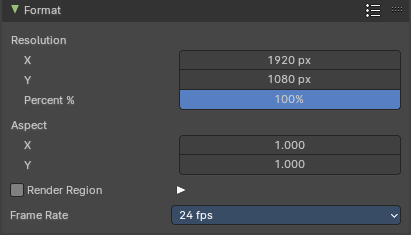
This panel contains the dimension settings.
Presets
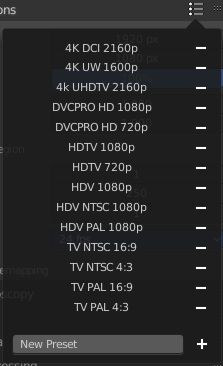
A list of dimension presets with the most common settings.
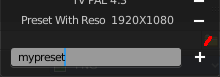
To add a new preset type in a new preset name into the edit box at the end of the list, and click at the + sign.
To remove a preset click at the - sign behind the name.
| Entry | What it does |
|---|---|
| Resolution X / Y | The dimensions of the image in pixels. % Render the image in per cent of the original image. You can for example render in 200% of the resolution values. Or in 50%. |
| Aspect X / Y | The image aspect ratio. For anamorphic or non square pixel output. |
Render Region

Activate render region for the output image.
There is a render region feature in the 3D view and in the Image editor where you can render a portion of the screen for preview purposes. Normally the output will always render the full image then, regardless of the render region. When you activate Render Region then the output will also render the render region only, and not the full image.
Crop to Render Region
Crop the output image to the size of the render region.
Frame Rate
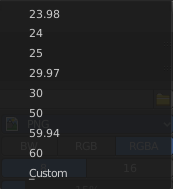
The output frame rate. When you choose custom then two more properties appears.
Frame Range Panel
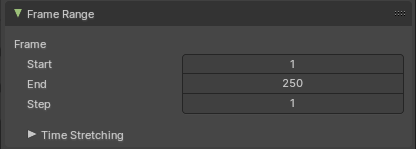
| Entry | What it does |
|---|---|
| Frame Start / End | The start and end frame for an animation. |
| Frame Step | Number of frames to skip forward while playing the animation. With a value of 2 every second frame gets skipped. · FPS: The custom frame per seconds value. · Base: Frame rate base. A multiplier that makes it for example possible to set up 29,97 Frames instead of 30 for NTSC. |
Time Stretching
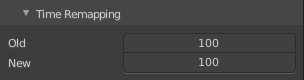
Remap the length of an animation.
| Entry | What it does |
|---|---|
| Old | The old length. |
| New | The new length. |
Stereoscopy Panel
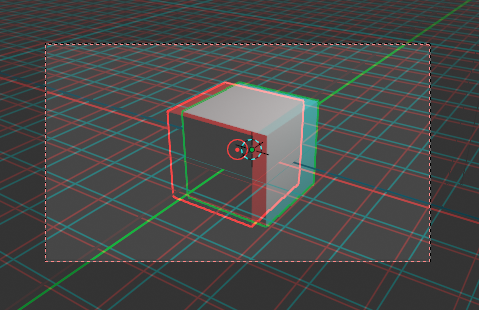
Allows you to render out stereoscopic images from the active camera. For the anaglyph images you need special stereoscopy glasses to see the 3D effect. And in case of the interlace method a 3d ready monitor and shutter glasses.
The anaglyph method is to create stereo images. The interlace method is mostly used in movies.
Workflow
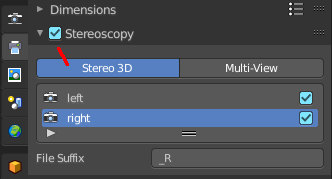
Turn on Stereoscopy.
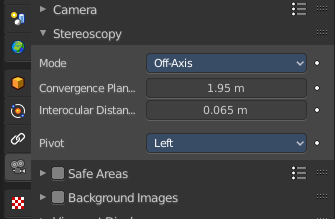
Select the Camera in the Outliner. In the Properties Editor choose the Object Data Properties tab (which should show a camera icon at this point), and open the Stereoscopy panel.
Change the Convergence Plane Distance to your needs. This can also be done in the 3D view with the handlers when you are in Camera view.
Interocular distance is the distance between the left and the right camera.
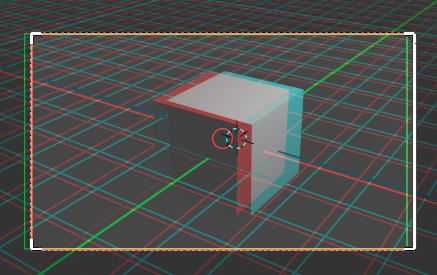
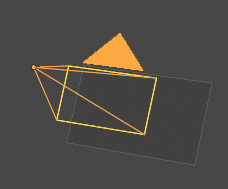
Outside of the camera view you will see this plane in front of the camera.
Adjust the plane to your needs. The plane is the reference point. Everything behind appears behind the focus. Everything before the plane appears before the focus.
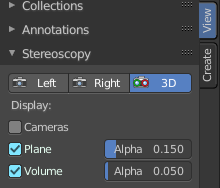
In the sidebar in the 3D view you will find further settings.
Turn on volume to see if the objects are inside of the volume.
Do a preview rendering, and adjust the settings if required.
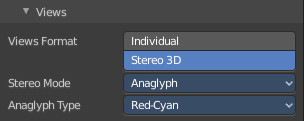
Go back to the Output tab to the Output panel. By activating stereoscopy here is a new section called Views. Here you can find further export settings.
Stereo 3D / Multiview

The stereoscopy method. Stereo 3D uses two predefined virtual cameras. The camera settings gets inherited from the main camera.
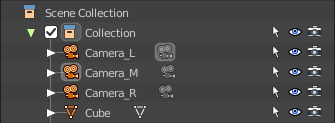
Multiview allows you to set up several cameras manually. You need to create every camera by hand. And you need to follow name conventions to get this to work. In the outliner give the cameras the suffix that you want to use in the list. Here three cameras with a suffix.
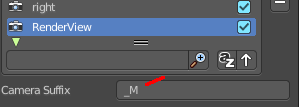
Now do the same in the list of cameras. Give every camera the same suffix than in the outliner. The camera name is not important. Important is the suffix. This is the identifier.
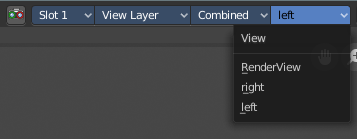
And in the render window you have now the render result of your three cameras.
Note that for stereoscopy just two cameras gets used for rendering the anaglyph or interlaced result. Usually the ones with suffix _L and _R. So our third camera does not influence the stereoscopic image here.
List of Cameras

The list of cameras. Note that with method Stereo 3D these cameras does not exist in the outliner. They are virtually created as child objects to the main camera that you use for rendering.
In this list you can choose the cameras to change the suffix.
The checkbox allows you to disable the cameras. Both options are just of interest for the multi-view setup. Normal stereoscopy setup does not require any further setup.
Resize handler

The resize handler allows you to resize the list.
Search field
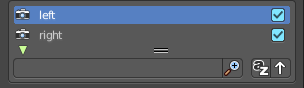
The triangle button down left allows you to open a search field.
Add / Remove / Rename
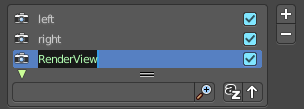
Add adds a custom camera. Remove removes a custom camera. And custom cameras can be renamed by clicking at the name.
The camera names left and right can‘ t be renamed, and you can‘ t remove them from the list. Individual cameras can be renamed and removed.
Suffix

The camera identifier. The suffix gets appended at the end of the single images of the camera. The left camera has the suffix _L, and the right camera has the suffix _R
Output Views Subpanel
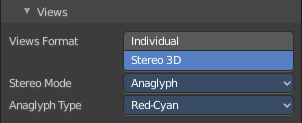
This subpanel just shows with Stereoscopy enabled!
Adjust the stereoscopy export settings. Note that this settings does not adjust what you view in the image editor. This settings influences what you save from the image editor then.
Individual
Save out single images from each camera when you save the result from the image editor. So for a stereoscopic image two images for the two cameras.
Stereo 3D
Save out the stereoscopic image as a single image when you save the result from the image editor.
Stereo Mode
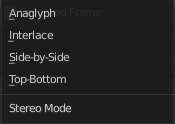
How to export the stereoscopic image with save as in the image editor. There are four methods available.
Stereo Mode Type Anaglyph
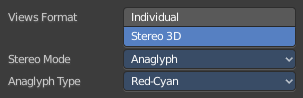
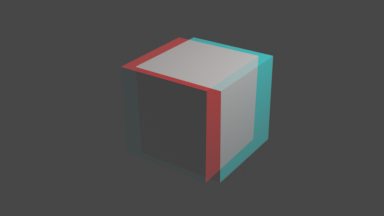
Render Views for left and right eyes as two differently filtered colors in a single image. You need anaglyph glasses to see the 3d effect.
Anaglyph Type
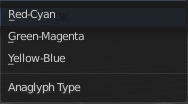
The color model to display the graphics.
Stereo Mode Type Interlace
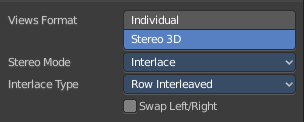
Render Views from left and right eyes interlaced into a single image. You need a 3D Ready monitor to see the stereo effect.
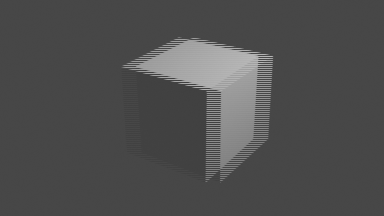
Interlace Type
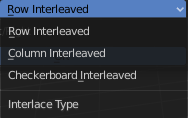
The interlace type that you can choose.
Swap Left/Right
Swaps left and right camera view.
Stereo Mode Type Side by Side
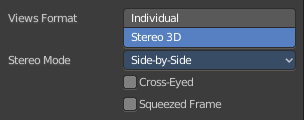
Renders images of the two cameras side by side.
Cross Eyed
Swaps left and right camera view.
Squeezed Frame
Combine both views in a squeezed image.
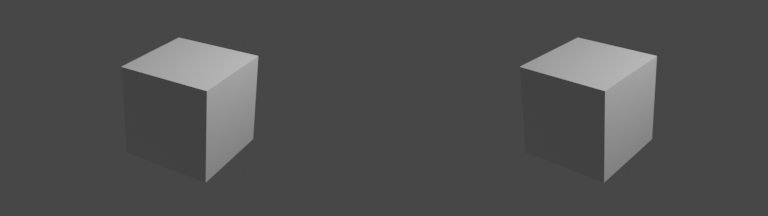
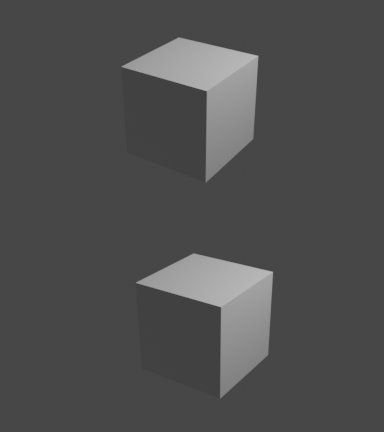
Stereo Mode Type Top Bottom
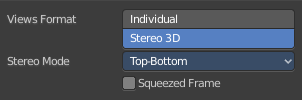
Renders images of the two cameras side by side.
Squeezed Frame
Combine both views in a squeezed image.
Output Panel
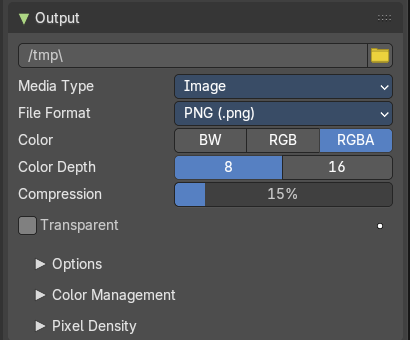
The file output settings.
File Path
The location to save rendered frames. Here you will find rendered animation sequences. For single images you can save out the result in the image editor.
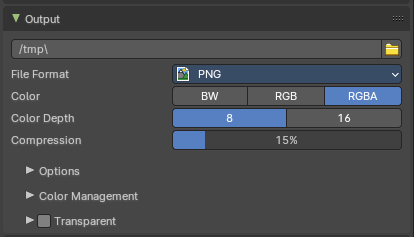
When rendering an animation, the frame number is appended at the end of the file name with four padded zeros (e.g. image0001.png). You can set a custom padding size by adding the appropriate number of # anywhere in the file name (e.g. image_##_test.png translates to image_01_test.png).
This setting expands relative paths where a // prefix represents the directory of the current blend-file.
Load File
Here you can load an existing file to overwrite it. Or you can use it to load a file in a directory and rename it then to your destination file name.
Media Type
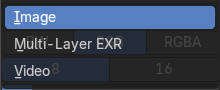
What type of media to export.
Media Type Image
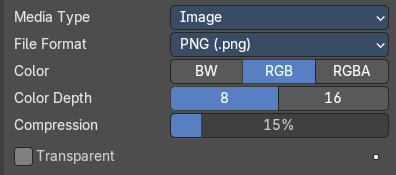
File Format
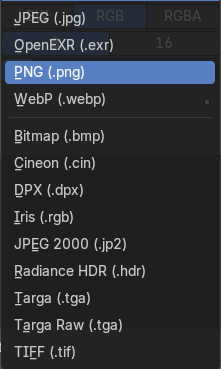
The output image file format.
Each file format has some own settings.
Media Type Image
JPEG
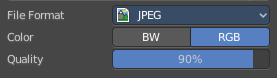
| Entry | What it does |
|---|---|
| Color | The output color format. Black and white, or rgb. |
| Quality | The jpeg quality. |
Open EXR
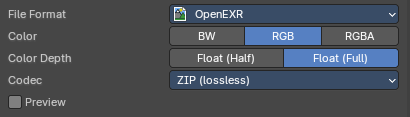
| Entry | What it does |
|---|---|
| Color | The output color format. Black and white, rgb, or RGBA. |
| Color Depth | Float half values or Float full values per channel. |
Codec
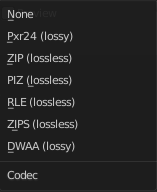
What codec to use.
Preview
When rendering animations, save Jpeg preview images into the same directory.
PNG
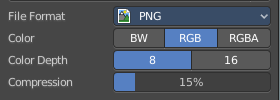
| Entry | What it does |
|---|---|
| Color | The output color format. Black and white, rgb or rgba. |
| Color Depth | 8 or 16 colors per channel. |
| Compression | The compression level. |
WebP

Color
The output color format. Black and white, rgb, or RGBA.
BMP

Color
The output color format. Black and white or rgb.
Cineon
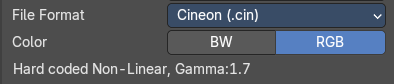
Color
The output color format. Black and white, rgb, or RGBA.
DPX
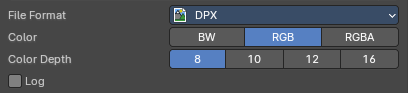
| Entry | What it does |
|---|---|
| Color | The output color format. Black and white, rgb, or RGBA. |
| Color Depth | 8, 10, 12 or 16 colors per channel. |
| Log | Convert to logarithmic color space. |
Iris

Color
The output color format. Black and white, rgb or rgba.
JPEG 2000
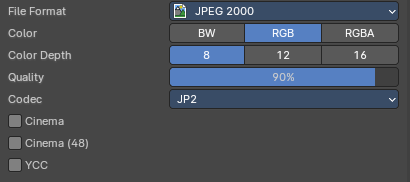
| Entry | What it does |
|---|---|
| Color | The output color format. Black and white, rgb or rgba. |
| Color Depth | 8, 12 or 16 colors per channel. |
| Quality | The jpeg quality. |
Codec
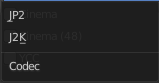
Which jpeg 2000 codec to use.
| Entry | What it does |
|---|---|
| Cinema | Use OpenJpeg Cinema preset. |
| Cinema (48) | Use OpenJpeg Cinema (48) preset. |
| YCC | Save luminance / chrominance / chrominance channels instead of rgb channels. |
Radiance HDR
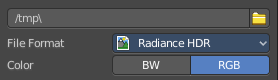
Color
The output color format. Black and white, or rgb.
TIFF
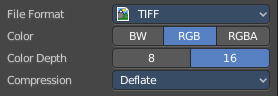
| Entry | What it does |
|---|---|
| Color | The output color format. Black and white, rgb, or RGBA. |
| Color Depth | 8 or 16 bit per channel. |
Compression
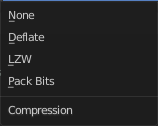
The compression method.
Targa

Color
The output color format. Black and white, rgb or rgba.
Targa Raw

Color
The output color format. Black and white or rgb.
Media Type Multilayer EXR
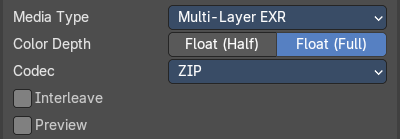
Color Depth
Float half values or Float full values per channel.
Codec
What codec to use.
| Entry | What it does |
|---|---|
| Interleave | Use legacy interleaved storage of views, layers and passes. |
| Preview | When rendering animations, save Jpeg preview images into the same directory. |
Media Type Video

Color
The output color format. Black and white, or rgb.
Transparent

Eevee and Workbench renderer. Render and export the result with transparent background.
Encoding subpanel
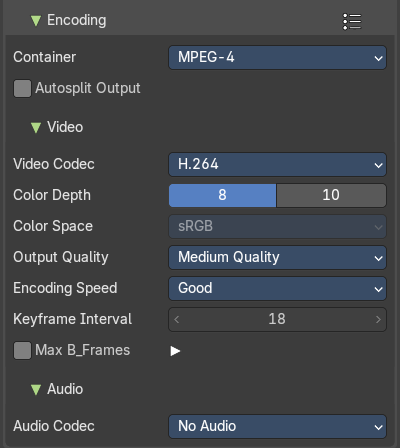
Only available with video format. These options are unavailable for other file formats.
| Entry | What it does |
|---|---|
| Container | Video container or file type, including MPEG-4, Matroska, etc |
| Autosplit Output | Autosplit the exported video file at 2GB boundaries. Note: Useful for longer videos renders |
Video
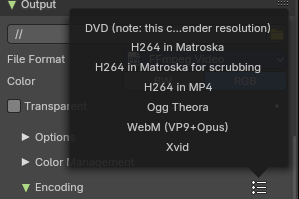
Presets (Header)
These are presets for different groups of settings.
Video Codec
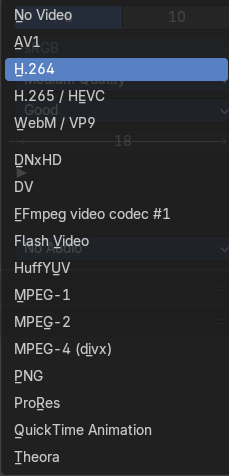
Chooses the method of compression and encoding.
Color Depth
Select between 8 and 10 bit color depths. The Color Depth property in the Encoding block allows to select higher color depths for video output when using suitable codecs in ffmpeg.
For H.264, H.265, and AV1, a 10-bit option is available. Additionally, for H.265 and AV1, a 12-bit option can be chosen.
Note: When 'lossless' encoding is selected, the color format switches from YUV 4:2:0 to YUV 4:4:4, supporting 10-bit or 12-bit variants.
Output Quality
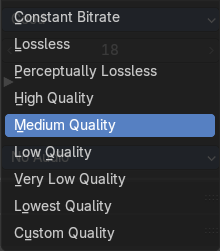
- Constant Bitrate (CBR): This setting maintains a steady bitrate throughout the video, ensuring consistent quality but potentially leading to larger file sizes. Ideal for streaming and situations where bandwidth is limited.
- Lossless: Ensures no data is lost during compression, preserving the original video quality perfectly. This results in larger file sizes but is excellent for archival or high-quality needs.
- Perceptually Lossless: Uses advanced algorithms to compress the video in a way that is visually indistinguishable from the original, while reducing file size significantly.
Compression Levels:
- High: Produces high-quality video with minimal compression, resulting in larger files.
- Medium: Balances quality and file size, suitable for most uses.
- Low: More compression applied, reducing file size but still maintaining decent quality.
- Very Low: High compression, significantly reducing file size but with noticeable quality loss.
- Lowest: Maximum compression, smallest file size with the most quality reduction.
Custom quality
CRF

Constant rate Factor. A smaller value results in better video quality but bigger file size. The range of allowed CRF is dependent on the codec.
Encoding Speed
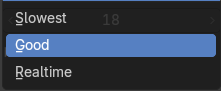
Presets to change between a fast encode (bigger file size) and more compression (smaller file size).
Keyframe Interval
The number of frames in each Group of Pictures (GOP). Set this to 0 for 'intra_only', which means each frame is independent (no inter-frame compression). A higher GOP number typically results in a smaller file size, but it requires a more powerful device to play back smoothly.
Max B-frames

Enables the use of B-frames (bi-directional frames), which are used in video compression to improve efficiency and quality. B-frames can reference both previous and subsequent frames to store motion data more effectively. This generally results in better video quality at a smaller file size, but it may require more processing power to encode and decode the video.
Interval
The 'Interval (of B-frames)' setting determines the maximum number of B-frames (bi-directional frames) that can appear between non-B-frames (I-frames and P-frames) in a video. B-frames help compress video by referencing both previous and future frames, improving overall compression efficiency and quality. Adjusting this interval affects the video's file size and playback performance.
Audio
These settings control how sound is exported when rendering.
Audio Codec
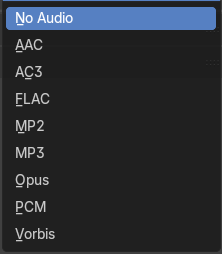
Choose the format for audio output. For a complete list, refer to video formats. You can also export with No Audio.
| Entry | What it does |
|---|---|
| Audio Channels | The number of audio outputs: · Mono:: One audio channel. · Stereo:: Two audio channels (left and right). · 4 Channels:: Four audio channels. · 5.1 Surround:: Six audio channels, including one low-frequency effect (LFE) channel. · 7.1 Surround:: Eight audio channels, including one LFE channel. |
| Sample Rate | Sets how frequently the audio is sampled, affecting quality. |
| Bitrate | Controls the sound quality. Higher bit rates give better sound but result in larger files. |
| Volume | Adjusts the audio output volume. |
Options subpanel
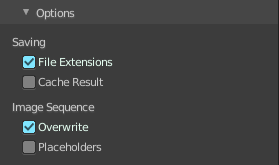
Not all options are available for all file formats.
| Entry | What it does |
|---|---|
| Saving | File Extensions: Adds the correct file extensions per file type to the output files. |
| Cache Result | Saves the rendered image and passes to a Multilayer EXR-file in temporary location on your hard drive. This allows the compositor to read these to improve performance, especially for heavy compositing. |
Image Sequence
Overwrite
Overwrite existing files when rendering.
Placeholders
Create empty placeholder frames while rendering.
Color management subpanel
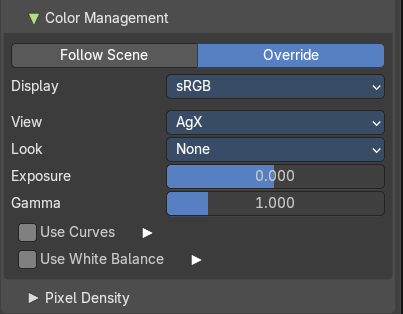
Color management settings
| Entry | What it does |
|---|---|
| Follow scene | Uses the color management from the scene. |
| Override | Uses the color management settings that is defined below instead of the color management from the scene. This settings is in most parts equal to the color management settings in the render properties. But has no settings for the Sequencer. |
Display
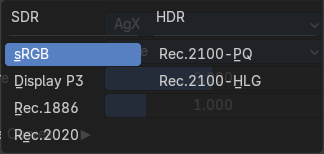
The device that the image is being viewed on. Your monitor.
Most computer monitors are configured for the sRGB (SDR) color space but you can also use high dynamic range monitors (HDR).
Color management can also be disabled by setting the device to None.
View
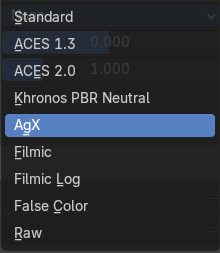
Choose between different ways to view the image on the same monitor.
| Entry | What it does |
|---|---|
| Standard | Does no extra conversion besides the conversion for the display device. |
| ACES 1,3 - 2.0 | Developed by the film industry, ACES is a high-fidelity color management system designed for HDR workflows, wide gamut imaging, and cinematic tone mapping. |
| Khronos PBR Nuetral | A newer tone mapper designed by the Khronos Group for physically-based rendering (PBR), especially in eCommerce, CAD, and product visualization. |
| AGX | A perceptually-driven tone mapper developed to aims to balance realism with usability, avoiding harsh clipping or unnatural clipped saturation. |
| Filmic | For more photo realistic results and better handling of high dynamic range. The contrast can be adjusted by changing the Lookoption for the Filmic view transform. |
| Filmic Log | Converts to Filmic log color space. This can be used for export to color grading applications, or to inspect the image by flattening out very dark and light areas. |
| Raw | Intended for inspecting the image but not for final export. Raw gives the image without any color space conversion. |
| False Color | Shows a heat map of image intensities, to visualize the dynamic range. |
Look
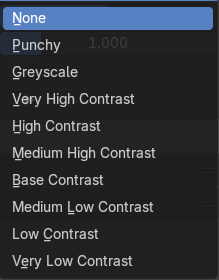
Adjust the contrast.
| Entry | What it does |
|---|---|
| Exposure | Used to control the image brightness (in stops) applied before color space conversion. The calculation is: output value = render value X 2 exposure |
| Gamma | Extra gamma correction applied after color space conversion. Note that the default sRGB or Rec709 color space conversions already include a gamma correction of approximately 2.2 (except the Raw and Log views), so this would be applied in addition to that. |
Use Curves
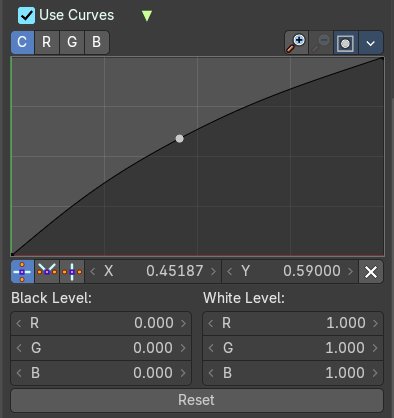
Adjust RGB Curves to control image colors before color space conversion.
C R G B
The single color channels.
Navigation elements
The navigation elements at the top are described from left to right.
Zoom in and out
The two buttons with the magnifying glass at it zooms in and out in the curve window.
Clipping
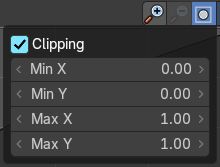
Clipping options. Set up clipping for the stroke.
Delete Points
Deletes selected curve points.
Tools
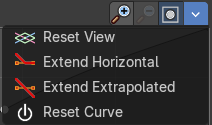
Tools is a menu that contains some cuve related tools.
| Entry | What it does |
|---|---|
| Reset View | Resets the curve windows zoom. |
| Extend Horizontal | Causes the curve to stay horizontal before the first point and after the last point. |
| Extend Extrapolated | Causes the curve to extrapolate before the first point and after the last point, based on the shape of the curve. |
| Reset Curve | Resets the curve to the initial shape. |
| Vector Handle | Set handle type to Vector. |
| Auto Handle | Set handle type to Auto. |
| Auto Clamped Handle | Set handle type to Auto Clamped. |
| X / Y | The x and y position of the currently selected curve point. |
| Delete | Delete the currently selected curve point. |
Black Level
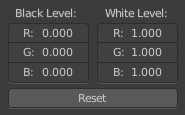
The color that Black is mapped to.
White Level
The color that White is mapped to.
Hotkeys for Black and White Level
You may want to sample the black and white level colors directly in the image by clicking at an area. There are hotkeys for that.
Ctrl + Left Mouse click in the image sets the Black level value from that position.
Shift + Left Mouse click in the image sets the White Level value from that position.
To see the result you need to tick the View as Render button in the render window. It can be found in the sidebar.

Reset
Resets the Curve and the Black and White Level values to the default values.
Use White Balance subpanel
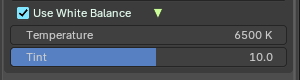
Enables manual control over the color temperature and tint of the scene or image. When checked, Blender applies the adjustments below to simulate camera-style white balance correction.
Temperature
Adjusts the warmth or coolness of the image:
- Lower values (e.g., 3000 K) → warmer tones (orange/yellow), simulating indoor or sunset lighting.
- Higher values (e.g., 6500 K) → cooler tones (blue), simulating daylight or overcast conditions.
Note: 6500 K is considered neutral daylight—great for balanced lighting setups.
Tint
Shifts the green–magenta balance:
- Positive values → more magenta
- Negative values → more green
Transparent subpanel
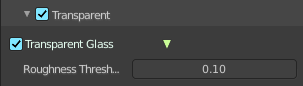
Cycles only. Enable the rendering of transparent background.
| Entry | What it does |
|---|---|
| Transparent Glass | Render glass with transparent background. |
| Roughness Threshold | For transparent transmission. Keep surfaces with roughness above the threshold opaque. |
Pixel density subpanel
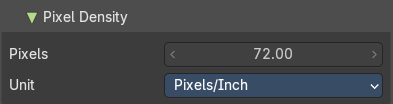
Pixels
The pixel density meta-data written to supported image formats. This value is multiplied by the PPM-base which defines the unit. Typically inches or meters.
Unit
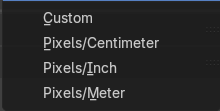
The pixel unit.
Metadata Panel
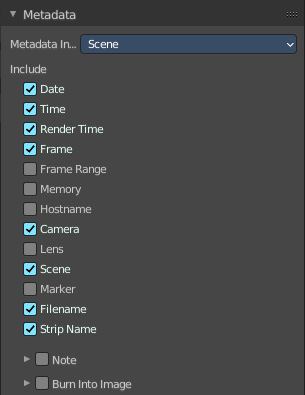
What metadata to include into the image or movie.
Metadata Input
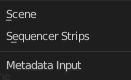
Where to get the Metadata from.
Include
What Metadata to include.
Note

Include a custom comment.
Burn into Image
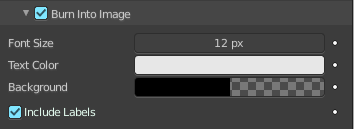
Render the stamp info text into the image. The information is cluttered across the rendered image. Parts of it appears up left in the rendering. Parts down left, and parts down right.
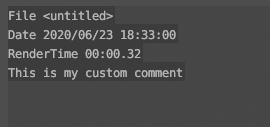

The props have decorators. This means this information can be keyframed. The font itself is the system font, and cannot be changed.
| Entry | What it does |
|---|---|
| Font Size | The font size. |
| Text Color | The text color. |
| Background | The background color of the text. |
| Include Labels | Display stamp labels like "Camera" in front of camera name, etc. |
Post Processing Panel
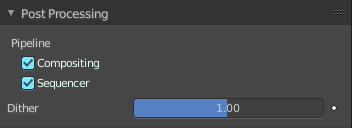
Enable Post Processing.
| Entry | What it does |
|---|---|
| Pipeline | Compositing: Process the pipeline through the compositing in case compositing nodes are enabled. · Sequencer: Process the pipeline (and composited result) through the video sequence pipeline in case Sequencer strips exists. |
| Dither | Amount of dithering noise added to the rendered image to break up banding. This prop has a decorator, and can be keyframe animated. |