

































































Object Properties Tab
The Object tab contains all general object related settings like Transform, Relation or Collection related things.
Object Tab
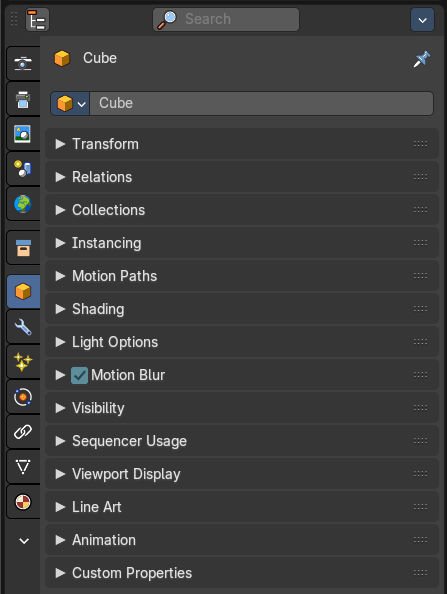
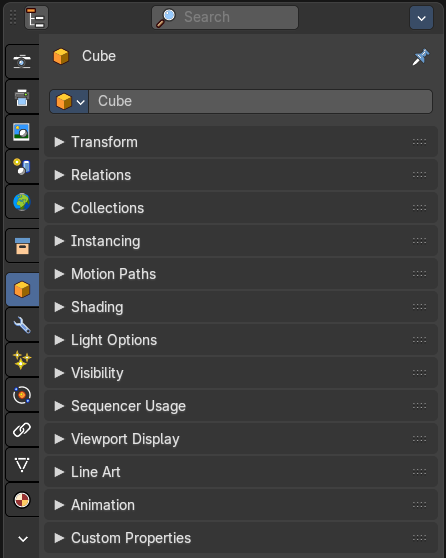
The Object tab contains all general object related settings like Transform, Relation or Collection related things.
Object Data Prop
Displays what object is currently selected.
Object browser
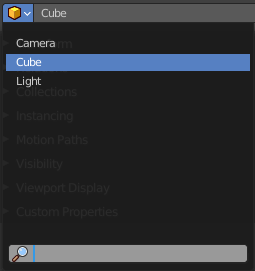
A list of the objects in the scene. In this list you can also choose another object. And you can rename the object.
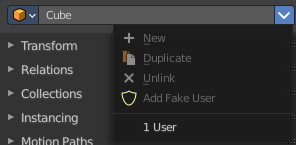
File selector menu
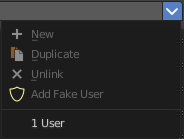
This menu has no meaning in this context. All menu items are disabled.
Transform Panel
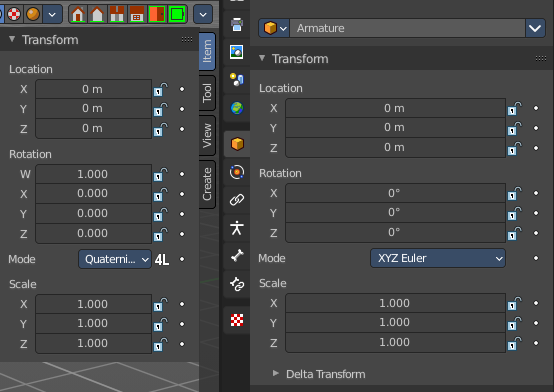
Transform is position, rotation and scale of the object. It is partially the same content that you see in Object mode in the Properties sidebar in the 3D view.
However, when you switch to Edit mode, with a Bone for example, then you will still have the overall world transform values for the object here, while the Transform panel in the Properties sidebar now displays the edit transform values for the bone.
| Entry | What it does |
|---|---|
| Location | The location of the object. |
| Rotation | The rotation of the object. |
Rotation Mode
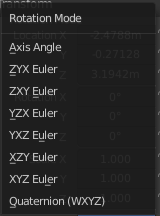
The rotation mode. Euler angles are fine for most needs. But sometimes you want to use Quaternion to avoid gimbal lock. Gimbal lock is a mathematical problem where the rotation locks up in two instead of three degrees of freedom.
Quaternion
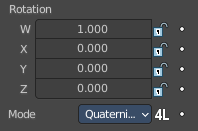
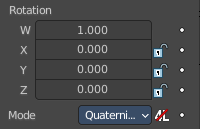
With euler angles you will have three values available. But with a quaternion you will have four values available. And quaternions reveals a 4L button. This button shows or hides a lock behind the W value. Normally a quaternion has just three locks, one for each of the single axis. The W value is a mathematical construct from the three object axis. And you usually neither want to edit it nor to lock it therefore.
Locking the W axis will lock all axis.
| Entry | What it does |
|---|---|
| Scale | The scale of the object. |
| Lock | This properties can be locked. |
| Animate Properties | This properties can be animated. Activating the Animate Property button sets a keyframe. |
Delta Transform
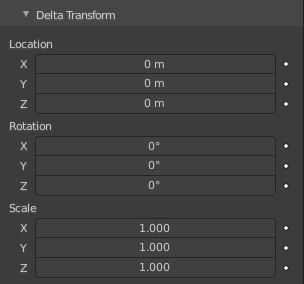
Transforms are absolute to the world coordinates. Delta Transforms are relative to the current transformation.
Adjust the delta transforms.
| Entry | What it does |
|---|---|
| Delta Location | The delta location of the object. |
| Delta Rotation | The delta rotation of the object. |
| Delta Scale | The delta scale of the object. |
| Lock | This properties can be locked. |
| Animate Properties | This properties can be animated. Activating the Animate Property button sets a keyframe. |
Relations Panel
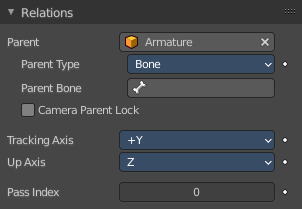
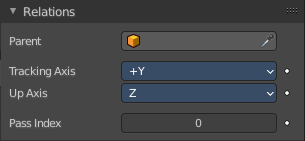
Set up and adjust relations for the object.
Animate Properties
The properties with the Animate Property at the right can be animated. Activating the Animate Property button sets a keyframe.
Parent
Set a parent object. One way is by the object picker at the right. Or choose the object in the list. This list appears by clicking at the edit box.
Parent Type
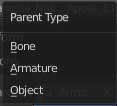
See and set the parent type.
| Entry | What it does |
|---|---|
| Parent Bone | When you parent an object to an armature then you can choose to which bone you want to parent this object. |
| Camera Parent Lock | When the camera is locked to the view and in fly mode, transform the parent rather than the camera. |
Tracking Axis
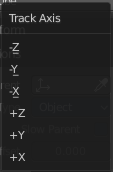
The axis that points in forward direction.
Up Axis
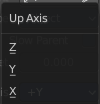
The axis that points in the up direction.
Pass Index
The index number for the "Object Index" render pass.
Collections Panel
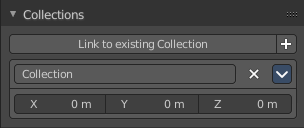
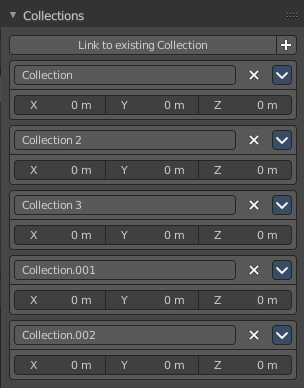
Collections is a bunch of data, objects, cameras, lights, etc., which you can manage in some ways at once. You can for example hide complete collections, include or exclude it from rendering, instance them, and so on.
An object must be at least in one collection. Or it gets deleted. But an object can be in multiple collections. This panel allows you to manage in what collection(s) the object is.
Link to existing collection
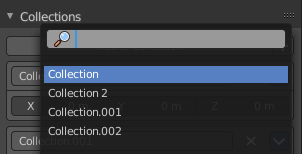
A drop down box where you can choose the collection that you want to add the object to. Different from the Link to collection tool in the outliner, this tool lists all collections in the Blender file. Also collections that are not to see in the Scenes or View Layer view.
Add to new Collection

At the end of the Add to Collection element is a + button where you can create more collections.
Note that this new created collection is not part of the scene. But shows just at the Blend file level in the outliner. So when you want to create a collection that is accessible from the scene, then create the collection in the outliner instead.


Collections at the scene levels usually gets created with the name Collection + space + single Number.

Collections at the Blend file level gets created with Collection + dot + three digit number
Collection
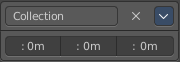
This is the collection where the object is currently assigned at. As told, an object can be assigned to more than one collection.
| Entry | What it does |
|---|---|
| Collection Name | Read and edit the collection name. |
| Remove | This deletes the collection from the object. Note that the collection still exists. |
Collections Menu
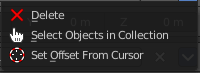
| Entry | What it does |
|---|---|
| Delete | This deletes the collection from the object. Note that the collection still exists. |
| Select Objects in Collection | Selects all objects in the collection. |
| Set Offset From Cursor | Set offset used for collection instance based on cursor position. Normally the offset is based at the center of the world when instancing, at 0/0/0. When you choose Set Offset From Cursor then this offset is set form the cursor position instead of the world center. |
Offset

Offset from the origin to use when instancing.
Instancing Panel

Here you find settings for instancing. Instancing means the object exists just one time in ram, and gets reused.
Instancing requires a special setup.
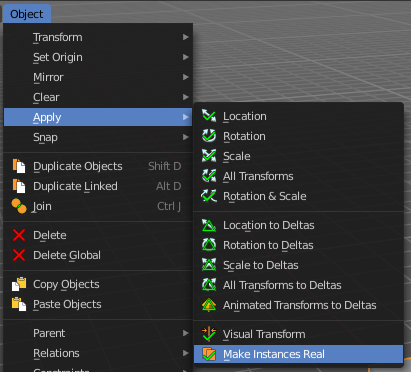
The duplicated geometry by this method are instances of the parent object. And so they cannot be threaten like real objects.
To turn them into editable geometry go to Object menu, and choose Apply / Make Duplicates real.
None
No duplication happens.
Instanceverts
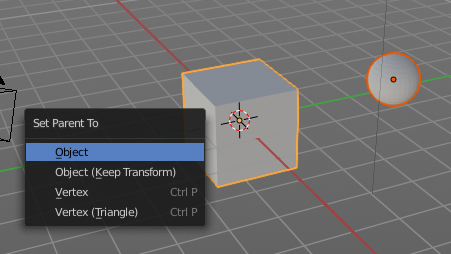
InstanceVerts is the duplication of a base object at the location of the vertices of a mesh. In other words, an instance of the base object is placed on every vertex of the mesh.
Workflow:
Create a cube, create a sphere. For demonstration purposes, move the sphere a bit off. Parent the sphere to the cube. Cube must be the parent, sphere the child.
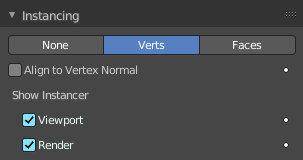
Select just the cube. In the Duplication Panel enable Verts.
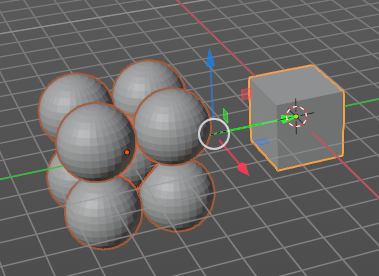
As a result you will now have eight spheres around the child sphere, since the cube has eight vertices. The center point is the sphere.
Instanceverts Tools
| Entry | What it does |
|---|---|
| Animate Property | The properties with the Animate property at the right can be animated. You create a keyframe by clicking at it. |
| Align to Vertex Normal | Orients the child objects along the normals of the parent vertices. |
| Show Instancer | Viewport: Show the instance object in the viewport. · Render: Show the instance object in the final rendering. |
Dupliface
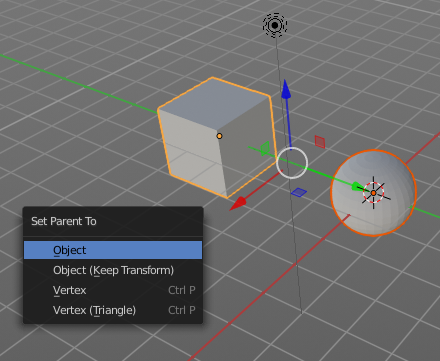
DupliFaces replicates an object on each face of a parent object, using the initial child object as the center. The faces of the parent object is the pattern that gets used as the pattern to create the duplicated objects. The child object gets used as the center point, and of course to duplicate the geometry from.
Workflow:
Create a cube, create a sphere. Move the cube a bit off. Parent the sphere to the cube ( select sphere, hold down shift, select cube, press ctrl p). Cube must be the parent, sphere the child.
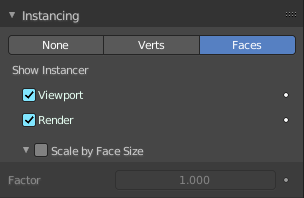
In the Duplication Panel enable Faces.
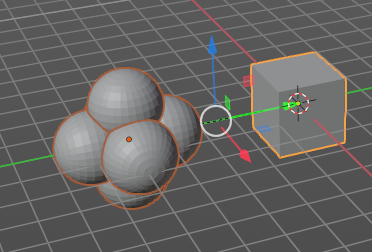
As a result you will now have six spheres at the child sphere, since the cube has six sides.
Note: The location, orientation, and scale of the duplicated child(ren) matches that of the faces of the parent. So, if several objects are parented to the cube, they will all be duplicated once for each face on the cube. If the cube is subdivided, every child will be duplicated for each face on the cube.
Instance Face Tools
| Entry | What it does |
|---|---|
| Animate Property | The properties with the Animate property at the right can be animated. You create a keyframe by clicking at it. |
| Show Instancer | Viewport: Show the instance object in the viewport. · Render: Show the instance object in the final rendering. |
Scale by Face Size
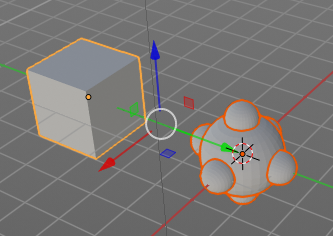
When you tick scale by face size then you can control the size of the child objects.
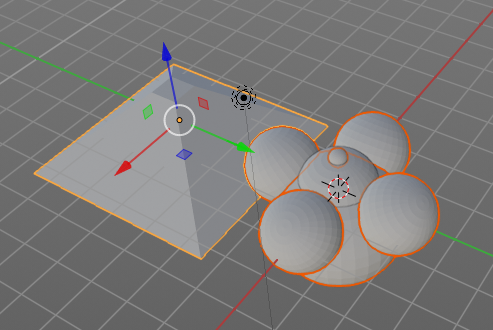
With Scale ticked you can also influence the size of the child objects by changing the parent geometry.
Factor
The scale factor for scale.
Motion Paths Panel
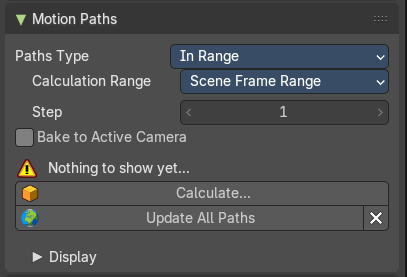
Motion paths is a visual helper to judge the motion of objects.
Motion paths are not displayed by default. They need to be calculated. This can be done here.
Workflow:
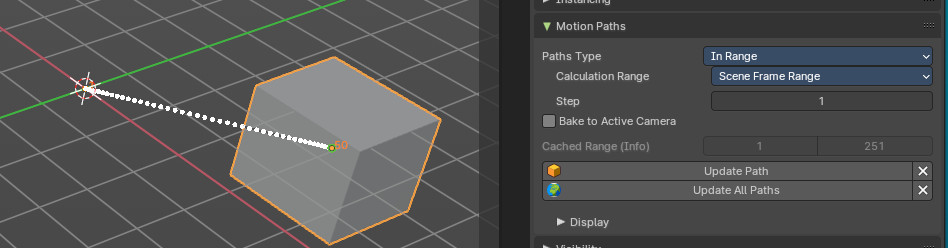
We simply need a motion animation first. For example a moving cube.
Add a cube. Choose a keying set. Set a keyframe at let's say frame 0. Go to frame 20. Move the object. Set a keyframe at frame 20.
Click Calculate. You will now see the motion path of this object.
Motion Paths Tools:
Paths Type
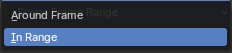
There are two path types available. In Range and Around Frame.
Around Frame
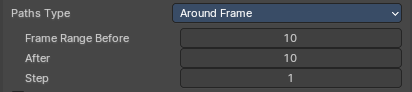
Displays just the motion path around the current frame. Not the whole path.
| Entry | What it does |
|---|---|
| Frame Range before | The frames to display before the current frame. |
| After | The frames to display after the current frame. |
| Step | Number of frames between paths shown. |
In Range
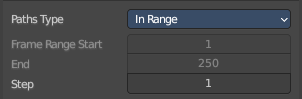
Displays the full motion path.
Calculation Range
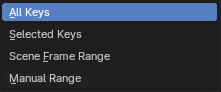
The type of path range to calculate the motion paths.
All Keys

Calculate all keys. Even when they are out of the range.
Step
Number of frames between paths shown.
Selected Keys

Calculate just selected keys.
Step
Number of frames between paths shown.
Scene Frame Range

Calculate the entire scene / preview range.
Step
Number of frames between paths shown.
Manual Range
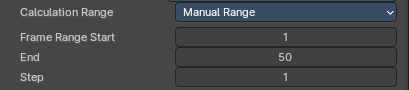
Manually determine frame range.
| Entry | What it does |
|---|---|
| Frame Range Start | The start frame. |
| End | The end frame. |
| Step | Number of frames between paths shown. |
| Entry | What it does |
|---|---|
| Bake to active camera | Motion path points will be baked into the camera space of the active camera. This means that they will only look right when looking through this specific camera then. Switching cameras using markesrs is not supported. |
| Cached range | Not editable. Internal cache information. |
| Update Paths | Update the paths after any changes at the animation. You have to update the paths too if you change settings like the paths type. |
| Update All Paths | Update all paths after any changes at the animation. You have to update the paths too if you change settings like the paths type. |
| Delete Paths | Deletes ALL motion paths caches in the scene. Hold down shift to delete just the path for the current object. |
Display subpanel
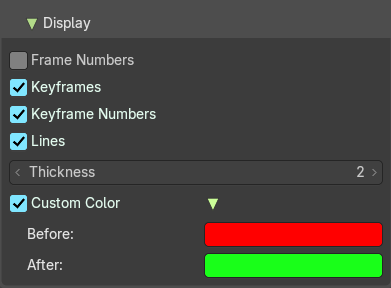
Here you find some display options for the path.
| Entry | What it does |
|---|---|
| Frame Numbers | Display the frame number above every knot of the motion path |
| Keyframes | Display the keyframes in the path as orange dots. |
| Keyframe Numbers | Display the keyframe number above every keyframe. |
| Lines | Display a line between the points. |
| Thickness | The line thickness. |
Custom Color
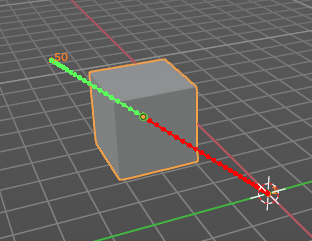
Define a custom color for the motion path. You can set a Before color for everything before the current frame. And a After color for everything after the current frame. A click at the color area opens a color picker.
Shading - Cycles
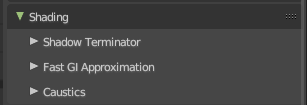
The Shading panel gives you further per object shading options with the Cycles renderer.
Note that not all objects have all subpanels. Lights does for example just contain the Light Group sub panel.
Shadow Terminator subpanel
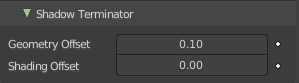
| Entry | What it does |
|---|---|
| Geometry Offset | Offset rays from the surface to minimize shadow artifacts at low poly geometry. Only affects triangles at grazing angles to light. |
| Shading Offset | Push the shadow terminator towards the light to minimize shadow artifacts at low poly geometry. |
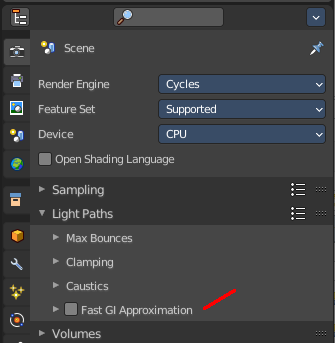
Fast GI Approximation subpanel
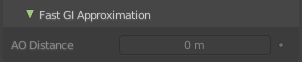
AO Distance
The Ambient Occlusion distance that is used for approximate Ambient Occlusion. 0 means the world settings are used.
Note that Fast GI Approximation needs to be active to make this options work.
Caustics subpanel
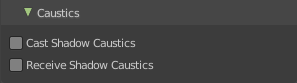
Caustics related settings.
Cast Shadow Caustics
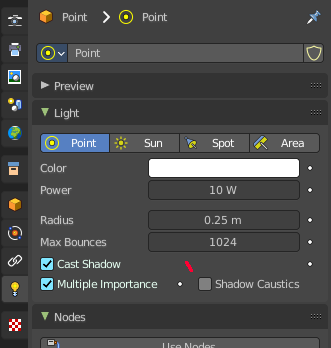
Generates caustics in case the material is a refractive material. Casting lights must have shadow caustics option enabled. This can be found in the object data properties in the Light panel.
Receive Shadow Caustics
Receive caustics in case the material is a refractive material. Casting lights must have shadow caustics option enabled. This can be found in the object data properties in the Light panel.
Light Options
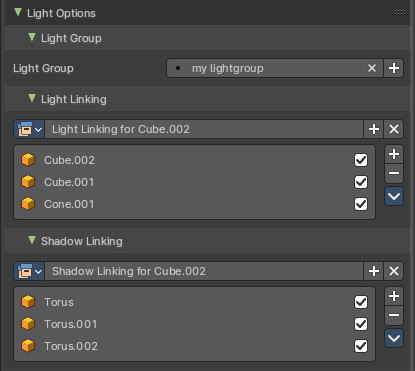
Allows you to assign the current object or light source to a Light Group.
Note: Objects must be have an emission material to have an influence in the Light Group.
The content in the Lists can be dragged around to change the order.
The objects can be enabled and disabled by the checkbox at the right.
Light Group
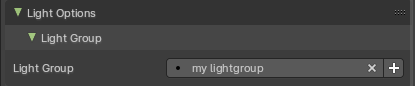
Assign the light source or an object with an emission material to a Light Group.
You first need to create a Light Group in the View Layer Properties > Passes > Lightgroups panel. Then you can choose from the existing Light Groups. Or you simply type in the name of a new light group. Then click at the add button besides the edit box.
For more information, check out the Properties Editor - View Layer Properties chapter.
Light Linking
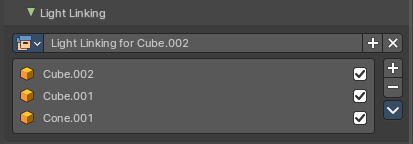
Here you create and assign a Light Linking group to objects and collections. This assists in including or excluding objects from a lights influence. Default assignment of a Light Group will influence everything in the scene.
Note: Consider this as an exclusive override for light group influence of an emission object or light source.
Data property

Data Browser
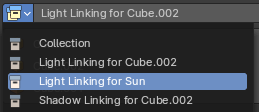
Shows the available light linking collections that you can choose. This can be single objects, or whole collections.
| Entry | What it does |
|---|---|
| Name | The current active group name. The name can be renamed. |
| Display number | How much users this data has. A click at it makes it a single user object. |
| New Light linking collection | Add a new light linking collection. |
| Remove | Removes the light linking collection as the active collection. Note that the collection will still be in the data browser. |
| Entry | What it does |
|---|---|
| Collection List | The list of objects in the light linking collection. |
| Link Receivers to Emitter | Light link selected receivers to the active emitter object. |
| Remove from light linking collection | Removes the object not only from the light linking, but also from the scene. |
Select Light Linking Receivers
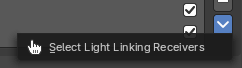
Selects the selected objects in the list in the scene too.
Shadow Linking
Here you create and assign a Shadow Linking group with objects and collections. Shadow linking additionally gives control over which objects acts as a shadow blocker or shadow exception for the light sources of a Light Group.
Data property
Data Browser
Shows the available light linking collections that you can choose. This can be single objects, or whole collections.
| Entry | What it does |
|---|---|
| Name | The current active group name. The name can be renamed. |
| Display number | How much users this data has. A click at it makes it a single user object. |
| New Light linking collection | Add a new light linking collection. |
| Remove | Removes the light linking collection as the active collection. Note that the collection will still be in the data browser. |
| Entry | What it does |
|---|---|
| Collection List | The list of objects in the light linking collection. |
| Link Receivers to Emitter | Light link selected receivers to the active emitter object. |
| Remove from light linking collection | Removes the object not only from the light linking, but also from the scene. |
Select Light Linking Blockers
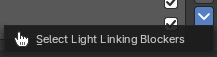
Selects the selected objects in the list in the scene too.
Motion Blur Panel - Cycles
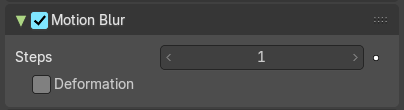
The Motion Bur panel gives you further per object options for motion blur.
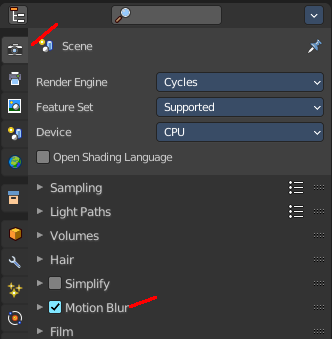
Note that Motion Blur needs to be active to make this options work.
You can activate Motion Blur in the render settings.
Visibility Panel - Workbench
Show or hide options for the selected object.
Animate property
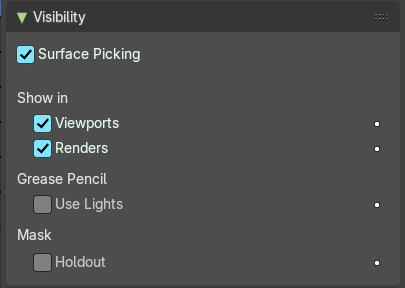
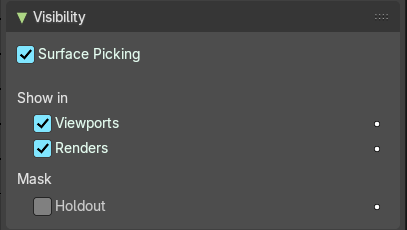
These property can be animated. Clicking at the decorator at the right sets a keyframe.
| Entry | What it does |
|---|---|
| Surface Picking | Disable surface influence during selection, snapping and depth-picking operators. |
| Show In | Viewports: Show the object in the viewport. This can also be done in the outliner. · Renders: Show the object in the rendering. This can also be done in the outliner. |
| Grease Pencil | Use Lights: Grease Pencil object only. Light affects grease pencil object. |
| Mask | Holdout: Render the object as a holdout or matte object. This creates a hole in the image in the shape of the object. Which can then be filled with content in the compositing process. |
Visibility Panel - Eevee
Show or hide options for the selected object.
Animate property
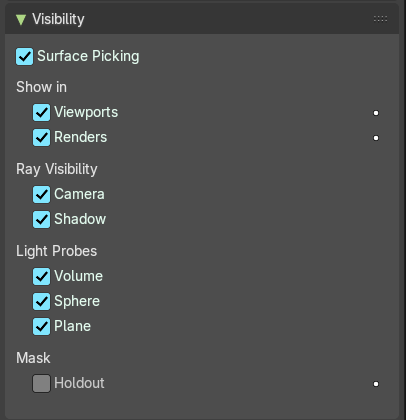
These property can be animated. Clicking at the decorator at the right sets a keyframe.
| Entry | What it does |
|---|---|
| Surface Picking | Disable surface influence during selection, snapping and depth-picking operators. |
| Show In | Viewports: Show the object in the viewport. This can also be done in the outliner. · Renders: Show the object in the rendering. This can also be done in the outliner. |
| Grease Pencil | Use Lights: Grease Pencil object only. Light affects grease pencil object. |
| Ray Visibility | Camera: Object visibility to camera rays. · Shadow: Object visibility to shadow rays. |
| Light Probes | Volume: Globally disable in volume probes. · Sphere: Globally disable in spherical light probes. · Plane: Globally disable in planar light probes. |
| Mask | Holdout: Render the object as a holdout or matte object. This creates a hole in the image in the shape of the object. Which can then be filled with content in the compositing process. |
Visibility Panel - Cycles
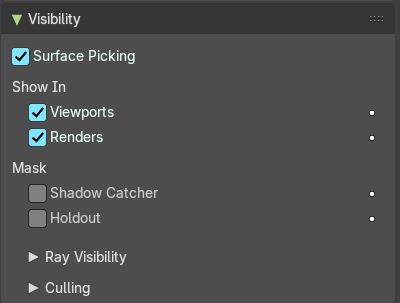
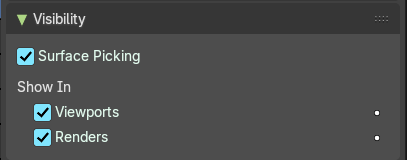
Note that the ccntent does not show with all object types. The content shown here is with a mesh object.
Show or hide options for the selected object.
| Entry | What it does |
|---|---|
| Animate property | These property can be animated. Clicking at the decorator at the right sets a keyframe. |
| Surface Picking | Disable surface influence during selection, snapping and depth-picking operators. |
| Show in | Viewports: Show the object in viewports. · Renders: Show the object in renderers. |
| Mask | Shadow Catcher: Only render shadows and reflections of this object. · Holdout: Render the object as a holdout or matte object. This creates a hole in the image in the shape of the object. Which can then be filled with content in the compositing process. |
Ray Visibility Subpanel

The object visibility for different types of rays.
Culling

Use Camera Cull
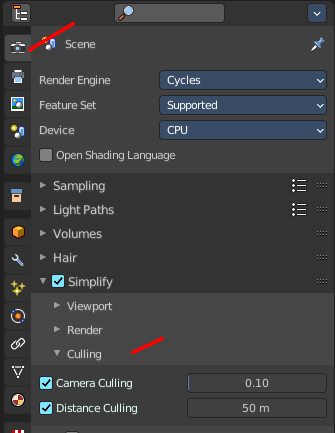
Allow objects and its duplicates to be culled by the camera space culling.
This option is just active when Simplify in the Render tab is activated, and the camera culling in the simplify panel is ticked too.
Use Distance Cull
Allow objects and its duplicates to be culled by the specified distance.
This option is just active when Simplify in the Render tab is activated, and the camera culling in the simplify panel is ticked too.
Sequencer usage panel

Report object used by sequencer
Form the active object, report all sequencer strips using this object in their strip scenes.
Viewport Display Panel
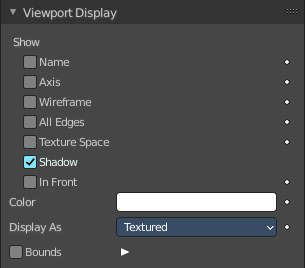
Here you will find some further display options for the object. Object name, Wire Frame in Object Mode, etc.
Some of these settings will override general settings. For example when you set the maximum draw type (Display as) to Wire, then it will always display as wire, regardless if you set the Viewport render method to Material or Textured.
The content is different for different object types. Mesh objects have more options than a grease pencil for example.
Note also that some objects have some further special viewport settings in other tabs. For example, Bones have also viewport settings in the Object Data properties, and in the Bone properties.
This panel here is for general viewport display settings for the objects.
Animate property
These properties can be animated. Clicking at the decorator at the right sets a keyframe.
Show
Name
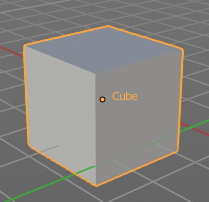
Display the object name at the pivot point.
Axis
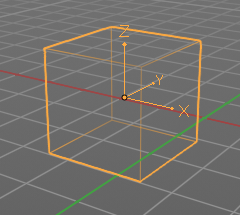
Display the objects axis. Best done with Wireframe display mode. Solid faces may hide the axis. Or tick in Front. Then the axis gets also drawn above the mesh faces.
Wireframe
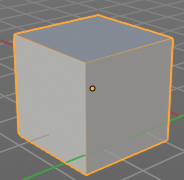
Display parts of the wire frame in Object Mode. See All Edges.
All Edges
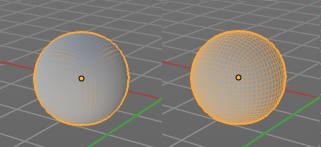
This is a hieronymus bosch feature from Blender developers that will most probably trap you again and again. When you tick Wireframe then SOME of the edges of the object gets displayed. You need to tick all edges to display the whole Wireframe.
Texture Space
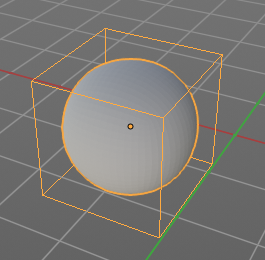
Display the objects texture space. This has to do with the mapping. A sphere can for example have a cubic mapping.
Shadow
The object should throw a shadow in the 3D view. But it seems to be dysfunctional.
In Front
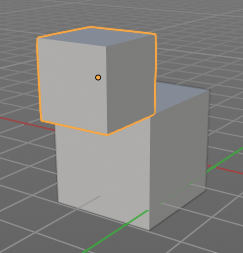
X Ray. Display this object in front of all other objects.
Color
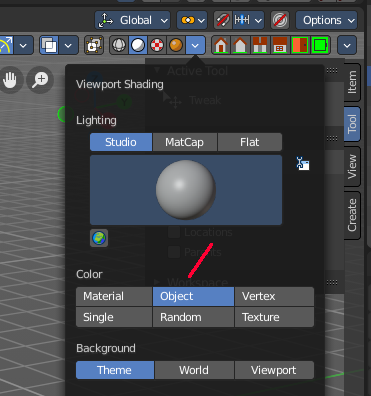
Solid mode setting only.
When you set the Color type to Object in the viewport shading settings, then the object in the viewport is displayed with this color.
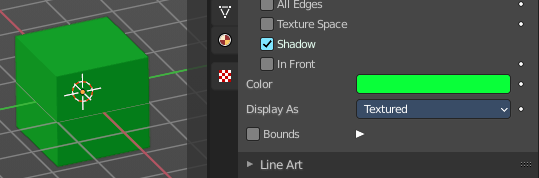
Display As
Adjust the maximum display method for the object. For example when you set the maximum draw type to Wire, then it will always display as wire, regardless if you set the Viewport render method to Material or Textured.
Bounds

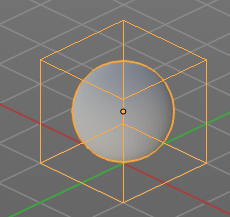
Display the bounding box for this object.
Display Bounds Type
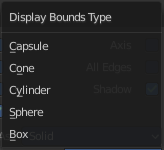
What shape to choose for the bounding box. There is more than just the classical box shape available.
Line Art Panel
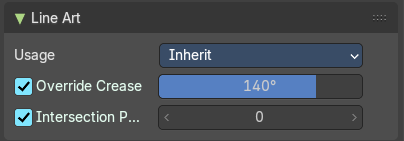
Line Art settings.
Usage
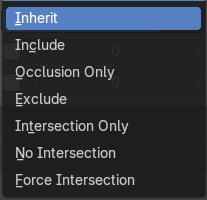
How to use this object in line art calculation. The items should be self explaining.
Override crease

Use this objects crease settings to override scene global.
Crease
Angles smaller than this value will be treaten as creases.
Intersection Priority
Use the intersection of the active object to override collection settings.
Intersection Priority
The intersection line will be included into the object with the higher intersection priority value
Animation
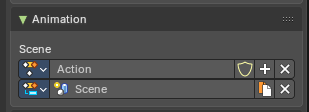
Action Slots allow a single Action to store animation data for multiple data-blocks (e.g. objects, materials, cameras). In this case this stores Scene container animation keyframes.
Each slot acts like a container for animation channels tied to a specific target Action Clip.
Action Name Selector
A unique Action Clip Contains the actual animation data: F-Curves, groups, and keyframes.
Slot Name Selector
A unique identifier for the slot within the Action. Used to match the slot with a data-block during evaluation or assignment. Can be manually named or auto-assigned based on the data-block name.
Dropdown Selector Operators
- **Dropdown Selector: **List of available slots or actions
- **Selector Name: **Name of the slot or action
- **Add Action/Slot: **Adds a new Action Clip/Slot, or select one from the drop down
- Shield icon: Stores the Data with protection (prevents deletion when reloading the file if there are no users).
- **Remove: **Removes the active Action clip or Slot
- Duplicate:Duplicates the Active slot with keyframes.
Custom Properties Panel
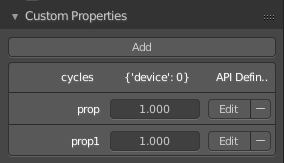
Define custom properties that can be used for scripting.
Here you might also find custom properties from addons or scripts.
Add
Adds a new property.
Edit
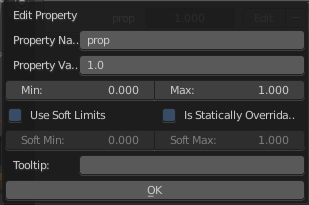
A panel to adjust the settings for the custom property.
Remove
Removes the property.