

































































Volume Object
OpenVDB can contain multiple grids which represent different “layers” of volume. The List Views shows all the grids in the OpenVDB-file along with its name and data type. It is read only.
Grids panel
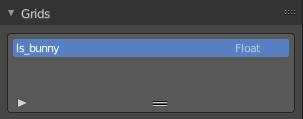
List
OpenVDB can contain multiple grids which represent different “layers” of volume. The List Views shows all the grids in the OpenVDB-file along with its name and data type. It is read only.
| Entry | What it does |
|---|---|
| Drag Handler | The two vertical lines at the end is a handler with which you can expand the list. |
| Search Field | You can expand a search field at the bottom of the list. Type in your term and hit enter to filter for your term. · Invert: Exclude the search term instead of searching for it. · Sort by Name: Sort the List by name. |
OpenVDB File panel
File Path
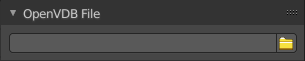
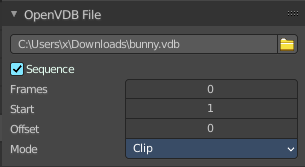
The file path to the vdb file.
Load File
Load an vdb file.
Sequence
Load the OpenVDB-file as an animation loading separate files for individual frames. Ticking this checkbox reveals further functionality.
| Entry | What it does |
|---|---|
| Frames | Number of frames of the sequence to use. |
| Start | Global starting frame of the sequence, assuming the first frame has a 1 in the file name. |
| Offset | Offset the number of the frame to use in the animation. |
Sequence Mode
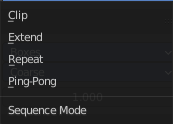
Animation setting of the volume sequence before the start frame and after the end frame.
| Entry | What it does |
|---|---|
| Clip | Hides frames outside the specified frame range. |
| Extend | Repeats the start frame before, and the end frame after the frame range. |
| Repeat | Cycles the frames in the sequence; restarting at frame one. |
| Ping-Pong | Repeats the frames, reversing the playback direction on every other cycle. |
Viewport Display panel
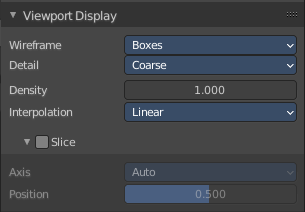
Wireframe
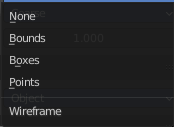
Method used to represent volumes in wire frame shading mode. For heavy volume data sets, it can be useful to set the object to always display as wire frame. This way the 3D Viewport remains responsive but the volume still appears in the final render.
| Entry | What it does |
|---|---|
| None | The volume is not displayed in wire frame mode. |
| Bounds | Displays the volume as bounding box for the entire volume grid. |
| Boxes | Displays a bounding boxes for nodes in the volume tree. |
| Points | Displays points for nodes in the volume tree. |
| Entry | What it does |
|---|---|
| Detail | The amount of detail to display for Boxes or Points wire frame mode. · Course: Display one box or point for each intermediate tree node. · Fine: Display a box or point for each leaf node containing 8×8 voxels. |
| Density | Thickness of the volume in the 3D Viewport. The density of the volume in the render is adjusted via Volume Shading. |
Interpolation
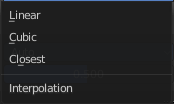
The interpolation method to use for the volumes in solid mode.
Slice subpanel
Slice the domain object along a single axis.
| Entry | What it does |
|---|---|
| Axis | Auto slices the domain object along the view direction. X Y and Z along the world axis. |
| Position | The position of the slice. |
Render panel
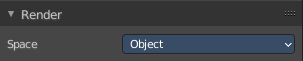
Space
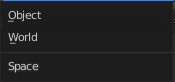
Specifies how volume density and step size are computed relative either to the object or world.
| Entry | What it does |
|---|---|
| Object | Keeps volume Density and Detail the same regardless of object scale. |
| World | Specify Step Size and Density in world space. |
Step Size
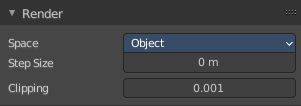
Cycles Only.
Distance between volume samples. Lower values render more detail at the cost of performance. If set to zero, the step size is automatically determined based on voxel size.
Clipping
Cycles Only.
Value under which voxels are considered empty space to optimize rendering.
Custom Properties Panel
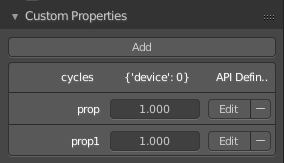
Here you can define custom properties that can be used for scripting.
Here you might also find custom properties from addons or scripts.
Add
Adds a new property.
Edit
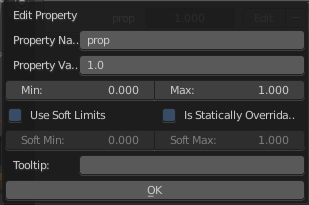
Opens a panel where you can adjust the settings for the custom property.
Remove
Removes the property.