

































































Text Object
The resolution of the text curve geometry in the viewport.
Shape panel
Resolution Preview U
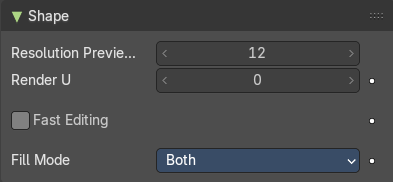
The resolution of the text curve geometry in the viewport.
| Entry | What it does |
|---|---|
| Render U | The resolution of the text curve geometry when rendering. If Render U is set to zero (0), then the Preview U setting is used for both the 3D Viewport and render resolution. |
| Fast Editing | Do not fill the letters in Edit Mode, only show their outline. Object mode display is not affected |
Fill Mode
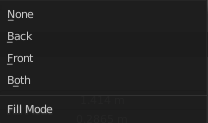
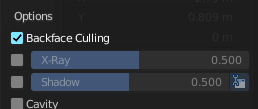
How to fill the letters. Note that you need to activate Backface culling for back and front in the Viewport Shading to see an effect.
Texture Space panel
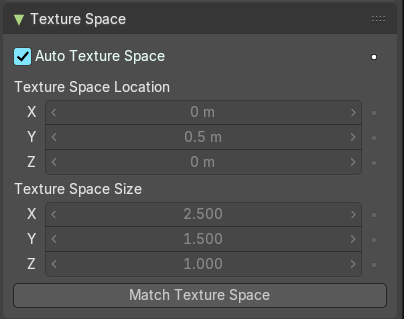
UV mapping can be generated. A procedural brick texture uses generated UV space for example to define the mapping.
In this panel you can adjust settings of the texture space used by generated texture mapping.
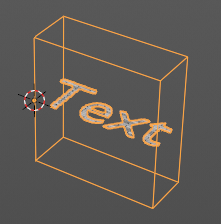
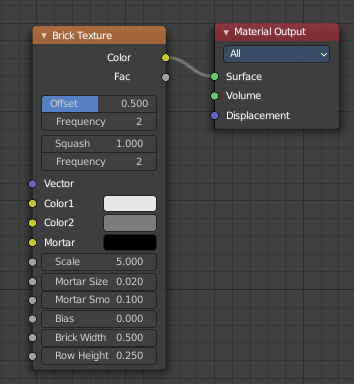
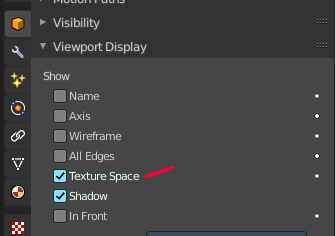
The display of the texture space cage can be activated in the Viewport Display in the Object properties.
| Entry | What it does |
|---|---|
| Texture Mesh | Use another curve for texture indices. The vertex of the two objects must be perfectly aligned. Otherwise the UV map will be distorted. Note that, this is only for mesh objects. |
| Auto Texture Space | Adjusts the active object’s texture space automatically when transforming the object. |
Location, Size
Adjust the location and size of the texture space manually if Auto Texture Space is off.
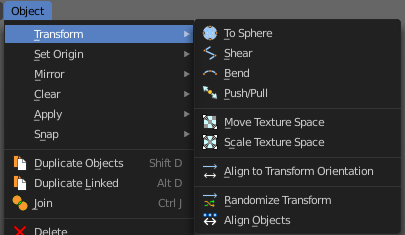
The texture space can also be adjusted in the 3D Viewport. See Object Menu / Transform / Move and Scale Texture Space
Match Texture Space
Match the texture space to the bounding box of the mesh part of the surface object, not the cage.
Geometry panel
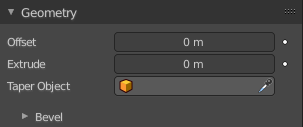
A curve is a spline. And has by default no geometry. The text object differs a bit here since the face is filled. But it has no height. You can have extruded or beveled geometry to add height. This panel allows you to adjust the geometry.
Offset
Moves the extrusion parallel to the curve normals. Needs extruded geometry first.
Extrude
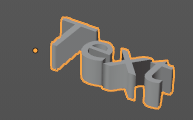
Extrude the curve along the positive and negative local Z axes to create a surface. The extrusion direction follows the curve normals.
Taper Object
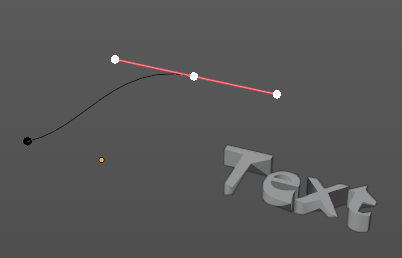

Tapers the extruded geometry by using another curve. The taper shape is defined by the Z value of the curve points of the taper object curve. Which you need to manipulate in edit mode.
You might want to rotate the taper object curve by x around 90 degrees to see the shape of the curve in the same view than at the extruded geometry.
The taper object curve:
- Must be an open curve.
- The taper is applied independently to all curves of the extruded object.
- Only the first curve in a Taper Object is evaluated, even if you have several separated segments.
- The scaling starts at the first control point on the left and moves along the curve to the last control point on the right.
- Negative scaling, (e.g. negative local Y on the taper curve) is possible as well. However, rendering artifacts may appear.
- Might need to increase the curve resolution to see more detail of the taper.
With closed curves, the taper curve in Taper Object acts along the whole curve (perimeter of the object), not just the length of the object, and varies the extrusion depth. In these cases, you want the relative height of the Taper Object Taper curve at both ends to be the same, so that the cyclic point (the place where the endpoint of the curve connects to the beginning) is a smooth transition.
Map Taper
For curves using a Taper Object and with modifications to the Start/End Bevel Factor. The Map Taper option will then apply the taper to the beveled part of the curve, and not the whole curve.
Bevel
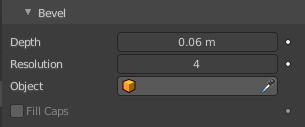
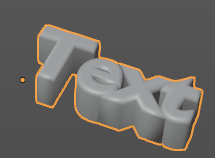
A curve can not only be extruded, but the extruded geometry can also be beveled.
| Entry | What it does |
|---|---|
| Depth | The size of the bevel. |
| Resolution | The subdivision of the bevel. |
| Object | Use another curve object to define the shape of the bevel. This curve can be closed, a Bezier circle for example. Or open. Which creates an open bevel shape then. Be careful with using this at a text object. · Fill Caps: Fills the ends of a beveled curve created by another curve object. And creates a solid object. Note that this makes for a text object no sense since an n extruded Text object is already a closed object. |
Font panel
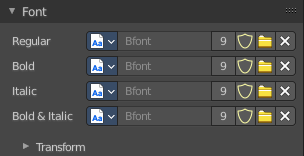
Manage the fonts that gets used for the Text object. By default the internal Bfont is used.
You need to load the file for each style separately.
Regular, Bold, Italic, Bold& Italic
The fonts.
Data Browser
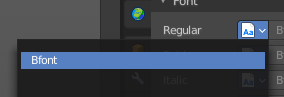
A list of the available fonts in the scene.
| Entry | What it does |
|---|---|
| Name | The name of the active font. |
| Number of Users | The number of users for this font. |
| Fake User | Keep this font in the scene even if it has no fake user. Note that the builtin Bfont does not require a fake user to stay available. |
| Open Font | Load a font. · **Location of Fonts in Windows**: C:\Windows\Fonts · **Location of Fonts on Unix**: Fonts are typically located under /usr/lib/fonts, or some variant like /usr/lib/X11/fonts, but not always. They may be in other locations as well, such as /usr/share/local or /usr/local/share, and possibly related sub-trees. |
| Remove font | Removes the font as the active font. It is still in the list though. |
Style
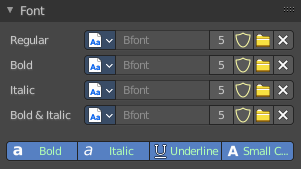
Edit mode only. Choose what style to use to write the text.
Transform
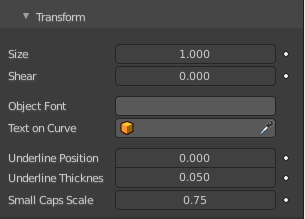
| Entry | What it does |
|---|---|
| Size | Controls the size of the text. |
| Shear | Shears the text. |
Object Font
Allows individual objects to be used to render fonts.
How to
Create the font characters. Each character can be any object type (mesh, curve, etc.). They must all have a name following the naming schema: “common prefix” followed by the “character name” (“myfont.a”, “myfont.b”, etc.).
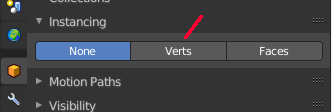
For the text object, enable Instancing Vertices.
In the Font tab, fill the Object Font field with the “common prefix” of your “font” objects. Now, each time a character in your text matches the suffix part of a “font” object’s name, this object is duplicated on this character.
Note: The objects are duplicated so that their center is positioned at the lower right corner of the corresponding characters.
Text on Curve
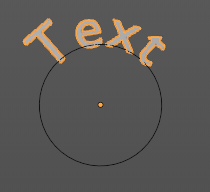
Show the text aligned at a curve.
| Entry | What it does |
|---|---|
| Underline Position | Shift vertically the position of the underline. |
| Underline Thickness | This controls the thickness of the underline. |
| Small Caps Scale | The scaling applied to capital letters to turn them into small caps. |
Paragraph panel
Alignment sub tab
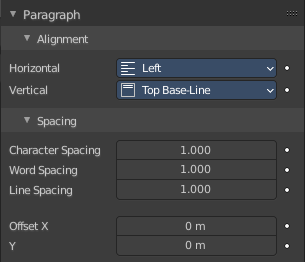
Horizontal Alignment
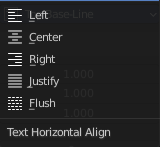
How to align the text horizontally.
| Entry | What it does |
|---|---|
| Left | Aligns text to the left of the frames when using them, else uses the origin of the text object as the starting point of the text (which grows to the right). |
| Center | Centers text in the frames when using them, else uses the origin of the text object as the mid-point of the text (which grows equally to the left and right). |
| Right | Aligns text to the right of the frames when using them, else uses the origin of the text object as the ending point of the text (which grows to the left). |
| Justify | Only flushes a line when it is terminated by a word-wrap (not by a newline), and uses white-space instead of character spacing (kerning) to fill lines. |
| Flush | Always flushes the line, even when it is still being typed-in. It uses character spacing (kerning) to fill lines. Note! Both Justify and Flush only work within frames. |
Vertical Alignment
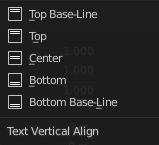
How to align the text vertically.
| Entry | What it does |
|---|---|
| Top Base-Line | With text boxes, aligns the ‘top’ base-line of the text to the top of the frames. With no text box, aligns the actual base-line of the text to the origin of the object, and grows to the bottom. Note! That difference of reference point in the first line depending on usage of boxes or not is indeed confusing. |
| Top | With text boxes, aligns the top of the text to the top of the frames. With no text box, aligns the top of the text to the origin of the object, and grows to the bottom. |
| Center | With text boxes, centers the text in the frames. With no text box, centers the text on the origin of the object, and grows in both top and bottom directions equally. |
| Bottom | With text boxes, align the bottom of the text to the bottom of the frames. With no text box, align the bottom of the text to the origin of the object, and grows to the top. |
| Bottom Base-Line | With text boxes, aligns the base-line of the text to the bottom of the frames. With no text box, aligns the base-line of the text to the origin of the object, and grows to the top. |
Spacing sub tab
| Entry | What it does |
|---|---|
| Character Spacing | A factor by which space between each character (kerning) is scaled in width. In Edit Mode in the 3D View, you can also control individual kerning at text cursor position by pressing Alt-Left / Alt-Right to decrease/increase it. |
| Word Spacing | A factor by which white-space between words is scaled in width. · Line Spacing: A factor by which the vertical space between lines is scaled. · Offset X/Y: These settings control the X and Y offset of the text position within the object. This applies relatively to the object’s origin, either to the whole text or, when using text boxes, to each frame. |
Text Boxes panel
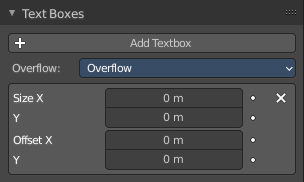
Text boxes (or frames) allow you to distribute the text among rectangular areas within a single text object. You can use more than one box.
The text flows continuously from the lowest-numbered frame to the highest-numbered frame with text inside each frame word-wrapped. It flows between frames when a lower-numbered frame cannot fit any more text.
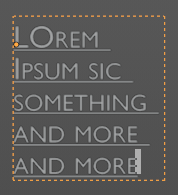
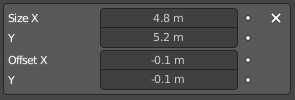
By increasing size X and Y the text box becomes visible in the viewport by orange lines. A size of 0 means no text box is used.
Add Text box
Inserts a new frame, just after the current one (in text flow order). The new frame will have the same size and position as the selected one.
Overflow
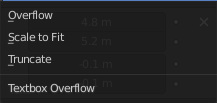
How to handle text overflowing available space in the defined boxes.
| Entry | What it does |
|---|---|
| Overflow | Just keep text running out of the last box. |
| Scale to Fit | Scale text to fit into the available space. |
| Truncate | Hide the end of the text that does not fit into the available space. Note! It will only truncate in Object Mode, in Edit Mode the whole text remains visible (and overflows as needed). |
Text box
| Entry | What it does |
|---|---|
| Delete X | Delete the current text box frame. |
| Size X/Y | Specifies the width and height of the text box, if set to zero no word-wrap happens (it is ignored, and the whole text box system is disabled if all are set to a null size). |
| Offset X/Y | Controls the X and Y offset of the frame, i.e. its position. |
Custom Properties Panel
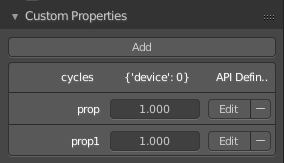
Here you can define custom properties that can be used for scripting.
Here you might also find custom properties from addons or scripts.
Add
Adds a new property.
Edit
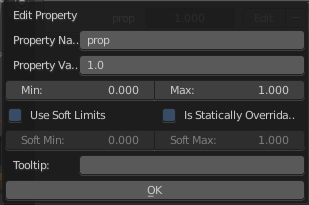
Opens a panel where you can adjust the settings for the custom property.
Remove
Removes the property.