

































































Light Object
Provides a preview window for the light.
Preview panel
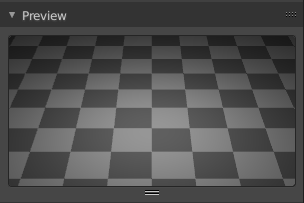
Provides a preview window for the light.
Light panel
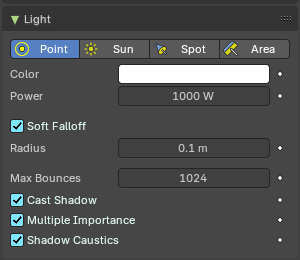
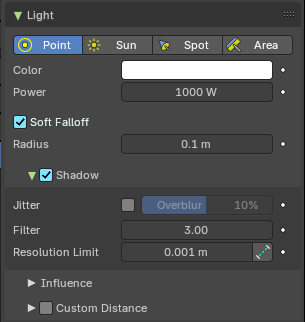
The light panel contains the settings for the different light types. Color, strength, and so on.
The content differs, depend and of the chosen renderer. Workbench has no settings here. So we just cover the panel content with Eevee and Cycles.
Some props can be animated by setting a keyframe with the Animate Property button behind.
Point Light EEVEE
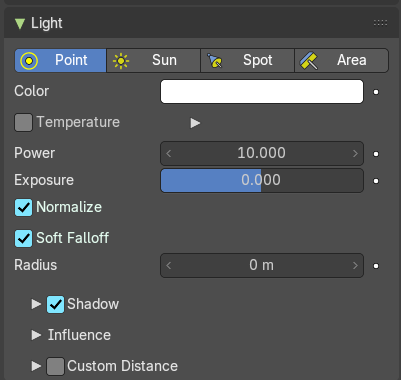
The light emits from a point, and has falloff.
The Point Light emits light uniformly in all directions from a single point in space. It’s ideal for simulating small, localized light sources like bulbs or candles. In Eevee, the Point Light includes several real-time rendering options to control its appearance, behavior, and performance.
| Entry | What it does |
|---|---|
| Color / Tint | The color of the light. Clicking at the color field will open a color picker. If you are using Temperature, it will Tint the color. |
| Temperature | Enables physically-based color temperature control (in Kelvin). Checked by default. Example: 5748 K produces a neutral white light. |
| Power | Power of the light in Watts. Higher values increase the intensity of the light. Negative values can be set, but should be avoided for predictable and physically based result. |
| Exposure | Adjusts the light’s exposure level. Useful for fine-tuning brightness without changing power |
| Normalize | When enabled, keeps the light’s intensity consistent regardless of radius. Helps maintain predictable lighting when adjusting size. |
| Radius | Defines the physical size of the light source. Larger values produce softer shadows and broader highlights. When larger than zero, light will be emitted from a spherical surfaces with the specified radius. Lights with larger size have softer shadows and specular highlights. |
Shadow subpanel
Toggles shadow casting for the light. Allows the light source to cast shadows in the scene.
| Entry | What it does |
|---|---|
| Jitter | Enables jittered soft shadows to increase the precision of shadows. This option is disabled in the viewport unless it is also enabled in the render settings. Note: Enabling this can have a significant performance impact. · Overblur: Applies shadow tracing to each jittered sample to reduce under-sampling artifacts. The default setting is 10%, which helps mitigate shadow noise and improve shadow quality. |
| Filter | Blurs the aliasing in shadows, creating smoother transitions and reducing the harsh edges of shadows. |
Resolution Limit

Sets the minimum size of a shadow map pixel. Higher values use less memory but at the cost of reduced shadow quality. This setting helps manage performance versus quality in shadow rendering.
This setting controls the minimum size of a shadow map pixel, which directly affects how detailed shadows appear.
- Lower values = Sharper shadows, but higher memory usage.
- Higher values = Blurry or simplified shadows, but better performance.
Think of it as setting the "zoom level" of shadow detail. If the value is too high, shadows may appear blocky or lose definition—especially near the camera
Absolute Resolution Limit
Limit the resolution at 1 unit from the light origin instead of relative to the shadowed pixel. By default, the Resolution Limit is relative to the screen pixel being shaded. This means shadow detail changes depending on how close the object is to the camera.
When Absolute Resolution Limit is enabled:
- The resolution is instead calculated at a fixed distance—specifically, 1sceneunit from the light source.
- This makes the shadow resolution consistent, regardless of how close or far the shadowed object is from the camera.
Tip: Use this when you want predictable, uniform shadow quality**, especially in scenes with large depth ranges or moving cameras.
Influence subpanel
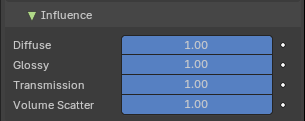
Slider properties that define how much the light affects certain elements, including diffuse, glossy, transmission and volume scattering. Useful for Non-Photo-Real (NPR) rendering.
| Entry | What it does |
|---|---|
| Diffuse | Diffuse reflection multiplier. |
| Specular | Specular light intensity multiplier. |
| Transmission | Transmission or subsurface scattering light multiplier. |
| Volume Scatter | Volume Light multiplier within volumetric materials. |
Custom Distance subpanel
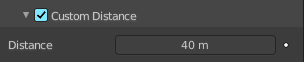
Eevee Renderer. If enabled uses Distance as the custom attenuation distance instead of global light threshold. In order to avoid long setup times, this distance is first computed automatically based on a light threshold. The distance is computed at the light origin and using the inverse square falloff.
Distance
The distance where light influence will be set to 0.
Point Light Cycles
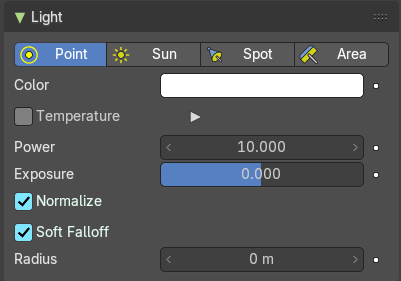
The light emits from a point, and has falloff.
| Entry | What it does |
|---|---|
| Color/Tint | The color of the light. Clicking at the color field will open a color picker. |
| Temperature | Enables physically-based color temperature control (in Kelvin). Checked by default. Example: 5748 K produces a neutral white light. |
| Power | Power of the light in Watts. Higher values increase the intensity of the light. Negative values can be set, but should be avoided for predictable and physically based result. |
| Exposure | Adjusts the light’s exposure level. Useful for fine-tuning brightness without changing power |
| Normalize | When enabled, keeps the light’s intensity consistent regardless of radius. Helps maintain predictable lighting when adjusting size. |
| Soft Falloff | Apply falloff to avoid sharp edges when the light geometry intersects with other objects. |
| Radius | When larger than zero, light will be emitted from a spherical surfaces with the specified radius. Lights with larger size have softer shadows and specular highlights. |
Sun Light Eeevee
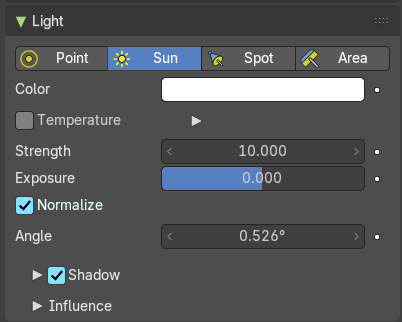
The light has no falloff, and goes one direction, a lot like a sun.
| Entry | What it does |
|---|---|
| Color / Tint | The color of the light. Clicking at the color field will open a color picker. If you are using Temperature, it will Tint the color. |
| Temperature | Enables physically-based color temperature control (in Kelvin). Checked by default. Example: 2000-3000 K produces a neutral white light. |
| Strength | Power of the light in Watts per square meter. Higher values increase the intensity of the light. Negative values can be set, but should be avoided for predictable and physically based result. |
| Exposure | Adjusts the light’s exposure level. Useful for fine-tuning brightness without changing power |
| Normalize | When enabled, keeps the light’s intensity consistent regardless of radius. Helps maintain predictable lighting when adjusting size. |
| Angle | The size of the sun light according to its angular diameter as seen from earth. |
Shadow subpanel
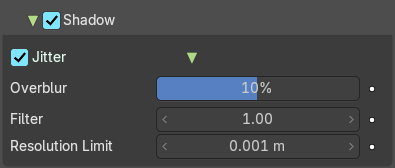
Toggles shadow casting for the light. Allows the light source to cast shadows in the scene.
| Entry | What it does |
|---|---|
| Jitter | Enables jittered soft shadows to increase the precision of shadows. This option is disabled in the viewport unless it is also enabled in the render settings. Note: Enabling this can have a significant performance impact. · Overblur: Applies shadow tracing to each jittered sample to reduce under-sampling artifacts. The default setting is 10%, which helps mitigate shadow noise and improve shadow quality. |
| Filter | Blurs the aliasing in shadows, creating smoother transitions and reducing the harsh edges of shadows. |
Resolution Limit
Sets the minimum size of a shadow map pixel. Higher values use less memory but at the cost of reduced shadow quality. This setting helps manage performance versus quality in shadow rendering.
This setting controls the minimum size of a shadow map pixel, which directly affects how detailed shadows appear.
- Lower values = Sharper shadows, but higher memory usage.
- Higher values = Blurry or simplified shadows, but better performance.
Think of it as setting the "zoom level" of shadow detail. If the value is too high, shadows may appear blocky or lose definition—especially near the camera*.*
Influence subpanel
Slider properties that define how much the light affects certain elements, including diffuse, glossy, transmission and volume scattering. Useful for Non-Photo-Real (NPR) rendering.
| Entry | What it does |
|---|---|
| Diffuse | Diffuse reflection multiplier. |
| Specular | Specular light intensity multiplier. |
| Transmission | Transmission or subsurface scattering light multiplier. |
| Volume Scatter | Volume Light multiplier within volumetric materials. |
Sun Light Cycles
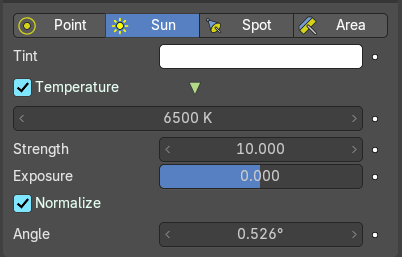
The light has no falloff, and goes into one direction.
| Entry | What it does |
|---|---|
| Color/Tint | The color of the light. Clicking at the color field will open a color picker. |
| Temperature | Enables physically-based color temperature control (in Kelvin). Checked by default. Example: 5748 K produces a neutral white light. |
| Strength | Power of the light in Watts. Higher values increase the intensity of the light. Negative values can be set, but should be avoided for predictable and physically based result. |
| Exposure | Adjusts the light’s exposure level. Useful for fine-tuning brightness without changing power |
| Normalize | When enabled, keeps the light’s intensity consistent regardless of radius. Helps maintain predictable lighting when adjusting size. |
| Angle | The size of the sun light according to its angular diameter as seen from earth. |
Spot Light Eevee
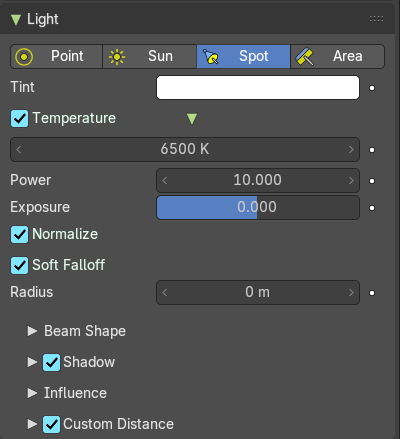
The light has falloff. And gets distributed in a cone shape.
| Entry | What it does |
|---|---|
| Color / Tint | The color of the light. Clicking at the color field will open a color picker. If you are using Temperature, it will Tint the color. |
| Temperature | Enables physically-based color temperature control (in Kelvin). Checked by default. Example: 5748 K produces a neutral white light. |
| Power | Power of the light in Watts. Higher values increase the intensity of the light. Negative values can be set, but should be avoided for predictable and physically based result. |
| Exposure | Adjusts the light’s exposure level. Useful for fine-tuning brightness without changing power |
| Normalize | When enabled, keeps the light’s intensity consistent regardless of radius. Helps maintain predictable lighting when adjusting size. |
| Radius | Defines the physical size of the light source. Larger values produce softer shadows and broader highlights. When larger than zero, light will be emitted from a spherical surfaces with the specified radius. Lights with larger size have softer shadows and specular highlights. |
Beam Shape subpanel
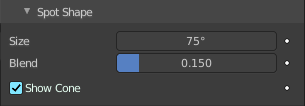
Controls the shape of the spotlight.
| Entry | What it does |
|---|---|
| Size | The size of the outer cone of a spot. |
| Blend | Blending to the inner cone of a spot. The inner cone boundary line indicates the point at which light from the Spot will start to blur/soften. |
Show cone
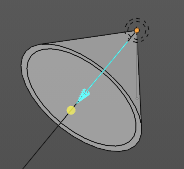
Shows the cone opaque in the 3D view.
Shadow subpanel
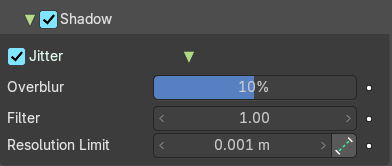
Toggles shadow casting for the light. Allows the light source to cast shadows in the scene.
| Entry | What it does |
|---|---|
| Jitter | Enables jittered soft shadows to increase the precision of shadows. This option is disabled in the viewport unless it is also enabled in the render settings. Note: Enabling this can have a significant performance impact. · Overblur: Applies shadow tracing to each jittered sample to reduce under-sampling artifacts. The default setting is 10%, which helps mitigate shadow noise and improve shadow quality. |
| Filter | Blurs the aliasing in shadows, creating smoother transitions and reducing the harsh edges of shadows. |
Resolution Limit
Sets the minimum size of a shadow map pixel. Higher values use less memory but at the cost of reduced shadow quality. This setting helps manage performance versus quality in shadow rendering.
This setting controls the minimum size of a shadow map pixel, which directly affects how detailed shadows appear.
- Lower values = Sharper shadows, but higher memory usage.
- Higher values = Blurry or simplified shadows, but better performance.
Think of it as setting the "zoom level" of shadow detail. If the value is too high, shadows may appear blocky or lose definition—especially near the camera
Absolute Resolution Limit
Limit the resolution at 1 unit from the light origin instead of relative to the shadowed pixel. By default, the Resolution Limit is relative to the screen pixel being shaded. This means shadow detail changes depending on how close the object is to the camera.
When Absolute Resolution Limit is enabled:
- The resolution is instead calculated at a fixed distance—specifically, 1sceneunit from the light source.
- This makes the shadow resolution consistent, regardless of how close or far the shadowed object is from the camera.
Tip: Use this when you want predictable, uniform shadow quality**, especially in scenes with large depth ranges or moving cameras.
Influence subpanel
Slider properties that define how much the light affects certain elements, including diffuse, glossy, transmission and volume scattering. Useful for Non-Photo-Real (NPR) rendering.
| Entry | What it does |
|---|---|
| Diffuse | Diffuse reflection multiplier. |
| Specular | Specular light intensity multiplier. |
| Transmission | Transmission or subsurface scattering light multiplier. |
| Volume Scatter | Volume Light multiplier within volumetric materials. |
Custom Distance subpanel
Eevee Renderer. If enabled uses Distance as the custom attenuation distance instead of global light threshold. In order to avoid long setup times, this distance is first computed automatically based on a light threshold. The distance is computed at the light origin and using the inverse square falloff.
Distance
The distance where light influence will be set to 0.
Spot Light Cycles
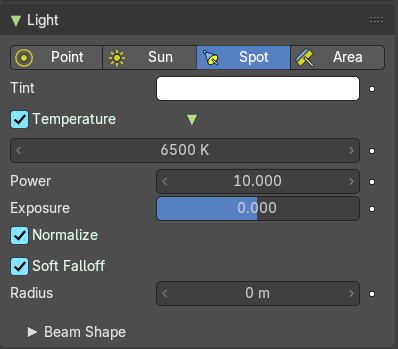
The light has falloff. And gets distributed in a cone shape.
| Entry | What it does |
|---|---|
| Color/Tint | The color of the light. Clicking at the color field will open a color picker. |
| Temperature | Enables physically-based color temperature control (in Kelvin). Checked by default. Example: 5748 K produces a neutral white light. |
| Power | Power of the light in Watts. Higher values increase the intensity of the light. Negative values can be set, but should be avoided for predictable and physically based result. |
| Soft Falloff | Apply falloff to avoid sharp edges when the light geometry intersects with other objects. |
| Radius | When larger than zero, light will be emitted from a spherical surfaces with the specified radius. Lights with larger size have softer shadows and specular highlights. |
Beam shape subpanel
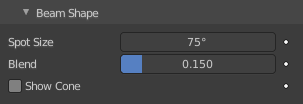
Eevee renderer.
| Entry | What it does |
|---|---|
| Size | The size of the outer cone of a spot. |
| Blend | Blending to the inner cone of a spot. The inner cone boundary line indicates the point at which light from the Spot will start to blur/soften. |
Show cone
Shows the cone opaque in the 3D view
Area Light Eevee
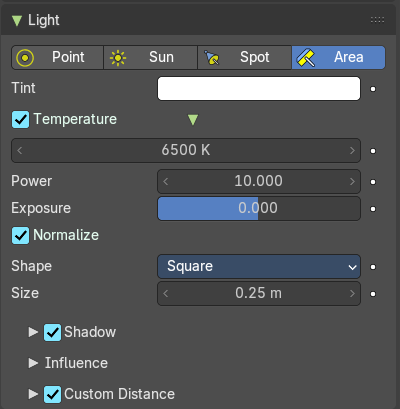
The light emits from a 2D surface, and has falloff.
| Entry | What it does |
|---|---|
| Color / Tint | The color of the light. Clicking at the color field will open a color picker. If you are using Temperature, it will Tint the color. |
| Temperature | Enables physically-based color temperature control (in Kelvin). Checked by default. Example: 5748 K produces a neutral white light. |
| Power | Power of the light in Watts. Higher values increase the intensity of the light. Negative values can be set, but should be avoided for predictable and physically based result. |
| Exposure | Adjusts the light’s exposure level. Useful for fine-tuning brightness without changing power |
| Normalize | When enabled, keeps the light’s intensity consistent regardless of radius. Helps maintain predictable lighting when adjusting size. |
Shape
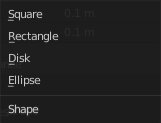
Defines the geometry of the light-emitting surface. The shape determines how light is distributed and how shadows are cast in the scene. Available options typically include:
- Rectangle: Emits light from a flat, rectangular surface. Great for simulating windows, softboxes, or fluorescent panels.
- Square: A simplified version of the rectangle with equal width and height.
- Disk: Emits light from a circular surface. Useful for simulating round light sources like spotlights or LED panels.
- Ellipse: A stretched version of the disk, offering more directional control
Each shape affects the softness of shadows, specular highlights, and how light wraps around objects.
Size
Controls the dimensions of the light-emitting surface, which directly influences the softness and spread of the light:
- For Rectangle and Ellipse shapes, you’ll typically see two parameters: Width and Height.
- For Square and Disk, a single Size value defines both dimensions equally
Note: Larger sizes* produce softer shadows and more diffuse lighting, while smaller sizes result in sharper shadows *and more focused highlights.
Shadow subpanel
Toggles shadow casting for the light. Allows the light source to cast shadows in the scene.
| Entry | What it does |
|---|---|
| Jitter | Enables jittered soft shadows to increase the precision of shadows. This option is disabled in the viewport unless it is also enabled in the render settings. Note: Enabling this can have a significant performance impact. · Overblur: Applies shadow tracing to each jittered sample to reduce under-sampling artifacts. The default setting is 10%, which helps mitigate shadow noise and improve shadow quality. |
| Filter | Blurs the aliasing in shadows, creating smoother transitions and reducing the harsh edges of shadows. |
Resolution Limit
Sets the minimum size of a shadow map pixel. Higher values use less memory but at the cost of reduced shadow quality. This setting helps manage performance versus quality in shadow rendering.
This setting controls the minimum size of a shadow map pixel, which directly affects how detailed shadows appear.
- Lower values = Sharper shadows, but higher memory usage.
- Higher values = Blurry or simplified shadows, but better performance.
Think of it as setting the "zoom level" of shadow detail. If the value is too high, shadows may appear blocky or lose definition—especially near the camera
Absolute Resolution Limit
Limit the resolution at 1 unit from the light origin instead of relative to the shadowed pixel. By default, the Resolution Limit is relative to the screen pixel being shaded. This means shadow detail changes depending on how close the object is to the camera.
When Absolute Resolution Limit is enabled:
- The resolution is instead calculated at a fixed distance—specifically, 1sceneunit from the light source.
- This makes the shadow resolution consistent, regardless of how close or far the shadowed object is from the camera.
Tip: Use this when you want predictable, uniform shadow quality**, especially in scenes with large depth ranges or moving cameras.
Influence subpanel
Slider properties that define how much the light affects certain elements, including diffuse, glossy, transmission and volume scattering. Useful for Non-Photo-Real (NPR) rendering.
| Entry | What it does |
|---|---|
| Diffuse | Diffuse reflection multiplier. |
| Specular | Specular light intensity multiplier. |
| Transmission | Transmission or subsurface scattering light multiplier. |
| Volume Scatter | Volume Light multiplier within volumetric materials. |
Custom Distance
Eevee Renderer. If enabled uses Distance as the custom attenuation distance instead of global light threshold. In order to avoid long setup times, this distance is first computed automatically based on a light threshold. The distance is computed at the light origin and using the inverse square falloff.
Distance
The distance where light influence will be set to 0.
| Entry | What it does |
|---|---|
| Cast Shadow | Light source casts shadow. |
| Shadow Softness | Scale light shape for softer shadows. |
| Filtering Radius | Blur shadow aliasing. |
Custom Distance
Eevee Renderer. If enabled uses Distance as the custom attenuation distance instead of global light threshold. In order to avoid long setup times, this distance is first computed automatically based on a light threshold. The distance is computed at the light origin and using the inverse square falloff.
Distance
The distance where light influence will be set to 0.
Area Light Cycles
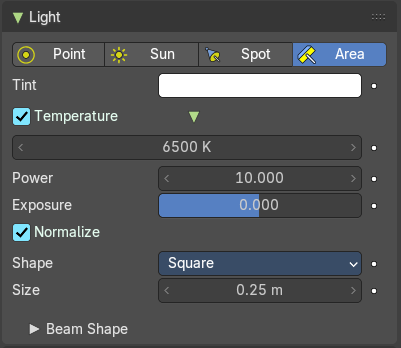
The light emits from a surface, and has falloff.
| Entry | What it does |
|---|---|
| Color / Tint | The color of the light. Clicking at the color field will open a color picker. If you are using Temperature, it will Tint the color. |
| Temperature | Enables physically-based color temperature control (in Kelvin). Checked by default. Example: 5748 K produces a neutral white light. |
| Power | Power of the light in Watts. Higher values increase the intensity of the light. Negative values can be set, but should be avoided for predictable and physically based result. |
| Exposure | Adjusts the light’s exposure level. Useful for fine-tuning brightness without changing power |
| Normalize | When enabled, keeps the light’s intensity consistent regardless of radius. Helps maintain predictable lighting when adjusting size. |
Shape
Defines the geometry of the light-emitting surface. The shape determines how light is distributed and how shadows are cast in the scene. Available options typically include:
- Rectangle: Emits light from a flat, rectangular surface. Great for simulating windows, softboxes, or fluorescent panels.
- Square: A simplified version of the rectangle with equal width and height.
- Disk: Emits light from a circular surface. Useful for simulating round light sources like spotlights or LED panels.
- Ellipse: A stretched version of the disk, offering more directional control
Each shape affects the softness of shadows, specular highlights, and how light wraps around objects.
Size
Controls the dimensions of the light-emitting surface, which directly influences the softness and spread of the light:
- For Rectangle and Ellipse shapes, you’ll typically see two parameters: Width and Height.
- For Square and Disk, a single Size value defines both dimensions equally
Note: Larger sizes* produce softer shadows and more diffuse lighting, while smaller sizes result in sharper shadows *and more focused highlights.
Beam Shape Subpanel

Spread
How widely the emitted light fans out.
Settings panel
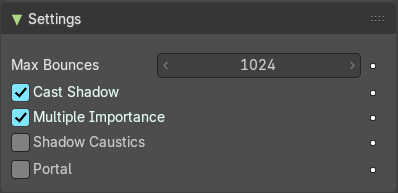
Note: These settings are Cycles only.
| Entry | What it does |
|---|---|
| Max Bounces | Cycles only. Maximum number of times light from the light is allowed to bounce. Limited by scene-wide bounce settings. |
| Cast Shadow | Light casts shadow. |
| Multiple Importance | Multiple importance sampling reduces noise for area lights and sharp glossy materials. |
| Shadow Caustics | Enables the generation of approximate caustics in the shadows of refractive surfaces. Requires that lights, caster objects, and receiver objects have the shadow caustics option activated. This feature enhances the realism of light interaction with transparent materials by simulating caustic patterns in shadows. |
Portal
When enabled, the Portal option turns an Area Light into a light portal, guiding environment light into interior spaces more efficiently. This helps the Cycles renderer focus its sampling where it matters most—through windows, doors, or other openings—resulting in significantly reduced noise and faster convergence in indoor scenes.
- Best used in interior scenes where light enters through limited openings.
- Not effective for outdoor scenes, where most light rays escape into the sky and portals provide no sampling advantage.
Note: When a light is set as a portal, it no longer emits light or appears in the render—it acts purely as a sampling guide.
Nodes Panel
Cycles only
Use Nodes
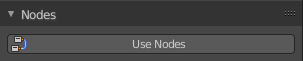
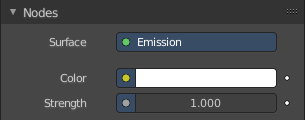
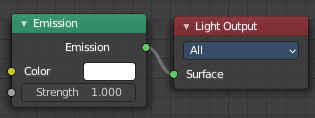
Use nodes for the light setup. Creates the standard nodes for an emission light. Which can be found in the Node editor then. Once activated the Nodes panel shows the content of the emission node.
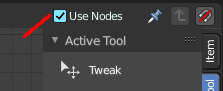
To revert, and not to use nodes, untick the Use Nodes checkbox in the node editor.
Animation Panel
Light
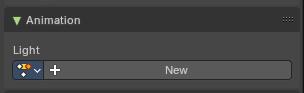
New
Create a new action clip for the light, used in the Dopesheet Editor - Action Clip mode.
Action Selector
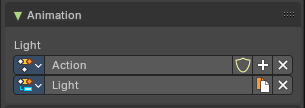
This selector allows users to manage actions associated with a light source, ensuring that the correct animation data is applied.
- Add**:** Make a copy of the current action, including all animation data.
<!-- -->
- Remove: Delete the selected action, removing it from the light source.
<!-- -->
- Fake User: Assigns a "fake user" to the action, preventing it from being automatically deleted when it is no longer in use.
Slot Selector
Slots are used to organize distinct animation data within an action across multiple objects, lights or elements. The Slot Selector provides an interface to manage these slots, allowing for efficient duplication and removal as needed. Each object contains their own slot.
- Duplicate**:** Make a copy of the current slot.
<!-- -->
- Remove: Delete the selected slot, removing it from the light source.
Custom Properties Panel
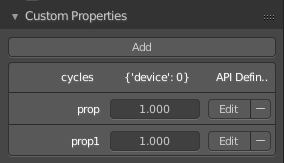
Here you can define custom properties that can be used for scripting.
Here you might also find custom properties from addons or scripts.
Add
Adds a new property.
Edit
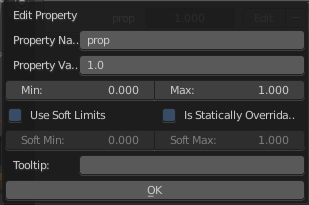
Opens a panel where you can adjust the settings for the custom property.
Remove
Removes the property.