

































































Lattice Object
Lattice objects can be used to deform child geometry by the cage of the lattice object.
Lattice panel
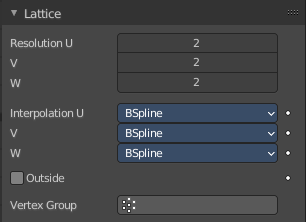
Lattice objects can be used to deform child geometry by the cage of the lattice object.
Workflow
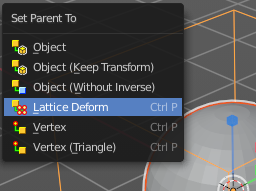
Create a lattice. Create a mesh object like a sphere.
Parent this sphere at the lattice. With method Lattice deform.
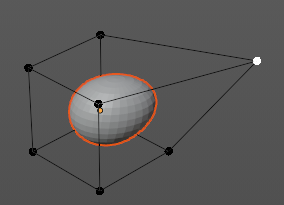
Select the lattice object and enter Edit mode.
Pull the vertices of the lattice cage. And the child geometry will deform.
Resolution U / V / W
The subdivision resolution of the Lattice object. A resolution of 1 makes the lattice one dimensional.
Interpolation U / V / W

The interpolation selector for each axis. How the Lattice cage influences the child geometry. Each method gives a slightly different result.
| Entry | What it does |
|---|---|
| Outside | Takes only the vertices on the surface of the lattice into account. |
| Vertex Group | Apply the influence of the lattice to a vertex group instead of a whole mesh |
Vertex groups panel
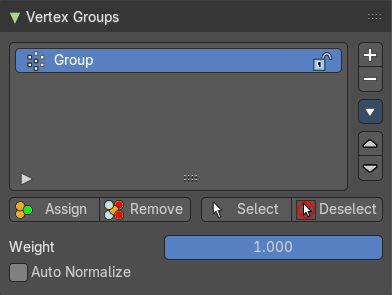
A Vertex group is a group of vertices, a selection of the mesh. It is for example used to weight a specific mesh part to a bone. Or to control the growth of hair particles.
This panel allows you to manage and edit vertex groups. Weight painting creates vertex groups automatically.
In Edit mode this panel shows some further controls.
Vertex groups exists for mesh and lattice objects.
Active Vertex Group list
A List of the vertex groups for this mesh.
| Entry | What it does |
|---|---|
| Group name | The name of the group. It can be renamed by double clicking at it. |
| Lock | The lock icon at the end of a group name locks the group from being editable. |
| Drag Handler | The two vertical lines at the end is a handler with which you can expand the list. |
| Search Field | You can expand a search field at the bottom of the list. Type in your term and hit enter to filter for your term. · Invert: Exclude the search term instead of searching for it. · Sort by Name: Sort the List by name. |
| Entry | What it does |
|---|---|
| Add + | Create an empty vertex group. |
| Remove - | Deletes the active vertex group. |
Specials menu
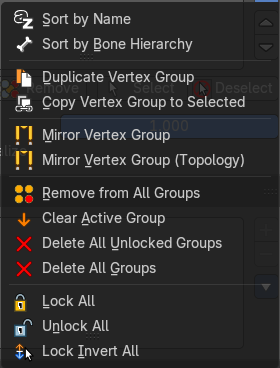
| Entry | What it does |
|---|---|
| Sort by Name | Sorts the vertex groups alphabetically by name. |
| Sort by Bone Hierarchy | Sorts the vertex groups by the hierarchy of the assigned bones. |
Duplicate Vertex Group

Add a copy of the active vertex group as a new group. The new group will be named like the original group with “_copy” appended at the end of its name. And it will contain associations to exactly the same vertices with the exact same weights as in the source vertex group.
| Entry | What it does |
|---|---|
| Copy Vertex Group to Selected | Copy all vertex groups to other selected objects provided they have matching indices (typically this is true for copies of the mesh which are only deformed and not otherwise edited). |
| Mirror Vertex Group | Mirrors weights and/or flips group names from one side of a symmetrical mesh to the other. Only mirroring along local X axis is supported. Vertices that have no corresponding vertex on the other side will not be affected. Note, the weights are not transferred to the corresponding opposite bone weight group. |
| Mirror Vertex Group (Topology) | Performs the Mirror Vertex Group with the Topology Mirror option enabled. |
| Remove from All Groups | Unassigns the selected vertices from all groups. Even locked. |
| Clear Active Group | Remove all assigned vertices from the active group. The group is made empty. Note that the vertices may still be assigned to other vertex groups of the object. This feature does not affect locked groups. |
| Delete All Unlocked Groups | Remove all vertex groups from the object that are not locked. |
| Delete All Groups | Remove all vertex groups from the object. |
| Lock All | Lock all groups. |
| Unlock All | Unlock all groups. |
| Lock Invert All | Invert group locks. |
Move Vertex Group Up / Down

Moves the selected vertex group up or down in the list.
Assign

Assign the selected vertices to the active vertex group.
| Entry | What it does |
|---|---|
| Remove | Remove the selected vertices from the active group. |
| Select | Select all vertices in the group. |
| Deselect | Deselect all vertices in the group. |
| Weight | The weight value that gets assigned to the selected vertices. |
| Auto Normalize | Make sure that all bone-deforming vertex groups adds up to 1.0 while weight painting or assigning to vertices. |
Shape Keys panel
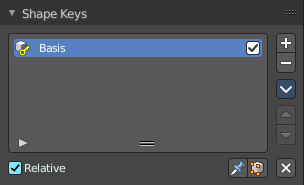
This panel allows you to see and manage shape keys. A shape key is a vertex animation.
Shape keys are for example used for facial animations, when you don't want to use a face rig with bones. The idea is to model a shape key pose for smiling, one for laughing, one for sad, and so on. And then blend the shape key poses together as needed.
Shape keys are also called morph targets or blend shapes.
Workflow
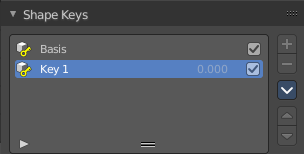
In Object mode add a shape key. This first shape key is called Basis by default. It is the base for the vertex animation. This basis shape key is the base shape for all further shape keys. It cannot be modified or keyframed.
Now add a second shape key. This second shape key will have more controls so that you can modify it in the needed way.
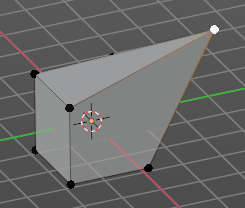
Enter edit mode with this key 1 selected.
Modify the geometry by moving some vertices around.
Switch back to Object mode.
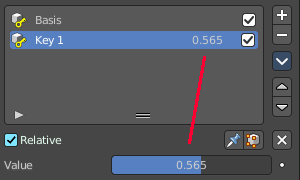
Have a look at the value slider. This slider defines how the key 1 shape key blends with the Basis shape key.
Move it from value 0 to value 1. You will notice that the vertices that you have modified in Key 1 will now start to move to a new position. Dependent of how strong the value is. With a value of 1 it will be at the position of how you modeled it.
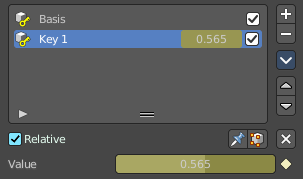
To keyframe this shape click at the Animate property dot behind the slider. The slider will change its color. And the dot will change to a rhombus shape to indicate that there is a keyframe recorded at this frame.
Or you right click at the slider, and choose Insert Keyframe in the menu.
Move to another frame. Change the slider value, and set another keyframe.
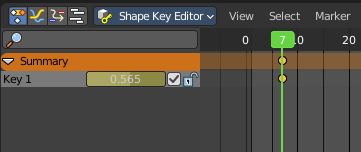
Recorded keyframes can be found and further tweaked in the Dope sheet Editor in Shape Key Editor mode. Here you can also record further keyframes under Key / Insert Keyframes. And control the slider values from the channel list.
Add more shape keys and model and animate them as you need them.
Active Shape Key Index
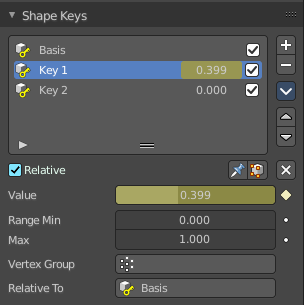
A List of the shape keys for this mesh.
It contains two types of shape keys. Basis is the base shape. The other type relies at this shape as the base.
| Entry | What it does |
|---|---|
| Shape Key name | The name of the shape key. It can be renamed by double clicking at it. |
| Slider value | The blend value of this shape key. The Basis shape key does not have such a slider. |
| Lock | The lock icon at the end of a group name locks the group from being editable. |
| Drag Handler | The two vertical lines at the end is a handler with which you can expand the list. |
| Search Field | You can expand a search field at the bottom of the list. Type in your term and hit enter to filter for your term. · Invert: Exclude the search term instead of searching for it. · Sort by Name: Sort the List by name. |
| Entry | What it does |
|---|---|
| Add + | Create a shape key. |
| Remove - | Delete the selected shape key. |
Specials Menu
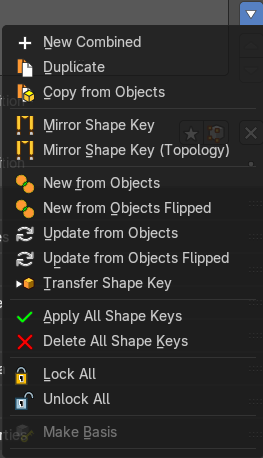
| Entry | What it does |
|---|---|
| New Combined | Add a new shape key with the current deformed shape of the object. |
| Duplicate | Makes a duplicate of the current selected shape key. |
| Copy from Objects | Copy the active shape key of another selected object to this one. |
| Mirror Shape Key | Mirror the shape keys on the X axis. This will not work if the mesh vertices is not fully symmetrical. |
| Mirror Shape Key (Topology) | Mirror the shape keys on the X axis. But detects the mirrored vertices based on the topology of the mesh. The mesh vertices do not have to be perfectly symmetrical for this action to work. |
| New from Objects | Add the vertex positions of selected objects as shape keys or update existing shape keys. |
| New from Objects Flipped | Add the vertex positions of selected objects as shape keys or update existing shape keys. But flipped. |
| Update from Objects | Add the vertex positions of selected objects as shape keys or update existing shape keys with matching names. |
| Update from Objects | Add the vertex positions of selected objects as shape keys or update existing shape keys with matching names. But flipped. |
| Transfer Shape Key | Copy the active shape key of another selected object to this one. |
| Apply all Shape Keys | Apply all shape keys to the mesh, also removes shape keys. |
| Delete all Shape Keys | Delete all shape keys at this mesh. |
| Lock All | Lock all shape keys of the active object. They cannot be edited anymore then. |
| Unlock All | Unlock all shape keys of the active object. |
| Make Basis | Make this shape key the new basis key, effectively applying it to the mesh. Note that this applies the shape key at its 100% value. |
| Move to Bottom | Move the shape key to the bottom of the list. |
Move Shape Key Up / Down
Moves the selected shape key up or down in the list.
Relative
Set the shape keys to Relative or Absolute.
Relative
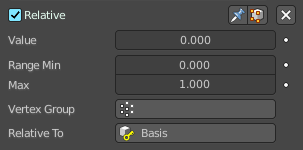
The shape is defined relative to the Basis or another specified shape key. And can be adjusted in its settings.
| Entry | What it does |
|---|---|
| Shape Key Lock (pin icon) | Show the active shape in the 3D Viewport without blending. Shape Key Lock gets automatically enabled while the object is in Edit Mode. |
| Shape Key Edit Mode (edit mode icon) | If enabled, when entering Edit Mode the active shape key will not take maximum influence as is default. Instead, the current blend of shape keys will be visible and can be edited from that state. |
| Value | The weight of the blend between the shape key and its basis key. 0 means no influence, 1 full influence. |
| Range | Minimum and maximum range for the influence value of the active shape key. |
| Vertex Group | Limit the active shape key deformation to a vertex group. |
| Relative To | Select the shape key to deform from. It does not need to be the Basis shape key, but can also be another shape key. |
Absolute
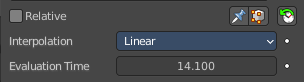
The shape changes over time, as defined in its settings.
| Entry | What it does |
|---|---|
| Shape Key Lock (pin icon) | Show the active shape in the 3D Viewport without blending. Shape Key Lock gets automatically enabled while the object is in Edit Mode. |
| Shape Key Edit Mode (edit mode icon) | If enabled, when entering Edit Mode the active shape key will not take maximum influence as is default. Instead, the current blend of shape keys will be visible and can be edited from that state. |
| Re-Time Shape Keys (clock icon) | Absolute shape keys are timed, by order in the list, at a constant interval. This button resets the timing for the keys. Useful if keys were removed or re-ordered. |
Interpolation
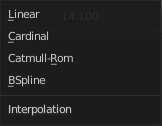
The interpolation method between shape keys.
Evaluation Time
Evaluate the shape key influence over the defined time. The evaluation starts at influence 0, and reaches 1 at the end of the value of this timer.
Custom Properties Panel
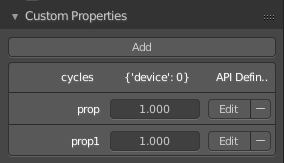
Here you can define custom properties that can be used for scripting.
Here you might also find custom properties from addons or scripts.
Add
Adds a new property.
Edit
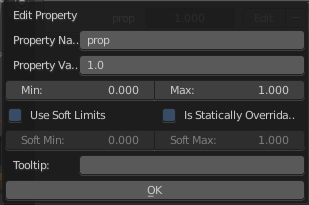
Opens a panel where you can adjust the settings for the custom property.
Remove
Removes the property.