

































































Grease Pencil Object
Grease Pencil objects each have a list of 2D layers for grouping and arranging strokes in a List view. Any stroke can only belong to a single 2D layer. There is always only one active layer in the list (the selected…
Layers panel
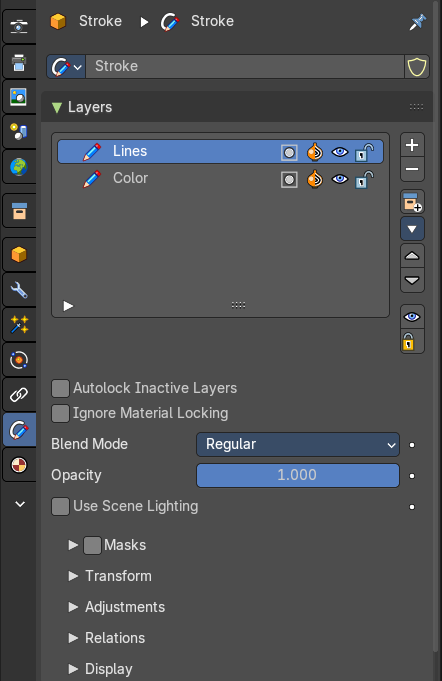
Grease Pencil objects each have a list of 2D layers for grouping and arranging strokes in a List view. Any stroke can only belong to a single 2D layer. There is always only one active layer in the list (the selected one). When you draw, the new strokes are added to the active layer. By default the view order of the layers in the viewport is top to bottom.
Every layer correspond to a channel in the Dope Sheet editor (in Grease Pencil mode). Layers can also be used together with Modifiers to only affects part of your drawing.
Layer list
Layer name
The name of the layer.
Grease pencil layers right click menu
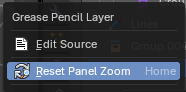
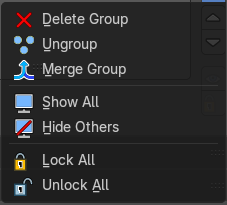
A right click at a group in the list reveals a menu with further options.
When you click at a group layer, then you will reveal further options.
Edit Source
Allows you to edit the source code.
Reset Panel Zoom
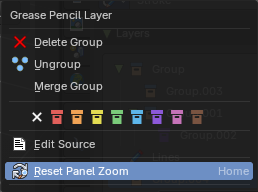
Resets the zoom of the panel to the default value. Note that this entry is dysfunctional. You cannot zoom the panel.
| Entry | What it does |
|---|---|
| Delete Group | Deletes the selected group. It does not keep the children, and deletes the whole hierarchy. |
| Ungroup | Ungroups the selected group. |
| Merge Group | Combine the layers in this group into a single layer. |
| Colors | Allows you to color your layer groups in the list. It does not show |
| Entry | What it does |
|---|---|
| Mask Layer | Toggle the Masks visibility in the layer. |
| Onion Skinning | Toggle the use the layer for Onion Skinning. |
| Viewport/Render Visibility | Toggle layer visibility in the viewport and in render. |
| Lock | Toggle layer from being editable. |
Search Field

You can expand a search field at the bottom of the list. Type in your term and hit enter to filter for your term.
Add New Layer
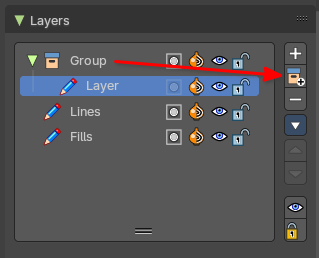
Adds a new layer.
| Entry | What it does |
|---|---|
| Add New Layer Group | Adds a group. You can then drag n drop layers into it. |
| Remove Layer Group | Deletes the selected group. But keeps the children, and the hierarchy. |
Add Extra menu
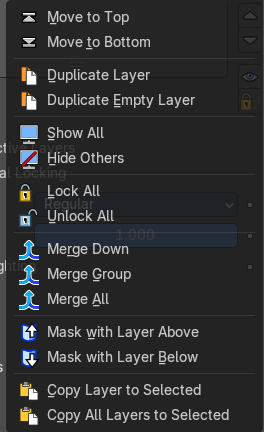
Extra operators per layer or layer group.
Add Group
Adds a group. You can then drag n drop layers into it. The group will be added as a child when you have a group selected.
| Entry | What it does |
|---|---|
| Delete Group | Deletes the selected group. Note: Only shows on Layer Groups |
| Ungroup | Ungroups the selected group. Note: Only shows on Layer Groups |
| Merge Group | Merges any children groups with parent group. If there are no children groups, it will merge no layer groups. Note: Only shows on Layer Groups |
| Move To Top | Moves the active selected grease pencil layer to top |
| Move To Bottom | Moves the active selected grease pencil layer to bottom |
| Duplicate Layer | Makes an exact copy of the selected layer appending a number to differentiate its name. This method does not duplicate empty keyframes. |
| Duplicate Empty Keyframes | Makes an exact copy of the selected layer appending a number to differentiate its name. This method does duplicate empty keyframes. |
| Show All | Turns on the visibility of every layer in the list. |
| Hide Others | Turns off the visibility of every layer in the list except the active one. |
| Lock All | Locks edition of all the layers in the list |
| Unlock All | Unlocks edition of all the layers in the list. |
| Merge Down | Merge the selected layer with the layer below. The new layer keeps the name of the lower layer. |
| Merge All | Merge the selected layer with all layers. The new layer keeps the name of the active layer. |
| Mask with Layer Above | Mask the active layer with the layer above. |
| Mask with Layer Below | Mask the active layer with the layer below |
| Copy Layer to Selected | Appends the active layer to the selected object. |
| Copy all Layers to Selected | Appends all layers to the selected object. |
| Entry | What it does |
|---|---|
| Reorder Layer | Move the selected layer up or down in the list. |
| Isolate Layers | Locks and hides all not active layers. |
| Isolate layers | Locks all not active layers. |
| Autolock Inactive layers | Automatically lock all layers except the active one to avoid accidental changes |
| Ignore Material Locking | Allow editing strokes even if they use locked materials. |
Blend Mode
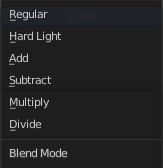
The layer blending operation to perform. See Color Blend Modes.
| Entry | What it does |
|---|---|
| Opacity | Used to set the opacity of the layer. |
| Use Scene Lighting | When enabled, the layer is affected by lights. |
Layers panel - Masks subpanel
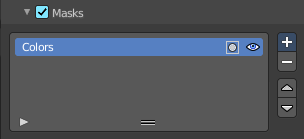
Use another grease pencil layer as a mask.
List view
| Entry | What it does |
|---|---|
| Name of the grease pencil layer | The name of the layer. |
| Invert | Invert the mask. |
| Hide | Set mask layer visible or invisible. |
Search Field
You can expand a search field at the bottom of the list. Type in your term and hit enter to filter for your term.
Add
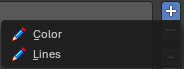
Add a grease pencil layer as a mask layer. The layer must already exist.
| Entry | What it does |
|---|---|
| Subtract | Remove the grease pencil layer from the list. |
| Move Up / Down | Move the selected grease pencil mask one up or one down. |
Layers panel - Transform subpanel
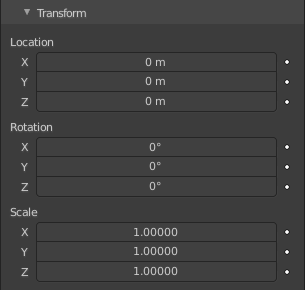
Allows to transform the current grease pencil layer in the 3d view.
Layers panel - Adjustment subpanel
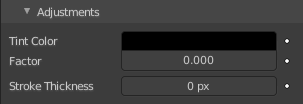
| Entry | What it does |
|---|---|
| Tint Color | Color that tint any material colors used in the layer. · Factor: The Factor controls the amount of tint color to apply. |
| Stroke Thickness | Thickness value that override the strokes thickness in the layer. |
Layers panel - Relations subpanel
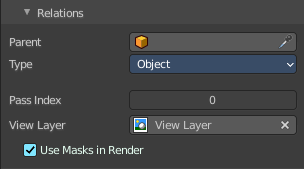
Select a Parent object and Type to manipulate the layer. The layer will inherit the transformations of the parent.
This can be used for rigging for cut-out animation.
Parent
The Parent object.
Type
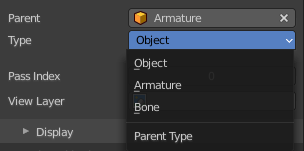
What type of object. When the parent is an armature, then you can choose between object, armature or bone.
Bone
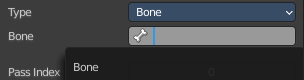
When the type is a bone, then choose which bone of the armature.
| Entry | What it does |
|---|---|
| Pass Index | The layer index number. It can be used with some modifiers to restrict changes to only certain areas. |
| View Layer | Defines the View Layer to use for the Grease Pencil layer. If empty, the layer will be included in all View Layers. This is useful to separate drawings parts for compositing. · Use Masks in Render: Include the mask layer when you render the view layer. You need to have a view layer selected to reveal this option. |
Layers panel - Display subpanel
Custom Channel Color
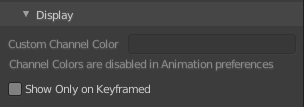
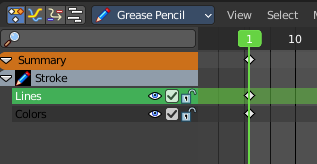
Sets the color to use in the channel region of the Dope Sheet.
Show Only On Keyframed

The layer is just visible in the viewport if it has a keyframe in the actual frame.
Onion Skinning Panel
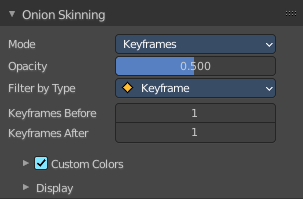
Onion Skinning show ghosts of the keyframes before and after the current frame. This allows animators to judge and pose in between two frames.
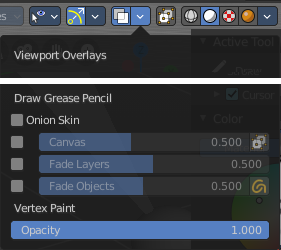
Mode
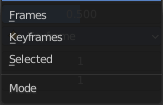
| Entry | What it does |
|---|---|
| Frames | Shows Frames in the range determined by the Before/After settings. |
| Keyframes | Shows Keyframes in the range determined by the Before/After settings. |
| Selected | Shows only on the manually selected keyframes in the Dope Sheet. |
Opacity
Control the opacity of the ghost frames.
Filter By Type

Filters what type of frames to show in the Onion Skinning range.
Keyframes Before/After
Sets how many frames or keyframes, depending on the Mode, to show before and after the current frame.
Custom Colors
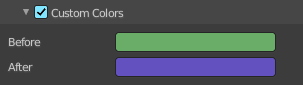
Before/After
Custom color of the ghost frames before and after the current frame.
Display
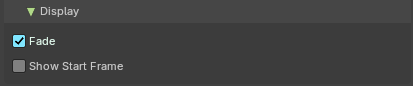
| Entry | What it does |
|---|---|
| Fade | Opacity of the ghosts frames decrease the further away from the current frame. |
| Show Start Frame | Display onion keyframes on looping animations. |
Settings Panel
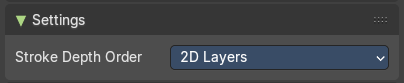
Stroke depth order
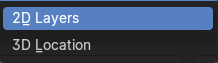
| Entry | What it does |
|---|---|
| 2D Layers | Display strokes by using the Grease Pencil layer order and stroke order to define depth. |
| 3D Location | Display strokes by using the real 3D position in 3D space. |
Attributes panel
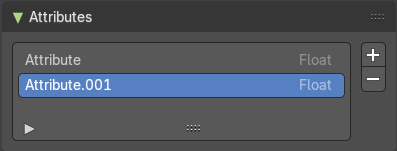
A list of the attributes at this object. Attributes can be used to identify an object in the shader editor or the geometry nodes editor
Add Attribute +
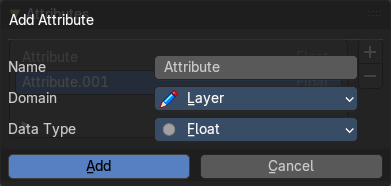
A List of the attributes for this mesh.
Remove Attribute -
Delete the selected attribute.
Attribute Specials menu
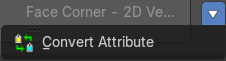
Convert Attrribute
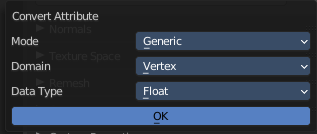
Change how the selected attribute is stored.
This operator opens a popup menu where you can change the settings of the attribute.
Name
The name of the attribute.
Domain

Type of element that the attribute is stored on. In this case the grease pencil layer.
Data Type
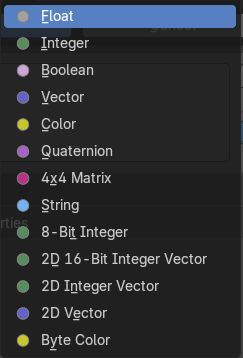
Just Generic. What data type to use for the attribute calculation.
Vertex groups panel
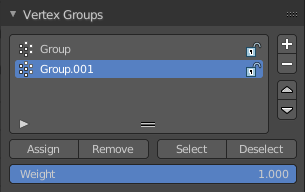
A Vertex group is a group of vertices, a selection of the mesh. It is for example used to weight a specific mesh part to a bone. Or to control the growth of hair particles.
This panel allows you to manage and edit vertex groups. Weight painting creates vertex groups automatically.
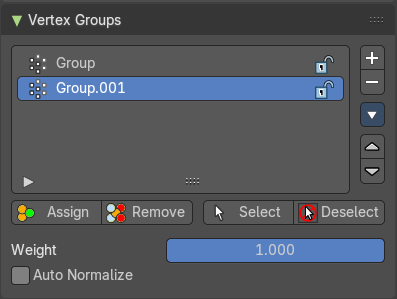
In Edit mode this panel shows the inactive controls active.
Vertex groups exists for mesh and lattice objects.
Active Vertex Group list
A List of the vertex groups for this mesh.
| Entry | What it does |
|---|---|
| Group name | The name of the group. It can be renamed by double clicking at it. |
| Lock | The lock icon at the end of a group name locks the group from being editable. |
| Drag Handler | The two vertical lines at the end is a handler with which you can expand the list. |
| Search Field | You can expand a search field at the bottom of the list. Type in your term and hit enter to filter for your term. · Invert: Exclude the search term instead of searching for it. · Sort by Name: Sort the List by name. |
| Entry | What it does |
|---|---|
| Add + | Create an empty vertex group. |
| Remove - | Deletes the active vertex group. |
Vertex Group Specials menu
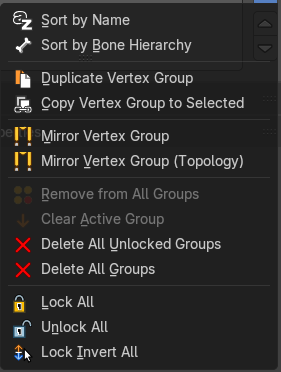
| Entry | What it does |
|---|---|
| Sort by Name | Sorts the vertex groups alphabetically by name. |
| Sort by Bone Hierarchy | Sorts the vertex groups by the hierarchy of the assigned bones. |
Copy Vertex Group
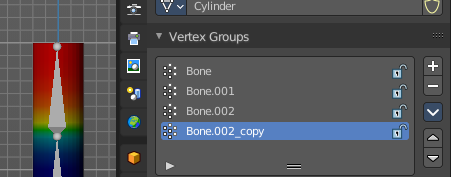
Add a copy of the active vertex group as a new group. The new group will be named like the original group with “_copy” appended at the end of its name. And it will contain associations to exactly the same vertices with the exact same weights as in the source vertex group.
| Entry | What it does |
|---|---|
| Copy Vertex Groups to Linked | Copy vertex groups of this mesh to all linked objects which use the same mesh data (all users of the data). |
| Copy Vertex Group to Selected | Copy all vertex groups to other selected objects provided they have matching indices (typically this is true for copies of the mesh which are only deformed and not otherwise edited). |
| Mirror Vertex Group | Mirrors weights and/or flips group names from one side of a symmetrical mesh to the other. Only mirroring along local X axis is supported. Vertices that have no corresponding vertex on the other side will not be affected. Note, the weights are not transferred to the corresponding opposite bone weight group. |
| Mirror Vertex Group (Topology) | Performs the Mirror Vertex Group with the Topology Mirror option enabled. |
| Remove from All Groups | Unassigns the selected vertices from all groups. Even locked. |
| Clear Active Group | Remove all assigned vertices from the active group. The group is made empty. Note that the vertices may still be assigned to other vertex groups of the object. This feature does not affect locked groups. |
| Delete All Unlocked Groups | Remove all vertex groups from the object that are not locked. |
| Delete All Groups | Remove all vertex groups from the object. |
| Lock All | Lock all groups. |
| Unlock All | Unlock all groups. |
| Lock Invert All | Invert group locks. |
| Entry | What it does |
|---|---|
| Move Vertex Group Up | Moves the selected vertex group up in the list. |
| Move Vertex Group Down | Moves the selected vertex group down in the list. |
Assign

Assign the selected vertices to the active vertex group.
| Entry | What it does |
|---|---|
| Remove | Remove the selected vertices from the active group. |
| Select | Select all vertices in the group. |
| Deselect | Deselect all vertices in the group. |
| Weight | The weight value that gets assigned to the selected vertices. |
Custom Properties Panel
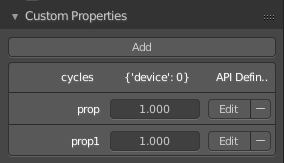
Here you can define custom properties that can be used for scripting.
Here you might also find custom properties from addons or scripts.
Add
Adds a new property.
Edit
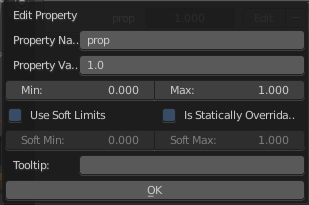
Opens a panel where you can adjust the settings for the custom property.
Remove
Removes the property.