

































































Camera Object
How to display the content in the camera view.
Lens panel
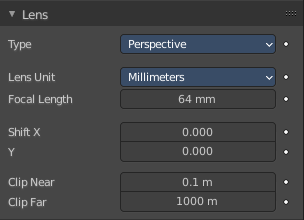
Type
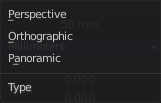
How to display the content in the camera view.
Perspective
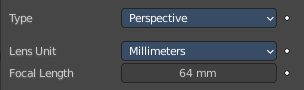
Displays the content with perspectivic distortions.
Lens Unit
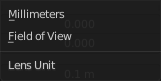
What lens unit to use. Millimeters or Field of View as an angle.
| Entry | What it does |
|---|---|
| Focal Length | With Lens Unit Millimeters. The focal length controls the amount of zoom, i.e. the amount of the scene which is visible all at once. Longer focal lengths result in a smaller Field of View (more zoom), while short focal lengths allow you to see more of the scene at once (larger Field of View, less zoom). Focal length is adjusted in millimeters like in a real camera. |
| Field of View | With Lens Unit Field of View. Field of View is adjusted in degrees. But has the same purpose than Focal Length. Smaller angle means small field of view more zoom. Higher angle means larger field of view and less zoom. |
Orthographic
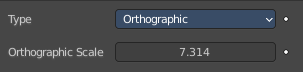
Displays the content in parallel projection.
Orthographic Scale
The camera lens angle influences the zoom factor.
Panoramic
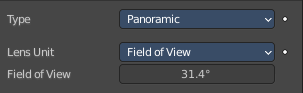
Panoramic cameras just works with Cycles. Panoramic allows you to render equirectangular, fish eye and mirror ball images. Note that the result is not displayed in the viewport.
Lens Unit
What lens unit to use. Millimeters or Field of View as an angle.
| Entry | What it does |
|---|---|
| Focal Length | With Lens Unit Millimeters. The focal length controls the amount of zoom, i.e. the amount of the scene which is visible all at once. Longer focal lengths result in a smaller Field of View (more zoom), while short focal lengths allow you to see more of the scene at once (larger Field of View, less zoom). Focal length is adjusted in millimeters like in a real camera. |
| Field of View | With Lens Unit Field of View. Field of View is adjusted in degrees. But has the same purpose than Focal Length. Smaller angle means small field of view more zoom. Higher angle means larger field of view and less zoom. |
Shift X / Y
Allows the adjustment of vanishing points. Vanishing points refer to the positions to which parallel lines converge.
Note: Using lens shift is equivalent to rendering an image with a larger FOV and cropping it off-center.
Clip Near and Far
The closest and farest distance in which the scene geometry gets displayed. Any objects outside this range still influence the image indirectly. Further light bounces are not clipped. But they are not displayed directly.
Note: For viewport rendering, setting clipping distances to limited values is important to ensure sufficient rasterization precision. Ray tracing renders do not suffer from this issue so much, and as such more extreme values can safely be set. Tip: When Limits in the Viewport Display panel is enabled, the clip bounds will be visible as two yellow connected dots on the camera’s line of sight
Depth of Field panel
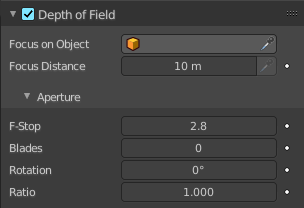
Depth of Field is the distance between the nearest and farthest objects that are in an acceptable sharp focus in an image. Objects behind and in front of the focus point are blurred.
The area in focus is called the focal point. It can be set by a value, or by choosing an object, and using the distance between the camera and the object.
Focus on Object

Pick a focus object.
Focus Distance
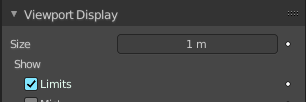
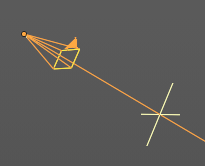
The distance to the focal point when no Focus Object is specified.
To display the distance by a yellow cross turn on Limits in the Viewport Display panel.
Eyedropper Depth
Attention, crazy design! The Eyedropper Depth button is greyed out and remains not clickable, even when it hilights when you hover over the Focus Distance slider. It is just implemented to show the hotkey and how to call the eyedropper.
You can call a Depth picker by hovering with the mouse over the Focus Distance property and pressing hotkey E. Then click on a point in the 3D Viewport to sample the distance from that point to the camera.
Aperture
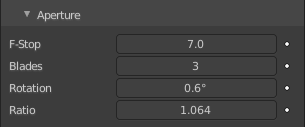
| Entry | What it does |
|---|---|
| F-Stop | Defines the amount of blurring. Lower values give a strong depth of field effect. |
| Blades | Total number of polygonal blades used to alter the shape of the blurred objects in the render, and render preview. As with the viewport, the minimum amount of blades to enable the bokeh effect is 3, resulting in a triangular-shaped blur. |
| Rotation | Rotate the polygonal blades along the facing axis, and will rotate in a clockwise, and counter-clockwise fashion. |
| Ratio | Change the amount of distortion to simulate the anamorphic bokeh effect. A setting of 1.0 shows no distortion, where a number below 1.0 will cause a horizontal distortion, and a higher number will cause a vertical distortion. |
Camera panel
Presets
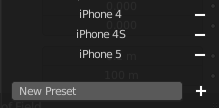
Camera presets. To add a new preset enter a name and click the + button. To remove a preset click at the minus button besides the name.
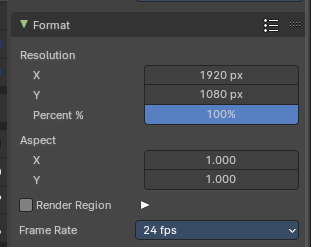
Note: To adjust camera resolution and pixel aspect ratio, go to the Output Tab in the Format Panel, since the final resolution and aspect ratio is defined by the file format output.
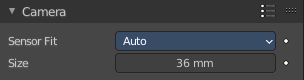
Sensor Fit
A method to fit the image aspect ratio and resolution with relative field of view angle inside the sensor dimensions.
| Entry | What it does |
|---|---|
| Auto | Adjust the relative focal length to the sensor width or height and adjust the image with a fixed aspect ratio to the image resolution from the Output Tab. · Size: The sensor size according to the image resolution and pixel aspect ratio. This contains the automatic horizontal size of the image sensor area in millimeters. |
| Horizontal | Adjust the relative focal length to the sensor width and adjust the image with a fixed aspect ratio to the image resolution from the Output Tab. Height cannot be modified. · Width: The sensor width. This contains the horizontal size of the image sensor area. |
| Vertical | Adjust the relative focal length to the sensor hieght and adjust the image with a fixed aspect ratio to the image resolution from the Output Tab. Width cannot be modified. · Height: The sensor height. This contains the horizontal size of the image sensor area in millimeters. |
Safe Areas panel
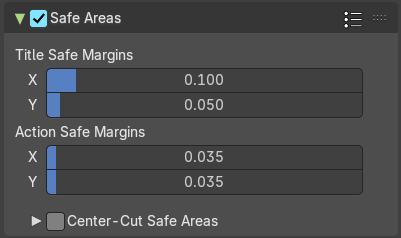
Modern LCD or plasma monitors usually doesn't have over scan areas anymore. But especially older TV screens still may have varying amounts of over scan. And cuts quite a bit content away at the border. And so not all content is shown at all monitors. Safe areas is the area that is always visible at all hardware.
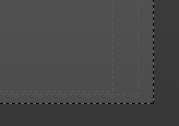
Safe areas are guides to ensure that the most important parts of the content can be seen across all screens. The lines are unfortunately a bit hard to see when you are in camera view. They mark the safe areas.
Safe areas can be set from the Camera and Sequencer views.
Tip: Each country sets a legal standard for broadcasting. These include also specific values for safe areas. Bforartists defaults for safe areas follow the EBU (European Union) standard. Make sure you are using the correct values when working for broadcast to avoid any trouble.
Presets
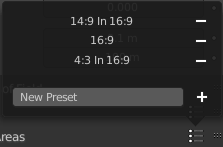
Safe areas presets. To add a preset enter a name and click at the plus button. To remove a preset click at the minus button besides the preset name.
| Entry | What it does |
|---|---|
| Title Safe Margins X/Y | Also known as Graphics Safe. Information (graphics or text) inside this area can be seen by the majority of viewers. |
| Action Safe Margins X/Y | An extra “margin” for the screen, which can be used to keep elements from piling up against the edges. |
Center-Cut Safe Areas
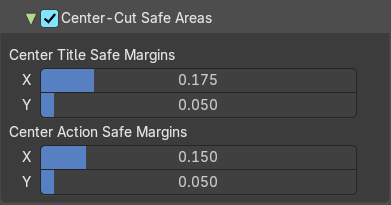
Center-cuts are a second set of safe areas to ensure content is seen correctly on screens with a different aspect ratio. Old TV sets receiving 16:9 or 21:9 video will cut off the sides. Position content inside the center-cut areas to make sure the most important elements of your composition can still be visible in these screens.
| Entry | What it does |
|---|---|
| Center Title Safe Margins X/Y | Information (graphics or text) inside this area can be seen by the majority of viewers. |
| Center Action Safe Margins X/Y | An extra “margin” for the screen, which can be used to keep elements from piling up against the edges. |
Background Images panel

Add a background image or movie to the camera.
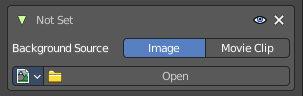
You can add more than one image or movie. The content can be offset and the opacity can be changed.
Note that an image that is added here does not render. It just displays in the viewport background.
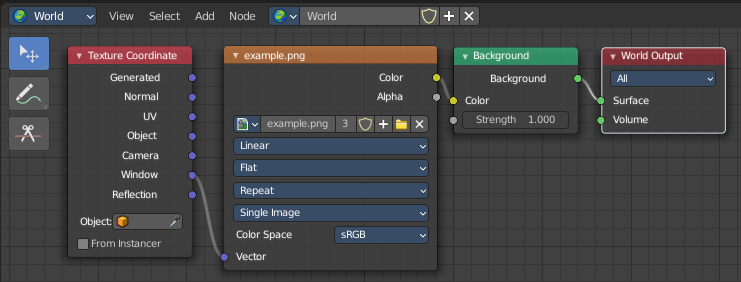
To render the background image too you need to add it in a compositing step. Or in the Shading tab add the image in the World shader. Use Window as the mapping vector.
Background Images panel
Header
| Entry | What it does |
|---|---|
| Background Images checkbox | Activate or deactivate the background images. |
| Add Image | Adds a new Image box. As told above, you can work with more than one image or movie clip. The image box can be removed by the X button at the left. |
Background Image box
Triangle Button
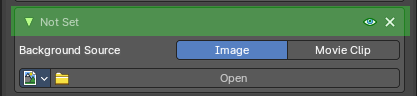
You can collapse the background images box with the triangle button at the left.
| Entry | What it does |
|---|---|
| Image / Movie name | The name of the loaded movie or image. When there is no image loaded then the text is Not Set. |
| Show Background Image | Display the image in the viewport when you are in camera view. |
| Remove Background Image | Remove the background image. |
Background Source
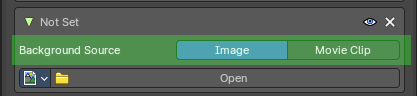
What type to display. Image or Movie.
Background Source Image
Image Property
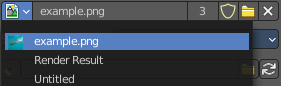
Image Browser
Browse the available images or movie clips.
| Entry | What it does |
|---|---|
| Image name | The name of the image or movie clips. |
| Number of Users | The number of users for this image. |
| Fake User | Keep this image in the scene even if it has no users. |
| Open Image | Opens a file browser where you can load an image. |
| Remove | Removes this image as the active image. Note that the image is still available in the image browser. |
Source Type Single Image (Background source type image)

Path edit box
| Entry | What it does |
|---|---|
| Pack | With this button you can pack the movie or the image sequence into the blend file. It gets packed when you save the blend file the next time. |
| Path edit box | See and edit the path to your movie or image sequence files. |
| Open | Open a new movie or image sequence files. A file dialog will appear. |
| Refresh | Reread the movie or image sequence files. |
Source Type Movie + Image Sequence (Background source type image)
Attention. This is with Image as the background source. Background Source Movie Clip offers other options.
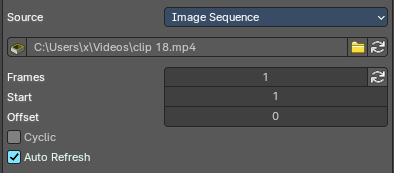
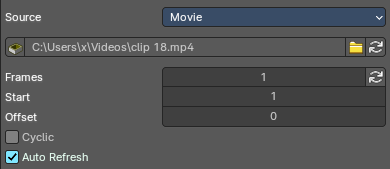
Path edit box

| Entry | What it does |
|---|---|
| Pack | With this button you can pack the movie or the image sequence into the blend file. It gets packed when you save the blend file the next time. |
| Path edit box | See and edit the path to your movie or image sequence files. |
| Open | Open a new movie or image sequence files. A file dialog will appear. |
| Refresh | Reread the movie or image sequence files. |
| Entry | What it does |
|---|---|
| Frames | The number of frames of the movie or image sequence. |
| Start | The start frame of the movie or image sequence |
| Offset | Offset the number of the frame to use in the animation. -1 means off. |
| Cyclic | Cycle the images in the movie. |
| Auto Refresh | Always refresh image on frame changes. |
Source Type Generated
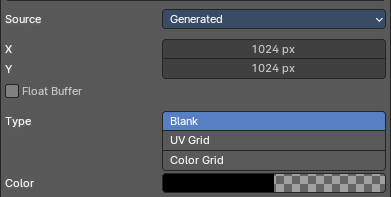
| Entry | What it does |
|---|---|
| X / Y | The image width and height. |
| Float Buffer | Use a floating point buffer. 8 Bit images uses integers. 32 Bit works with floats. |
Generated Type Blank
This type displays an image with one blank color
Color
The color of the blank image.
Generated Type UV Grid
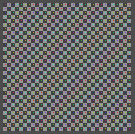
This type displays a with a black and white checker texture but colored dots.
Generated Type Color Grid
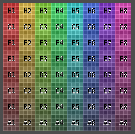
This type displays a with a colored checker texture with numbers.
Source Type UDIM Tile
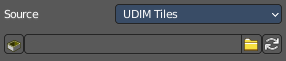
UDIM tiles is a way to deal with several textures in different resolution as one texture. Other software like Substance Painter also works with UDIM textures.
Note that you need to have a fitting numbers of UDIM tiles in the UDIM tiles panel. Or not all UDIM textures will be loaded. Which is impossible to set up from here. UDIM setup happens in UV Editor in Edit mode. It will just load the first tile of the Udim texture.
Path edit box

| Entry | What it does |
|---|---|
| Pack | With this button you can pack the movie or the image sequence into the blend file. It gets packed when you save the blend file the next time. |
| Path edit box | See and edit the path to your movie or image sequence files. |
| Open | Open a new movie or image sequence files. A file dialog will appear. |
| Refresh | Reread the file. |
Color Space
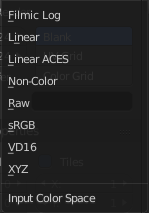
Choose the color space type for the movie or image sequence files.
Opacity
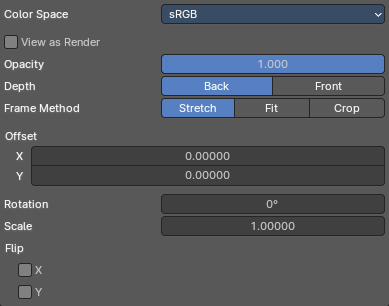
The transparency of the background image or movie.
| Entry | What it does |
|---|---|
| Depth | Choose whether the image is shown behind all objects, or in front of everything. |
| Frame Method | Controls how the image is placed in the camera view. |
| Stretch | Forces the image dimensions to match the camera bounds (may alter the aspect ratio). |
| Offset X/Y | Positions the background image using these offsets. In orthographic views the values are measured in the normal scene units. In the camera view the values are measured relative to the camera bounds (0.1 will offset it by 10% of the view width/height). |
| Rotation | Rotates the image around its center. |
| Scale | Scales the image up or down from its center. |
| Flip X | Swaps the image around, such that the left side is now on the right, and the right now on the left. |
| Y | Swaps the image around, such that the top side is now on the bottom, and the bottom now on the top. |
Background Source Movie Clip
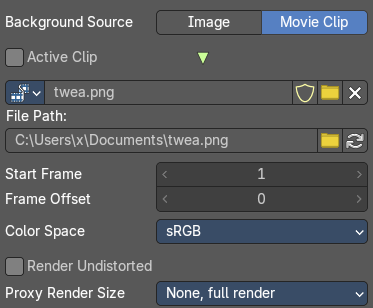
Active Clip
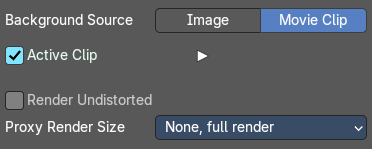
Use the movie clip from the active camera instead of a loaded one.
| Entry | What it does |
|---|---|
| File Path | Path edit box: See and edit the path to your movie or image sequence files. · Open: Open a new movie or image sequence files. A file dialog will appear. · Refresh: Reread the movie or image sequence files. |
| Start Frame | The frame at which the movie starts playing. |
| Frame Offset | Offset of the first frame of the footage relative to its file name. This affects only how the footage is loading. And does not change the data associated with a clip |
| Render Undistorted | Render Preview using undistorted proxy material. |
| Proxy Size | This setting defines which proxy image resolution is used for display in the viewport. If there is no generated proxies, then the render size is set to “No proxy, full render" |
Color Space
Choose the color space type for the movie or image sequence files.
Render Undistorted
Render Preview using Undistorted Proxy.
Proxy Render Size
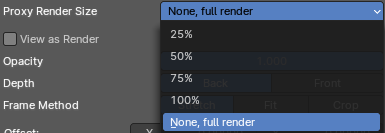
Display the preview in full size, or with proxies in reduced size.
| Entry | What it does |
|---|---|
| View as Render | Apply render part of display transformation when displaying this image on the screen. |
| Opacity | The transparency of the background image or movie. |
| Depth | Choose whether the image is shown behind all objects, or in front of everything. |
| Frame Method | Controls how the image is placed in the camera view. |
| Offset X/Y | Positions the background image using these offsets. In orthographic views the values are measured in the normal scene units. In the camera view the values are measured relative to the camera bounds (0.1 will offset it by 10% of the view width/height). |
| Rotation | Rotates the image around its center. |
| Scale | Scales the image up or down from its center. |
| Flip X | Swaps the image around, such that the left side is now on the right, and the right now on the left. |
| Y | Swaps the image around, such that the top side is now on the bottom, and the bottom now on the top. |
Viewport Display panel
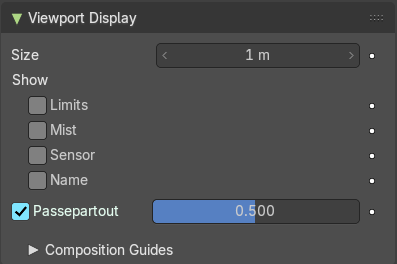
Viewport display settings.
hier weiter
Size
Size of the camera visualization in the 3D Viewport. This setting has no effect on the render output of a camera.
Show
Limits
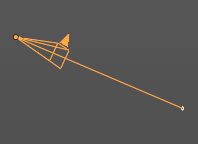
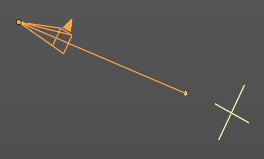
Shows a line which indicates Start and End Clipping values. Displays also the depth of field focus point.
Mist
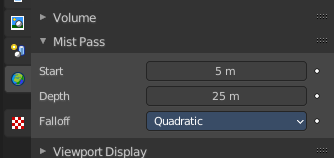
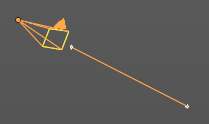
Toggles viewing of the mist limits on and off. The limits are shown as two connected white dots on the camera line of sight. The mist limits and other options are set in the World panel, in the Mist section.
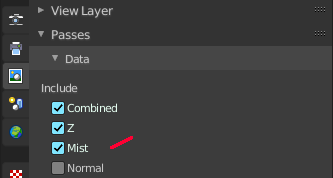
To activate the Mist panel you first have to activate the Mist pass in the View layer properties.
Sensor
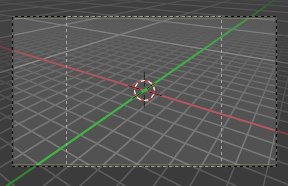
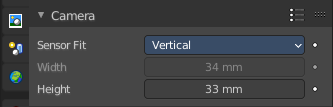
Displays a dotted frame for the sensor size (film gate) in the camera view.
The sensor size can be adjusted in the camera panel. It is fixed for the method Auto.
Name
Display the name of the camera down left in the passepartout.
Passepartout
This option darkens the area outside of the camera’s field of view.
Alpha
Controls the transparency of the passepartout mask.
Composition Guides subpanel
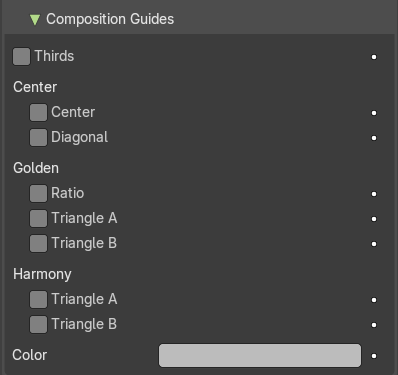
Composition Guides enable overlays onto the camera display that can help when framing a shot.
Thirds
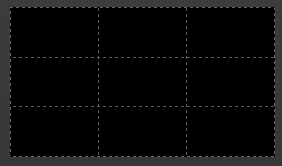
Adds lines dividing the frame in thirds vertically and horizontally.
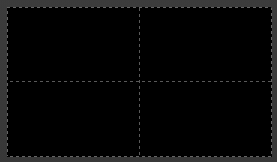
Center
Adds lines dividing the frame in half vertically and horizontally.
Center
Diagonal
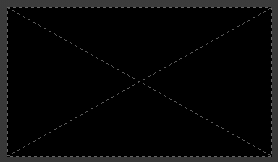
Adds lines connecting opposite corners.
Golden
Ratio
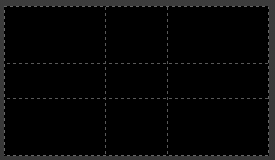
Divides the width and height into Golden proportions (about 0.618 of the size from all sides of the frame).
Triangle A
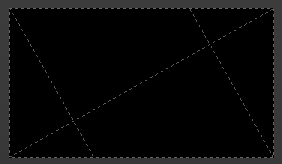
Displays a diagonal line from the lower left to upper right corners, then adds perpendicular lines that pass through the top left and bottom right corners.
Triangle B
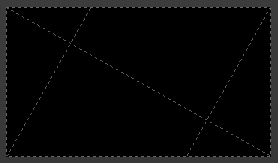
Same as A, but with the opposite corners.
Harmonious
Triangle A
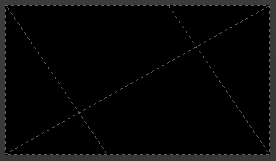
Displays a diagonal line from the lower left to upper right corners, then lines from the top left and bottom right corners to 0.618 the lengths of the opposite side.
Triangle B
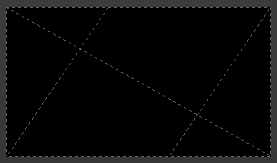
Same as A, but with the opposite corners.
Custom Properties Panel
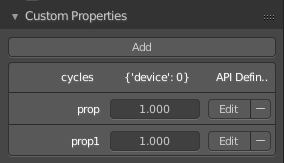
Here you can define custom properties that can be used for scripting.
Here you might also find custom properties from addons or scripts.
Add
Adds a new property.
Edit
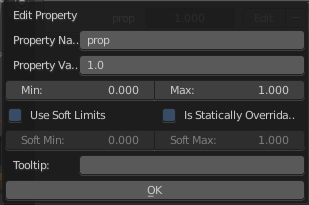
Opens a panel where you can adjust the settings for the custom property.
Remove
Removes the property.