

































































Object Constraints Properties Tab
Object Constraints allows two objects to interact with each other. You can for example set the x position to the x position of another object with the Copy Location constraint.
Object Constraints
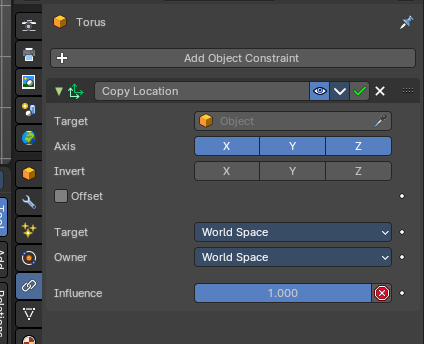
Object Constraints allows two objects to interact with each other. You can for example set the x position to the x position of another object with the Copy Location constraint.
You can have more than one constraint at an object.
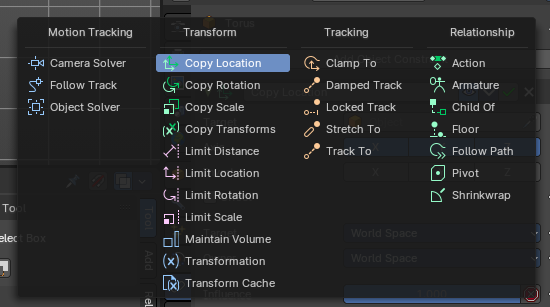
There are four groups of object constraints:
Motion Tracking constraints constraints with Motion Tracking functionality.
Transform contains constraints around everything transform related.
Tracking contains constraints around animation functionality.
And Relationship contains constraints around relations.
The different color has no deeper sense. It helps with navigating in the list of constraints.
General functionality
Add
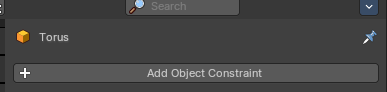
To add a constraint to an object, simply open the drop down menu, and choose the type of constraint that you want to add.
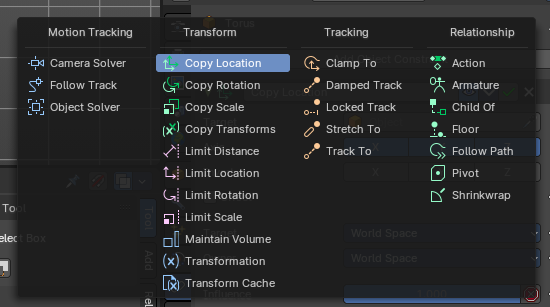
This will add the constraint to the list.
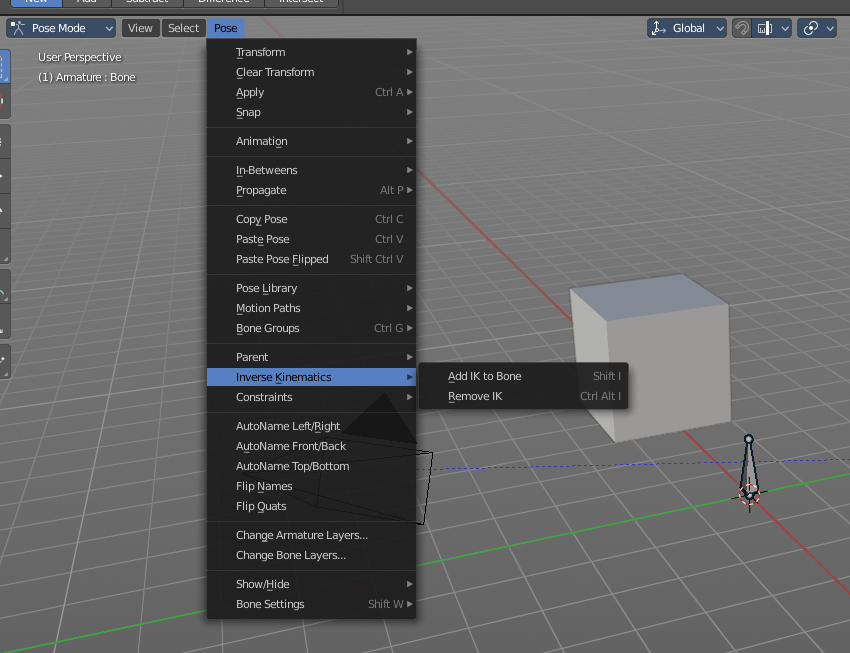
For some constraints you will also find menu items in the 3D view. The Inverse Kinematics / Add IK to Bone is such an example. It also fills in some vital information already in some cases, which you would need to choose by hand when you add the constraints in the constraint tab.
This menu entries exists to simplify the workflow. This menu entries are described in other chapters.
Type to Search…
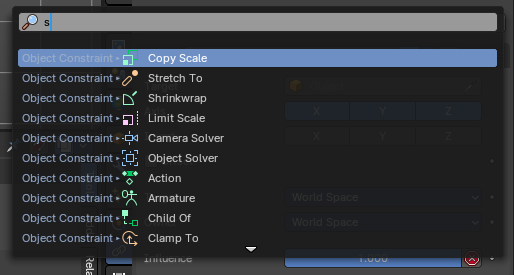
When the menu is open, you can press any key to start typing to search, this will filter the modifiers by name.
Enable / Disable

You might want to disable a constraint temporarily. This can be done by clicking at the button with the eye icon in the header. To enable the constraint simply click it again.
Apply

Applies the constraint. The current state becomes real. The constraint gets deleted.
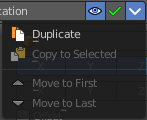
Dropdown menu
| Entry | What it does |
|---|---|
| Apply | Applies the constraint. |
| Duplicate | Duplicates the constraint. |
| Copy to Selected | Copies the constraint from the source to the target object. First select the source object, hold down shift and select the target object so that both are selected. Then perform Copy to Selected. The constraint will now also be at the target object. |
| Move to First | Moves the constraint to the first place in the constraint list. |
| Move to Last | Moves the constraint to the last place in the constraint list. |
Remove

To remove a constraint from the object simply click the close button up right in the header.
Collapse panel

The whole constraints panel can be collapsed. Click at the arrow button up left in the header.
Reorder
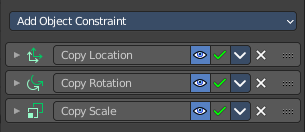
You can have more than one constraint in the list. And sometimes the order of the constraints is very important.
Grab the handler at the right and drag the constraint to the position where you want it to have.
Animate Property
Some of the properties can be animated. Click at the animate property button at the right to add a keyframe.
Object specific constraints
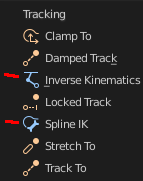
The Object Constraints tab does not contain all constraints. Some constraints are object specific. And appears in an own tab with this object selected. Bone constraints for example appears in the Bone Constraint tab.
Unfortunately you will still see the whole constraint list, and have to pick the bone constraints from there.
Motion Tracking Constraints
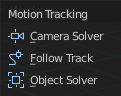
This constraints gets used in Motion Tracking.
Camera Solver
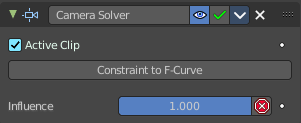
The Camera Solver constraint gives the owner of this constraint, the location and rotation of the «solved camera motion».
The «solved camera motion» is where Blender reconstructs the position of the physical, real-world camera, when it filmed the video footage, relative to the thing being tracked.
Note: This constraint only works after you have set up a minimum of eight markers and pressed Solve Camera Motion. See motion tracking chapter.
Active Clip

Receive tracking data from the active clip in the Movie Clip editor. If unchecked, an option appears to choose from the other clips.
| Entry | What it does |
|---|---|
| Constraint to F-Curve | Applies the constraint, and creates Keyframes for the transforms. |
| Influence | The influence level of this constraint. |
Follow Track
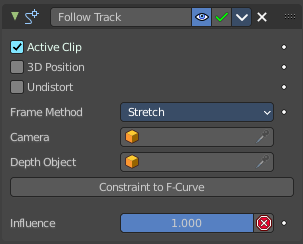
This constraint makes objects have the same position at a frame as the track has. The motion of this object happens on a single plane defined by the camera and the original position of the object.
| Entry | What it does |
|---|---|
| Active Clip | Receive tracking data from the active movie clip in the Movie Clip editor. If unchecked, an option appears to choose from the other available clips. |
| 3D Position | Use the 3D position of the track to parent to. |
| Undistorted | Parent to the undistorted position of the 2D track. |
Frame Method
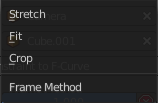
Defines how the footage is fitted in the camera frame.
| Entry | What it does |
|---|---|
| Camera | Select the camera to which the motion is parented to (if active an empty scene camera is used). |
| Depth Object | If this object is set, constrained objects will be projected onto the surface of this depth object which can be used to create facial makeup visual effects. |
| Constraint to F-Curve | Creates F-Curves for the object that copies the movement caused by the constraint. |
| Influence | The influence level of this constraints. |
Object Solver
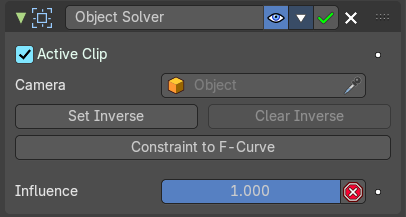
The Object Solver constraint gives the owner of this constraint, the location and rotation of the «solved object motion».
This can be used to add a mesh to video for example.
Note: This constraint only works after you have set up a minimum of eight markers and pressed Solve object Motion.
If it says Solve Camera Motion instead of Solve Object Motion then go into the Movie Clip Editor > Properties region > Objects and switch it from the camera, to an object.
| Entry | What it does |
|---|---|
| Active Clip | Receive tracking data from the active movie clip in the Movie Clip editor. If unchecked, an option appears to choose from the other available clips. |
| Camera | Here you can choose the camera. |
| Set Inverse / Clear Inverse | Set the connection for the object solver constraint inverse. Clear the inversion. |
| Constraint to F-Curve | Creates F-Curves for the object that copies the movement caused by the constraint. |
| Influence | The influence level of this constraint. |
Transform Constraints
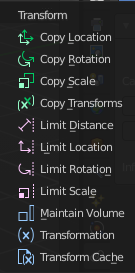
This category contains transform constraints.
Copy Location
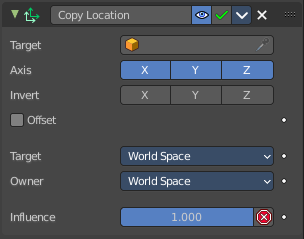
The Copy Location constraint sets the position to the position of the target object.
Warning: Using this constraint on a connected bone will have no effect. Because it is the parent’s tip which controls the position of your owner bone’s root.
Target
Here you can choose the target object to copy the location from.
Bone
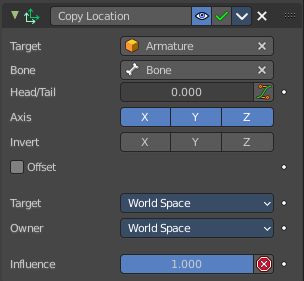
If the Target is an Armature, then you have the optional choice to set an individual bone as Target.
| Entry | What it does |
|---|---|
| Head/Tail | If the target is a bone, then here you can adjust where along this bone the target point lies. |
| Vertex Group | If the Target is a Mesh, then you have the optional choice to set a Vertex Group as target. |
| Axis X, Y, Z | Here you can choose which axes to constraint. |
| Invert X, Y, Z | Inverts the coordinate input. Positive becomes negative, and vice versa. |
| Offset | Add an offset from the original position to the target position. |
Target Space for Target and Owner
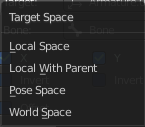

Here you can choose the target space and its coordinate system to use for calculation. The local space uses local axis, the world space global axis. Custom space allows you to use custom data. Like a vertex group of an object.
Influence
The influence level of this constraint.
Copy Rotation
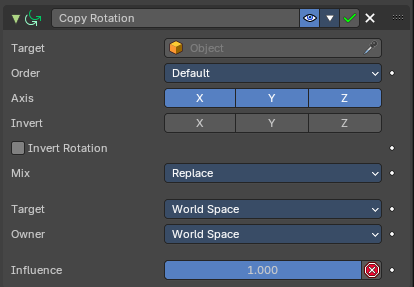
The Copy Rotation constraint sets the rotation to the rotation of the target object.
Target
Here you can choose the target object to copy the rotation from.
Vertex Group

If the Target is a Mesh, a new field is displayed offering the optional choice to set a Vertex Group as target.
Bone

If the Target is an Armature, a new field is displayed offering the optional choice to set an individual bone as Target.
| Entry | What it does |
|---|---|
| Axis X, Y, Z | These buttons control which axes are constrained - by default, all three are on. |
| Invert X, Y, Z | Inverts the coordinate input. Positive becomes negative, and vice versa. |
| Invert Rotation | Inverts the final combined rotation. Positive becomes negative, and vice versa. |
| Offset | Add an offset from the original position to the target position. |
Target Space for Target and Owner
Here you can choose the target space and its coordinate system to use for calculation. The local space uses local axis, the world space global axis. Custom space allows you to use custom data. Like a vertex group of an object.
Influence
The influence level of this constraint.
Copy Scale
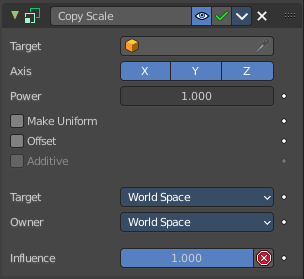
The Copy Scale constraint sets the size to the size of the target object.
Target
Here you can choose the target object to copy the size from.
Vertex Group
If Target is a Mesh, a new field is displayed offering the optional choice to set a Vertex Group as target.
Bone
If Target is an Armature, a new field is displayed offering the optional choice to set an individual bone as Target.
| Entry | What it does |
|---|---|
| Axis X, Y, Z | These buttons control which axes are constrained - by default, all three are on. |
| Power | Raise the target scale to the specified power. |
| Make Uniform | Redistribute the copied change in volume equaly between the three axes of the owner. |
| Offset | Add an offset from the original scale to the target scale. |
| Additive | Use Addition instead of Multiplication to combine scale. Activates with Offset on. |
Target Space for Target and Owner
Here you can choose the target space and its coordinate system to use for calculation. The local space uses local axis, the world space global axis. Custom space allows you to use custom data. Like a vertex group of an object.
Influence
The influence level of this constraint.
Copy Transforms
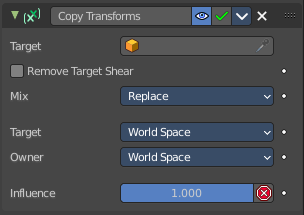
The Copy Transform constraint copies the whole transform values from the target object. Location, Rotation and Scale.
Target
Here you can choose the target object to copy the location from.
Vertex Group
If Target is a Mesh, a new field is displayed offering the optional choice to set a Vertex Group as target.
Bone
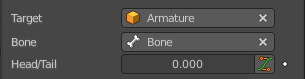
If the Target is an Armature, a new field is displayed offering the optional choice to set an individual bone as Target.
| Entry | What it does |
|---|---|
| Head/Tail | If the target is a bone, then here you can adjust where along this bone the target point lies. |
| Remove Target Shear | Remove shear from the target transformation before combining. |
Mix
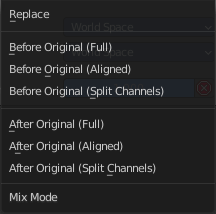
The mix mode specifies how the copied and existing transformations are combined.
Target Space for Target and Owner
Here you can choose the target space and its coordinate system to use for calculation. The local space uses local axis, the world space global axis. Custom space allows you to use custom data. Like a vertex group of an object.
Influence
The influence level of this constraint.
Limit Distance
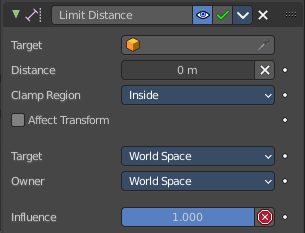
The Limit Distance constraint constraints either outside, inside, or at the surface of a sphere centered at the target object.
Target
Here you can choose the target object.
Vertex Group
If Target is a Mesh, a new field is displayed offering the optional choice to set a Vertex Group as target.
Bone
If the Target is an Armature, a new field is displayed offering the optional choice to set an individual bone as Target.
| Entry | What it does |
|---|---|
| Head/Tail | If the target is a bone, then here you can adjust where along this bone the target point lies. |
| Distance | This numeric field sets the limit distance, i.e. the radius of the constraining sphere. |
| Reset Distance | When clicked, this small button will reset the Distance value, so that it corresponds to the actual distance between the owner and its target (i.e. the distance before this constraint is applied). |
| Clamp Region | The Limit Mode drop-down menu allows you to choose how to use the sphere defined by the Distance setting and target’s center: · Inside: The owner is constrained inside the sphere. · Outside: The owner is constrained outside the sphere. · Surface: The owner is constrained on the surface of the sphere. |
Target Space for Target and Owner
Here you can choose the target space and its coordinate system to use for calculation. The local space uses local axis, the world space global axis. Custom space allows you to use custom data. Like a vertex group of an object.
Influence
The influence level of this constraint.
Limit Location
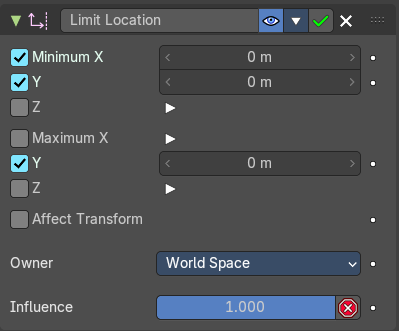
This constraint restricts the amount of allowed translations along each axis, through lower and upper bounds.
The limits for an object are calculated from its center. Te limits of a bone are calculated from its root.
| Entry | What it does |
|---|---|
| Minimum X Y Z | Restrict the minimum location. You can adjust the value in the edit box below. |
| Maximum X Y Z | Restrict the maximum location. You can adjust the value in the edit box below. |
| For Transform | The constraint limits the location. The values in the transform panel can still change above this limit though. With this option ticked the transform values are also clamped. |
| Convert | Calculate the constraint in local space or world space. |
| Influence | The influence level of this constraint. |
Limit Rotation
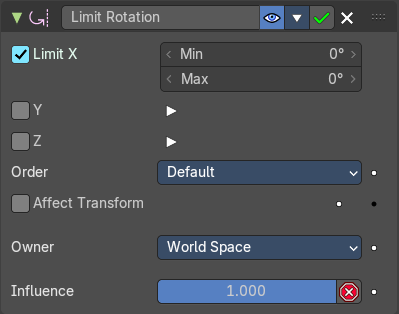
This constraint restricts the amount of allowed rotation along each axis, through lower and upper bounds.
The limits for an object are calculated from its center. Te limits of a bone are calculated from its root.
Limit X Y Z
Restrict the rotation. You can adjust the minimum and maximum value in the edit boxes below.
Order
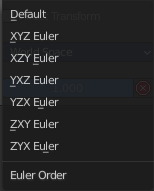
Euler Order. Allows to specify the order of the euler angles.
Affect Transform
The constraint limits the rotation. The values in the transform panel can still change above this limit though. With this option ticked the transform values are also clamped.
Owner Space
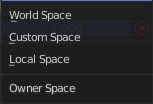
Calculate the constraint in custom space, local space or world space.
Influence
The influence level of this constraint.
Limit Scale
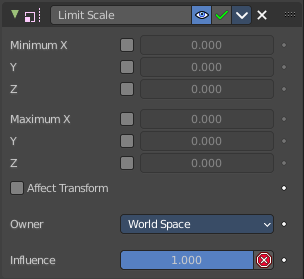
This constraint restricts the amount of allowed scale along each axis, through lower and upper bounds.
The limits for an object are calculated from its center. Te limits of a bone are calculated from its root.
| Entry | What it does |
|---|---|
| Minimum X Y Z | The minimum size. You can adjust the value in the edit boxes below. |
| Maximum X Y Z | The maximum size. You can adjust the value in the edit boxes below. |
| For Transform | The constraint limits the location. The values in the transform panel can still change above this limit though. With this option ticked the transform values are also clamped. |
| Convert | Calculate the constraint in local space or world space. |
| Influence | The influence level of this constraint. |
Maintain Volume
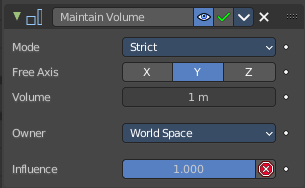
The Maintain Volume constraint limits the volume of a mesh or a bone to a given ratio of its original volume.
Mode
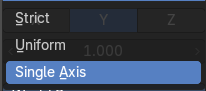
The way constrant treats original non free axis scaling.
| Entry | What it does |
|---|---|
| Strict | Volume is strictly preservedm overriding the scaling of non-free axes. |
| Uniform | Volume is preserved when the object is scaled uniformly. Devitations from uniform scale on non free-axes are passed through. |
| Single Axis | Volume is preserved when the object is scaled only on the free axis. Non-free axis scaling is passed through. |
| Entry | What it does |
|---|---|
| Free Axis X / Y / Z | The free-scaling axis of the object. |
| Volume | The bone’s rest volume. |
Owner Space
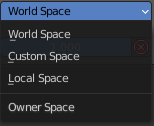
Calculate the constraint in local space or world space. Custom space allows you to use custom data. Like a vertex group of an object.
Influence
The influence level of this constraint.
Transformation
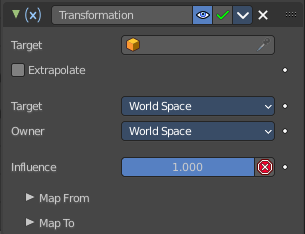
The Transformation constraint allows you to map one type of transform properties (i.e. location, rotation or scale) of the target, to the same or another type of transform properties of the owner, within a given range of values.
Warning: Note that:
- When mapping transform properties to location (i.e. Loc, Destination button is enabled), the owner’s existing location is added to the result of evaluating this constraint (exactly like when the Offset button of the Copy Location constraint is enabled...).
- Conversely, when mapping transform properties to rotation or scale, the owner’s existing rotation or scale is overridden by the result of evaluating this constraint.
- When using the rotation transform properties of the target as input, whatever the real values are, the constraint will always “take them back” into the -180, 180 range (e.g. if the target has a rotation of 420 around its X axis, the values used as X input by the constraint will be ((420 + 180) modulo 360) - 180 = 60- ...). This is why this constraint is not really suited for gears!
- Similarly, when using the scale transform properties of the target as input, whatever the real values are, the constraint will always take their absolute values (i.e. invert negative ones).
- When a min value is higher than its corresponding max one, both are considered equal to the max one. This implies you cannot create “reversed” mappings...
Target
Here you can choose the target object.
Vertex Group
If the Target is a Mesh, a new field is displayed offering the optional choice to set a Vertex Group as target.
Bone

If the Target is an Armature, a new field is displayed offering the optional choice to set an individual bone as Target.
| Entry | What it does |
|---|---|
| Extrapolate | With this option enabled the min and max values are no longer strict limits, but rather “markers” defining a proportional (linear) mapping between input and corresponding output values. |
| Target | The target space that the target is evaluated in. |
Owner
Calculate the constraint in local space or world space. Custom space allows you to use custom data. Like a vertex group of an object.
Influence
The influence level of this constraint.
Map From subpanel
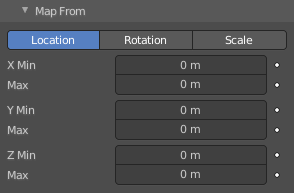
Location Rotation Scale
A tab to switch between the available location, rotation and scale values.
X Y Z
The transform values. Here you can edit the minimum and maximum values for the source object.
Map To subpanel
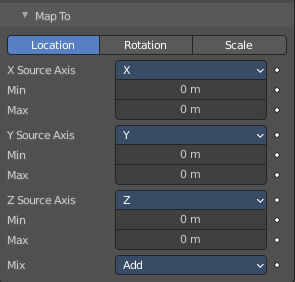
Location Rotation Scale
A tab to switch between the available location, rotation and scale values.
X Source Axis
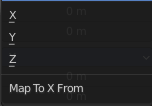
What axis to use for the X Source constraint.
Min Max
Edit the minimum and maximum values for the source object.
Y Source Axis
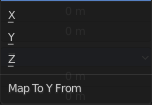
What axis to use for the Y Source constraint.
Min Max
Edit the minimum and maximum values for the source object.
Z Source Axis
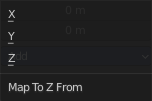
What axis to use for the Z Source constraint.
Min Max
Edit the minimum and maximum values for the source object.
Mix
The location mix mode.
Transform cache
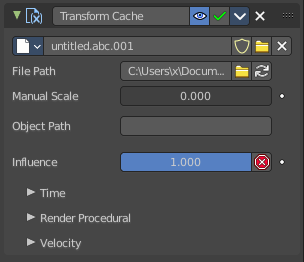
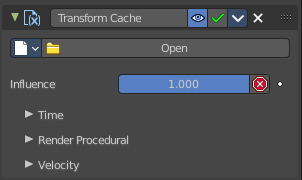
The Transform Cache Constraint allows you to stream animations from Alembic files. The data that is read is at transformation matrix level (for example rigid bodies, or camera movements).
Transform Cache constraints are automatically added to objects with animated transforms.
For time-varying meshes (means deforming animations), the Mesh Sequence Cache modifier is used.
Cache File property
Load the Alembic file.
Dara Browser
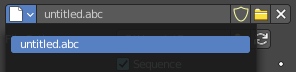
A list of available alembic files that are already loaded.
| Entry | What it does |
|---|---|
| Edit Box | The name of the alembic file. |
| Fake User | Keep the file in the scene even when it is not used. |
| Open Cache File | Load an alembic file. |
| Remove | Remove the alembic file as the active file. The file will remain in the scene until you purge it, close and reload the scene. Given that it has no fake user assigned to keep it in the scene anyways. |
| Entry | What it does |
|---|---|
| File Path | The path to the Alembic file. |
| Sequence | Whether or not the cache is separated in a series of files. · Refresh Active: Update the files and paths. |
Object Path
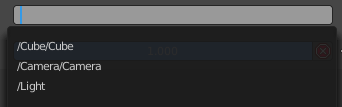
The path to the Alembic object inside the archive.
Influence
Controls the percentage of affect the constraint has on the object. See common constraint properties for more information.
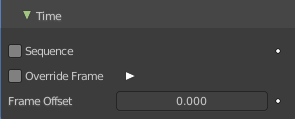
Time Subpanel
| Entry | What it does |
|---|---|
| Sequence | Whether or not the cache is separated in a series of files. |
| Override Frame | Whether to use a custom frame for looking up data in the cache file, instead of using the current scene frame. · Frame: The time to use for looking up the data in the cache file, or to determine which to use in a file sequence. |
| Frame Offset | Define a frame offset to the current frame. |
Render Procedural subpanel
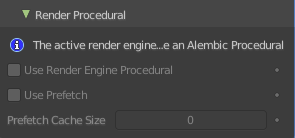
Use Render Engine Procedural
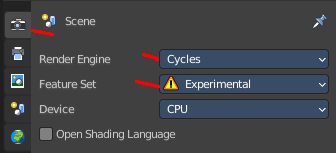
This feature is just available for Cycles, and just in an experimental state.
Display boxes as placeholders in the viewport.
| Entry | What it does |
|---|---|
| Use Prefetch | This feature is just available for Cycles, and just in an experimental state. When enabled, the Cycles procedural will preload animation data for faster update. |
| Prefetch Cache Size | This feature is just available for Cycles, and just in an experimental state. Memory usage limit for the cache. If the data size does not fit the renderer is aborted. 0 disables the feature. |
Velocity subpanel
Velocity Attribute
The name of the Alembic attribute used for generating motion blur data. By default, this is .velocities which is standard for most Alembic files.
Velocity Unit
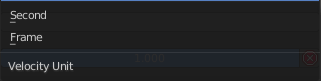
Defines how the velocity vectors are interpreted with regard to time.
Tracking Constraints
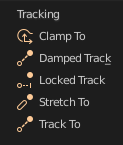
Clamp To
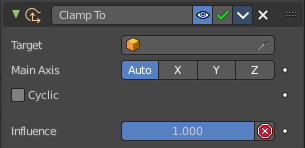
The Clamp To constraint clamps an object to a curve. So you need a curve object as the target.
| Entry | What it does |
|---|---|
| Target | Here you can choose the target object. |
| Main Axis | Auto clamps to all three axis. X , Y, Z maps just to one axis,. |
| Cyclic | With cyclic enabled the object will jump from end point to start point once it has reached the end. |
| Influence | The influence level of this constraint. |
Damped Track
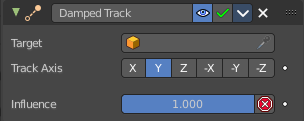
Damped track makes the object always look at the target object. For example a camera always looking at an armature
Target
Here you can choose the target object.
Vertex Group
If the Target is a Mesh, a new field is displayed offering the optional choice to set a Vertex Group as target.
Bone
If the Target is an Armature, a new field is displayed offering the optional choice to set an individual bone as Target.
| Entry | What it does |
|---|---|
| Head/Tail | If the target is a bone, then here you can adjust where along this bone the target point lies. |
| To | The axis to use to point towards the target object. For a camera you might want to use -Z |
| Influence | The influence level of this constraint. |
Locked Track
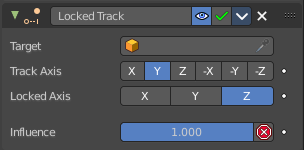
Similar to Damped Track. Locked track makes the object always look at the target object. For example a camera always looking at an armature. But here you can lock single axis.
Note, you cannot lock the axis where you look at. The constraint will show the name red then.
Target
Here you can choose the target object.
Vertex Group
If the Target is a Mesh, a new field is displayed offering the optional choice to set a Vertex Group as target.
Bone
If the Target is an Armature, a new field is displayed offering the optional choice to set an individual bone as Target.
| Entry | What it does |
|---|---|
| Head/Tail | If the target is a bone, then here you can adjust where along this bone the target point lies. |
| To | The axis to use to point towards the target object. For a camera you might want to use -Z |
| Lock | The axis that you want to lock. |
| Influence | The influence level of this constraint. |
Stretch To
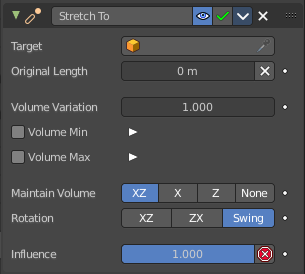
Stretch To makes the object always look at the target object. For example a cube always looking at another cube. And makes it stretch when the distance changes.
With bones, the “volumetric” variation scales them along their own local axes (remember that the local Y axis of a bone is aligned with it, from root to tip).
Target
Here you can choose the target object.
Vertex Group
If the Target is a Mesh, a new field is displayed offering the optional choice to set a Vertex Group as target.
Bone
If the Target is an Armature, a new field is displayed offering the optional choice to set an individual bone as Target.
| Entry | What it does |
|---|---|
| Head/Tail | If the target is a bone, then here you can adjust where along this bone the target point lies. |
| Rest Length | Here you can define the rest distance between the owner and its target. The rest length is the distance at which there is no deformation (stretching) of the owner. |
| Reset | Resets the Rest Length. |
Volume Min / Volume Max
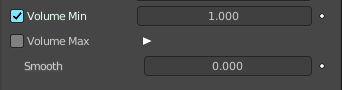
Here you can control the amount of “volume” variation proportionally to the stretching amount. Note that the 0.0 value is not allowed.
Smooth
Shows when either the volume min or volume max is ticked. Strength of volume stretching clamping.
| Entry | What it does |
|---|---|
| Volume | Here you can adjust which of the X and/or Z axes should be affected to preserve the virtual volume while stretching along the Y axis. The NONE button disables the volumetric features. |
| Plane | Here you can control which of the X or Z axes should be as much as possible aligned with the global Z axis, while tracking the target with the Y axis. |
| Influence | The influence level of this constraint. |
Track To
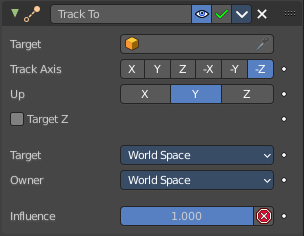
Track To makes the object always look at the target object. For example a cube always looking at another cube. Or a camera looking at a mesh.
Target
Here you can choose the target object.
Vertex Group
If the Target is a Mesh, a new field is displayed offering the optional choice to set a Vertex Group as target.
Bone
If the Target is an Armature, a new field is displayed offering the optional choice to set an individual bone as Target.
| Entry | What it does |
|---|---|
| Head/Tail | If the target is a bone, then here you can adjust where along this bone the target point lies. |
| To | The axis to use to point towards the target object. |
| Up | The axis that points upwards |
| Target Z | Constrain the UP direction to the target's Z axis instead of the World Z Axis. |
Target Space for Target and Owner
Here you can choose the target space and its coordinate system to use for calculation. The local space uses local axis, the world space global axis. Custom space allows you to use custom data. Like a vertex group of an object.
Influence
The influence level of this constraint.
Relationship Constraints
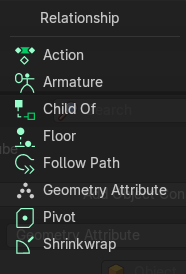
Action

The Action constraints allows you control an Action using the animated transformations of another object. For example move a cube when another cube moves by animation, without the need to record this movement by a keyframe. There needs to be an animation in the scene, not necessarily at the target object, which is used as the Action for the constraint.
The constraint accepts the Mesh action type. But only the Object, Pose and Constraint types are really working, since constraints can only affect objects’ or bones’ transform properties, and not meshes’ shapes.
Only the object transformation (location, rotation, scale) is affected by the action. Keyframes for other properties are ignored. The constraints does not influence them.
Example:
Create a cube. Animate it to create the needed action. Move from a to b for example. And record the keyframes. This will create an action that is now available to the constraint.
Moving the target in the [0.0, 2.0] range along its X axis maps the action content on the owner in the [0, 100] frame range. This will mean that when the target’s X property is 0.0 the owner will be as if in frame 0 of the linked action. With the target’s X property at 1.0 the owner will be as if in frame 50 of the linked action, etc.
Target
Here you can choose the target object.
Vertex Group
If the Target is a Mesh, a new field is displayed offering the optional choice to set a Vertex Group as target.
Bone
If the Target is an Armature, a new field is displayed offering the optional choice to set an individual bone as Target.
Evaluation Time

Interpolate between action start and endframe by using the slider value instead of using the target object.
Influence
The influence level of this constraint.
Target subpanel
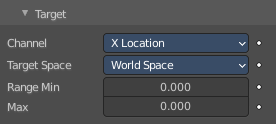
Channel
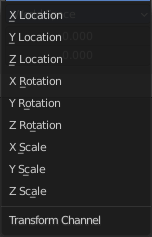
The transform channel allows you to choose in which space to evaluate its target's transform properties.
Target Space
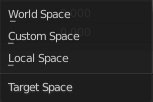
The space in which the target is transformed in.
World space transforms in the world space.
Local space transforms in the local space.

Custom space transforms in the space of the target object. You need to pick the target object.
Target Range Min / Max
The lower and upper bounds of the driving transform property value. By default, both values are set to 0.0
Note:
- When using a rotation property as “driver”, these values are “mapped back” to the -180.0 , 180.0 range.
- When using a scale property as “driver”, these values are limited to null or positive values.
Action subpanel
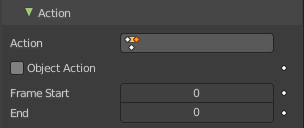
Action

Here you can choose the action that you want to use. Available actions appears in the drop down list.
Object Action
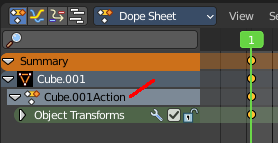
This is for bones only. This option will make the constrained bone use the “object” part of the linked action, instead of the “same-named pose” part. This allows you to apply the action of an object to a bone.
Frame Start / End
The starting and ending frames of the action to be mapped.
Note:
- These values must be strictly positive.
- By default, both values are set to 0 which disables the mapping (i.e. the owner just gets the properties defined at frame 0 of the linked action...).
Notes
- When the linked action affects some location properties, the owner’s existing location is added to the result of evaluating this constraint (exactly as when the Offset button of the Copy Location constraint is enabled...).
- When the linked action affects some scale properties, the owner’s existing scale is multiplied with the result of evaluating this constraint.
- When the linked action affects some rotation properties, the owner’s existing rotation is overridden by the result of evaluating this constraint.
- Unlike usual, you can have a Start value higher than the End one, or a Min one higher than a Max one: this will reverse the mapping of the action (i.e. it will be “played” reversed...), unless you have both sets reversed, obviously!
- When using a Constraint action, it is the constraint channel’s names that are used to determine to which constraints of the owner apply the action. E.g. if you have a constraint channel named “trackto_empt1”, its keyed Influence and/or Head/Tail values (the only ones you can key) will be mapped to the ones of the owner’s constraint named “trackto_empt1”.
- Similarly, when using a Pose action (which is obviously only meaningful and working when constraining a bone!), it is the bone’s name that is used to determine which bone channel’s names from the action to use (e.g. if the constrained bone is named “arm”, it will use and only use the action’s bone channel named “arm”...). Unfortunately, using a Pose action on a whole armature object (to affect all the keyed bones in the action at once) won’t work...
- Note also that you can use the pose library feature to create/edit a Pose action data-block... just remember that in this situation, there’s one pose per frame!
Armature
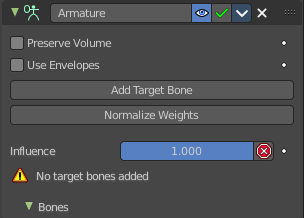
Armature is the constraint version of the Armature Modifier. It reproduces the weight-blended bone transformations and applies it to its owner orientation. It can be used like a variant of the Child Of constraint that can handle multiple parents at once, but requires all of them to be bones.
| Entry | What it does |
|---|---|
| Preserve Volume | Tries to preserve the volume when deforming the mesh. |
| Use Envelopes | Multiply the weights by envelope for all bones instead of vertex group based blending. The specified weights are still used, and only the listed bones are considered. |
| Add Target Bone | Add a target bone. By clicking two edit boxes becomes available. You can add multiple armatures and bones here. |
| Normalize Weights | Normalize the weights of all target bones. |
| Influence | The influence level of this constraint. |
Bones subpanel
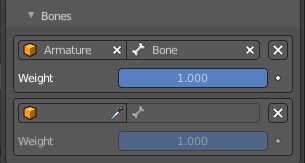
When you ad a bone with the Add Target Bone, then you create a property in this panel.
| Entry | What it does |
|---|---|
| First Edit Box | Here you select the armature. |
| Second Edit Box | Here you select the bone. |
| Remove Target | Remove the target. Resets Add Target Bone. |
| Blend Weight | Blending Weight of this bone. |
Child Of
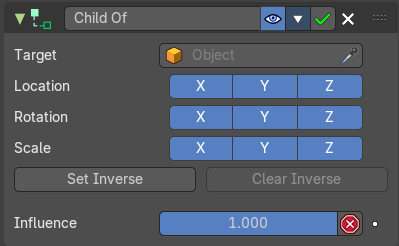
This constraints allows you to set a parent to this object. By using more than one constraint you can have more than one parent object here, and control the influence by the Influence slider. You can also just parent the movement of a specific axis.
Target
Here you can choose the target object.
Vertex Group
If the Target is a Mesh, a new field is displayed offering the optional choice to set a Vertex Group as target.
Bone

If the Target is an Armature, a new field is displayed offering the optional choice to set an individual bone as Target.
| Entry | What it does |
|---|---|
| Location, Rotation, Scale | Activate the parenting for the corresponding axis. |
| Set Inverse / Clear Inverse | Set the connection for the object solver constraint inverse. Clear the inversion. |
| Influence | The influence level of this constraint. |
Floor
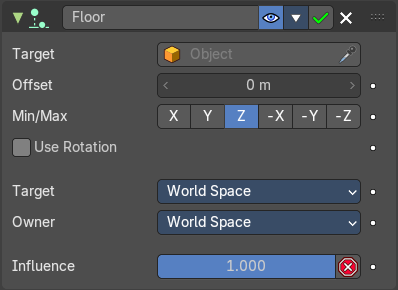
The Floor constraints allows to set an object as a floor or wall that cannot be passed by the object.
Note that the center of the object is calculated as the collision point, not the surface. Means a cube with the pivot in the center can still sink half into a ground plane. This can be adjusted with the Offset value.
Target
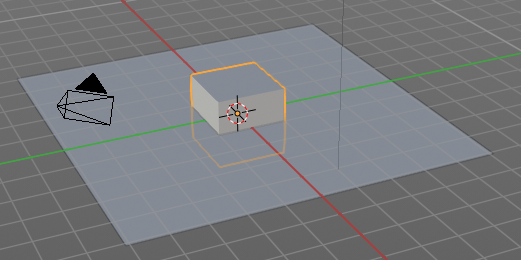
Here you can choose the target object.
Vertex Group

If the Target is a Mesh, a new field is displayed offering the optional choice to set a Vertex Group as target.
Bone

If the Target is an Armature, a new field is displayed offering the optional choice to set an individual bone as Target.
| Entry | What it does |
|---|---|
| Sticky | The object sticks at its position at contact. For example, it cannot slide around on the surface of a plane any more. |
| Use Rotation | Take the target’s rotation into account. This allows you to have a “floor” plane of any orientation you like, not just the global XY, XZ and YZ ones... |
| Offset | Here you can define an offset from the pivot to the ground plane object. |
| Min / Max | Here you define which side of the target object will be the floor. By default, these normals are aligned with the global axes. If you enable Use Rotation (see above), they will be aligned with the local target’s axes. |
Target Space for Target and Owner
Here you can choose the target space and its coordinate system to use for calculation. The local space uses local axis, the world space global axis. Custom space allows you to use custom data. Like a vertex group of an object.
Influence
The influence level of this constraint.
Follow Path
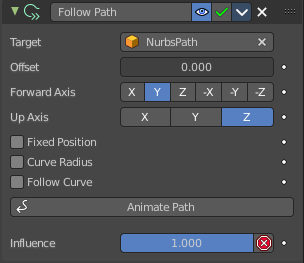
Makes the object follow a curve path. This constraint requires a Bezier or Nurbs Curve. Follow Path is an animation only constraint.
The movement happens in the global world.
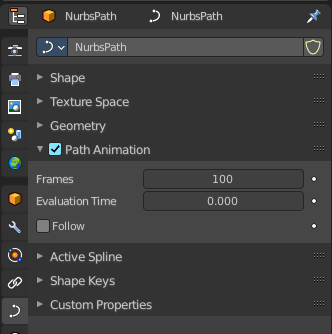
Click at Animate Path to create the animation. When you play the animation, then the object will move along the path now. The path length can be adjusted in the Path Animation panel of the curve. Here you can see that the value behind evaluation time is now green. And there is a keyframe symbol behind the edit box. Adjust the number of frames to your needs.
| Entry | What it does |
|---|---|
| Target | Choose the target path. |
| Offset | The number of frames to offset from the “animation” defined by the path. It starts by default from frame 1. |
| Forward Axis | The axis that points forward at the path. |
| Up Axis | The axis that points upwards. |
| Fixed position | Object will stay locked to a single point somewhere along the length of the curve regardless of time. |
| Curve Radius | Objects scaled by the curve radius. See Curve Editing. |
Follow Curve
When this option is activated, the owner’s rotation is modified by:
| Entry | What it does |
|---|---|
| Forward | The axis of the object that has to be aligned with the forward direction of the path (i.e. tangent to the curve at the owner’s position). |
| Up | The axis of the object that has to be aligned (as much as possible) with the world Z axis. In fact, with this option activated, the behavior of the owner shares some properties with the one caused by a Locked Track constraint, with the path as “axle”, and the world Z axis as “magnet”. |
Animate Path
Add a default animation for the path constraint if it is not animated already.
Geometry Attribute
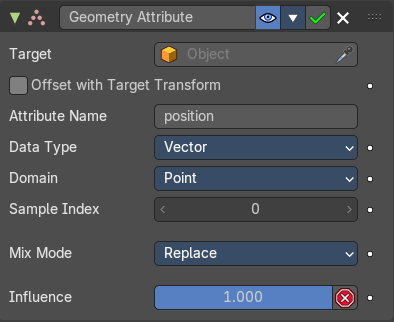
Retreive transform from target geometry attribute data.
| Entry | What it does |
|---|---|
| Target | Here you can choose the target object. |
| Offset with Target Transform | Apply the world transform of the target object on top of the transform of the attribute. |
Data Type
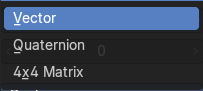
The data type of the attribute.
Domain
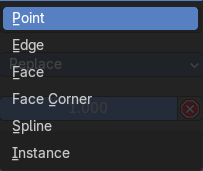
The domain type.
Sample Index
The sample index of the domain.
Mix Mode
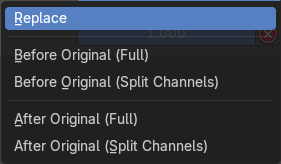
Specify how the copied and existing transformations are combined.
Influence
The influence level of this constraint.
Pivot
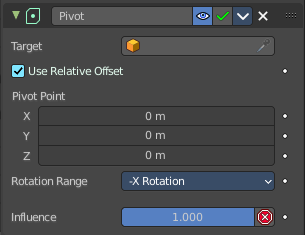
The Pivot constraint allows the owner to rotate around a target object.
Target
Here you can choose the target object.
Vertex Group

If the Target is a Mesh, a new field is displayed offering the optional choice to set a Vertex Group as target.
Bone
If the Target is an Armature, a new field is displayed offering the optional choice to set an individual bone as Target.
| Entry | What it does |
|---|---|
| Head/Tail | If the target is a bone, then here you can adjust where along this bone the target point lies. |
| Use Relative Offset | Offset will be an absolute point in space instead of relative to the target. |
| Pivot Offset X / Y / Z | Here you can adjust an offset. |
Rotation Range
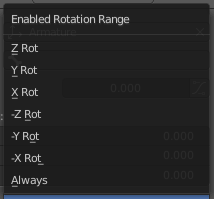
Enable rotation range for specific axis.
Influence
The influence level of this constraint.
Shrinkwrap
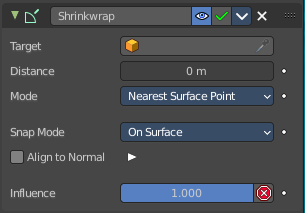
The Shrinkwrap constraint allows you to snap objects to the surface of mesh objects. The target object has to be a Mesh object. Other object types does not work.
The snap point is the pivot point of the object.
Distance
Here you can adjust an offset.
Shrinkwrap Mode
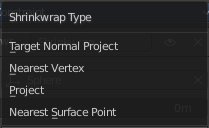
Here you can choose between different shrink-wrap methods.
Target Normal Project
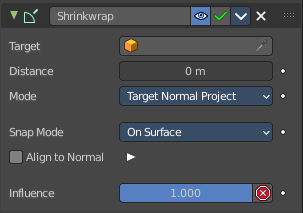
Target the nearest target surface along the interpolated vertex normals of the target.
Nearest Vertex
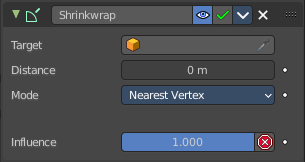
Target the nearest vertex at the target.
Project
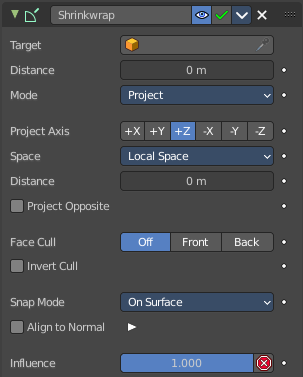
Target the nearest surface point along a given axis.
| Entry | What it does |
|---|---|
| Project Axis | Here you can define the axis |
| Space | Here you can define the space that gets used for this axis. |
| Distance | Limit the distance used for projection. Zero disables the Project Distance. |
| Project Opposite | Project in both specified and opposite directions. |
| Face Cull | Stop vertices from projecting to a face on the target when facing towards or away. |
| Invert Cull | Invert the face cull mode. |
Nearest Surface Point
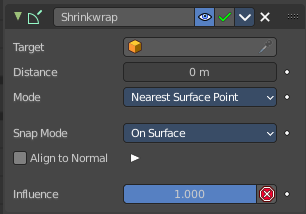
Target the nearest surface point.
Snap Mode
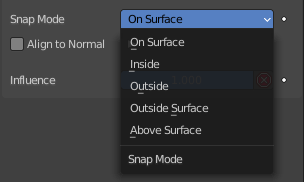
Align to Normal
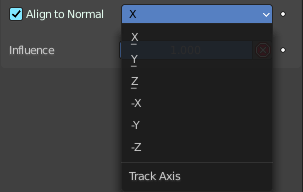
Align a specified axis to the surface normal.
Influence
The influence level of this constraint.