

































































Preferences
The Preferences is the place where you can tweak several settings to your needs. It can be opened in the Edit menu in the top bar.
Preferences
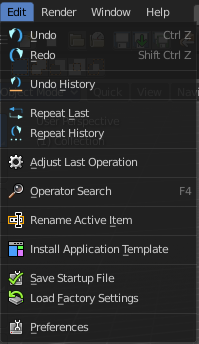
The Preferences is the place where you can tweak several settings to your needs. It can be opened in the Edit menu in the top bar.
The Preferences contains several tabs. And every tab contains several rows or panels with content. We will go through them one by one.
When you have changed something, and want that changes to be permanent, then you are required to save the user settings. See the Save User Settings button in the header.
Navigation Sidebar
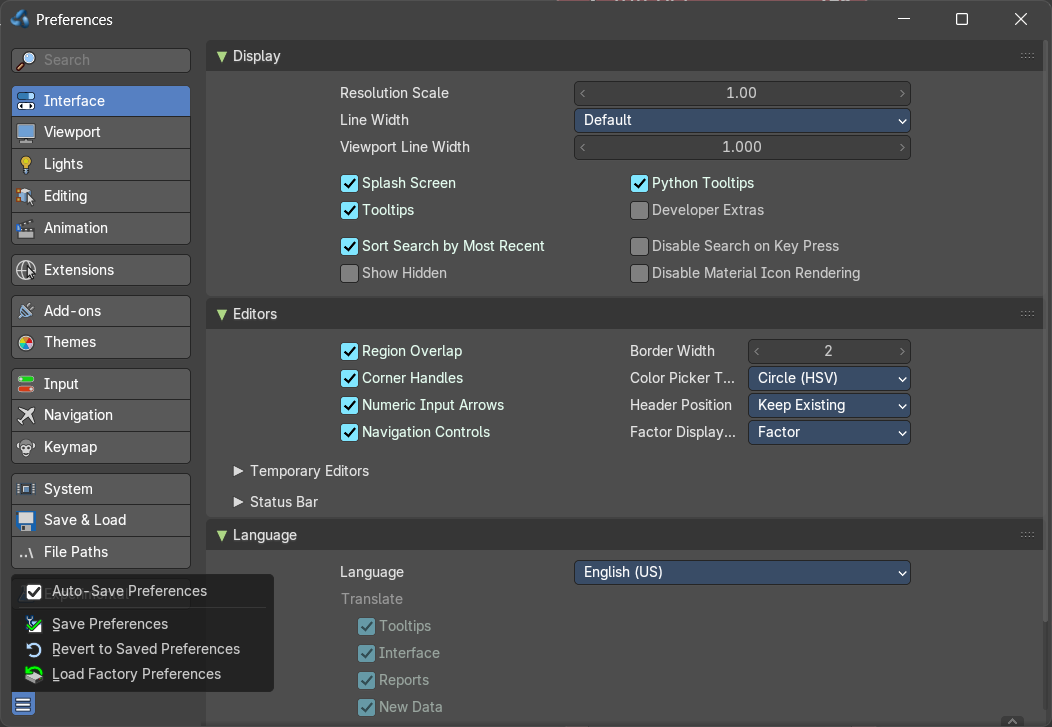
At the left side you will find the navigation elements to access the different categories. Including a search bar where you can search for specific items.
At the bottom resides the Save Preferences menu.
Save Preferences menu
Auto Save preferences
Changes at the preferences are saved automatically when Auto Save Preferences is ticked. When this option is off, then changes needs to be saved manually. When you don't save the changes, then Bforartists loads the next time with the status before the changes.
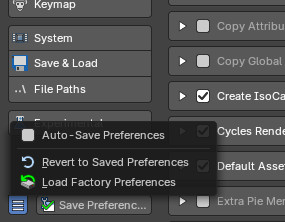
Note that when Auto Save Preferecnes is unticked, then the Save Preferences button is displayed in the sidebar besides the Save Preferences menu, and not longer in the Save Preferences menu.
| Entry | What it does |
|---|---|
| Save Preferences | Manually saves the current state. |
| Revert to Saved Preferences | This option is just available when Auto Save preferences is off. It reverts the settings to the last saved state. |
Load Factory Preferences
Resets the settings to the factory defaults.
Note: 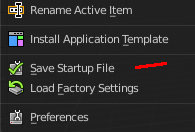
Not everything can be changed from the Preferences. Everything regarding layout is stored in the Startup File, and not in the Preferences. So when you want to save a layout change then you have to save the startup file. The menu item is right above the Preferences button in the Edit menu.
Interface Tab
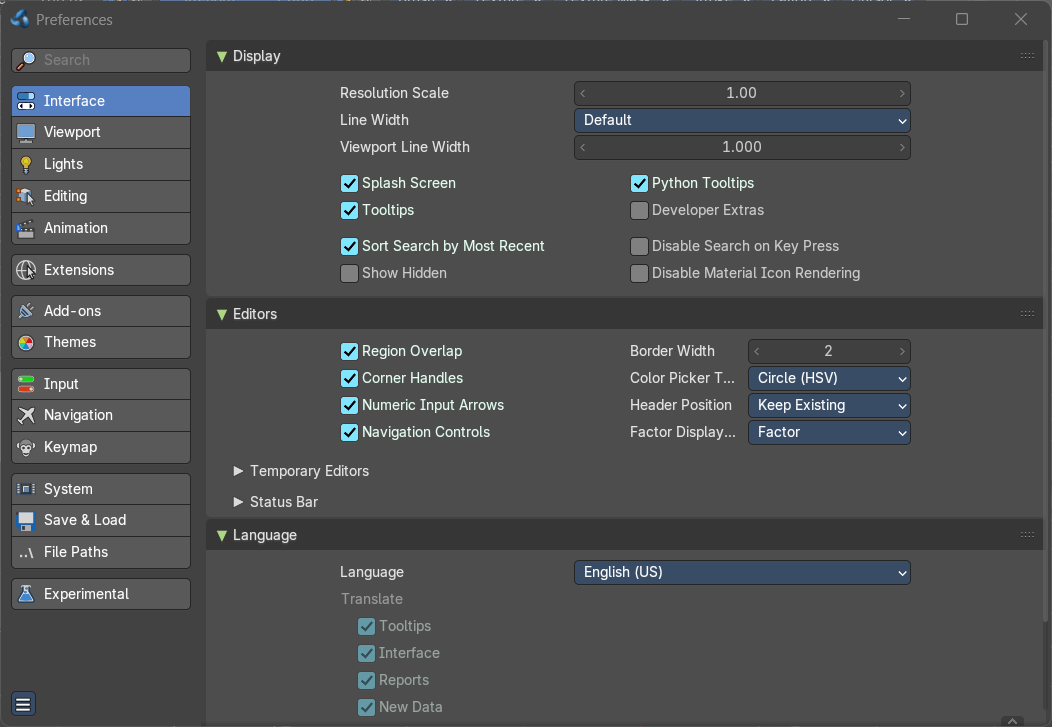
The Interface category contains settings to change how UI elements are displayed and how they react.
Display Panel
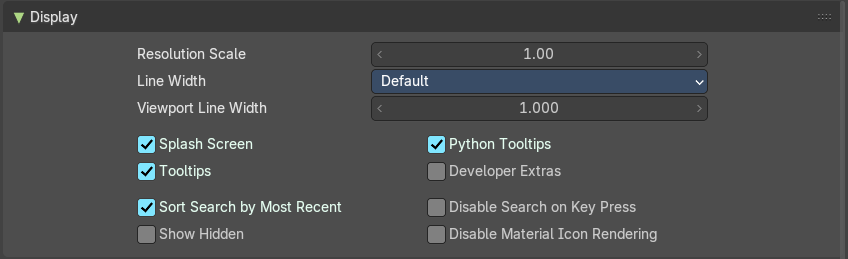
Resolution Scale
At 4K displays the whole UI elements are usually ways too small. Scale the whole UI size display by moving the slider to the needed value.
Line Width
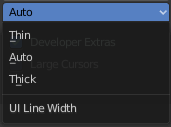
Define the size of the line between the editors. This is a theming setting.
Viewport Line Width
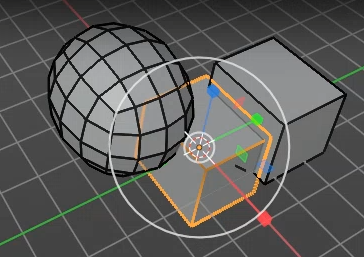
Changes the appearance of only lines in the 3D Viewport.
| Entry | What it does |
|---|---|
| Splash Screen | Display the Splash Screen when starting Bforartists. |
| Tool tips | Display tool tips in the UI. With this feature unticked you won't see any tool tips anymore. It is not recommended to turn this feature off. The icon buttons needs the tool tips to display the tool name. |
Python Tool tips
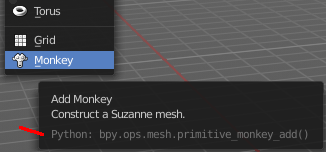
Every tool tip can also display the Python code tag for the tool. It may look like noise in the first moment. But can give you some further hints here and there. Some tool tips, like the Node editor buttons, doesn't have a proper tool description by design. Here the Python tool tip can tell you the function when you turn it into pure icon buttons.
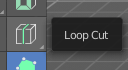
The tools in the tool shelf doesn't have a Python tool tip by design. This buttons sits on top of the normal operators, and doesn't access the tool tip of it.
Note: It is not recommended to turn the Python tool tips off.
Developer Extras
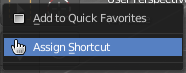
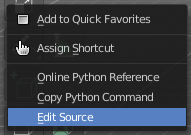
This tick box turns on or off the developer entries in the right click menus.
| Entry | What it does |
|---|---|
| Sort Search by Most Recent | This affects all search fields. Sort the recently searched items at the top. |
| Show Hidden | Show hidden data that are hidden away with a dot before the name in search menus. |
| Disable Search on Key Press | Ignore menus toggling with Search on Key Press, and fallback to using accelerator keys instead. This is a Bforartists only feature. |
| Disable Material Icon Rendering | Stops the preview icons on the material properties from rendering, which helps avoid causing the UI to stutter or freeze. This is a Bforartists only feature. |
Editors Panel
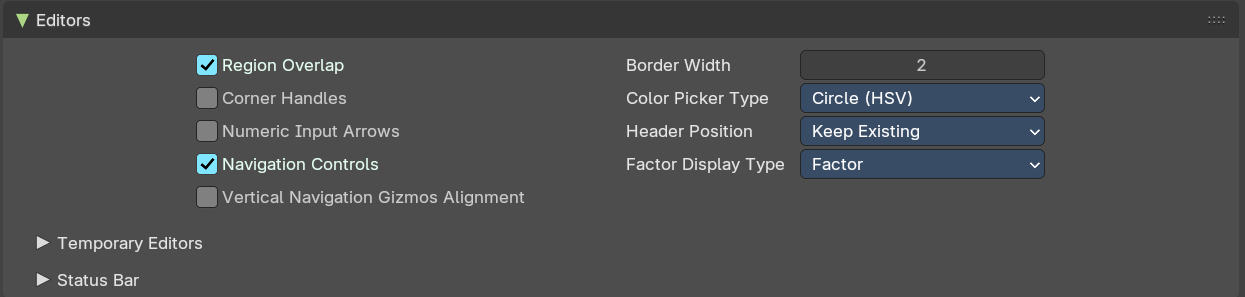
Region Overlap
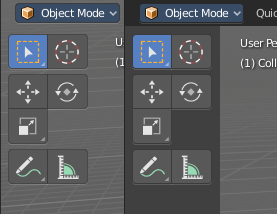
This checkbox will enable Blender to draw the Header, Tool Shelf and the Sidebar overlapping the 3D View. The transparent areas becomes workspace area. You can for example select vertices now in the transparent areas.
If you have a capable graphics card and drivers with Triple Buffer support, clicking the checkbox will enable the overlapping regions to be drawn using the Triple Buffer method, which will also enable them to be drawn using Alpha, showing the 3D View contents trough the Object Tools and Transform Properties regions.
Corner Handles
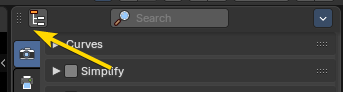
Displays small clickable handles in the corners of editor regions. Makes it easier to resize or split editors by dragging from the corners, especially in dense layouts. mproves discoverability and precision for users who prefer visual cues over edge-hovering in the editors.
Numeric Input Arrows
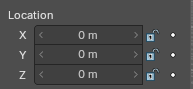
Adds left/right arrow buttons beside numeric fields. Lets you increment or decrement values by clicking, rather than typing or dragging. Offers a more tactile, UI-friendly way to adjust numbers—especially useful for tablets, styluses, or keyboard-free setups.
Navigation Controls
Show the navigation controls in the 2d and 3d views
Vertical Navigation Gizmos Alignment
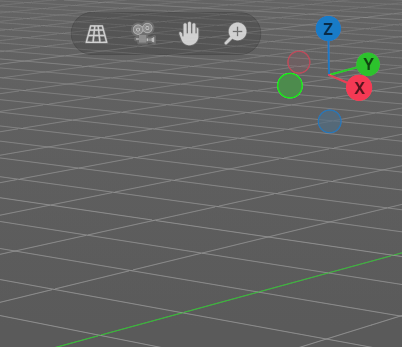
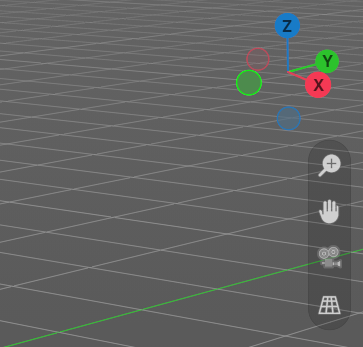
Revert Navigation Controls to be vertical instead of Bforartists default horizontal alignment. Default is off.
Border Width
Size of the padding around each editor.
Color Picker Type
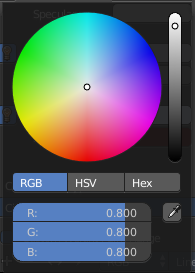
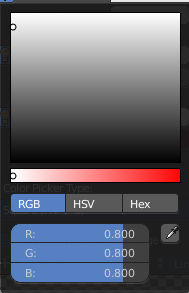
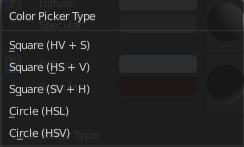
Choose the type of Color picker that will show when you click on a color field. You can choose between three square types and two circle types.
Header Position
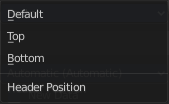
Define at which default position the headers of the editors should reside.
Factor Display Type
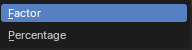
Display factor values either as percentage or as factor.
Temporary Editors subpanel

How the temporary editors behave.
Render in
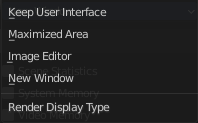
Where to display the rendered image.
File browser
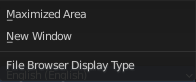
Where to open the file browser.
Status Bar subpanel
These checkboxes let you customize what info appears in the status bar at the footer of the main window. The list is explicit.


Language Panel
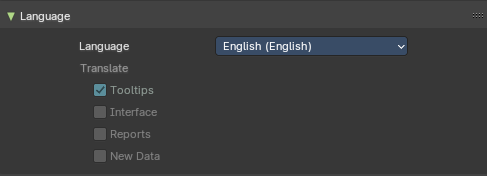
Choose another default language for Bforartists.
Language
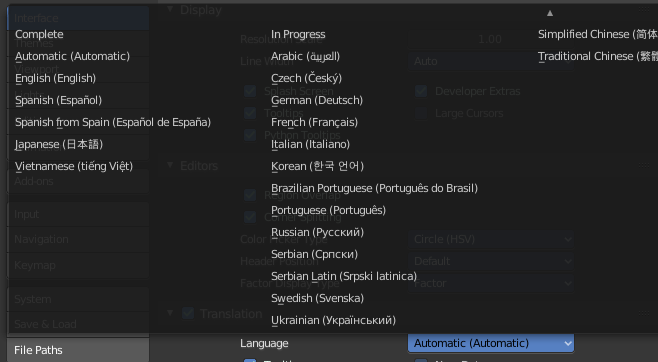
Choose between automatic language detection. In this case the system language gets chosen. Or pick a language that you want to use.
Translate
| Entry | What it does |
|---|---|
| Tool tips | Tool tips translates the tool tips too. |
| Interface | Interface translates all the interface texts. |
| Reports | Translate report and error messages too. |
New Data
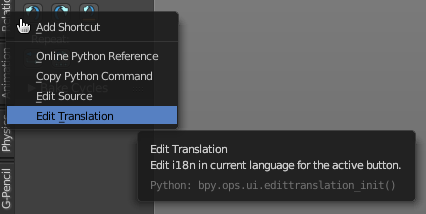
New data is meant to edit the localization texts.
This can be done in the right click menus of the tools when everything is set up in the correct way.
This is a development feature. You need a repository of Bforartists!
Note: This feature is currently not functional in Bforartists. It ends in an error message.
Let's nevertheless document the way how it should work. Note that you need a Bforartists repository for that. The binary version does not come with the editable *.po files, but with already compiled *.mo files for the translation.

Note that you first need to set the path to the translation files for that. Or you will get an error. This is done in the File tab. The |18n string.

The path should lead to the *.po files that you want to translate. Which can be found in the Bforartists repository.
And you need to enable the Manage UI translations add-on. And to fix the paths in this add-on. The default paths are currently set for Blender.
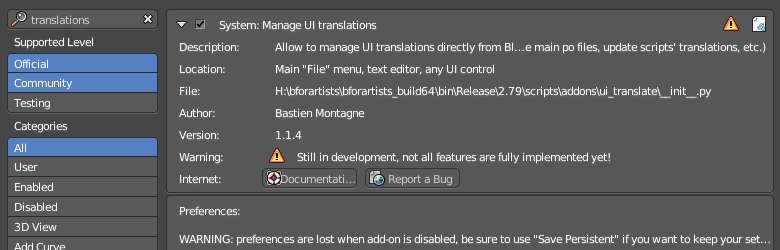
And then you might end in this error here ...

In case somebody has an idea what's going on here, every hint is welcome …
Accessibility Panel

Reduced Motion
The Reduce Motion option is designed to improve usability for users sensitive to motion effects. When enabled, the interface minimizes or disables non-essential animations in the interface.
Text Rendering Panel
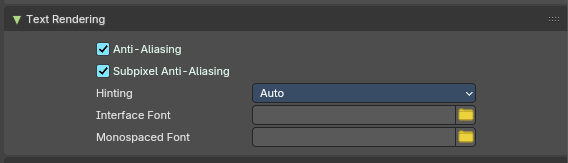
Text related settings for the font of the interface.
| Entry | What it does |
|---|---|
| Anti-Aliasing | Use Anti Alias at the UI elements to prevent pixelated look of the font. |
| Subpixel Anti-Aliasing | Use subpixel calculations to refine the horizontal spacing between characters. |
Hinting
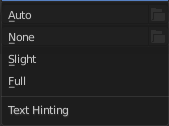
What sharpening method to use to make the text render sharp.
| Entry | What it does |
|---|---|
| Interface Font | Define a custom interface font. The font in the whole UI. |
| Monospace Font | Define a custom Monospace font. That's the one used in the python console for example. |
Menus Panel
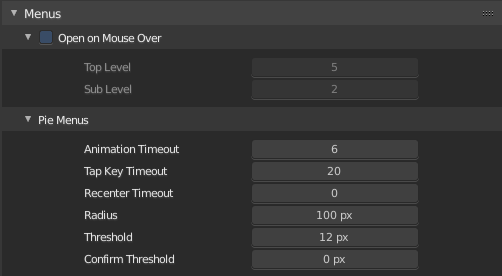
| Entry | What it does |
|---|---|
| Open on Mouse Over | Normally you click at a menu to open it. With Open on Mouse Over the menu opens up when you just hover with the mouse over it. · Top Level: Adjust the time delay before the top level menu opens on mouse over. · Sub Level: Adjust the time delay before a sub level menu opens on mouse over. |
| Pie Menus | Bforartists has some pie menus that can be called by hotkeys. Here you find some settings for it. · Animation Timeout: The pie menu fades in with an animation. Adjust the time needed to fully unfold the pie menu. · Top Key Timeout: Pie menu button longer held than this time will dismiss the menu on release. · Recenter Timeout: Pie menus will use the initial mouse position as center for this amount of time. The value is in 1/100 seconds. · Radius: The pie menu size in pixels. · Threshold: The distance that is needed from the center to move the mouse so that a selection can be made. · Confirm Threshold: Distance threshold after which selection is made. A value of zero disables this feature. |
Viewport
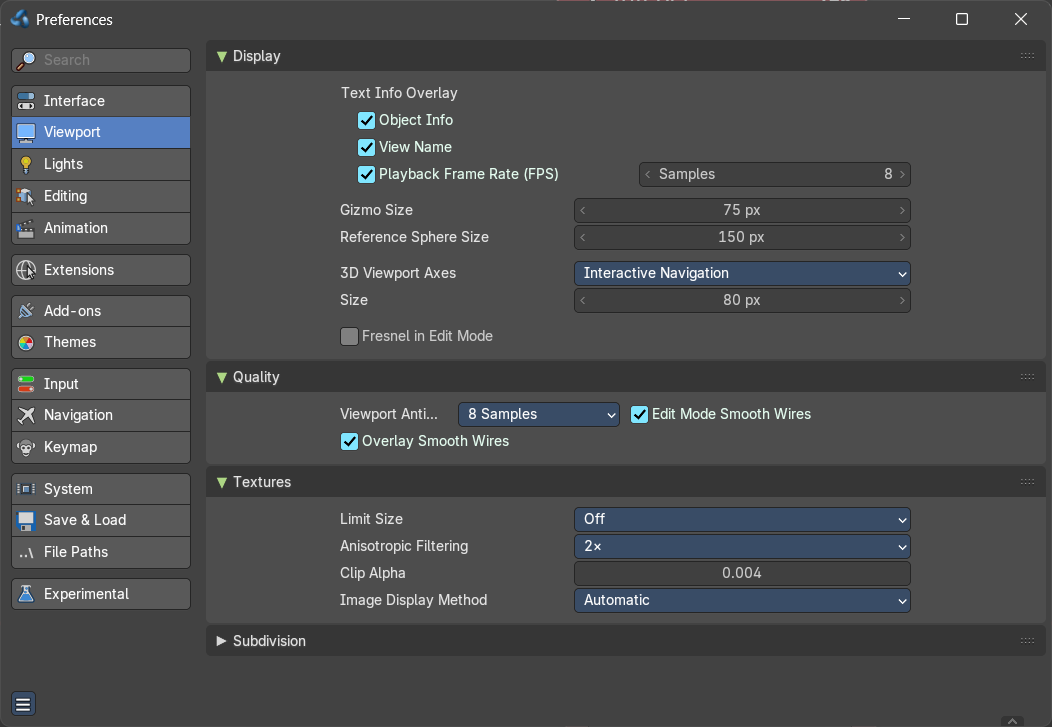
Contains the settings for the 3D Viewport.
Display
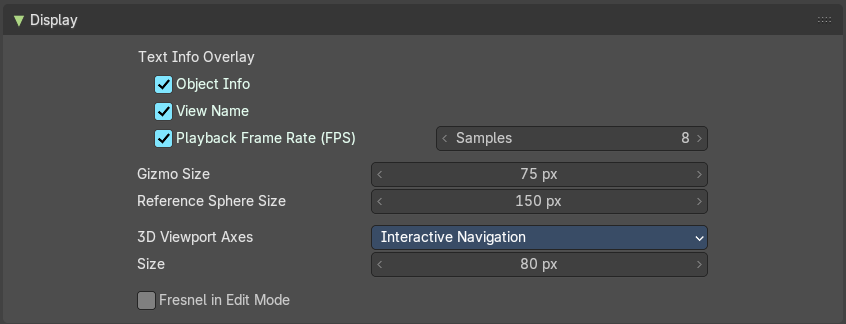
Text Info Overlay
Object Info
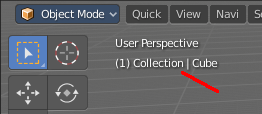
Display current frame, collection name and Object name in the upper left edge of the 3D view.
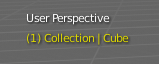
The letters appears in yellow when the current frame of the selected object has a keyframe.
View Name
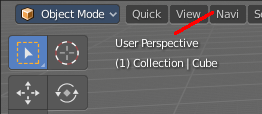
Display the name of the current view up left in the 3D view.
Playback Frame Rate (FPS)
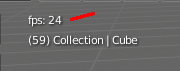
Show the frames per second screen refresh rate while an animation is played back. It appears in the viewport corner, displaying red if the frame rate set cannot be reached. And replaces the View name while the animation is playing.
Frame Rate Samples
The number of frames to use for calculating the fps average. A value of zero calculates the fps automatically, where the nunber of samples matches the target fps.
Gizmo Size
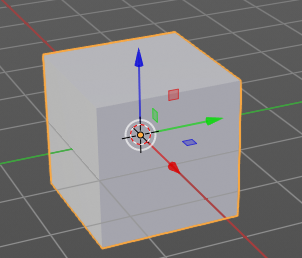
Adjust the size of the transform gizmo that appears when you have one of the transform tools activated.
Reference Sphere Size
How big the preview spheres are displayed.
3D Viewport Axis
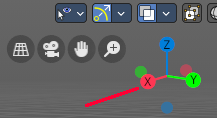
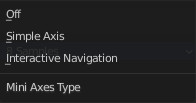
Adjust the apperance of the 3D Viewport mini axis widget.
Off
Hides the Mini axis widget
Simple Axis

Shows simple axis. This widget type is not interactive. It just shows the state of the viewport rotation.
Size
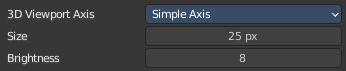
The size of the simple mini axis widget.
Brightness
The brighness of th simple mini axis widget.
Interactive Navigation

The default mini axis widget. This widget is interactive. Clicking and dragging will rotate the viewport. Clicking at one of the colored spots at the end of the axis will snap to the neares orthographic view.
| Entry | What it does |
|---|---|
| Size | The size of the interactive navigation widget. |
| Fresnel in Edit Mode | Enable a fresnel effect on edit mesh overlays. This feature improves shape readability of very dense meshes. But can increase eye fatigue when modeling lower poly. |
Quality
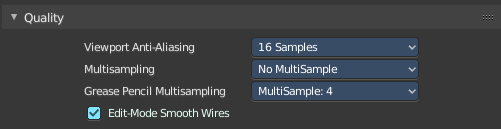
Contains the settings to adjust the display quality in the viewport.
Viewport Anti-Aliasing
The anti alias quality settings for the solid mode rendering in the 3d viewport.
Multi sampling
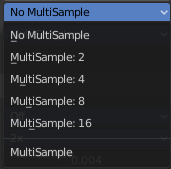
Set the OpenGL Multi sampling in case your system supports it.
| Entry | What it does |
|---|---|
| Grease Pencil Multi sampling | The grease pencil drawing has its own OpenGL Multi sampling. Set the OpenGL Multi sampling in case your system supports it. |
| Edit Mode Smooth Wires | Enable Edit Mode edge smoothing which reduces anti alias and makes the edge more sharp. A change requires a restart of the software. |
Textures
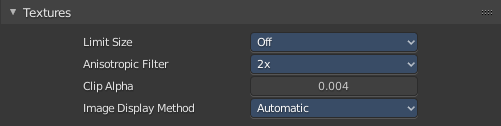
Limit Size
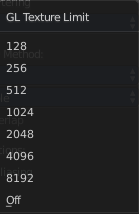
Limit the maximum resolution for pictures used in textured display to save memory. The limit options are specified in a square of pixels, (e.g.: the option 256 means a texture of 256×256 pixels) This is useful for game engineers, whereas the texture limit matches paging blocks of the textures in the target graphic card memory. Available Options are: Off (No limit), 128, 256, 512, 1024, 2048, 4096, and 8192.
| Entry | What it does |
|---|---|
| Anisotropic Filtering | Sets the level of anisotropic filtering. This improves the quality of how textures are drawn at the cost of performance. Available Options are: Off (No Filtering), 2x, 4x, 8x, and 16x. |
| Clip Alpha | Clip alpha when the value is below the here defined value. |
Image Display Method
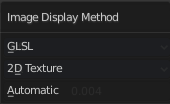
The method that is used to draw textures in the viewport.
Subdivisions
GPU Subdivisions
Enable GPU acceleration for evaluating the last subdivision surface modifier at the bottom of the modifier stack. This greatly improves subdivision performance on playback and evaluation.
Lights
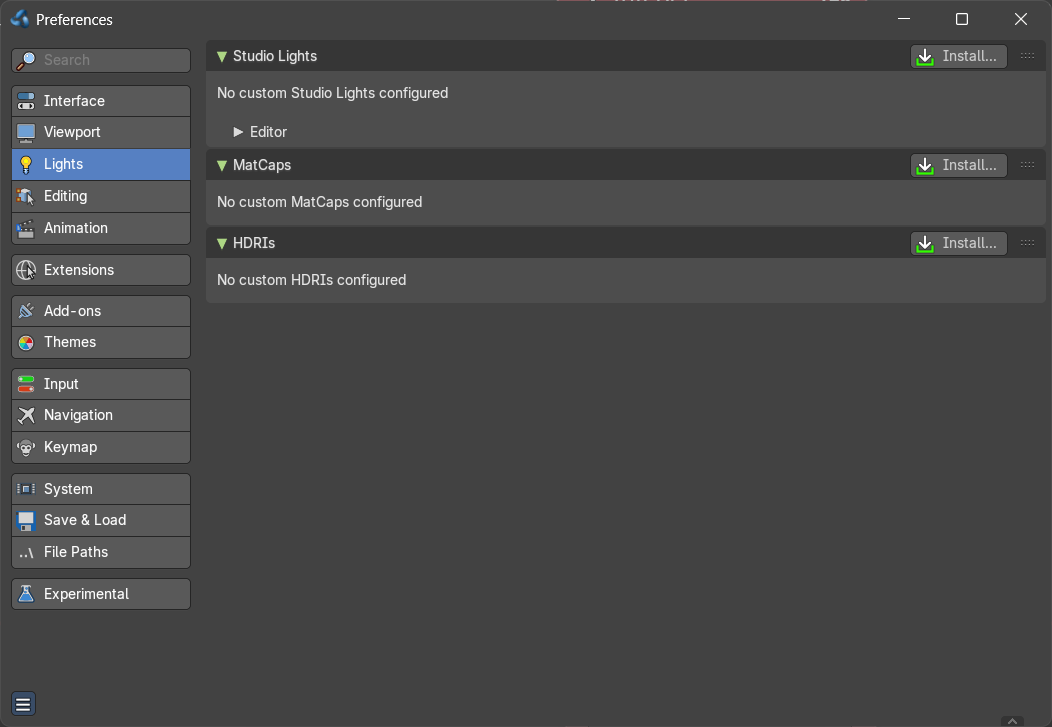
The viewport uses different light setups in different situations. You can switch between them in the shading drop down in the 3d view up right.
This tab allows you to customize these light setups. And install custom light setups.
Studio Lights
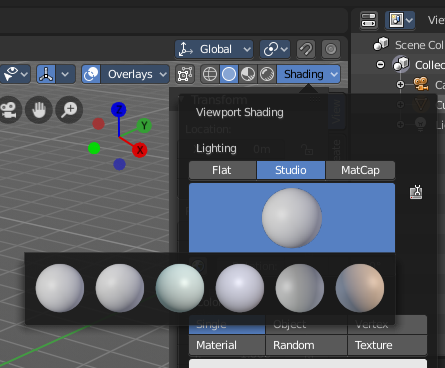
The 3D view uses Solid OpenGL lamps to light the 3D view. You can enable four different light sources here. These lamps does not affect the rendering. Their only purpose is to light the 3D view.
You can turn on or off the lamps. But there should be at least one light enabled.
Install
Install an external studio light.
Preview Window
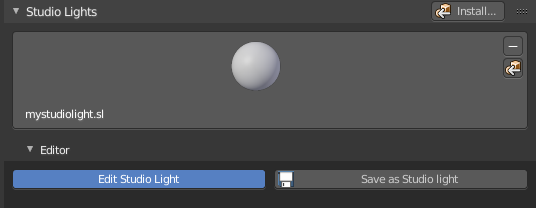
This window appears when you have a studio light saved, or a new studio light installed.
Down left you can see the name of the saved library. mystudio.sl .
This window gives you a preview of how this studio light looks like in the 3D view then.
Up right you can find two buttons.
Delete Studio Light
Deletes the studio light.
Copy Studio Light settings to the Studio Light Editor
The editor settings does not update immediately. It shows the default studio light setting. So when you want to edit the studio light, then you want to press this button to update the editor values first.
| Entry | What it does |
|---|---|
| Edit Studio Light | Enable the editing of the studio light setup. |
| Save as Studio Light | Save the current light setup as a studio light setup. Note that this does not export the light, but saves its settings internally in the appdata directory. |
| Use Light | Turn on or off this specific light. |
| Diffuse | Diffuse color is the constant color of the lamp. |
| Specular | Specular is the highlight color of the lamp. |
| Smooth | Smooth the lighting from this specific light. |
| Direction | Adjust the direction. Click into the field and drag the sphere around until you have your desired light setup. |
MatCaps
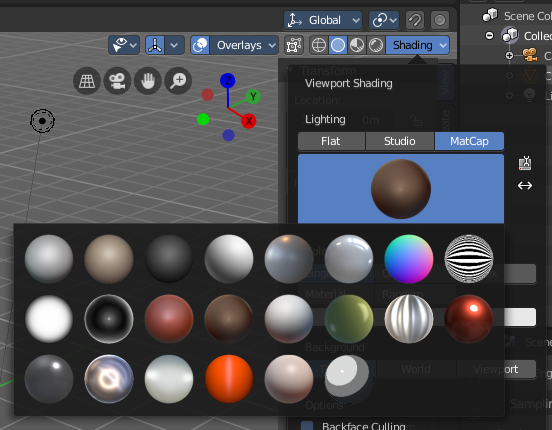
Matcaps is a special material that can be assigned quickly to preview geometry. Usually matcaps are used while sculpting. You can switch between them in the shading drop down in the 3d view up right.
Install and manage custom matcaps.
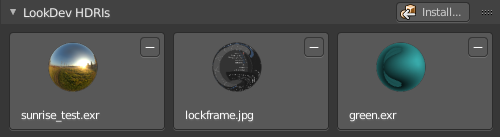
LookDevHDRI's
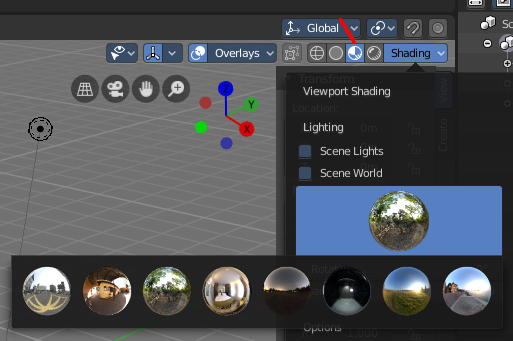
You can light the scene with an environment image instead of lights. This is done with hdri images.
The viewport can do this in realtime when the shading is set to Viewport Shading.
Install and manage custom LookDev HDRI's. Basically every image could do the trick here. But the hdri's uses a special spherical mapping. So you better use hdri images for this purpose.
Editing
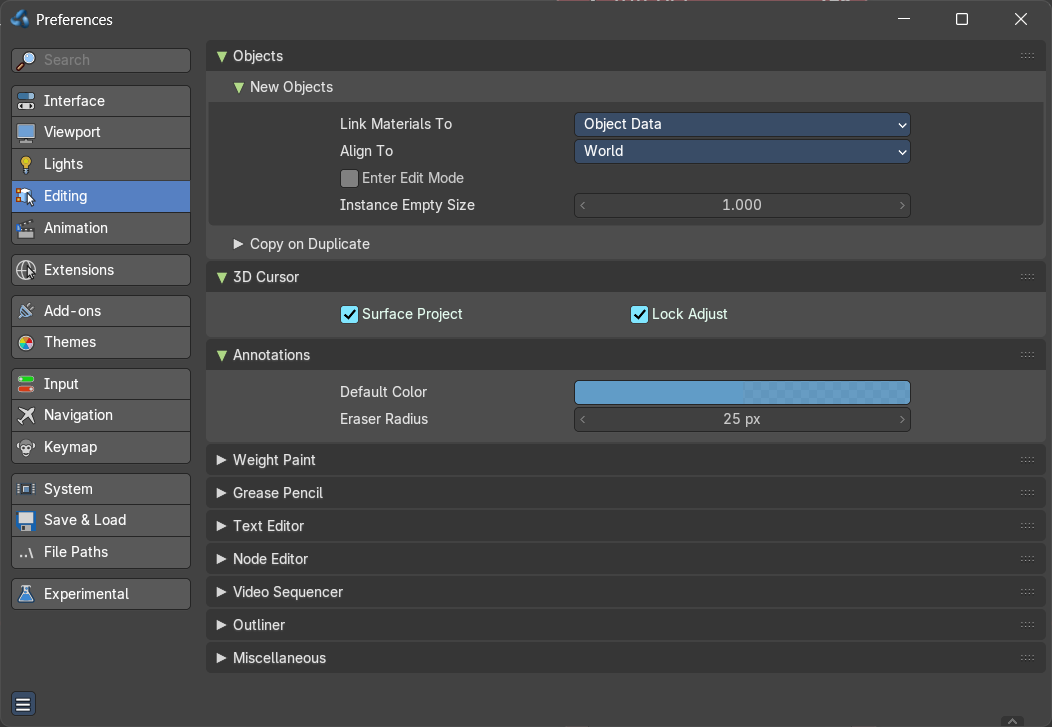
Contains the settings around editing. Objects, Data, etc.
Objects
New Objects
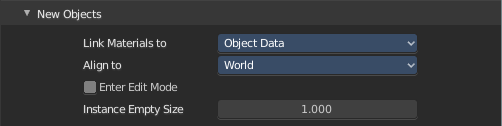
Link Materials To
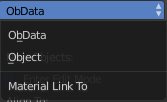
Define how materials will be linked to its objects. Almost everything in Bforartists is organized in a hierarchy of data-blocks. A data-block can be thought of as containers for certain pieces of information. For example, the Object data-block contains information about the Object’s location while the Object Data ObData data-block contains information about the mesh.
| Entry | What it does |
|---|---|
| ObData | Any created material will be created as part of the ObData data-block. |
| Object | Any created material will be created as part of the Object data-block. |
Align To
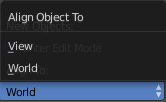
| Entry | What it does |
|---|---|
| World | New objects align with world coordinates. |
| View | New object align with view coordinates. |
| Entry | What it does |
|---|---|
| Enter Edit Mode | If selected, Edit Mode is automatically activated when you create a new object. |
| Instance Empty Size | Increase or decrease the size of collection empties. |
Copy on Duplicate Data subtab
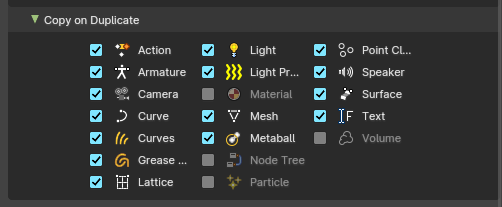
When you duplicate data, then most or all its subpart gets duplicated too. Define which supports should be duplicated when you duplicate an object.
3D Cursor

| Entry | What it does |
|---|---|
| Surface Project | Use the surface depth to place the 3D cursor. That way you can place the 3D cursor at the surface of an object. |
| Lock Adjust | Place the cursor without a jumping effect at the new location when lock to cursor is used. |
Annotations

| Entry | What it does |
|---|---|
| Default Color | The default color for the annotations pencil. |
| Eraser radius | The eraser radius. |
Weight Paint
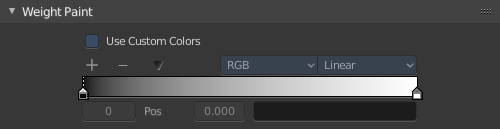
Use Custom Colors
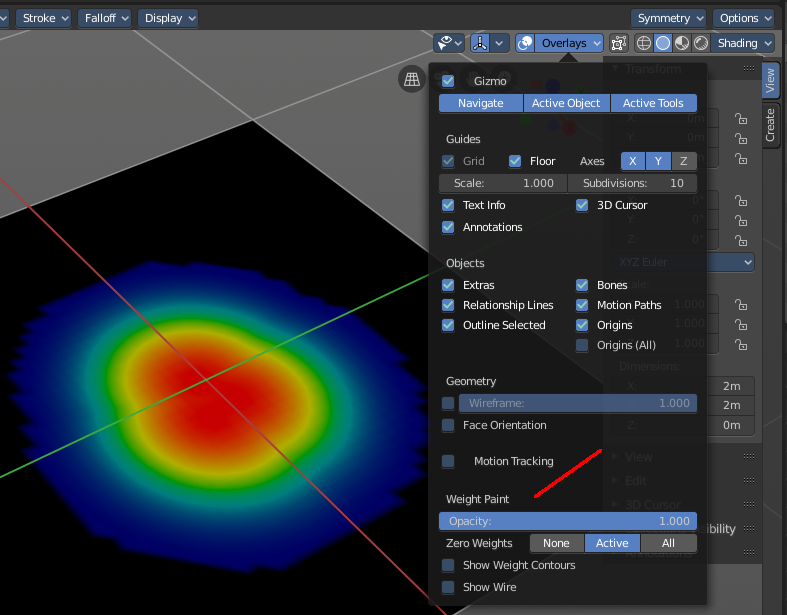
Bforartists uses by default a gradient that goes from red to green to blue to black to display the different weight at a mesh.
Setup a custom gradient for the colors of a weight paint.
The + Button adds a color stop point, which can be moved around. That way you can have more than one color in the gradient.

The - Button removes the currently selected color stop point.
Tools Menu
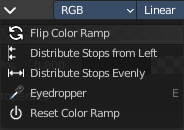
Flip Color ramp flips the color ramp.
Distribute Stops from Left distributes the color stops from the left. The position at the right will remain empty.
Distribute Stops evenly distributes the color stops evenly across the gradient.
Eyedropper allows you to pick a color from the gradient.
Reset color ramp resets the color ramp to the default state.
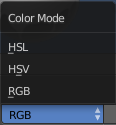
Color Mode is a drop down box to choose the color mode for the gradient.
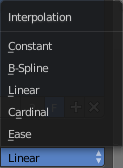
Interpolation is a drop down box to choose the interpolation mode for the gradient.

In the Color Ramp element you will see the color ramp with the single color stops.

Choose Active Color Stop is the stop point of the gradient.

Position is an edit box where you can numerically fine tune the position of the currently selected color stop.
Color Ramp Element displays the color of the current selected color stop. When you click at it then you can open a color picker to change the color of the current color stop.
Background Color
Background color is the same color than the secondary color from the color picker. When you click at it then you can open a color picker to change the secondary color.
Gradient Stroke Mode
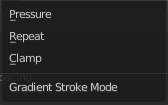
Set the gradient stroke mode.
Grease Pencil

| Entry | What it does |
|---|---|
| Manhattan Distance | The minimum number of pixels the mouse has to move horizontally or vertically before the movement is recorded. |
| Euclidean Distance | The minimum distance that mouse has to travel before movement is recorded. |
Text

Auto-close Character Pairs
Automatically close relevant character pairs when typing in the text editor.
Node Editor
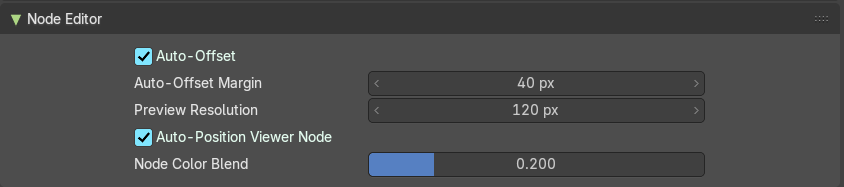
Auto Offset
Use Auto Offset.
Auto Offset Margin
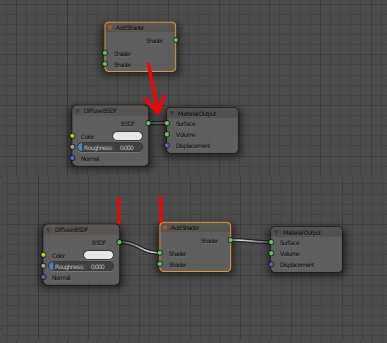
Minimum distance in the node editor between nodes for auto offsetting.
When you insert a new node between two existing connected nodes, then the two nodes gets pushed to left and right, with an offset. Adjust this offset.
| Entry | What it does |
|---|---|
| Preview Resolution | Resolution used for shader node previews, which are displayed above the nodes. |
| Auto position Viewer Node | Automatically reposition the Viewer node near the selected socket when viewing data. |
| Node Color Blend | Bforartists blends node type color to its body, disable if the color is enabled. |
Video Sequencer

Connect Movie Strips by Default
Connect new Movie Strips by Default if they have multiple channels.
Outliner

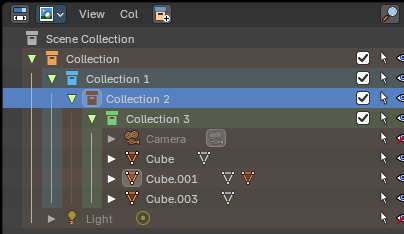
Colored Collection Rows
Displays collections in the outliner with a colored line and background. You need to give the collection a color first in the right click menu to show this colored line.
Miscellaneous

Sculpt Overlay Color

This color button allows the user to define a color to be used in the inner part of the brushes circle when in sculpt mode, and it is placed as an overlay to the brush, representing the focal point of the brush influence.
The overlay color is visible only when the overlay visibility is selected (clicking at the eye to set its visibility), and the transparency of the overlay is controlled by the alpha slider located at the brush pop-up, located at the top of the tool shelf, when in sculpt mode.
Animation
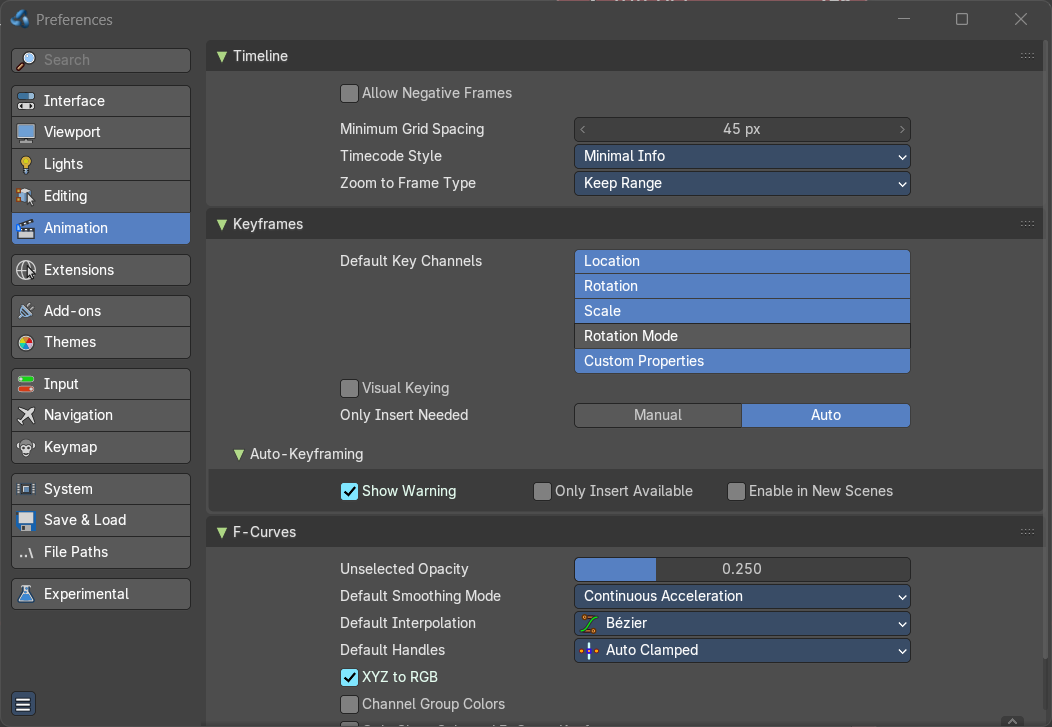
Contains the settings for the animation editors.
Timeline
Allow negative Frames
Minimum Grid Spacing
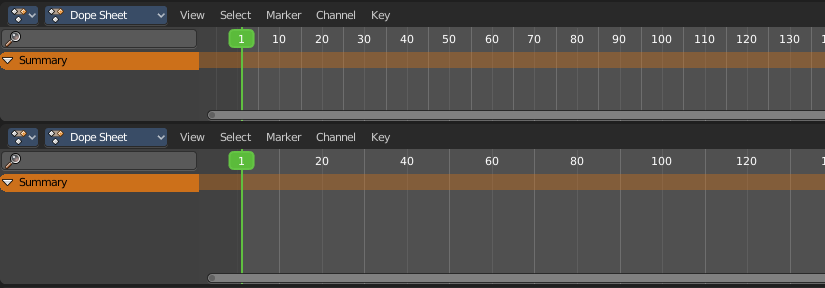
Adjust the minimum number of pixels between grid lines in a 2D viewport. This affects for example Timeline, Dope sheet, Graph or NLE Editor.
Time Code Style
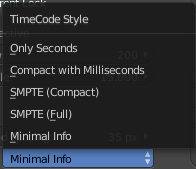
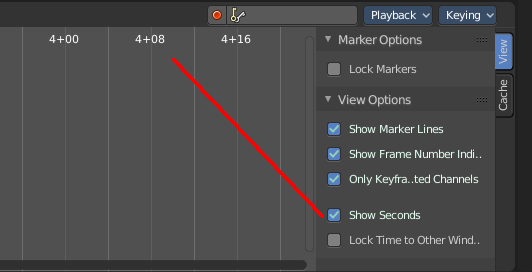
In Timeline, Dope sheet, Graph and NLE editor you can either display the keyframe number or the time in the timeline. Define how the time gets displayed when you have chosen to display time.
Zoom To Frame Type
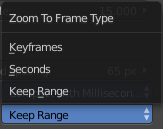
Timeline, Dope sheet, Graph and NLE. Define how zooming to frame focuses around current frame.
Keyframes
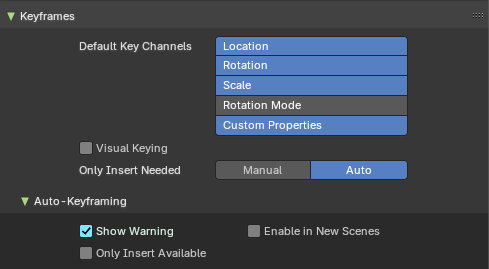
| Entry | What it does |
|---|---|
| Default Key channels | Define which channels are recorded by default In case no keyingset is defined. |
| Visual Keying | When an object is using constraints, the objects property value doesn't actually change. Visual Keying will add keyframes to the object property, with a value based on the visual transformation from the constraint. |
Only Insert Needed
With Auto it will only insert keyframes if the value of the property is different.
If there is a keyframe on the current frame, and it has no changes, it will skip recording over the keyframe.
If there is no keyframe, and it has no changes, skip recording the keyframe.
Auto Keyframing subpanel
| Entry | What it does |
|---|---|
| Show Warning | Displays a warning at the top right of the 3D View, when moving objects, if Auto Keyframe is on. |
| Only Insert Available | This will only add keyframes to channel F-Curves that already exist. |
| Enable in new scenes | Automatic keyframe insertion for objects and bones as Default setting for new scenes. |
F-Curves
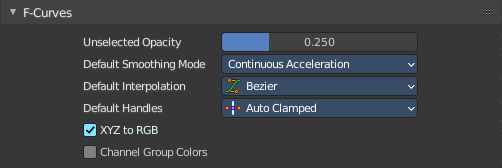
Unselected Opacity
The amount that unselected F-curves stands out from the background in the Graph Editor.
Default Smoothing Mode
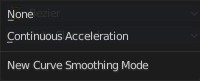
Auto handle smoothing mode for new added curves. None or Continuous accelleration.
Default Interpolation
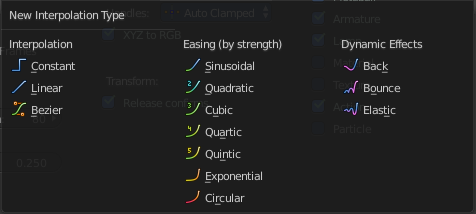
This controls how the state between two keyframes is computed. Default interpolation for new keyframes is Bezier which provides smooth acceleration and de-acceleration whereas Linear or Constant is more abrupt.
Default Handles
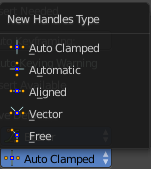
The default handle types for F-Curves.
| Entry | What it does |
|---|---|
| XYZ to RGB | Color for X, Y or Z animation curves (location, scale or rotation) are the same as the color for the X, Y and Z axis. |
| Channel Group Colors | Use animation channel group colors. Uses the bone group colors. |
| Only Show Selected F-Curve Keyframes | Just show the keyframes from the selected curves only. |
| F-Curve High Quality Drawing | Display the curves in highest quality. |
Extensions
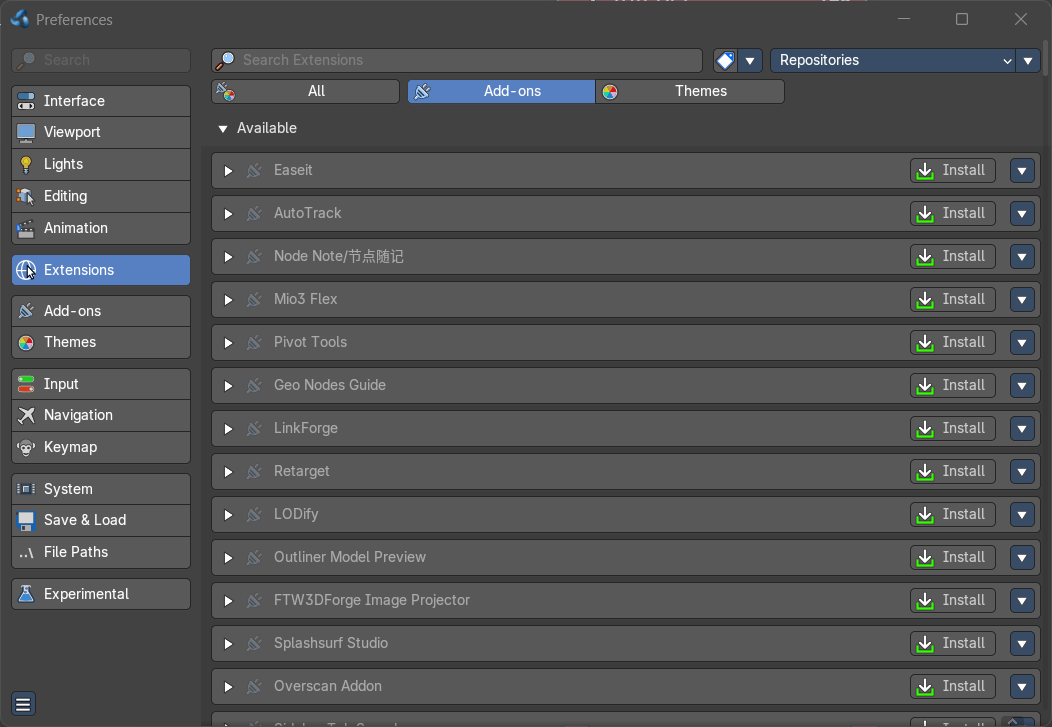
In this section you can manage the availability of online add-ons and themes. Blender has an online repository with it. And you can download the ones that you need.
A theme allows you to customize the colors of the user interface. An extension add-on is external software written by other developers. Add-ons are a way to extend the core functionality of Bforartists. Bforartists already comes with lots of extensions add-ons. Some already activated. Here you can manage them, and add even more extension add-ons if required.
Note: All add-ons are generally compatible with Bforartists. Please note, however, that we are always one release version ahead of Blender. We merge our code from the Blender main branch. This means that when Blender releases version 4.1, for example, we've already been using version 4.2 of Blender for at least a month. Blender switches to a release branch one month before release and then develops the next version in the main branch. This means that some add-ons might not work because they've become too old. And there is little that we can do here.
Some addons and themes are included. Some addons and themes can now be downloaded externally when you opt-in to Allow Online Access. And this is what the Extensions tab is good for.
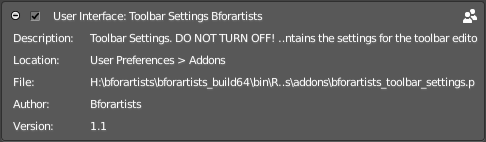
Note: Bforartists comes with some add-ons that are required by Bforartists to work properly. You will see a warning in those addons. Don't turn them off. If off, vital parts of Bforartists will not longer work, ei the toolbar settings.
Search Extensions
You need to have online access granted so that you can see and search the available themes and/or addons.
Filter Extensions
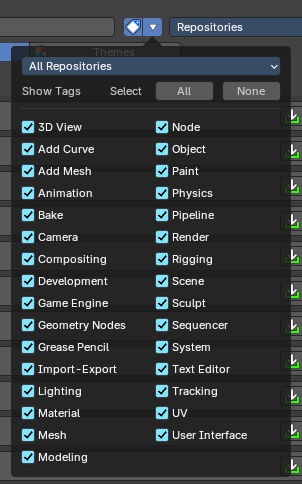
Filters the extensions content by tags and repositories. This allows users to filter, organize, and manage extensionsand themes based on functional tags.
Filter Extensions Settings Dropdown
| Entry | What it does |
|---|---|
| Dropdown – Repository Filter | Filters extensions by repository source. Selecting a repository updates the tag list and extension visibility accordingly. |
| Show Tags | Toggles the visibility of the tag filter list. When enabled, displays all available functional tags as checkboxes or none. |
Tag List (Checkboxes)
Each tag corresponds to a functional area in Blender. Checking a tag includes extensions related to that domain.
Repositories

Manage the extension repositories.
Extensions are managed in so called repositories. A place where the addons are stored. This includes the online sources, but also where the addons are stored at your local installation.
Repository List
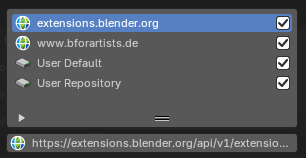
The list of currently available repositories.
extensions.blender.org is the official extension repository from Blender, which we rely at. It is online.
User Default is the offline default repository. This includes the core addons and the addons that you have installed.
| Entry | What it does |
|---|---|
| Enable | Enable the repository. |
| URL field | In case the selected repository is a online source you will see the URL property to this repository. You can also edit this URL here. |
Add
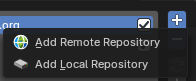
Add a repository.
Add Remote Repository
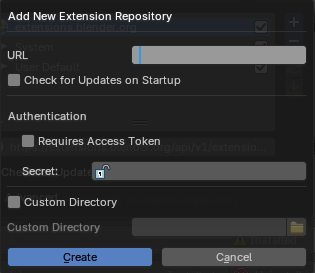
Add a repository from an online source. It should ideally contain extensions. A dialog will pop up.
| Entry | What it does |
|---|---|
| Add New Extension Repository dialog | — |
| URL | The url for the online repository |
| Check for Updates on Startup | Check if updates are available. |
| Authentification | For addons that requires an authentification. · Requires Access Token: Enable Requires Access Token. · Secret: The secret password for the authentification. |
Custom Directory
Use a custom install directory. By default it installs in \AppData\Roaming\Bforartists\Bforartists\VERSIONNUMBER\scripts\addons
VERSIONNUMBER stands for the Blender version number here.
Note that the custom directory needs still to be in the \AppData\Roaming\Bforartists\Bforartists\VERSIONNUMBER\ path.
Custom Directory
The custom directory that you want to use.
| Entry | What it does |
|---|---|
| Create | Create the new repository. |
| Cancel | Cancel. |
Add Local Repository

Add a local repository.
| Entry | What it does |
|---|---|
| Name | The name of the repository |
| Use Custom Directory | Use a custom install directory. By default it installs in \AppData\Roaming\Bforartists\Bforartists\VERSIONNUMBER\scripts\addons VERSIONNUMBER stands for the Blender version number here. Note that the custom directory needs still to be in the \AppData\Roaming\Bforartists\Bforartists\VERSIONNUMBER\ path. |
| Custom Directory | The custom directory that you want to use. |
| Create | Create the new repository. |
| Cancel | Cancel. |
Remove
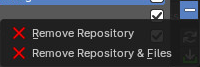
Remove the chosen repository.
Remove Repository
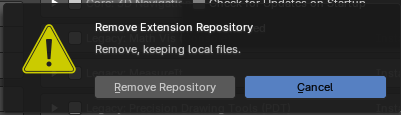
Removes the repository from the repository list. But keeps the files locally.
Remove Repository & Files

Removes the repository from the repository list. And removes the local files too.
Refresh Remote
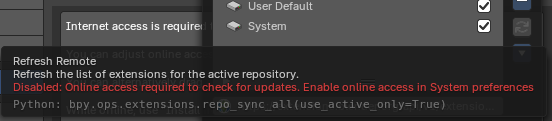
Refreshes the content. You must be online to set the menu item to active.
Active Extension Repository
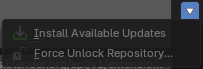
You must be online to set the menu items to active.
| Entry | What it does |
|---|---|
| Install Available Updates | Install all available updates. Note that this feature requires to allow online access. Also note that this feature works at the selected repository only. |
| Force Unlock Repository | Remove the repository file-system lock in case it is locked. |
Check for Updates on Startup
In case the selected repository is an online source you will see the Check for Updates on Startup properties to this repository.
Checks for available updates. And notifies you about it in the list of extensions then. You can also turn on the Extensions Updates notification in the footer.
Advanced Subpanel
Adjust settings for the repositories.
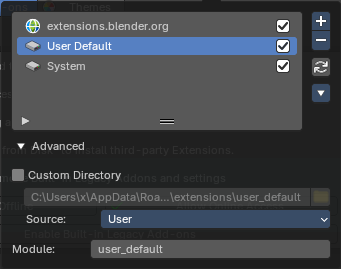
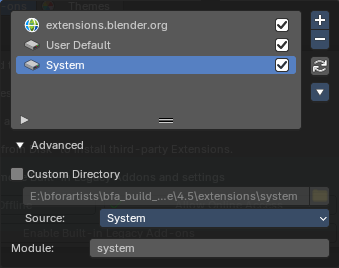
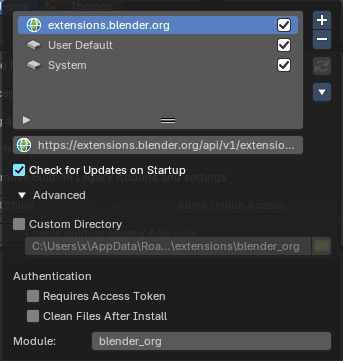
The content differs, dependant of the chosen repository.
| Entry | What it does |
|---|---|
| Custom Directory | Use a custom install directory. By default it installs in \AppData\Roaming\Bforartists\Bforartists\VERSIONNUMBER\scripts\addons VERSIONNUMBER stands for the Blender version number here. Note that the custom directory needs still to be in the \AppData\Roaming\Bforartists\Bforartists\VERSIONNUMBER\ path. |
| Directory | The custom directory that you want to use. · Browse: Browse for the directoriy that you want to use |
Source
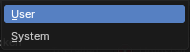
Select if the repository is a system directory, or a user directory. Normally this updates automatically when you use a system or a user directory in the list above. But here you can customize it.
| Entry | What it does |
|---|---|
| Authentification | For addons that requires an authentification. · Requires Access Token: Enable Requires Access Token. · Secret: The secret password for the authentification. |
| Module | The unique module identifier. It identifies the repositories. |
Extensions Settings
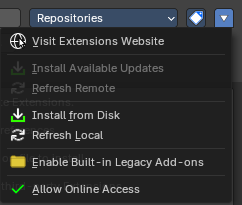
| Entry | What it does |
|---|---|
| Visit extensions website | Opens the Blender extension page in a web browser. · Install Available Updates: Install all available updates. Note that this feature requires to allow online access. · Refresh Remote: Check if updates for extensions are available for the online extensions. Note that this feature requires to allow online access. Also note that this feature works on ALL repositories. |
| Install from Disk | You can optionally also install addons and extensions from a disk location using the install from disk operators. · Refresh Local: Refresh local extensions to apply changes. Note that this feature works on ALL repositories. |
| Enable Built-in Legacy Add-ons | Blender does by default just use online add-ons. But Bforartists comes with some add-ons that are vital to run the software. And these offline add-ons must be on so that Bforartists is fully functional. By Default these add-ons are already enabled. So no action is required. But if you by accident disable a Bforartists core add-on, this is the place to re-enable them all. |
Allow Online Access
Allow internet access to download extensions. Bforartists may access configured online extension repositories to download and update. And installed third party extensions may access the internet for their own functionality.
Online Extensions
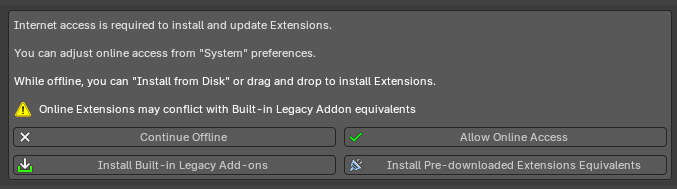
An explicit dialog suggests that to access Extensions, you must allow internet access. This is so you can download and work with the online Blender extensions repository.
To install extensions from the internet, internet access is required. You can adjust this later from the “System” preferences in the Network panel. Once you have allowed online access, you will access the default Blender extensions website with free addons and themes.
Continue Offline
Closes the dialog. Note that you can always (re) enable the online access from the Extension settings menu.
Allow Online Access
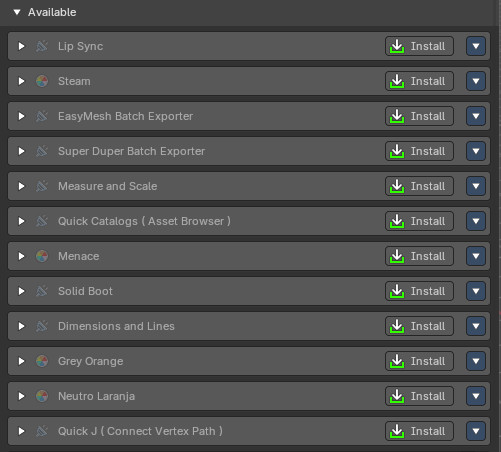
Allow Bforartists to access the internet to load and display and also install available online add-ons and themes. You will see a list of all available online extensions then.
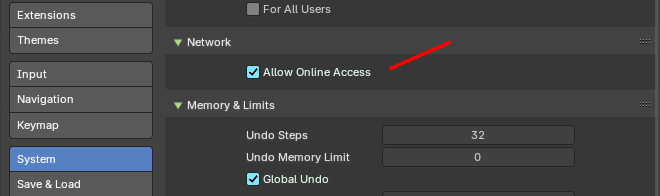
Note: you can change your choice afterwards in the System preferences.
Also that you can also install extensions from disk or drag and drop extensions to install from disk when you are offline.
Repository Acccess Errors

In case you have added an invalid online repository you might be faced with a warning. You might want to fix the invalid extension repository then.
Note: Bforartists doesn't host extensions. This URL was just added for demonstration purposes.
| Entry | What it does |
|---|---|
| Enable/Remove Built-in Legacy Add-ons | Bforartists comes with some core add-ons that are vital to run the software, but this also alternatively ships with legacy Built-In addons. These addons are opt-in and have Extension equivalents also included offline. Core add-ons must be on so that Bforartists is fully functional. Built-In Legacy addons are optionally provided for complete offline extended usability. |
| Install Pre-downlaoded Extensions Equivalents | If you have enabled legacy addons, you also have the options to remove and alternatively install the Extensions equivalents while remaining offline. This will copy the extensions to your user settings, and if you want to continue updating them when being online, they will then be available locally with online access to their repository for future updates. This helps to you to migrate your legacy addons to Extensions. |
Add-ons
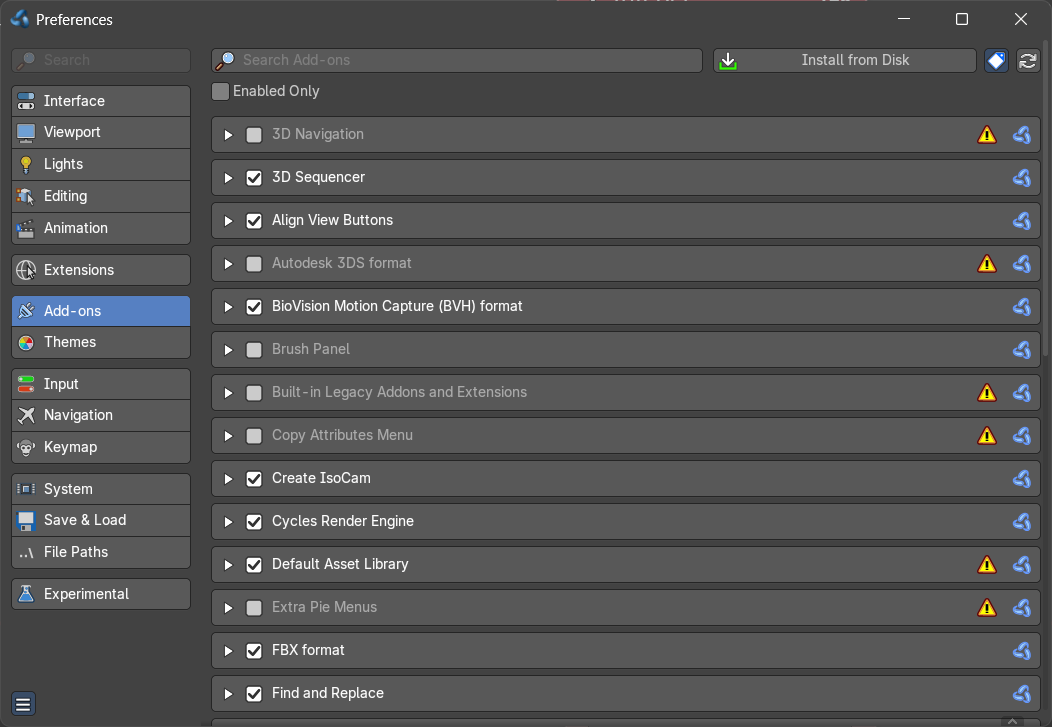
Manage the available addons. Note that for online addons you head over to the Extensions tab, and install it from there. The not installed but available online addons will not show here.
Drag and Drop
One of the methods to install an addon is to drag an extension zip file from the internet or from the computer into Bforartists from the operating system expolorer. This will automatically install and activate the addon or theme extension.
Search field
Search for specific addons.
Enabled only
Just display the enabled addons.
Install from Disk
You can install addons and extensions from a disk location. It will open a file browser where you can locate and load your add-on.
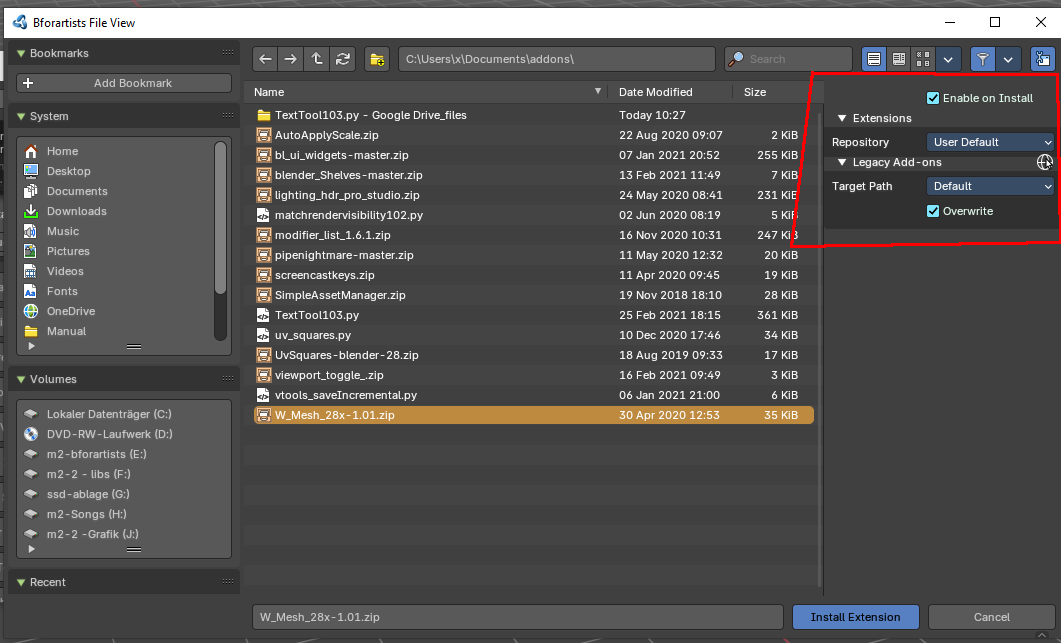
| Entry | What it does |
|---|---|
| Extension Tags | Filter the content by tags. |
| Refresh Local | Refresh the local add-ons. Any probems will be reported. |
List of Addons
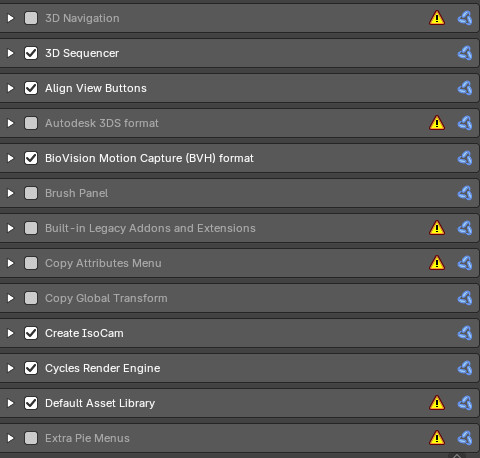
The actual list with the addons.
The addons with the warning sign is no error. It marks the bforartists legacy addons that are built in. But may have a conflict with the online version then.
Themes
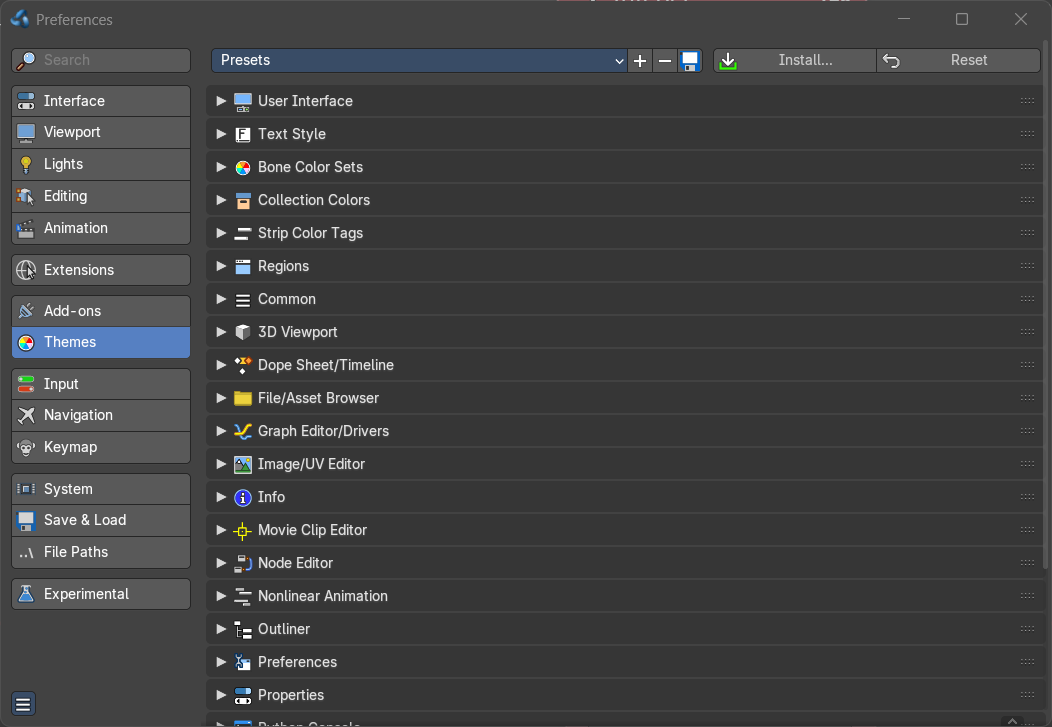
The Themes tab allows you to customize interface appearance and colors. There are various elements that can be themed.
Any change here will appear in real-time on your screen in the corresponding editor.
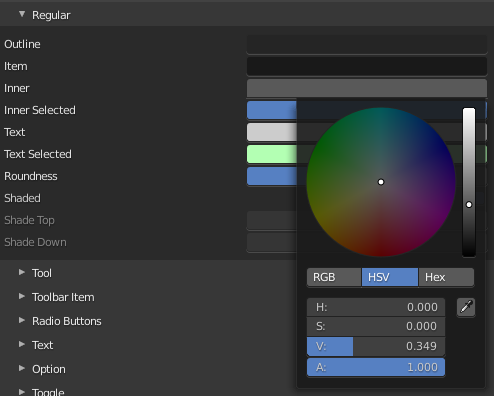
To change a color for a UI element, simply click at one of the color fields. A color dialog will open up to choose a new color.
Presets
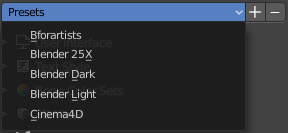
Bforartists comes with several theme presets. You can choose between them in the drop down box. Don't forget to save the user settings to make the change to the new preset permanent.
Create new Theme

To create a new theme, click the + button next to the preset selection drop-down and enter a name. This will save the theme to an XML file in the ./scripts/presets/interface_theme/ sub directory of one of the configuration directories.
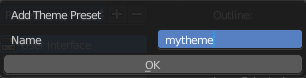
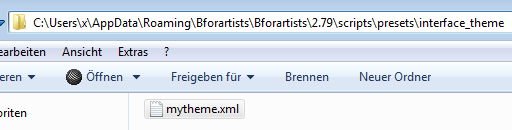
To share the new created theme you have to copy it from that folder. This XML file can then be loaded as a theme at another computer with Bforartists installed.
Remove Theme
To remove a custom theme, click the - button next
Save Theme
To save changes to a custom theme, click on the save icon.
Install

Install an external theme. This button will open a file browser.
Reset
Resets all made changes, and resets the current theme to its initial state.
List of Editors
The list of the editors that you can theme. Every editor can have its own theming.

| Entry | What it does |
|---|---|
| User Interface | Controls the global look of Blender’s UI—buttons, panels, headers, and background colors across all editors. |
| Text Style | Defines font colors and styles used in labels, tooltips, and text-based editors. |
| Bone Color Sets | Lets you assign custom colors to bone groups in Pose Mode, useful for rigging and animation clarity. |
| Collection Colors | Sets colors for collections in the Outliner, helping visually organize scene hierarchies. |
| Strip Color Tags | Applies tag colors to strips in the Video Sequencer and Nonlinear Animation editors for quick identification. |
| Regions | Handles the common region areas like Asset Shelves, channels, scrubbing and marker settings and toolbars and sidebars. |
| Common | Handles shared UI elements like animation and curve settings. |
| Asset Shelf | Customizes the appearance of the Asset Shelf, including preview thumbnails, labels, and background styling. |
| 3D Viewport | Controls mesh display, overlays, selection highlights, and shading in the main modeling and animation workspace. |
| Dope Sheet / Timeline | Defines keyframe colors, channel backgrounds, and marker styles for animation timelines. |
| File / Asset Browser | Sets visual styles for file lists, asset previews, and tag indicators in the browser interface. |
| Graph Editor / Drivers | Colors for animation curves, handles, and driver indicators—essential for fine-tuning motion. |
| Image / UV Editor | Controls UV line colors, grid backgrounds, selection highlights, and image overlays. |
| Info | Styles the header and system log messages, including warnings, errors, and notifications. |
| Movie Clip Editor | Customizes tracking marker colors, clip overlays, and annotation visuals for motion tracking workflows. |
| Node Editor | Defines node socket colors, wire styles, backdrop shading, and node selection highlights. |
| Nonlinear Animation | Sets strip colors, selection highlights, and timeline overlays in the NLA editor for layered animation. |
| Outliner | Controls tree view colors, selection highlights, and hierarchy lines for scene organization. |
| Preferences | Applies theme settings to the Preferences window itself, including tabs and panels. |
| Properties | Styles the Properties editor, which includes modifiers, materials, constraints, and more. |
| Spreadsheet | Controls cell background, grid lines, and selection colors for data views and attribute inspection. |
| Text Editor | Defines syntax highlighting, background, cursor, and line number colors for scripting and notes. |
| Top Bar | Customizes the global top menu bar and tool headers for consistent branding or visibility. |
| Video Sequencer | Sets strip colors, waveform display, and timeline elements for video editing workflows. |
Input
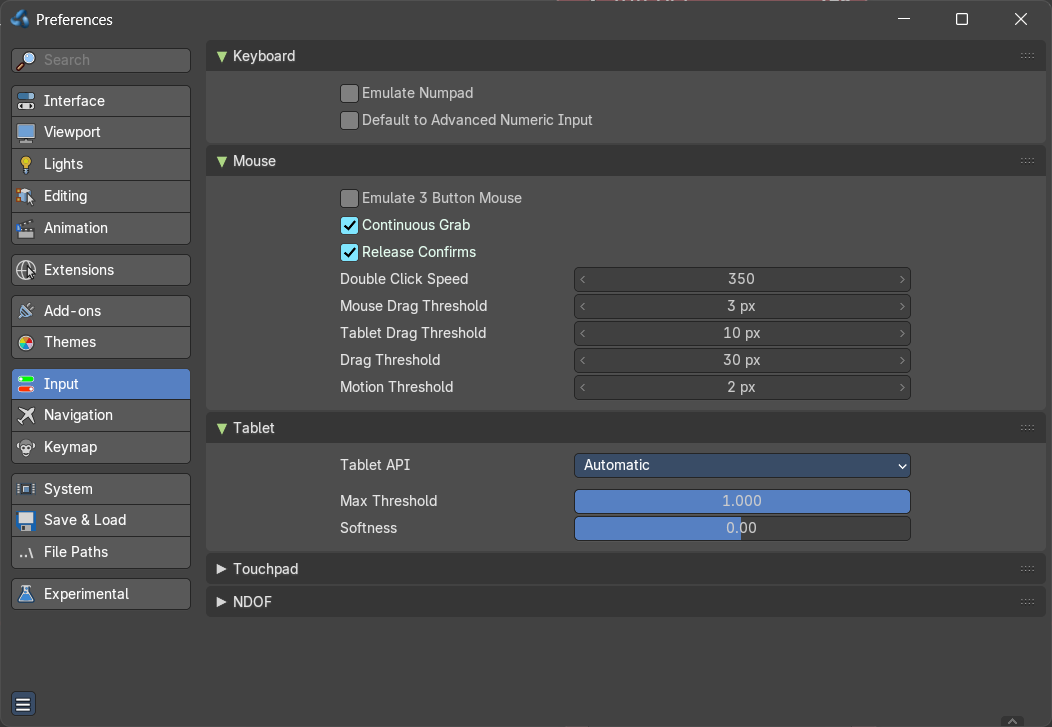
This tab contains some input related settings.
Keyboard
| Entry | What it does |
|---|---|
| Emulate Numpad | Laptops usually doesn't have Numpad keys. Choose to use the number keys above the letters as Numpad keys. |
| Default to advanced numeric input | When entering numbers while transforming default to advanced mode for full math expression evaluation. |
Mouse

Emulate 3 Button Mouse
In the Windows world 3 button mouses are common. But Apple for example has a single mouse button. Bforartists can emulate a 3 button mouse. The third mouse button will then be emulated by a key combination.
| LMB | LMB | LMB (mouse button) |
| MMB | Alt + LMB | Alt + LMB (Option/Alt key + mouse button) |
| RMB | RMB | Cmd + LMB (Command/Apple key + mouse button) |
Mouse/Keyboard combinations referenced in this manual can be expressed with the combinations shown in the table. For example, MMB drag becomes Alt + LMB drag. Shift + Alt + RMB becomes Shift + Alt + Cmd + LMB on a single-button mouse.
Tablet
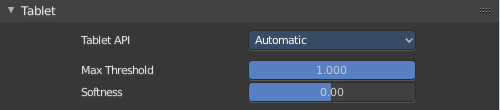
This panel contains some tablet related settings.
Tablet API
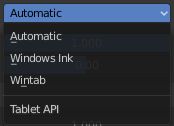
Choose which API Bforartists should choose for the pressure sensitivity of your tablet.
| Entry | What it does |
|---|---|
| Max Threshold | The raw input pressure value which is interpreted as 100 % by Bforartists. |
| Softness | Adjust the pressure softness of the low pressure response onset using a gamma curve. |
Touchpad

Multi Touch Gestures
Use multi touch gestures for navigation with touchpad instead of scroll wheel emulation.
NDOF
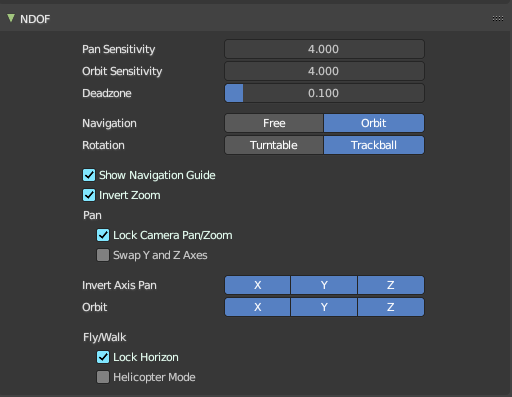
You can use a 3D mouse in Bforartists. Here you find some 3D mouse related settings.
| Entry | What it does |
|---|---|
| Pan Sensitivity | Adjust the pan sensitivity. |
| Orbit Sensitivity | Adjust the orbit sensitivity |
| Deadzone | The initial movement that is needed before the movement gets recognized. |
| Navigation | Choose the navigation style between Free and Orbit. |
| Rotation | Adjust in what style you rotate the 3D View. Turntable and Trackball navigation reacts a bit different. Turntable navigation tries to hold the horizon line while rotation. Turntable rotation rotates also the horizon line. |
| Show Navigation Guide | Display the axis and center during rotation. |
| Invert Zoom | Zoom using opposite direction. |
| Lock Camera Pan/Zoom | Pan / Zoom the camera view instead of leaving the camera view when orbitting. |
| Pan Swap Y and X Axes | Pan uses up - down instead of forward - backward |
| Invert Axis Pan | The invert axis for panning. Inactive axis are not inverted. |
| Orbit | The axis to orbit around when panning. |
| Fly / Walk | Lock Horizon: Keep horizon level while flying with 3D mouse. · Helicopter Mode: Using up/down directly controls the Z position in the 3D viewport. |
Navigation
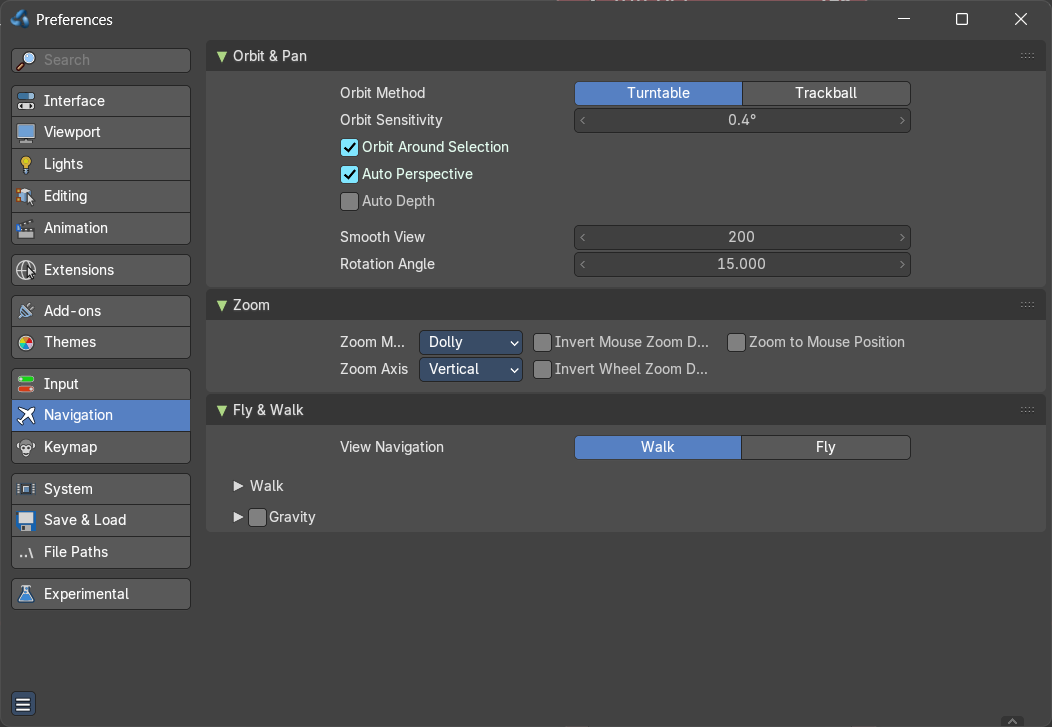
The navigation section contains the settings for navigating in the 3D view.
Orbit & Pan
Orbit Method
Adjust in what style you rotate the 3D View. Turntable and Trackball navigation reacts a bit different. Turntable navigation tries to hold the horizon line while rotation. Turntable rotation rotates also the horizon line.
Orbit around selection
The selected object becomes the rotation center of the viewport. When there is no selection the point of the last selection will be used.
| Entry | What it does |
|---|---|
| Auto Perspective | With Auto perspective off when you switch to one of the side views, then the chosen orthographic or perspectivic view is kept. Means when you have the distorted perspectivic view, and switch to top view, then your mesh will be perspectivic distorted here too. With Auto Perspective the view in the side views will be orthographic, and not perspectivic, no matter what View Persp/Ortho is chosen. |
| Auto Depth | Use the depth under the mouse to improve view pan, rotate, zoom functionality. |
| Smooth View | The switch to change to another view is animated. Adjust the length of time the animation takes when changing the view with the Numpad (Top/Side/Front/Camera...). A value of zero will remove the animation, and immediately switch to the chosen view. |
| Rotation Angle | Rotation step size in degrees, when Numpad4, Numpad6, Numpad8, or Numpad2 are used to rotate the 3D View. |
Zoom
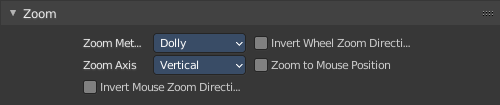
Zoom Method
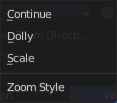
Adjust the zoom style.
| Entry | What it does |
|---|---|
| Continue | The Continue zooming option allows you to control the speed (and not the value) of zooming by moving away from the initial click point. Moving up from the initial click-point or to the right will zoom out, moving down or to the left will zoom in. The further away you move, the faster the zoom movement will be. |
| Dolly | Dolly zooming works similarly to Continue zooming except that zoom speed is constant. |
| Scale | Scale zooming depends on where you first click in the view. |
Zoom Axis
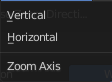
With Vertical moving up zooms out and moving down zooms in. With Horizontal moving left zooms in and moving right zooms out.
| Entry | What it does |
|---|---|
| Invert Mouse Zoom Direction | Inverts the Zoom direction for Dolly and Continue zooming. |
| Invert Wheel Zoom Direction | Inverts the direction of the mouse wheel zoom. |
| Zoom to Mouse Position | When enabled, the mouse pointer position becomes the focus point of zooming instead of the 2D window center. |
Fly & Walk
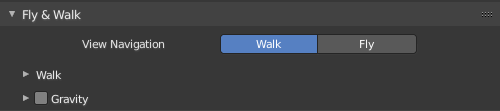
Fly and walk are special navigation modes. They can be found in the Navi menu. The Fly & walk section also contains some settings from the View navigation style, since this style uses elements from walk and fly navigation too.
View Navigation
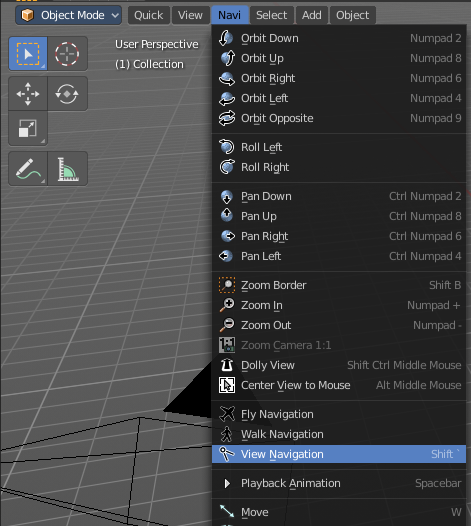
Adjust how the View navigation in the 3D view behaves. You can choose between walk and fly.
Walk
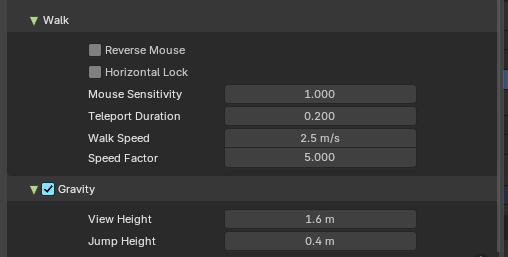
| Entry | What it does |
|---|---|
| Reverse Mouse | Reverse the mouse movement when you move upwards or downwards |
| Horizontal Lock | Locks horizontal movement in Walk Mode, keeping the viewpoint level and aligned with the ground. This ensures stable navigation within scenes, preventing any vertical shifts and maintaining a consistent horizontal plane. This is a Bforartists exclusive feature. |
| Mouse Sensitivity | Adjust how strong the viewport movement reacts to the mouse movement |
| Teleport Duration | Adjust the teleport duration when teleporting in navigation mode. |
| Walk Speed | Adjust the walk speed |
| Speed Factor | Adjust the run speed. |
Gravity
Choose if the virtual character, your point of view, uses gravity.
| Entry | What it does |
|---|---|
| View Height | Adjust the height of the point of view for your virtual character. This setting requires to have Gravity on. |
| Jump Height | Adjust the maximal jump height for your virtual character. This setting requires to have Gravity on. |
Fly

Fly has no further settings.
Keymap
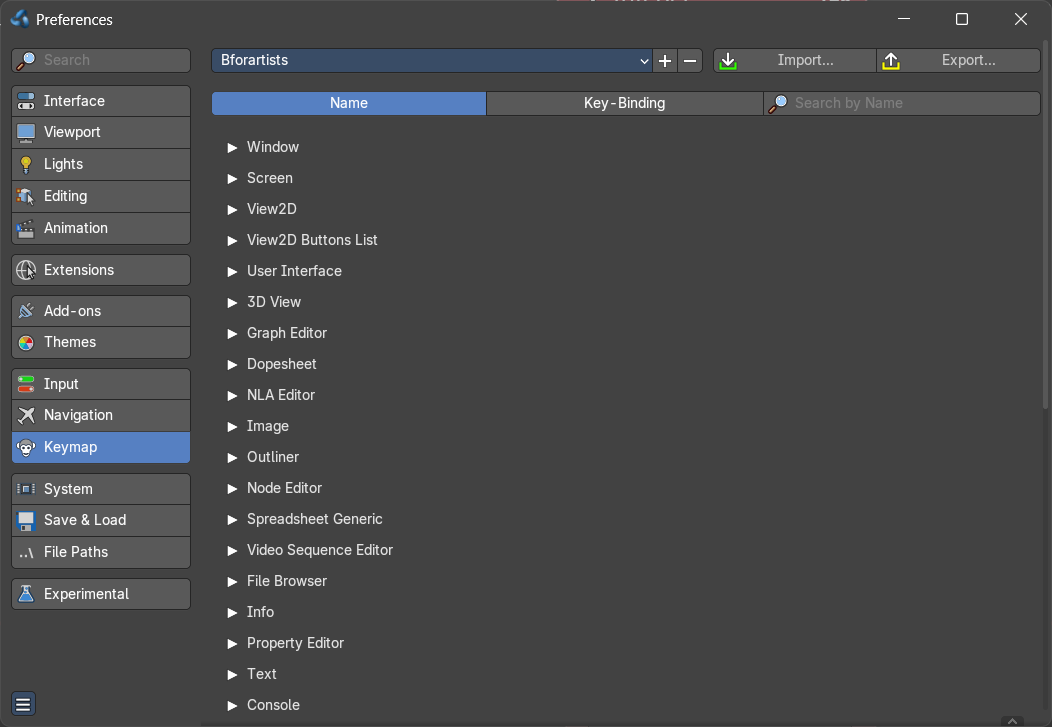
The key map allows you to customize how Bforartists reacts to mouse and keyboard, and change key map entries. All Input behavior is defined in the key map.
Header

Key Configs
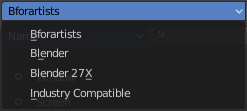
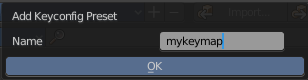
A drop down menu to choose existing key maps. The + button at the right adds a new key map. The current configuration will then be saved as a new key map.
| Entry | What it does |
|---|---|
| Import | Import an external key map. This opens up a file selector to choose the python file. |
| Export | Export a key configuration python file from Bforartists. |
| Filter Type | Define if you want to search for a tool name or for a hotkey. By tool name, or by the hotkey name |
| Search Field | Enter a search string. |
Key map Editor
The Key map editor is the list where the single inputs are defined. Every input can have several specific operator settings in the lower area. The upper area defines the general things like the key combos. The lower area those operator specific settings.
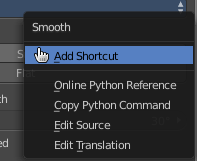
Normally you don't edit those key entries manually. Most of the usual tools have an entry in the right click menu to create or to change the hotkey. But sometimes you have to do this task manually.
Map Type
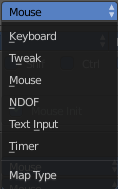
Here you define what input will control the function.
Type of Event

Here you define your main hotkey. In our case the right mouse.
Operator

The Python operator name for the tool.
Type of Event

The main hotkey again. For special events like mouse events you have a drop down box here.
Value
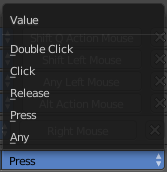
What key action is required. On click, on double click, etc. ...
Secondary hotkeys

Many hotkeys uses a key combination, for example Shift D for select. Define those secondary hotkeys.
Specific settings
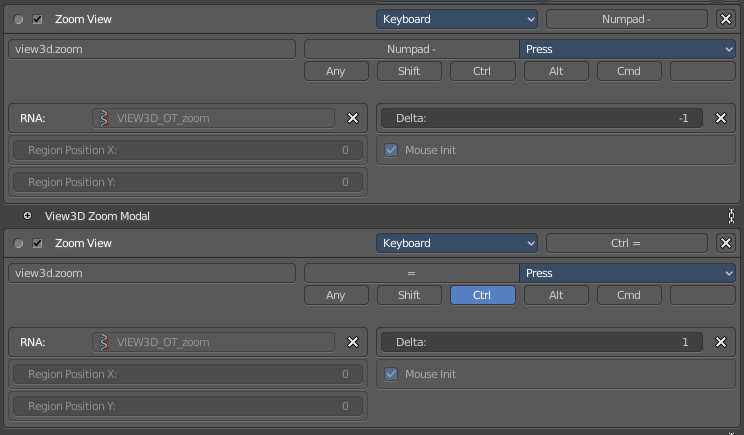
Every operator can have several settings. And some tools even just defines itself by those different settings. Here you can see two different zoom view operators. They just differ in the Delta value.
What is equal in the key map in all cases is the RNA entry. That's the name of the operator again. But this time not the Python code operator name. But the C code operator name.
Restore
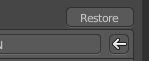
When you modify a key map item, then you will see a Restore button appear at the right side. This indicates that this key map item got modified. A click at the Restore button will restore the original hotkey.
System
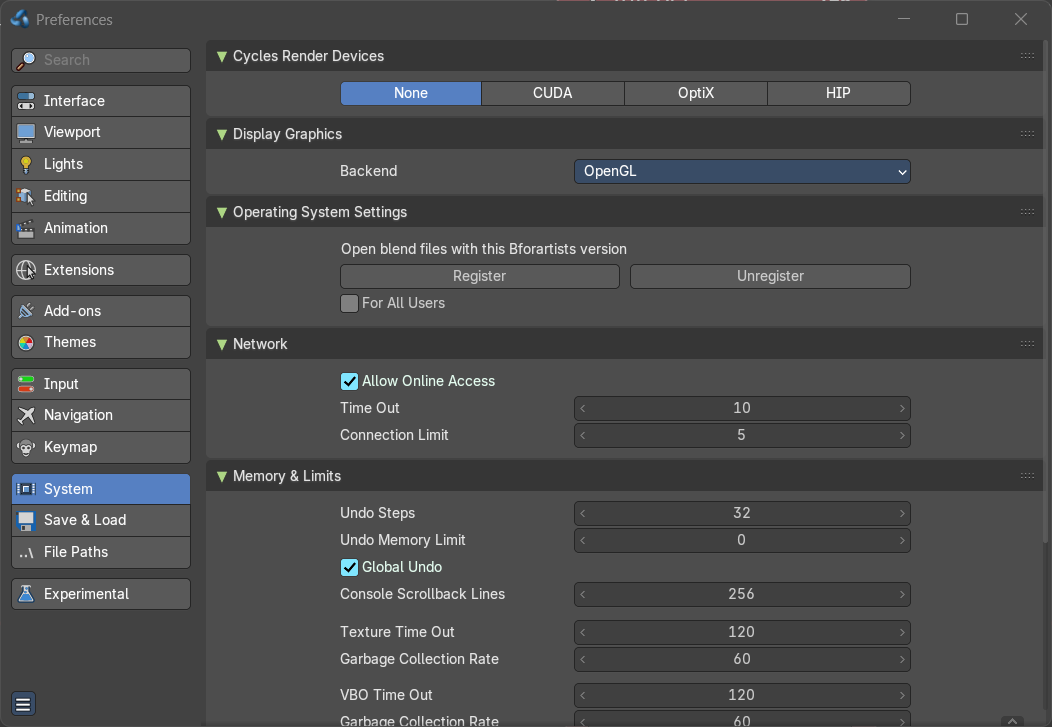
The system tab contains system relevant settings. Such as Cuda for Cycles renderer or OpenCL or Memory related settings.
Cycles Render Devices
The Options here will set the compute device used by the Cycles render engine.
| Entry | What it does |
|---|---|
| None | When set to None or the only option is None: your CPU will be used as a computing device for Cycles Render Engine. |
| CUDA | If the system has a compatible Nvidia CUDA enabled graphics card you will be able to use it to render with the Cycles render engine. |
| OptiX | Optix is a raytracing framework from Nvidia that runs on the GPU. |
| HIP | If the system has a compatible HIP device, it will show up has an option for rendering cycles. |
| OneAPI | If the system has a compatible oneAPI device, it will show up has an option for rendering cycles. |
Metal (Mac-OS only)

If the system has a M1/M2 chip, users can use the Metal back-end for rendering in cycles.
Display Graphics
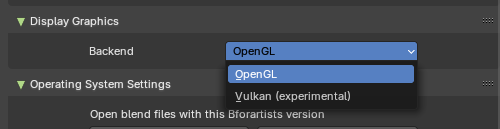
Backend
This setting is which display graphics will be used in the viewport.
Note: Changing this will require restarting Bforaritsts.
| Entry | What it does |
|---|---|
| OpenGL | Use the OpenGL backend. |
| Vulkan (Experimental) | Use the Vulkan backend. Bare in mind this is experimental. |
Operating System Settings
Windows only.
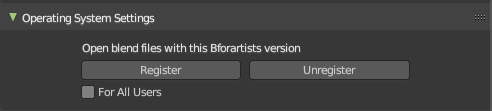
Register or unregister to connect the blend file with this Bforartists version.
| Entry | What it does |
|---|---|
| For all Users | Register the file association for all users, or just for the current user. |
| Make default | Associates the .blend file with this installation of Bforartists. This means that double clicking at a .blend file will now open this file with the currently open Bforartists installation. This is useful when you work with different versions of Bforartists, and want to open the files with an older or newer version. |
Network
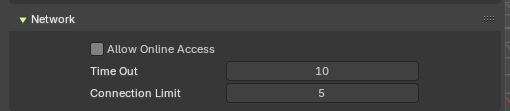
Allow or disallow Online Access.
Online access is required to install extensions from external online repositories, and to update them.
| Entry | What it does |
|---|---|
| Allow Online Access | Allow internet access. Bforartists may access configured online extension repositories. Installed third party add-ons may access the internet for their own functionality. |
| Time Out | The time in seconds to wait for online operattions before a connection may fail with a time-out error. Zero uses the system defaults. |
| Connection Limit | Limit the number of simultaneous internet connections online operations may make at once. Zero disables the limit. |
Memory and Limits
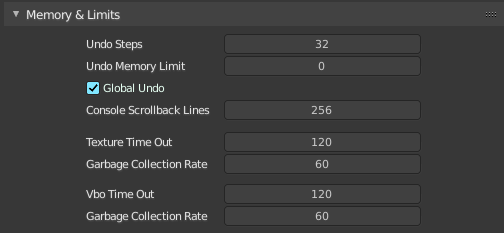
| Entry | What it does |
|---|---|
| Undo Steps | Number of Undo steps available. |
| Undo Memory Limit | Maximum memory usage in Mb (0 is unlimited). |
| Global Undo | Bforartists Undo system is split in several subpart. Global undo stores the undo step outside of Edit mode. For example for duplicating Objects, changing panel settings or switching between modes. |
| Console Scrollback Lines | Maximum number of lines to store for the console buffer. |
| Texture Time Out | Time since last access of a GL texture in seconds, after which it is freed. Set to 0 to keep textures allocated. Minimum: 0, Maximum: 3600. |
| Garbage Collection Rate | Number of seconds between each run of the GL texture garbage collector. Minimum: 0, Maximum: 3600. |
| VBO Time Out | Time since last access of a GL Vertex buffer object, in short VBO, in seconds after which it is freed. Set to 0 to keep VBO allocated. |
| Garbage Collection Rate | Number of seconds between each run of the GL vertex buffer garbage collector. Minimum: 0, Maximum: 3600. |
Video Sequencer
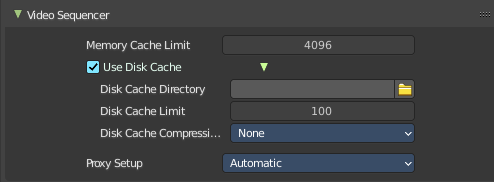
Memory Cache Limit
Upper limit of the sequence's memory cache (megabytes). For optimum clip editor and sequencer performance, high values are recommended.
Use Disk Cache
Store cached images to disk.
| Entry | What it does |
|---|---|
| Directory | The disk cache directory. |
| Cache Limit | The disk cache limit in gigabytes. |
Compression
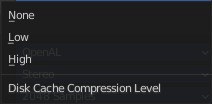
What compression method to use. Note that compression saves space, but costs performance.
Proxy Setup
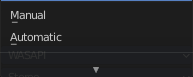
Proxies are preview objects, reduced in size to make a smooth working possible. Images for example.
| Entry | What it does |
|---|---|
| Automatic | Automatically create proxies for each image material. |
| Manual | You have to create the proxies by hand. |
Sound
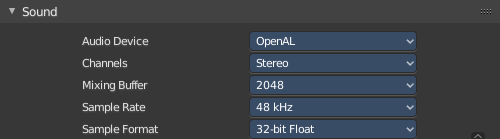
Audio Device
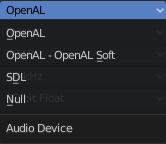
Set the audio device.
| Entry | What it does |
|---|---|
| OpenAL | Provides buffered sound rendering with 3D/spatial support. |
| OpenAL - OpenAL Soft | Provides buffered sound rendering with 3D/spatial support. |
| SDL | Uses Simple Direct Media Layer API from libsdl.org to render sounds directly to the sound device output. |
| Null | No Audio support. No audio output, but audio strips can be loaded normally. |
Channels
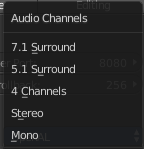
Set the audio channel count. Available options are: Mono, Stereo, 4 Channels , 5.1 Surround , 7.1 Surround
Mixing Buffer
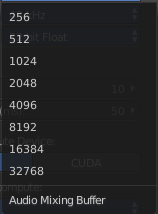
Set the number of samples used by the audio mixing buffer. Available options are: 512 , 1024 , 2048, 4096 , 8192, 16384, and 32768
Sample Rate
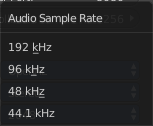
Set the audio sample rate. Available options are: 44.1 Khz, 48 Khs, 96 Khz and 192Khz
Sample Format
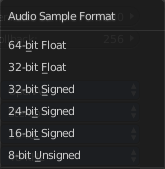
Set the audio sample format. Available options are: 32 bit float, 8 bit Unsigned, 16 Bits Signed, 24 Bits Signed, 32 Bits Signed, 32 Bits Float, and 64 Bits Float.
Save & Load
Blend Files
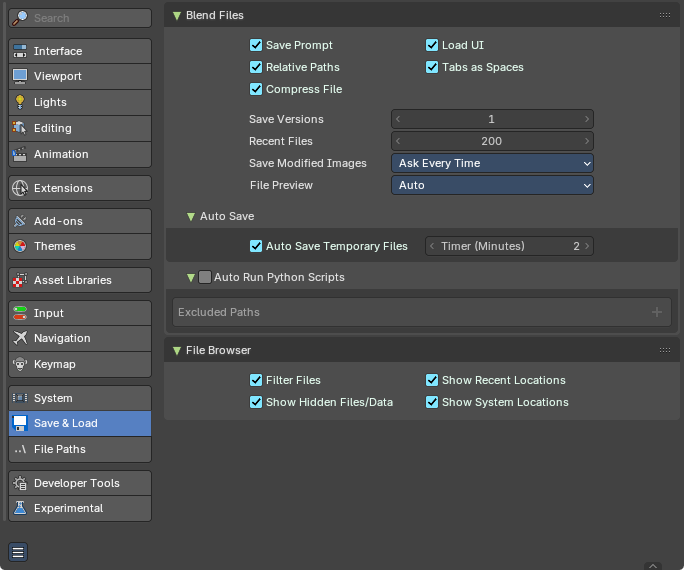
Blend file related settings. What happens at load, what happens at save …
| Entry | What it does |
|---|---|
| Save Prompt | Ask for confirmation when quitting with unsaved changes. |
| Relative Paths | By default, external files use a relative path. |
| Compress File | Compress blend-file when saving. The option to Compress files will compact your files whenever Blender is saving them. Dense meshes, large packed textures or lots of elements in your scene will result in a large blend being created. This option may slow down Blender when you quit, or under normal operation when Blender is saving your backup files. Using this option traces processor time for file-size. |
| Load UI | In Bforartists you can load the scene in the screen layout in which you have saved it. Default is off. This can also be changed individually when loading a file from the Open blend-file panel of the File Browser. |
| Tabs as Spaces | For text files, automatically convert tabs into spaces when loading a blend file that contains a text file. Correct indentation is relevant for python scripts. |
Save Versions
Number of versions created for the same file (for backup).
This option tells Bforartists to keep the indicated number of saved versions of your file in your current working directory when you manually save a file. These files will have the extension: .blend1, .blend2, etc., with the number increasing to the number of versions you specify. Older files will be named with a higher number. e.g. With the default setting of 2, you will have three versions of your file: *.blend (your last save), *.blend1 (your second last save) and *.blend2 (your third last save).
| Entry | What it does |
|---|---|
| Recent Files | The number of recent files to display in the Recent panel. |
| Save Modified Images | Ask Every Time: Show dialog to save modified images when saving the .blend file. · Always Save: Always save modified images when saving the .blend file. · Never Save: Never save modified images when saving the .blend file. |
File Preview
| Entry | What it does |
|---|---|
| None | When this option is off, previews of images and materials in the File Browser are created on demand. |
| Auto | Automatically create previews of images and materials in the File Browser. The best preview type is chosen automatically. |
| Screenshot | Capture the entire window to create previews of images and materials in the File Browser. |
| Camera Preview | Use a workbench render to create the previews of images and materials in the File Browser. |
Auto Save
| Entry | What it does |
|---|---|
| Auto Save Temporary File | Enable Auto Save. Auto save creates a temporary file. Checking this box tells Blender to automatically save a backup copy of your work-in-progress to the Temp directory (refer to the File tab in the Preferences for its location). The Auto Saved files are named using a random number and have a blend extension. |
| Timer | Adjust the number of minutes between each Auto Save. The minimum is 1, and the Maximum is 60 (Save at every one hour). |
Auto Run Python Scripts
Run the python scripts at loading a blend file that includes these scripts.
Excluded paths
Define file paths where loaded blend files should not run the included scripts even when auto run python scripts is ticked.
File Browser

File browser related settings.
Filter Files
By activating this, the file dialog in the File Browser will only show appropriate files in the Load dialog. Blend files for example.

The selection of file types can also be changed in the header of the file dialog.
Show Hidden File/Data
On non Windows systems like Linux and Mac OS X files are hidden by a dot in front of the file name. Here you can make them visible in the file browser if you want. Note that this feature does not work with Windows.
Show Recent Locations
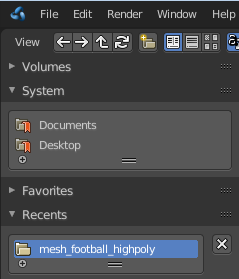
Hides the Recent panel of the File Browser which displays recently accessed folders.
Show System Bookmarks
Hides the System Bookmarks panel of the File Browser which displays the system bookmarks.
File Paths
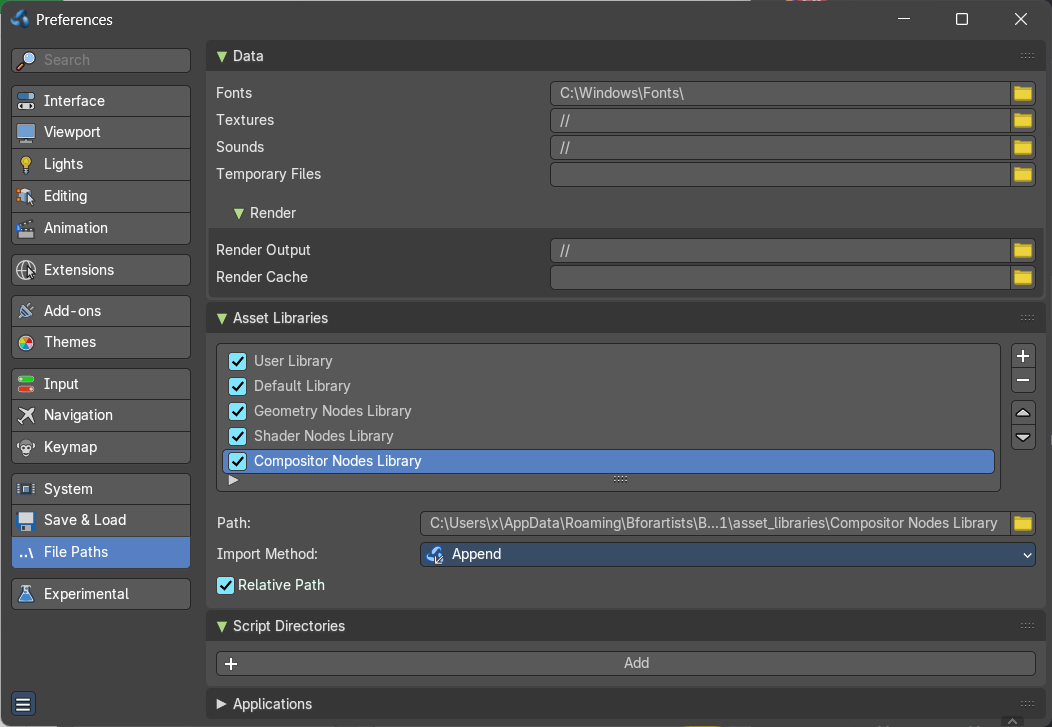
Contains everything file path related.
Data
| Entry | What it does |
|---|---|
| Fonts | Default location when searching for font files. |
| Textures | Default location when searching for image textures. |
| Sounds | Default location when searching for sound files. |
| Temporary Files | The location where temporary files are stored. |
Script Directories

An additional location to search for Python scripts.
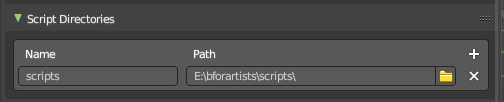
By default Bforartists looks in several directories (OS dependent) for scripts. Here you can add another directory to check for scripts. This can be used to store certain scripts/templates/presets independently of the currently used Blender Version.
Inside the specified folder specific folders have to be created to tell Bforartists what to look for where. This folder structure has to mirror the structure of the scripts folder found in the installation directory of :
- scripts
- add-ons
- modules
- presets
- camera
- cloth
- interface_theme
- operator
- render
- ...
- startup
- templates
Not all of the folders have to be present.
Python scripts (including driver expressions) are not executed by default for security reasons.
Render

| Entry | What it does |
|---|---|
| Render Output | Where rendered images/videos are saved. |
| Render Cache | The location where cached render images are stored. |
Applications
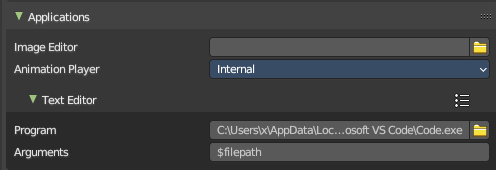
| Entry | What it does |
|---|---|
| Image Editor | The path to an external image editing software to use for image editing. Photoshop, Gimp, etc. |
| Animation Player | By default Bforartists uses the internal player to play back animations. Choose an external program to use for playback of rendered animations. There are also some presets available. |
Text Editor
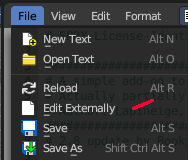
Here you can define an external text editor. Which allows you to edit text files externally. Which then can be done from the File menu in the text editor.
Program
Enter the path to the external text editor.
Arguments
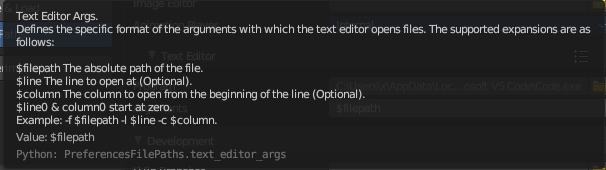
Enter at least a filepath argument so that the code can be opened by the external editor. More arguments can be found in the tooltip.
Development

I18n Branches
The path to the /branches directory in your local repository translation copy. This allows translating the UI. See interface tab, the translation panel.
Asset Libraries
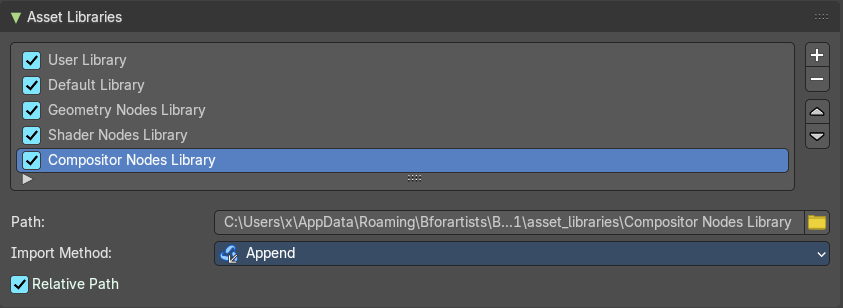
The default paths for custom asset libraries. The functionality should be self explaining.
To change the path simply type in a path, or use the path picker at the end.
To add a new path to an asset library click at the + button below the list.
To remove a path click at the X button at the end.
Asset List
The list of available asset libraries. You can deactivate and activate single libraries.
| Entry | What it does |
|---|---|
| Add | Add a new asset library to the asset list. |
| Remove | Remove the selected library from the asset list. |
| Move Up/Down | Move the selected library up or down the list. |
| Path | The path to the current selected asset library. |
Import Method
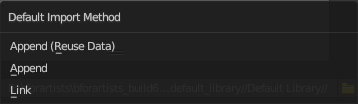
How to import the assets from the asset library into the scene.
| Entry | What it does |
|---|---|
| Append (Reuse Data) | Imports the assets as a copied data. The data is fully imported, and not linked to the asset library. This method reuses existing materials or meshes. |
| Append | Imports the assets as a copied data. The data is fully imported, and not linked to the asset library. This method also imports every material and mesh from scratch, and can create duplicated redundant data. |
| Link | Links the assets to the assets in the asset library. The data is linked to the asset library. When you remove the asset library then the linked data is also removed. |
Relative Path
Use relative paths when linking from this library.
Developer Tools
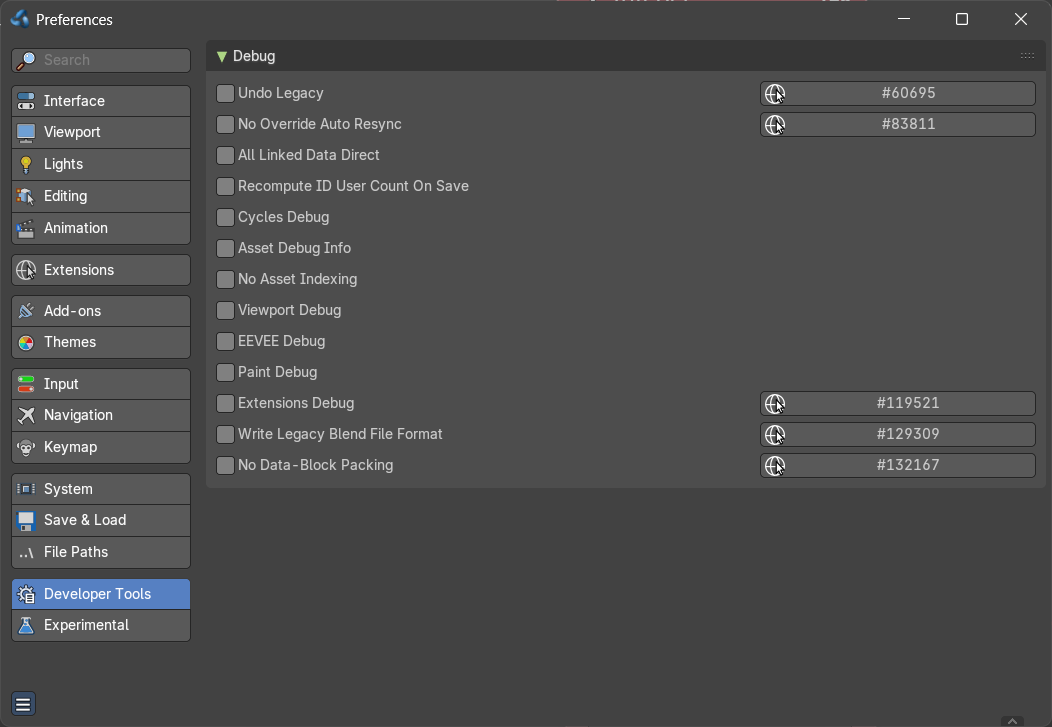
This section contains special debug features, which you can turn on or off here.
This panel just shows when you turn on the Developer Extras in the Interface tab.
Experimental
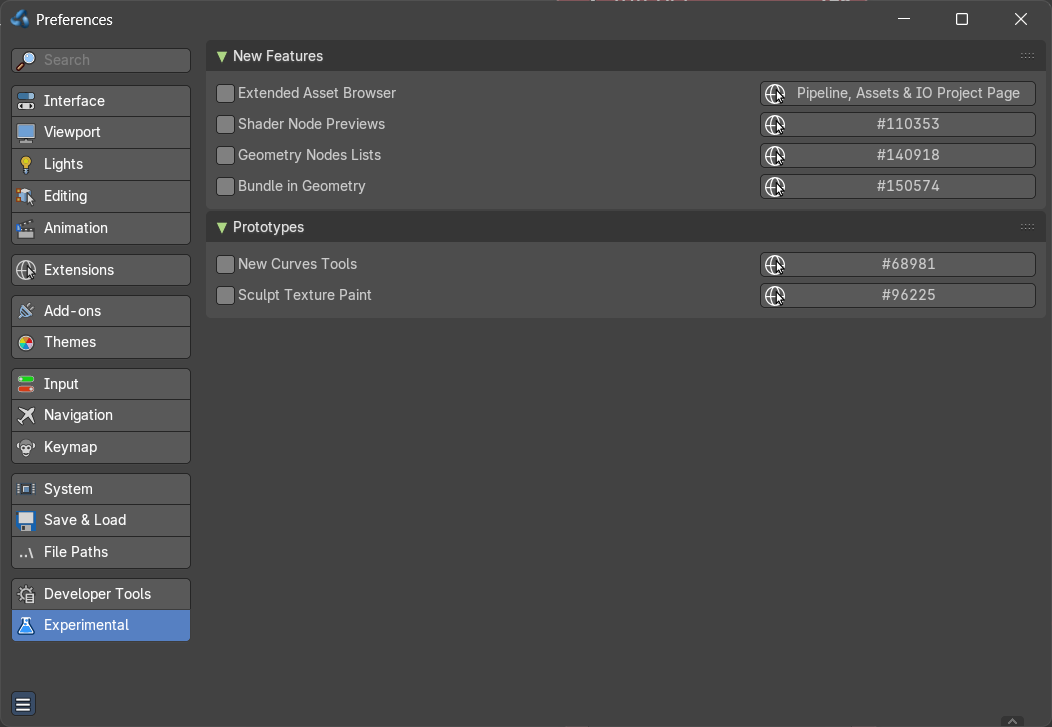
Here you may find some experimental settings from the Blender development. We will not cover them here. They change very quick. Use at own risk!