

































































Outliner
The Outliner is an editor where you can organize the data in your scene. It is in the View Layer mode basically a list of the available objects and data in the scene, which is organized in so called collections. Think…
Outliner
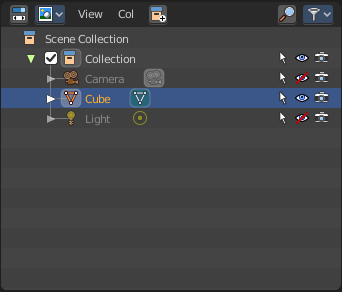
The Outliner is an editor where you can organize the data in your scene. It is in the View Layer mode basically a list of the available objects and data in the scene, which is organized in so called collections. Think of it as a container that carries the scene data. This also includes things like brushes, textures and materials.
The outliner not only lists the data. But you can modify the data in various ways. And it has more than one mode. We will go through them, one by one.
The outliner has some context menus that are available by a right click at an element. We will also cover them, one by one.
General hotkey functionality
There is some general hotkey functionality that works across the whole interface. And so it works in the outliner too.
Left click at an object selects it. When you select an object in the outliner, then it is also selected in the scene.
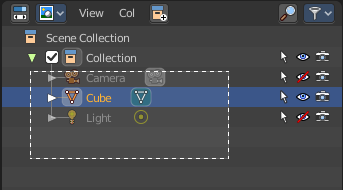
Dragging the mouse with left click box selects.
Like in the 3D view, Shift + LMB adds to the selection, or can remove the clicked object from the selection.

Ctrt+LMB enters the rename mode for the object. You can also double click at it. In both cases the text becomes editable.
You can drag objects into the hierarchy of other objects, and make them a child object by that.
You can navigate with the arrow buttons. Holding shift while navigating with the arrow buttons will extend the selection.
Delete hotkey deletes the selected items. Also selected collections.
Extended Functionality
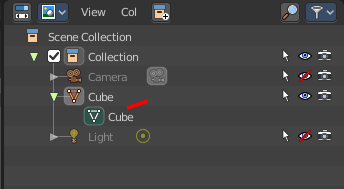
The outliner has some extended functionality in some modes.
Objects with an arrow sign at the left are hierarchical objects. Hierarchy can be expanded and collapsed by clicking at the + and - signs.
When you click at a data block of some object types object, like the mesh component for a mesh or a curve object, then you will jump from object mode into edit mode. And vice versa.
Collections
Collections are containers that can contain objects or anything else in the scene. They can also include collections, and are fully recursive.
Header - All Modes
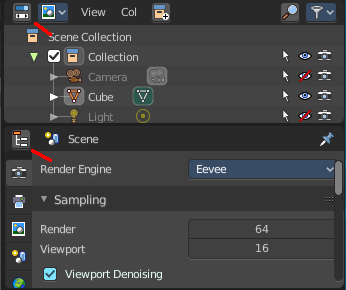
The header content changes, dependent of the display mode. Here we list the elements that are available in all display modes.
Switch to Properties Editor / Outliner
Sometimes you want to switch from Outliner to the Properties Editor, or vice versa. Since you sometimes don't have enough space for both, and end in dragging the borders of the editors around all the time. This two editors are connected by a menu that allows exactly that. A button in each header that switches to the other editor.
Display Mode
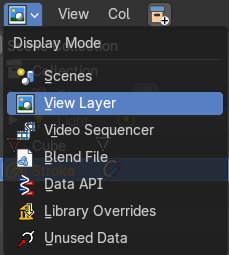
The Outliner has more than one purpose and workspace. In this drop down menu you can switch to different display modes. The available Modes are Scenes, View Layer, Sequence, Blender File, Data API and Unused Data. We will cover their functionality in their own chapters.
View Menu
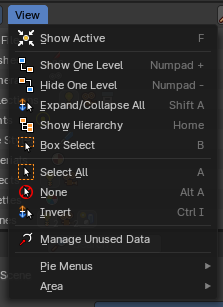
The View menu contains general view related functionality.
Show Active
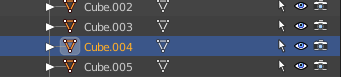
Centers the view of the list to the active object.
Show One Level
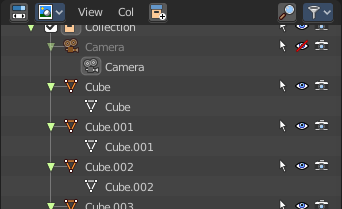
Expands the list hierarchy level by one.
| Entry | What it does |
|---|---|
| Hide One Level | Collapses the list hierarchy level by one. |
| Expand / Collapse All | Expands or collapses all collapsed hierarchy. It's a toggle |
| Show Hierarchy | Open all object entries and close all others. For example, when you are in Scene view, and have the objects expanded, then the Show Hierarchy closes the objects hierarchy. |
Box Select
Box select items in the list.
| Entry | What it does |
|---|---|
| Select All | Select all items in the list. |
| Deselect All | Deselect all items in the list. |
| Invert Selection | Inverts the selection. Unselected list items becomes selected, selected list items becomes unselected. |
Manage Unused Data
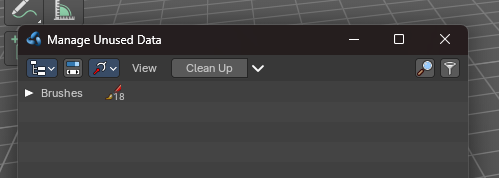
This opens a pop-out floating Outliner Editor in the Unused Data mode, so you can view and manage the unused data while remaining in the same Outliner mode.
Pie menus

Lists the available pie menus, and gives you the ability to read the hotkeys and assign own hotkeys.
Area
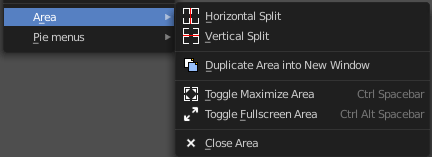
Area is a menu with window related settings.
| Entry | What it does |
|---|---|
| Horizontal Split | Splits the editor horizontally into two editors. |
| Vertical Split | Splits the editor vertically into two editors. |
| Duplicate Area into new Window | Creates a floating window out of the current editor |
| Toggle Maximize Area | Displays the editor maximized with menus. To return to split view press hotkey Ctrl Up Arrow, or reuse the menu item in the View menu. |
| Toggle Fullscreen Area | Displays the editor maximized without menus. To return from the full screen view press hotkey Alt F10, or use the little button that appears up right when you move the mouse in this corner. |
Close Area
Closes the area window.
Search Field

Search for specific terms in the list. When the search term matches a name in the list, then the list will center at the first entry with the match.
This search field is collapsible, and closed by default to free some UI space.
Right Click Menus
The Outliner comes with various right click functionality, dependent at what data you right click.
Outliner Scene Operation
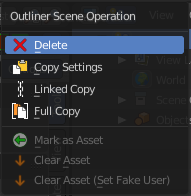
This menu appears when you right click at a scene in Scene mode.
| Entry | What it does |
|---|---|
| Delete | Deletes the currently selected scene. |
| Copy Settings | Creates an empty scene but also copies the settings from the active scene into the new one. |
| Linked Copy | This option creates a new scene with the same settings and contents as the active scene. However, instead of copying the objects, the new scene contains links to the objects in the old scene. Therefore, changes to objects in the new scene will result in the same changes to the original scene, because the objects used are literally the same. The reverse is also true. |
| Full Copy | Using this option, nothing is shared. This option creates a fully independent scene with copies of the active scenes contents. Every object in the original scene is duplicated, and a duplicate, private copy of its object-data is made as well. |
Mark as Asset, Clear Asset, Clear Asset (Set Fake User)
Scenes cannot be stored in the asset library. This menu entries are redundant.
Outliner Data Operation
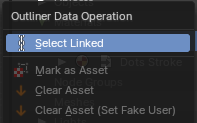
This menu appears at various object types and when you for example right click at the View Layer item. It also appears at objects in Data API mode, with varying content.
Select
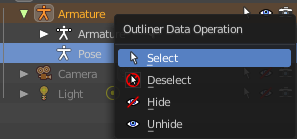
Select the current element.
| Entry | What it does |
|---|---|
| Deselect | Deselect the current element. |
| Hide | Hides the current element. |
| Unhide | Unhides the current element. |
| Select Linked | Does not show on all objects and tree elements. Selects the linked elements. |
Mark as Asset, Clear Asset, Clear Asset (Set Fake User)
Scenes, Collections, Objects, Brushes, Materials, Nodegroups and Worlds can be marked as assets. View Layers cannot be stored in the asset library.
Collection
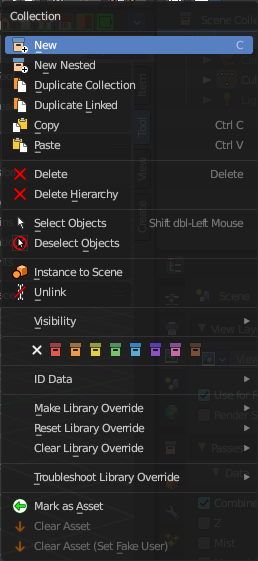
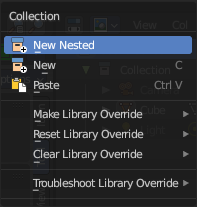
This menu appears when you right click at a collection. Clicking at a Scene collection will have not this much entries than licking at the Collection item lower in the hierarchy.
| Entry | What it does |
|---|---|
| New Nested | Create a new nested collection. There is no difference. Both gets added in the selected collection as a child, and the functionality is the same. Ask the Blender developers what they did here. |
| New | Create a new scene collection. |
| Duplicate Collection | Duplicates the currently selected collection, all its children, objects and the object data. |
| Duplicate Linked | Recursively duplicate the selected collection, all its children and objects, including linked object data. |
| Copy | Copies the collection. |
| Paste | Pastes a copied collection. |
| Delete | Delete the collection. Objects in the hierarchy will remain. |
| Delete Hierarchy | Delete the collection. Objects in the hierarchy will be deleted too. |
| Select Objects | Select the objects in the collection. |
| Deselect Objects | Deselect the objects in the collection. |
| Instance to Scene | Instance selected collections to the active scene. |
| Unlink | Unlink selected collections from the active scene. |
Visibility

Visibility is a sub menu with some visibility functionality. The greyed out menu items will become available when the functionality becomes available. For example, Show becomes available when something is hidden.
| Entry | What it does |
|---|---|
| Isolate | Hide all but this collection and its parents. |
| Show All Inside | Reveals the collection and all its content. |
| Hide | Hides the collection. |
Set Color Tag
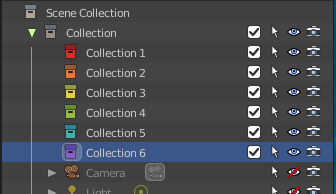

Give the collections a colored icon.
ID Data
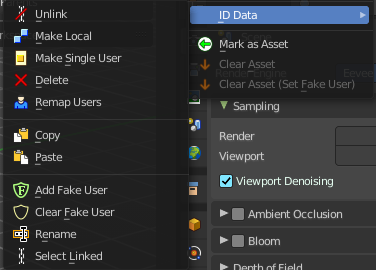
Data related operations.
The content differs, dependant of the collection element that you right click at. And in which display mode you are. Linked collections have different content.
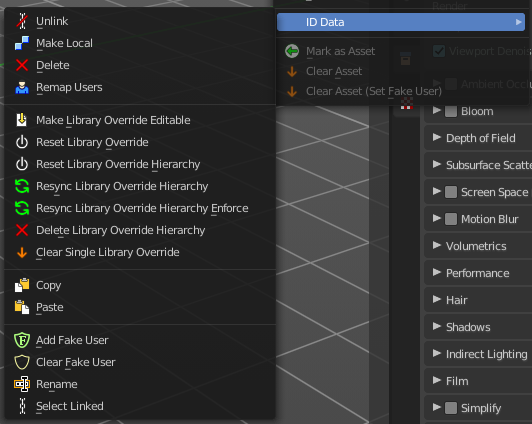
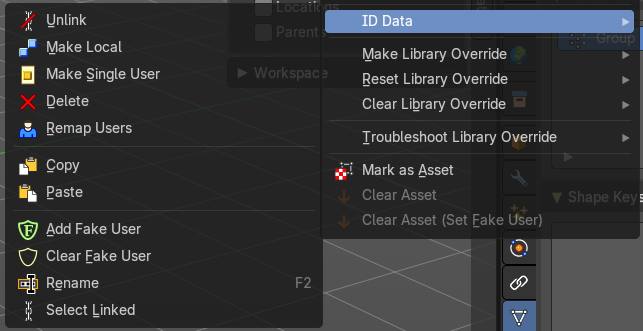
Unlink
Does basically the same than delete. It unlinks all data, and removes the object from the scene.
Make Local
For appended or linked data. Makes the selected object a local copy in the current blend file.
Add Library Override
Add a local library override to this collection.
This tool works different from Make Override in the outliner. It does not iterate through the hierarchy of objects and collections based on the selection. But works just for the currently selected object.
Library Overrides is the new system designed to replace and supersede Proxies. Most types of linked data-blocks can be overridden, and the properties of those overrides can then be edited. When the library data change, unmodified properties of the override one will be updated accordingly.
| Entry | What it does |
|---|---|
| Make Single User | For duplicated content. Makes the data block of the selected object a single user. |
| Delete | Not functional in all situations. In the Unused Data mode you can remove objects with this. |
| Remap Users | Remaps the user of a data block to another one of the same type. This allows you to replace all usages of a material or texture by another one. |
| Entry | What it does |
|---|---|
| Copy | Copies the user data block. |
| Paste | Pastes a copied user data block. |
Make Library Override
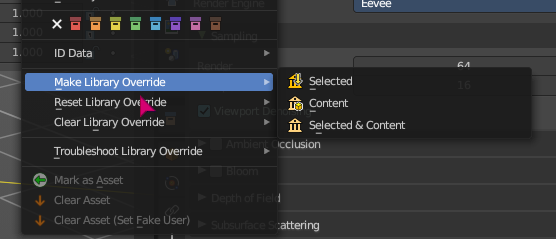
Library Overrides is a system designed to allow editing linked data, while keeping it in sync with the original library data. Most types of linked data-blocks can be overridden, and the properties of these overrides can then be edited.
| Entry | What it does |
|---|---|
| Selected | Add a library override to the selected collection. |
| Content | Add a library override to the content of the selected collection. |
| Selected & Content | Add a library override to both, the content of the selected collection, and the selected collection. |
Reset Library Override
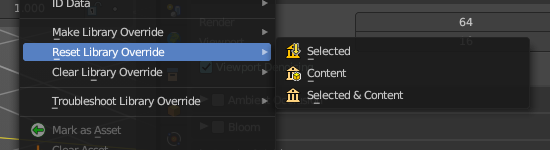
Library Overrides is a system designed to allow editing linked data, while keeping it in sync with the original library data. Most types of linked data-blocks can be overridden, and the properties of these overrides can then be edited.
| Entry | What it does |
|---|---|
| Selected | Reset a library override to the selected collection. |
| Content | Reset a library override to the content of the selected collection. |
| Selected & Content | Reset a library override to both, the content of the selected collection, and the selected collection. |
Clear Library Override
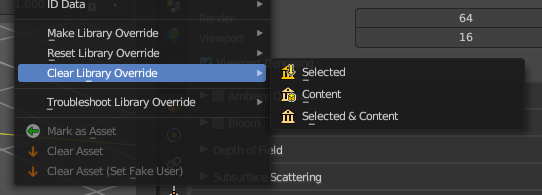
Library Overrides is a system designed to allow editing linked data, while keeping it in sync with the original library data. Most types of linked data-blocks can be overridden, and the properties of these overrides can then be edited.
| Entry | What it does |
|---|---|
| Selected | Clear the library override to the selected collection. |
| Content | Clear the library override to the content of the selected collection. |
| Selected & Content | Clear the library override to both, the content of the selected collection, and the selected collection. |
Troubleshoot Library Override
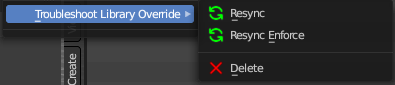
Troubleshoot library Override operators are useful to help syncronize or remove overrides without needing to reload scene or the linked file.
| Entry | What it does |
|---|---|
| Resync | Rebuild the selected library overrides. |
| Resync Enforce | Rebuild the selected library overrides, enforcing libraries to match the linked data. |
| Delete | Delete the selected local library overrides. And relink the usage to the selected data. |
| Entry | What it does |
|---|---|
| Mark as Asset | Adds the collection to the asset library. |
| Clear Asset | Removes the collection from the asset library. |
| Clear Asset (Set Fake User) | Removes the collection from the asset library. But marks it with a fake user so that it remains in the scene. |
Object Menu
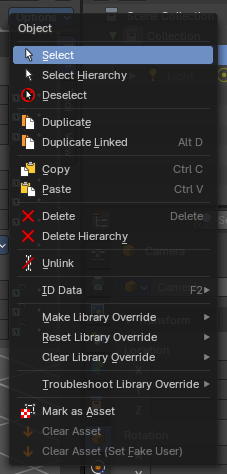
This menu appears when you click at an object type. A mesh, a lamp, a camera ...
| Entry | What it does |
|---|---|
| Select | Selects the object. |
| Select Hierarchy | Selects the object and its hierarchy. |
| Deselect | Deselects the object. |
| Duplicate | Duplicates the currently selected object and the object data. |
| Duplicate Linked | Duplicates the selected objec, including linked object data. |
| Copy | Copies object. |
| Paste | Pastes copied object. |
| Delete | Deletes the selected object. Child objects gets unparented. |
| Delete Hierarchy | Deletes the selected object and all its child objects. |
| Unlink | Deletes the selected object. |
| Make Library Override | Library Overrides is a system designed to allow editing linked data, while keeping it in sync with the original library data. Most types of linked data-blocks can be overridden, and the properties of these overrides can then be edited. · Selected: Add a library override to the selected collection. · Content: Add a library override to the content of the selected collection. · Selected & Content: Add a library override to both, the content of the selected collection, and the selected collection. |
| Reset Library Override | Library Overrides is a system designed to allow editing linked data, while keeping it in sync with the original library data. Most types of linked data-blocks can be overridden, and the properties of these overrides can then be edited. · Selected: Reset a library override to the selected collection. · Content: Reset a library override to the content of the selected collection. · Selected & Content: Reset a library override to both, the content of the selected collection, and the selected collection. |
Clear Library Override
Library Overrides is a system designed to allow editing linked data, while keeping it in sync with the original library data. Most types of linked data-blocks can be overridden, and the properties of these overrides can then be edited.
| Entry | What it does |
|---|---|
| Selected | Clear the library override to the selected collection. |
| Content | Clear the library override to the content of the selected collection. |
| Selected & Content | Clear the library override to both, the content of the selected collection, and the selected collection. |
Troubleshoot Library Override
Troubleshoot library Override operators are useful to help syncronize or remove overrides without needing to reload scene or the linked file.
| Entry | What it does |
|---|---|
| Resync | Rebuild the selected library overrides. |
| Resync Enforce | Rebuild the selected library overrides, enforcing libraries to match the linked data. |
| Delete | Delete the selected local library overrides. And relink the usage to the selected data. |
| Entry | What it does |
|---|---|
| Mark as Asset | Adds the collection to the asset library. |
| Clear Asset | Removes the collection from the asset library. |
| Clear Asset (Set Fake User) | Removes the collection from the asset library. But marks it as fake user so that it remains in the scene. |
ID Data
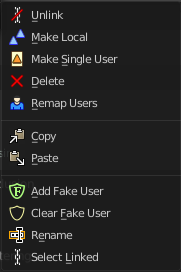
Data related operations. Note that the tool tips are currently missing here.
| Entry | What it does |
|---|---|
| Unlink | Does basically the same than delete. It unlinks all data, and removes the object from the scene. |
| Make Local | For appended or linked data. Makes the selected object a local copy in the current blend file. |
| Make Single User | For duplicated content. Makes the data block of the selected object a single user. |
| Delete | Not functional in all situations. In the Unused Data mode you can remove objects with this. |
| Remap Users | Remaps the user of a data block to another one of the same type. This allows you to replace all usages of a material or texture by another one. |
Copy
Copies ID data.
Paste
Pastes copied ID data.
| Entry | What it does |
|---|---|
| Add Fake User | Adds a fake user to the selected object. Fake users is an odd concept to keep data in the scene even if it has no user somewhere. The fake user is then a dummy user so that the object is not deleted when saving the scene. |
| Clear Fake User | Removes the fake user from the selected object. |
| Rename | Rename the object in the outliner. |
| Select Linked | Selects all objects that are linked to the currently selected one. |
Outliner ID Data Operation
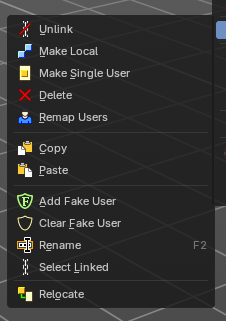
This menu appears when you for example click at the mesh component of a mesh object. It is the same content than the ID Data menu from the Object menu.
| Entry | What it does |
|---|---|
| Unlink | Does basically the same than delete. It unlinks all data, and removes the object from the scene. |
| Make Local | For appended or linked data. Makes the selected object a local copy in the current blend file. |
| Delete | Not functional in all situations. In the Unused Data mode you can remove objects with this. |
| Remap Users | Remaps the user of a data block to another one of the same type. This allows you to replace all usages of a material or texture by another one. |
| Copy | Copies ID data. |
| Paste | Pastes copied ID data. |
| Add Fake User | Adds a fake user to the selected object. Fake users is an odd concept to keep data in the scene even if it has no user somewhere. The fake user is then a dummy user so that the object is not deleted when saving the scene. |
| Clear Fake User | Removes the fake user from the selected object. |
| Rename | Rename the object in the outliner. |
| Select Linked | Selects all objects that are linked to the currently selected one. |
| Relocate | Allows you to replace a linked data-block (such as an object, material, or collection) with another one—either from the same library or a different external file. This is especially useful when updating asset paths, switching to newer versions, or resolving broken links. Note: This is only available for linked data from external files. |
Outliner Animation Data Property
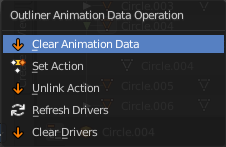
This menu appears with a right click at an Animation data.
Clear Animation Data
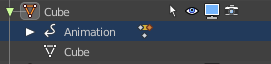
Removes the whole animation.
Set Action
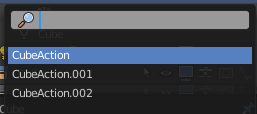
Opens a popup menu where you can choose the action for this object.
| Entry | What it does |
|---|---|
| Unlink Action | Removes the action. |
| Refresh Drivers | Refreshes existing drivers. |
| Clear Drivers | Removes existing drivers. |
Outliner Modifier Operation
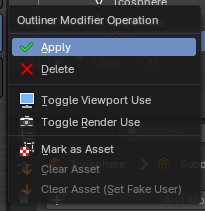
This menu appears with a right click on modifiers.
| Entry | What it does |
|---|---|
| Apply | Applies the modifier. |
| Delete | Removes the modifier. |
| Toggle Viewport Use | Toggles the visibility of the modifier in viewport. |
| Toggle Render Use | Toggles the visibility of the modifier on render time. |
| Mark as Asset | Adds the collection to the asset library. |
| Clear Asset | Removes the collection from the asset library. |
| Clear Asset (Set Fake User) | Removes the collection from the asset library. But marks it as fake user so that it remains in the scene. |
Level Restrictions

Some list items have so called level restrictions. You can click at them, and so exclude the object from specific things. You can make more level restrictions available in the filter settings, which will be covered below. The by default activated are:
| Entry | What it does |
|---|---|
| Selectability | Makes the object unselectable in the viewport. Or disables it, in case of a collection for example. |
| Hide from Viewport | Hides the object from the Viewport. |
| Hide from Render | Excludes the object from rendering. |
Scenes Mode
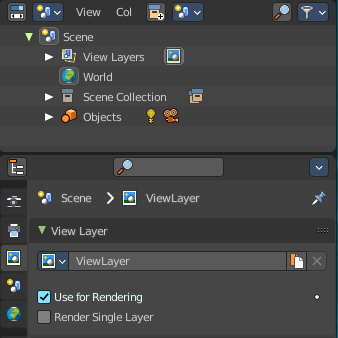
The Scenes mode starts one hierarchy higher than the default View Layer Mode. It shows all available scenes and their content.
Normally you work with one scene. And so the default starts with the View Layer mode of the scene. But you can create more scenes in the Properties Editor in the Scene tab.
Collection Menu
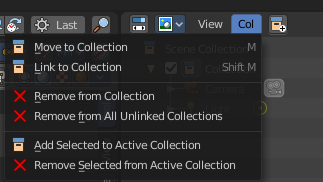
Move to Collection
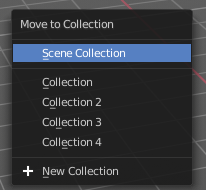
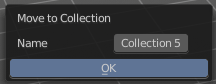
Moves the selected object to a collection. The object is removed from the collection it was in.
By clicking at this menu item a popup will appear to choose the new collection. Allows also to create a new collection. Once done, the object will be moved to this new created collection.
Last Operator Move to Collection
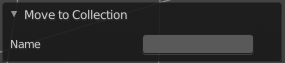
Name
Set a name for your new collection. When you haven't created a new collection, then this name stays blank.
Link to Collection
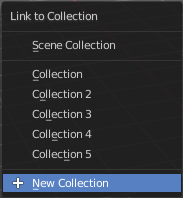
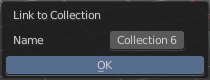
Links the object to a collection. The object remains in the collection it was in.
By clicking at this menu item a popup will appear to choose the collection. Here you can also create a new collection. Once done, the object will be linked to this new created collection.
Last Operator Link to Collection
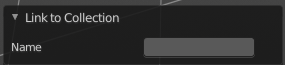
Name
Set a name for your new collection. When you haven't created a new collection, then this name stays blank.
| Entry | What it does |
|---|---|
| Remove From Collection | Objects can be in more than one collection. Remove from collection removes the selected object from the current collection. When the object is in no collection anymore, then it gets removed. |
| Remove From all Unlinked Collections | Objects can be in more than one collection. Remove from all unlinked collection removes the selected object from all unlinked collections. When the object is in no collection anymore, then it gets removed. |
| Add selected To Active Collection | Objects can be in more than one collection. Adds the selected object to the active collection. |
| Remove Selected From Active Collection | Objects can be in more than one collection. Removes the selected object from the active collection. When the object is in no collection anymore, then it gets removed. |
Add Collection

Add a collection inside of the current selected collection.
New Scene
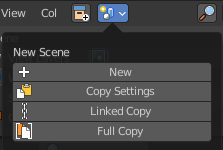
| Entry | What it does |
|---|---|
| New | Creates an empty scene with default values. |
| Copy Settings | Creates an empty scene but also copies the settings from the active scene into the new one. |
| Linked Copy | This option creates a new scene with the same settings and contents as the active scene. However, instead of copying the objects, the new scene contains links to the objects in the old scene. Therefore, changes to objects in the new scene will result in the same changes to the original scene, because the objects used are literally the same. The reverse is also true. |
| Full Copy | Using this option, nothing is shared. This option creates a fully independent scene with copies of the active scenes contents. Every object in the original scene is duplicated, and a duplicate, private copy of its object-data is made as well. |
Filter
Options and filter settings.
Restriction Toggles
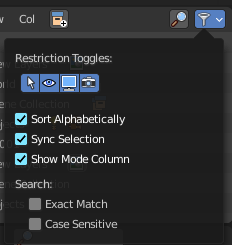
Enable or disable further level restrictions. Note that these toggles shows when you expand a scene hierarchy. Scenes itself have no such toggles.
| Entry | What it does |
|---|---|
| Sort Alphabetically | Sorts the content of the outliner in alphabetically order. |
| Sync Selection | Synchronize the selection between outliner and 3d view. |
Show Mode Column
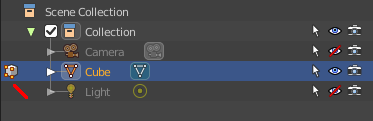
Display the Mode column at the left. When you are not in object mode, but in edit mode, or in vertex paint mode etc. , then a mode icon is displayed at the left of the object that you currently edit.
Search
| Entry | What it does |
|---|---|
| Exact Match Search | The search result must fit exactly. For example, when you search for cam, then a camera should not display as a search result. |
| Case Sensitive Search | Search case sensitive. |
View Layer Mode
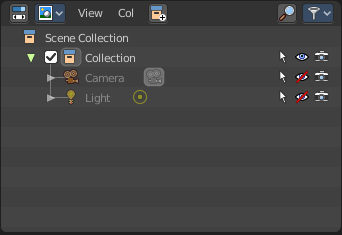
The view layer mode shows the content of the current View Layer. This is the default mode.
Collection Menu
Move to Collection
Moves the selected object to a collection. The object is removed from the collection it was in.
By clicking at this menu item a popup will appear to choose the new collection. Allows also to create a new collection. Once done, the object will be moved to this new created collection.
Link to Collection
Links the object to a collection. The object remains in the collection it was in.
By clicking at this menu item a popup will appear to choose the collection. Here you can also create a new collection. Once done, the object will be linked to this new created collection.
Note that there is a tool called Add to collection in the Object Properties in the Collections panel that does a similar job. It links an object to other collections. But this Link to Collection tool here just lists the collections in the current view layer.
| Entry | What it does |
|---|---|
| Remove From Collection | Objects can be in more than one collection. Remove from collection removes the selected object from the current collection. When the object is in no collection anymore, then it gets removed. |
| Remove From all Unlinked Collections | Objects can be in more than one collection. Remove from all unlinked collection removes the selected object from all unlinked collections. When the object is in no collection anymore, then it gets removed. |
| Add selected To Active Collection | Objects can be in more than one collection. Adds the selected object to the active collection. |
| Remove Selected From Active Collection | Objects can be in more than one collection. Removes the selected object from the active collection. When the object is in no collection anymore, then it gets removed. |
Add Collection
Add a collection inside of the current selected collection.
Filter
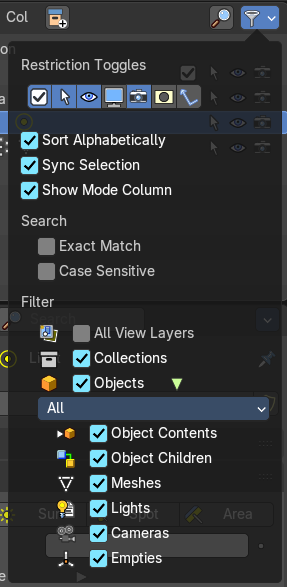
Options and filter settings.
| Entry | What it does |
|---|---|
| Restriction Toggles | Enable or disable further level restrictions. To make the changes permanent you would have to save the startup file. This settings is part of the layout. · Exclude from View Layer: include / Exclude the collection from the view layer. · Selectable: Make the object selectable / unselectable. · Hide in Viewport: Show or hide the object in the viewport. · Disable in Viewport: Enable or disable the object in the viewport. · Disable in Renders: Enable or disable the object in the rendered result. · Holdout: Mask out objects in the collection from view layer. · Indirect only: Make the objects in the collection just distribute indirect lighting to the layer. |
| Sort Alphabetically | Sorts the content of the outliner in alphabetically order. |
| Sync Selection | Synchronize the selection between outliner and 3d view. |
Show Mode Column
Display the Mode column at the left. When you are not in object mode, but in edit mode, or in vertex paint mode etc. , then a mode icon is displayed at the left of the object that you currently edit.
Search
| Entry | What it does |
|---|---|
| Exact Match Search | The search result must fit exactly. For example, when you search for cam, then a camera should not display as a search result. |
| Case Sensitive Search | Search case sensitive. |
Filter
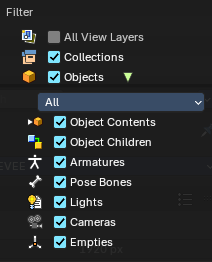
Shows or hides the object and data types. The names should be self explaining. Note that the Library Override option just shows for appended objects.
Object State Filter
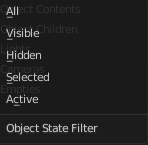
Shows or hides objects by its state.
Invert

Inverts the object state filter.
Video Sequencer Mode
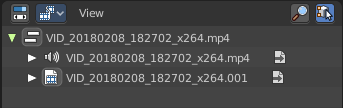
This mode lists the loaded files when you work with the sequencer layout and have video material loaded.
Sync Outliner Selection
Keep the selection in synchronization with the other editors. 3D View and VSE.
Blend File Mode
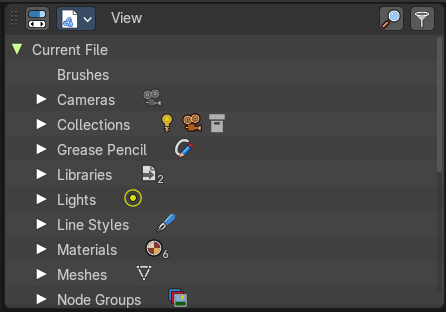
This mode lists the whole content of the current Blender file. It includes also things like the default brushes, which comes from the startup defaults.
Filter
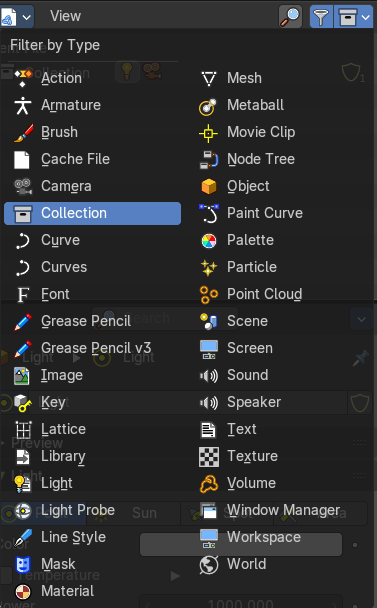
Enable a filter to display a specific data type. You can just filter by one data type at a time. The rest will be hidden.
Filter ID Type
The menu to choose the data type that should be displayed.
Outliner Library Operation
In this mode, you can see linked data from external **.blend* files.
Grey arrows means the data is directly referenced from a linked **.blend* file.
Green arrows means the data is indirectly referenced into another linked **.blend* file.
Delete
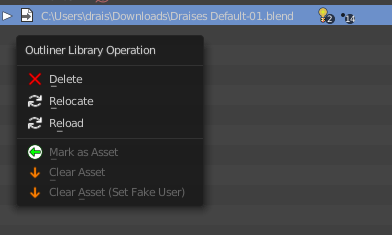
Deletes linked libraries.
| Entry | What it does |
|---|---|
| Relocate | Relocated the path of a linked library. |
| Reload | Reloads and refreshes the linked library in the current file. |
Data API Mode
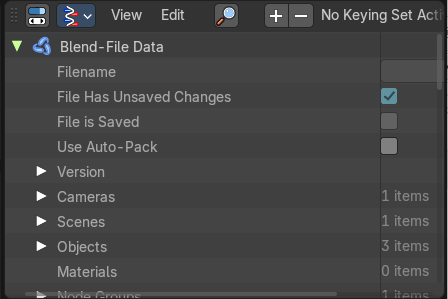
Displays Low Level Blender data and its properties.
This view also reveals some properties. Like File is Saved or Use Autopack.
When no keying set is defined then you will get a No Keying set Active message instead of the Keying set element.

Header tools
Edit Menu
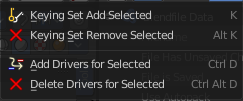
| Entry | What it does |
|---|---|
| Keying Set Add Selected | Add a keying set to the selected object. |
| Keying Set Remove Selected | Remove the keying set from the selected object. |
| Add Drivers to Selected | Add a driver to the selected object. |
| Delete Drivers for Selected | Delete a driver from the selected object. |
| Entry | What it does |
|---|---|
| Set Keying set | Choose a keying set. |
| Add keyframe | Adds a keyframe for the selected element. |
| Remove keyframe | Removes the current keyframe from the selected element. · Keying Set Add Selected: Add selected item to active keying set. · Keying Set Add Selected: Remove selected item from active keying set. |
Library Override Mode
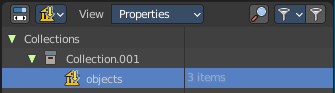
Lists the library overrides in the scene.
This feature is experimental and this lousy documented in the Blender manual that it is not to find out what library overrides are and how to use them. None of the mentioned ways to create a library override works.
What you can read there though is how great they are, and that they replace the proxies. So here comes the outliner section for the great library overrides. Whatever it is ...
Library Override View Mode
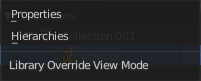
Properties
Show the properties of the library overrides.
Hierarchies
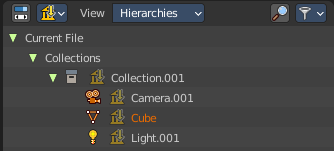
Show the objects with library overrides in a hierarchical way.
Filter options
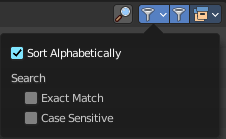
| Entry | What it does |
|---|---|
| Sort alphabetically | Sorts the library overrides in alphabetical order in the outliner list. |
| Search | Search options. · Exact match: Search with exact match. · Case sensitive: Take upper and lower case status into account. |
Unused Data Mode
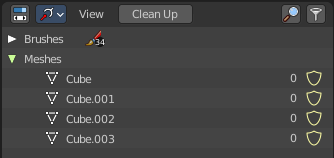
Bforartists has a special system to treat not longer used data. Unused data will normally remain in the scene as long as you haven't saved it and reloaded it. Means delete does not immediately remove a mesh completely from the scene for example. It will be unused data now. Until you save and reopen the scene. The cleanup process happens at saving the blend file.
The Unused Data allows you to clean up the unused data without to save and reload the blend file. It lists all data that has no user in the scene. This includes the standard brushes from the startup configuration. Don't delete them!
Clean Up
Normally you would need to save the blend file and reload it to get rid of the unused data. Clean Up removes all unued data from the blend file immediately. Note that this does not remove objects with a fake user associated.
Clean Up menu
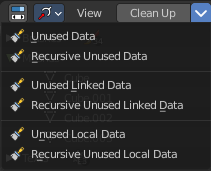
The clean up button cleans up what is in the list. This is good enough for most cases. But sometimes you might want to have a bit more fine control.
| Entry | What it does |
|---|---|
| Unused Data | Removes unused data blocks. |
| Recursive Unused Data | Recursively removes unused data blocks. Means the child objects gets removed too. |
| Unused Linked Data | Removes unused data that is linked to this file. |
| Recursive Unused Linked Data | Recursively removes unused data that is linked to this file. Means the child objects gets removed too. |
| Unused Local Data | Removes unused local data. |
| Recursive Unused Local Data | Recursively removes unused local data. Means the child objects gets removed too. |
Filter
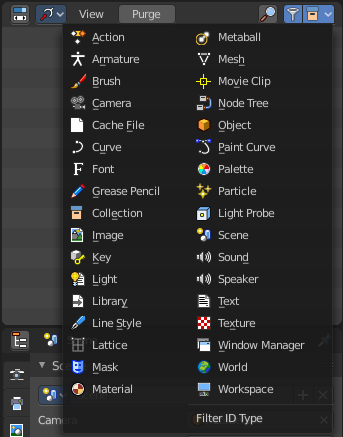
Enable a filter to display a specific data type. You can just filter by one data type at a time. The rest will be hidden.
Filter ID Type
The menu to choose the data type that should be displayed.
Status column
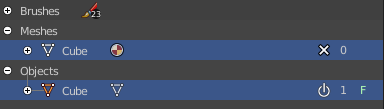
The number at the right tells you how many users the object has. Objects with a power icon and an F besides the number have a fake user assigned. Objects with an X in the row is unused data, and will be removed with the next save and reload of the blend file. Objects with the power icon will remain in the scene. They have a fake user.
To remove the Fake User at an object click at the Power icon. It will turn into the X button then. And the object will be removed at saving.
Hotkey only functionality
Important: These hotkeys works with the default Bforartists key map And they do not list the Ndof hotkeys. Ndof is a 3d connexion mouse device that is also used for tablets.
Most of the tools can be found in the graphical UI. But there are still some tools that are hotkey only. Some have a UI brother with equal functionality. For example, Pick shortest path is the hotkey sister of Select shortest path. Some are hotkey only since they cannot be integrated in the graphical UI. Like calling the File menu under the mouse. Or mouse position dependent functionality like selecting an edge loop.
The navigation hotkeys and the context menus are excluded here since they are already covered.
| Entry | What it does |
|---|---|
| Insert Keyframe - I | Insert a keyframe at current position. You need to have a keying set added to the object. |
| Delete Keying Set Keyframe - Alt I | Remove existing keyframes. |
| Hide - H | Hides the object in the 3d view. |
| Unhide - Alt H | Unhides all hidden objects in the 3d view. |