

































































NLA Editor - Sidebar - Animation Data panel
Animation Data panel
Animation Data panel
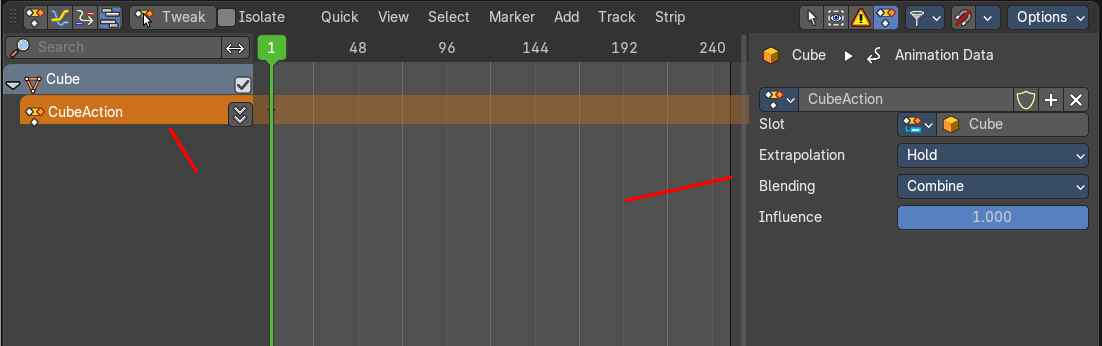
When you select a cube action without content then you will get the Animation Data panel in the sidebar.
This panel allows you to edit existing actions or add more actions. This way you can add several actions to an object. Add action, record keyframes, and then push down the action to create an action strip of it.
With selecting an action channel, with a not pushed down action, it shows the current action. When you select a track channel then it shows a New button where you can add more action channels.
Animation data property
Data Browser
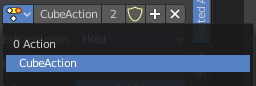
The list of available actions in the scene.
| Entry | What it does |
|---|---|
| Action Edit Box | The name of the current active action. You can rename the action here too. |
| Number of users | The number of users for this data. |
| Fake User | Has this data a fake user assigned. Fake user is a concept to keep data in the scene even when it has no users. |
| Add | Adds a new blank Action. |
| Remove Action | Removes the action from the current channel. |
Extrapolation
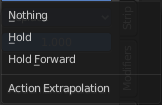
Action to take for gaps past the strip extents.
| Entry | What it does |
|---|---|
| Hold | Affects both sides of the strip. This should only be set on the very first strip. |
| Hold Forward | Affects the region after the clip, only. This can be set on any strip. |
| Nothing | Affects only the region of the strip itself. This can be set on any strip. |
Blending
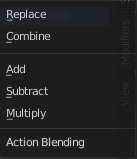
Affects how the property values directly produced by the strip are combined with the result of evaluating the stack below. The bottom-most strip is blended on top of the default values of the properties.
Replace
The top strip is linearly blended in with the accumulated result according to influence, completely overwriting it if influence is set to 100%.
Combine
Depending on the type of each property, one of the following methods is automatically chosen:
Axis/Angle Rotation
result=previous+value*influence
This results in averaging the axis and adding the amount of rotation.
Quaternion Rotation
Quaternion math is applied to all four channels of the property at once:
result=previous×valueinfluence
Proportional (Scale)
result=previous*(value/default)influence
Others
result=previous+(value-default)*influence
This allows layering actions that can also be used as a standalone. Properties keyframed at their default values remain at default.
Add, Subtract, Multiply
The result of the strip is multiplied, subtracted, or added to the accumulated results, and then blended in according to influence.
result=mix(previous,previous(+-*)value,influence)
Influence
Amount the active Action contributes to the result of the NLA stack.