

































































NLA Editor - View Menu
The View menu contains all View related tools.
NLA Editor - View Menu
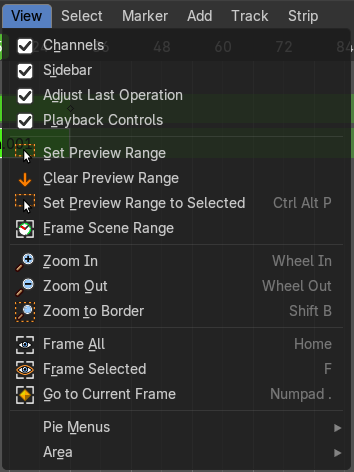
The View menu contains all View related tools.
Channels List
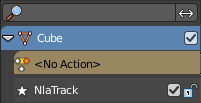
Shows or hides the Channels list at the left in the viewport.
Sidebar
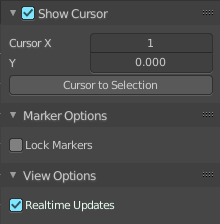
Shows or hides the sidebar at the right in the viewport.
Adjust Last Operation
Shows the adjust last operator panel down left.
Playback Controls
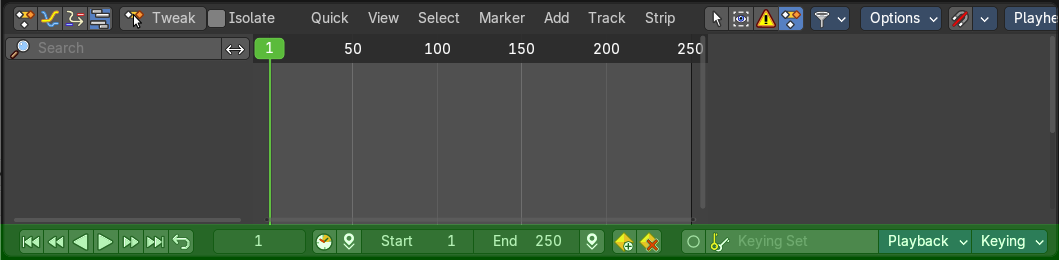
Reveals the footer with the playback controls.
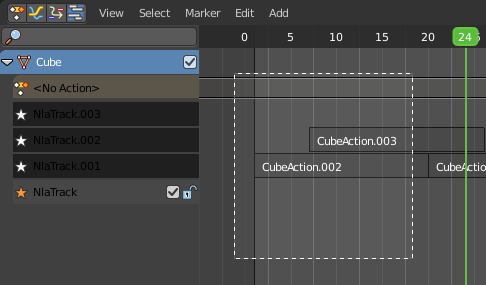
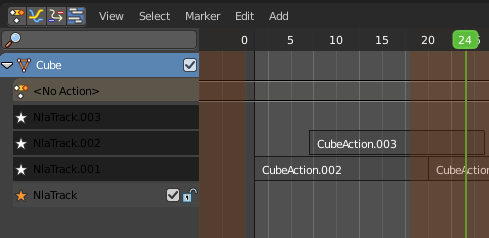
Set Preview Range
Rectangle select an area of the timeline that gets previewed. The playback now just happens in this marked area.
| Entry | What it does |
|---|---|
| Clear Preview Range | Clears an existing preview range. |
| Set Preview Range to selected | Sets the preview range to fit the first and last selected keyframe. |
| Frame Scene Range | With Use Preview Range off , reset the horizontal view to the current scene frame range. |
| Zoom In | Zooms into the viewport. |
| Zoom Out | Zooms out of the viewport. |
| Zoom to Border | Draws a rectangle and zooms then to fit the size of this rectangle. Zooming in is done with drawing the rectangle with left mouse button. Zooming out is done with drawing the rectangle with middle mouse button. |
| Frame All | Zooms in or out in the viewport until all objects in the scene are displayed fitting in the viewport. |
| Frame Selected | Centers the view at the currently selected keyframe(s). |
| Go to current Frame | Centers the view at the frame slider. |
Pie menus submenu

Lists the available pie menus, and gives you the ability to read the hotkeys and assign own hotkeys.
Area submenu
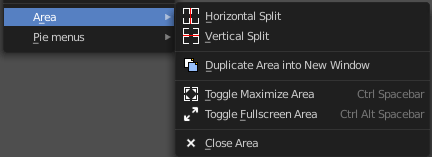
This menu contains general view functionality. And exists in most other editor types too.
| Entry | What it does |
|---|---|
| Horizontal Split | Splits the current view horizontally into two independent editor windows. |
| Vertical Split | Splits the current view vertically into two independent editor windows. |
Duplicate Area into New Window
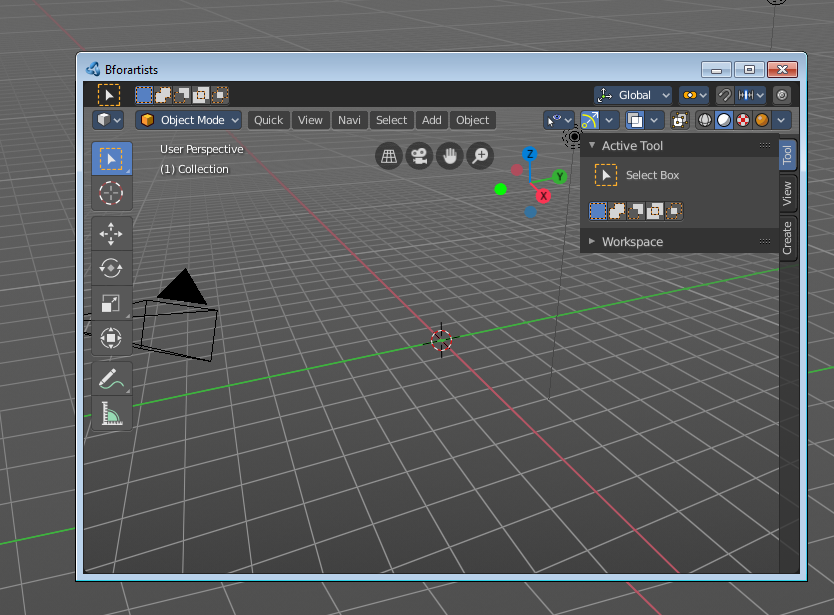
Duplicate Area into New Window makes the selected editor window floating. You can then drag it around at the monitor. It is not connected with the rest of the UI any more.
A separated window cannot be merged into the main window again. You have to close it when not longer needed.
| Entry | What it does |
|---|---|
| Toggle Maximize Area | Displays the editor maximized with menus. To return from the maximized view press hotkey Ctrl + Space. Or reuse the menu item in the area menu. |
| Toggle Full screen Area | Displays the editor maximized without menus. To return from the full screen view press hotkey Ctrl + Alt + Space. |
| Close Area | Closes the area window. |