

































































NLA Editor - Marker Menu
Markers are visual landmarks. They can mark a start of a specific animation sequence, the end of a camera movement, and so on.
NLA Editor - Marker Menu
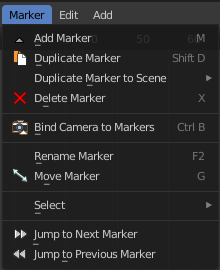
Markers are visual landmarks. They can mark a start of a specific animation sequence, the end of a camera movement, and so on.
When you add one then a marker area appears at the bottom of the timeline.
Markers can be pulled around by clicking at them and dragging them left or right. The active marker is yellow.
By holding down shift you can select more than one marker.
Add Marker
Adds a marker at the current frame position
Duplicate Marker
Duplicates the selected marker(s). The duplicate(s) sticks at the mouse until you click to give it the target destination.
Last Operator Duplicate Time Marker
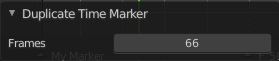
Frames
The target frame to position the duplicated marker.
Duplicate Marker to Scene

Duplicate markers to other scenes. A blend file can contain more than one scene. See Scene Properties in the Properties editor.
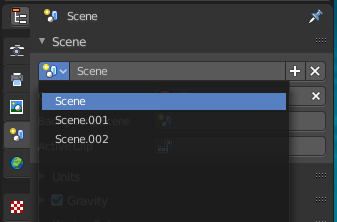
Last Operator Make Links to Scene
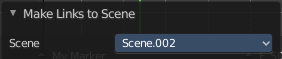
Scene
The target scene to duplicate the markers.
Delete Marker
Deletes the selected marker(s).
Bind Camera to Markers
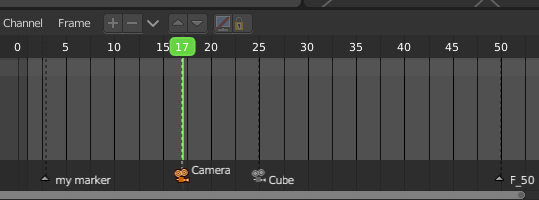
Bind camera to markers turns an object into a camera object. This can be any object in the scene. Not just camera objects.
When the current frame position does not have a marker yet, then it creates a marker at the current frame position.
By binding different objects or cameras at different marker locations you can switch cameras automatically.
The marker with a bind camera attached will show a camera icon.
Rename Marker
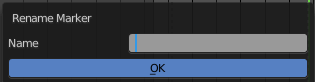
A menu will open up where you can rename the active marker.
Note that for the hotkey to work you need to hover over the Marker region. In the NLA viewport F2 will call the rename menu to rename the clip instead.
Last Operator Rename Marker
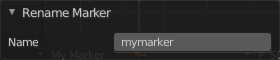
Name
Rename the active marker.
Move Marker
Hotkey only functionality! This menu item exists to show the hotkey to move the marker.
Select sub menu
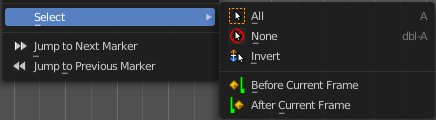
| Entry | What it does |
|---|---|
| All | Select all markers. |
| None | Deselect all markers. |
| Invert | Inverts the current selection |
| Before Current Frame | Selects the markers before the current frame. |
| After Current Frame | Selects the markers after the current frame. |
| Entry | What it does |
|---|---|
| Jump to Next Marker | Sets the frame position to the next marker. |
| Jump to Previous Marker | Sets the frame position to the previous marker. |