

































































NLA Editor - Header tools and options
The header contains various menus and tools. This chapter here is about the tools, modes and options elements in the header.
Introduction
The header contains various menus and tools. This chapter here is about the tools, modes and options elements in the header.
The text menus are covered in an own chapter each.

Header Tabs

The tabs at the very left allows you to switch between the four most important editor types by one click. Dope sheet Editor, Graph Editor, Driver Editor, NLA Editor.
Tweak Mode
Tweak

The tweak mode allows you to edit the keyframe data within an Action clip while evaluating the full stack. The strip will turn green and in the Dope Sheet editor you will find the Action clip’s keyframes, which you can now tweak.
Playback will show a blend of all NLA tracks while you edit the Action clip.

Isolate
Tweak with the Isolate checkbox on allows editing of the animation data on only the selected and isolated Action Clip.
Playback will show only the keyframes of of the isolated Action clip.
Note: You can also isolate a clip by clicking on the star icon at the left.

There are similar Tweak mode tool in the Edit menu too where you can edit with the full stack, lower stack or isolated Action clips. Leaving the Tweak mode is for the first two methods evaluated in the header.
Show Hide elements

| Entry | What it does |
|---|---|
| Only Show Selected | Display only the data for the selected object in the list of elements. If off it displays all available animation data of the whole scene. |
| Show Hidden | Include channels from objects / bones that are not visible. This feature just works with Only Selected off. |
| Include Missing NLA | Include Animation data blocks without NLA data. |
Filters
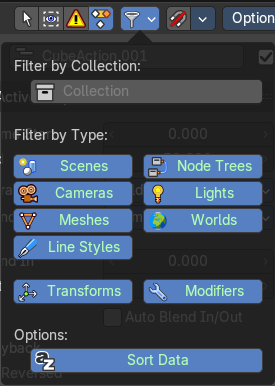
The show hide elements allows you to filter out the general elements. The Filters panel allows you to filter out further elements.
| Entry | What it does |
|---|---|
| Filter by Collection | Just display the content from the chosen collection in the list of elements. |
| Filter by Type | In this section you can choose what type of animation data should be displayed. The names should be self explaining. |
| Options | Sort Data Blocks: Alphabetically sort the data in the list of elements. |
Snapping
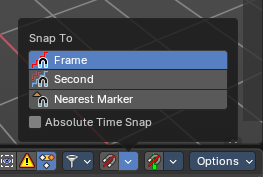
Snapping in animation editors helps align the playhead and keyframes to meaningful time-based elements, improving precision and workflow efficiency across the Timeline, Dope Sheet, Graph Editor, NLA, and Video Sequencer.
Note: This sub-subpanel is not available for Grease Pencil Dopesheet Mode
| Entry | What it does |
|---|---|
| Toggle Snapping On/Off | Toggles the snapping on or off with a visual indicator. |
| Snapping panel | Frame: Snaps to whole frame numbers. Ideal for frame-accurate editing instead of sub-frame timeline cursor placement. · Second: Snaps to time intervals measured in seconds. Useful for audio syncing or time-based pacing. · Nearest Market: Snaps to the closest timeline marker. Great for aligning actions to scene events or beats. · Absolute Time Snap: When enabled, snapping uses absolute time rather than relative pixel proximity. Ensures consistent snapping behavior regardless of zoom level or cursor position. |
Options
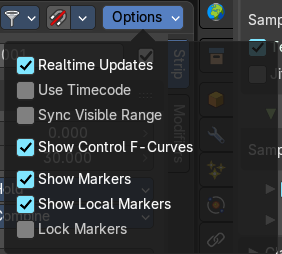
Real-time Updates
When transforming keyframes then this transformation is also immediately visible in other editors.
Show Seconds
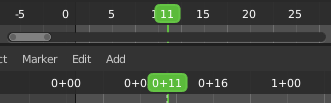
Show the timing in the timeline area in seconds instead of frames.
Sync visible range
Synchronize the visible timeline range with other visible time based editors. When you zoom in or out in the one editor, then it zooms in or out in the other editor too. Each editor to sync needs to have Sync Visible Range ticked.
Show Control F-Curves
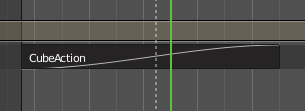
Shows existing f-curves in the action strip. Like for keyframed Animated influence.
| Entry | What it does |
|---|---|
| Show Markers | Display the markers. |
| Show Local Markers | Show action-local markers on the strips. |
| Lock Markers | Make the markers uneditable. |