Nonlinear Animation Editor
In the NLA Editor you can use and work with so called Actions, wich contains the animation data. Instead of working with the single keyframes you work with strips made from these keyframes.
Non-Linear Animation Editor
In the NLA Editor you can use and work with so called Actions, wich contains the animation data. Instead of working with the single keyframes you work with strips made from these keyframes.
Editor Areas
The Non-Linear Animation Editor has several areas.
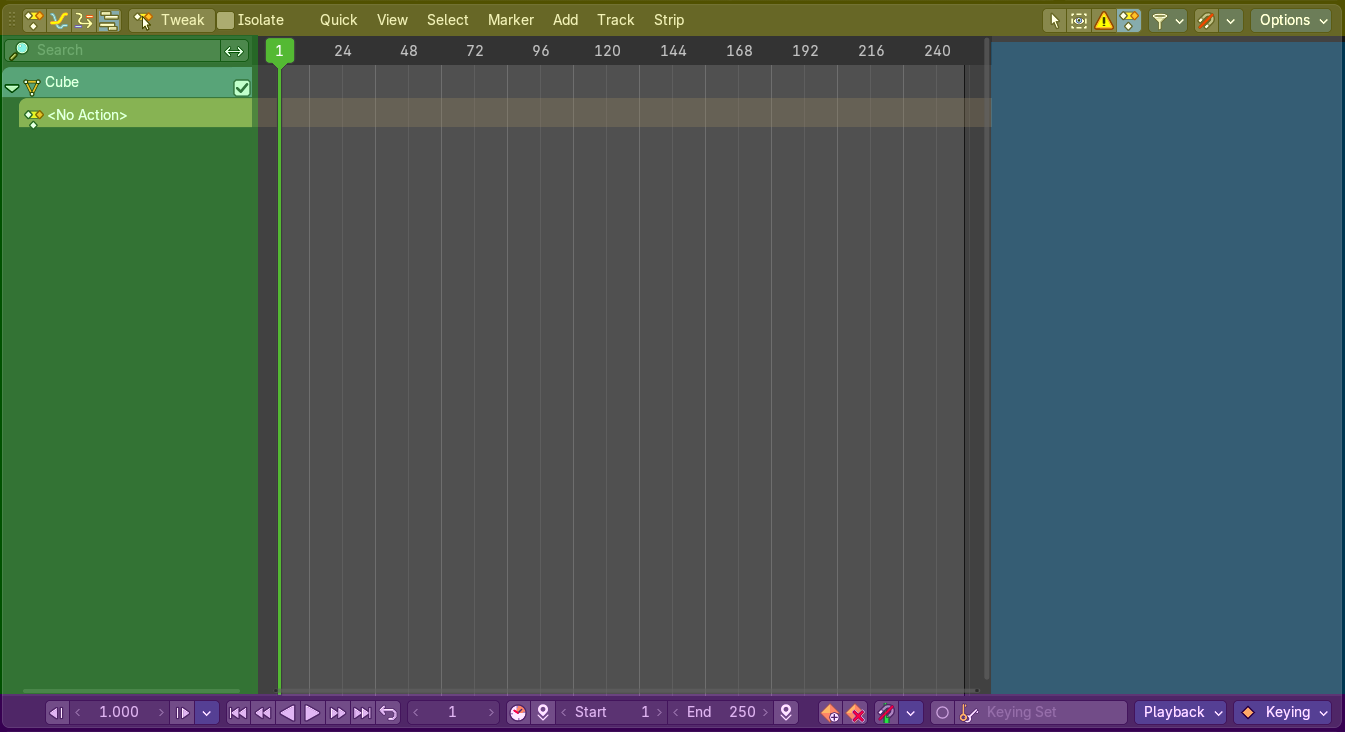
- Header (yellow)
- Channel list (green)
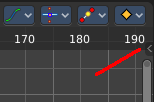
- Sidebar (blue): The sidebar needs to be revealed, which can be done by clicking at the small triangle button up right.
- Playback Controls (pink): The footer with the playback controls.
- Viewport (no color)
The header is divided into two parts. Left tools and menus. Right Options.

- Menus (green)
- Options (yellow)
Time cursor
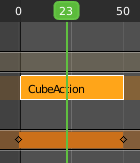
The Time Cursor is the green slider at the top. It is used to set and display the current time frame.
Strip types
There are three types of strips.
Action Strips
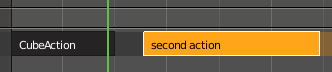
Action Strips contains the actual converted keyframe data.
Transition Strips

Transition strips can be created by adding a transition between two Action strips. Select both action strips. In the Add menu choose Add Transition.
Meta Strips

Meta Strips can be created by joining action strips together. Meta Strips still contains the Action strips that they are made of, and can be ungrouped in the add menu with remove meta.
Sound Clip Strips

Controls when a speaker plays a sound clip. This strip type requires a Speaker object with a sound clip assigned. You can create a speaker object in the 3D view. The sample can be loaded in the Object Data Properties tab in the Properties editor then.
Viewport Navigation
Navigation in the viewport happens by mouse or hotkeys. Some of them does not have a menu entry. And needs to be explained here.
Viewport navigation
Clicking left at the number bar moves the frame marker.
Middle mouse button pans the view.
Holding Ctrl + MMB zooms the view.
Scroll Wheel zooms the view.
Channel Context Menu
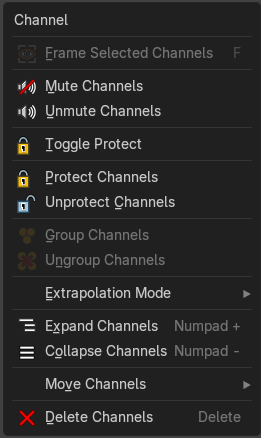
When you right click into the channel area, then you will call the Channel context menu.
| Entry | What it does |
|---|---|
| Frame selected channels | Centers the selected channels in view. |
| Mute Channel | This channel is not calculated. |
| Toggle Protect | Toggle channel protection. |
| Unmute Channel | This channel is calculated. |
| Protect Channels | Protect channels from editing. |
| Unprotect Channels | Enables editing of channels again. |
| Group Channels | Groups channels together. |
| Ungroup Channels | Ungroup grouped channels. Beware, the channels will not return to their initial group. |
Extrapolation Mode submenu
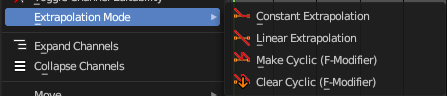
Sets the extrapolation mode for the selected F-Curves. Means how the curve acts at the beginning and the end of the F-Curve.
| Entry | What it does |
|---|---|
| Constant Extrapolation | The animation curve continues straight at the end. |
| Linear Extrapolation | The animation curve continues the last direction. |
| Make Cyclic | Makes the animation loopable. The interpolation curves are adjusted so that the first frame fits to the last frame. |
| Clear Cyclic | Removes the cyclic extrapolation. |
| Entry | What it does |
|---|---|
| Expand Channels | Expands the channels. |
| Collapse Channels | Collapses the channels. |
Move Channels submenu
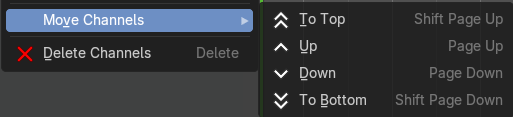
Sort the order of the channels. The menu items should be self explaining.
Delete Channels
Removes the selected channels.
NLA Context Menu
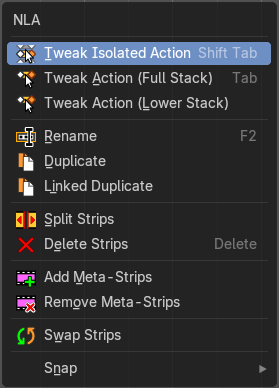
When you right click into the viewport then you will call the NLA context menu.
Tweak isolated action
Start tweaking the currently selected action.

Tweak Action (Full Stack)
Allows you to edit the keyframe data within the Action strip. The strip will turn grey, and in the Dope Sheet editor you will find the keyframes again, which you can tweak now. Preserves the pose that you visually keyed while uper strips are evaluating.
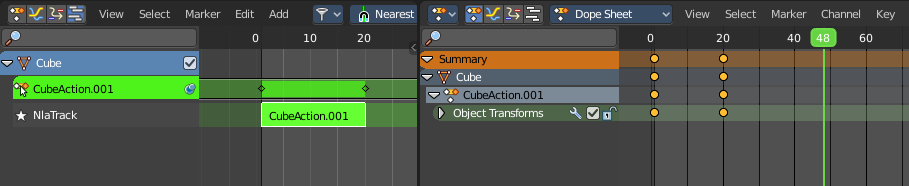
Tweak Action (Lower Stack)
Allows you to edit the keyframe data within the Action strip. The strip will turn grey, and in the Dope Sheet editor you will find the keyframes again, which you can tweak now.
Rename
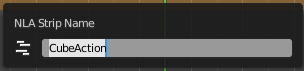
Allows you to rename the current NLA strip. The operator calls a rename popup.
Duplicate
Duplicates the selected strip(s), and creates a new track for the duplicates. This copy is independent.
Linked Duplicate
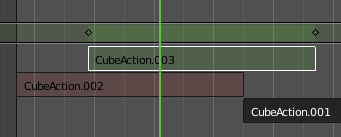
Duplicates the selected strip(s), and creates a new track for the duplicates. This copy is linked to the original action strip. Modifications at the original will also affect the linked action strip.
Linked strips are visually different from normal strips. And when you start to modify the linked duplicate, then the original strip will turn red.
Split Strips
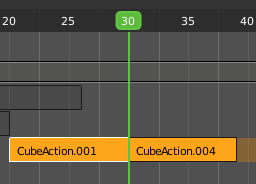
Splits the selected strip(s) at the marker position.
Delete Strips
Deletes the selected strips.
Add Meta Strips
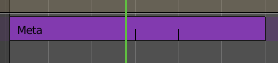
Turns selected strips into a meta strip. A group of strips.
| Entry | What it does |
|---|---|
| Remove Meta Strips | Ungroups the meta strips into its original action strips. |
| Swap Strips | Swaps the selected strips. |
Snap
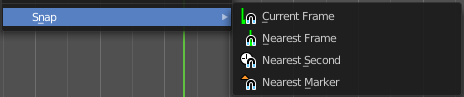
Snaps the selected strips by the chosen method.
Slider snapping

Snapping also works at sliders. Hover with the mouse over the slider, start to slide, and holding down Ctrl will snap the sliders in incremental steps.
When it's a default value between 0 and 1 then it usually snaps in 0.1 steps. When it's a default value over 1 then it usually snaps in steps of 10.
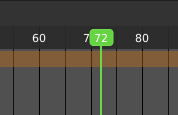
The increment snapping also works at the frame slider. here the incremental snapping happens by the frame rate that you have defined. With a frame rate of 24 it will snap in steps of 24 frames when holding down ctrl.
Quick Favorites menu

When you right click at a menu or a button, then a right click menu will open. Tools have usually a Add to Quick Favorites menu entry.
The Quick Menu is empty by default. With Add to Quick favorites you can add this menu to the Quick menu.

In the 3D view we have a menu called Quick in the header, which shows this content then. In the Dope Sheet Editor you can just call it with its hotkey. Q. It has no regular menu entry here.
How to
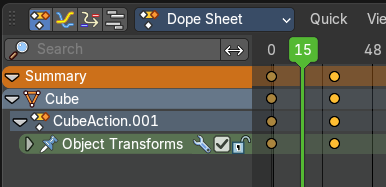
First create a keyframe animation.
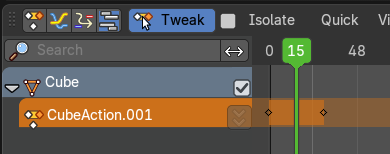
Switch to NLA editor.
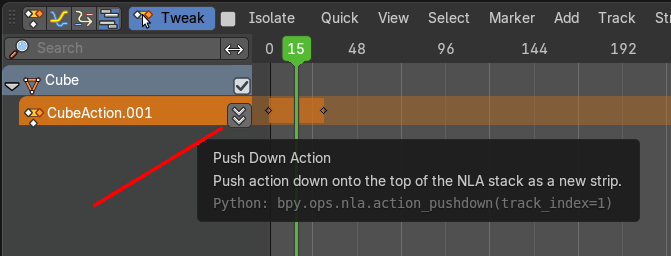
Click at the Push Down Action button to create the Action strip for this keyframe animation.
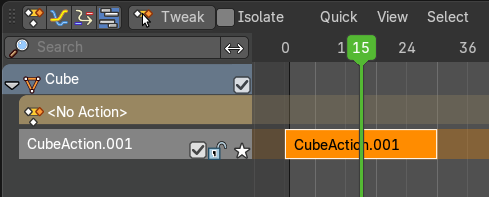
This turns your keyframe sequence into a single Action strip, which can now be used in the NLA editor.
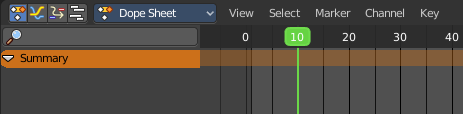
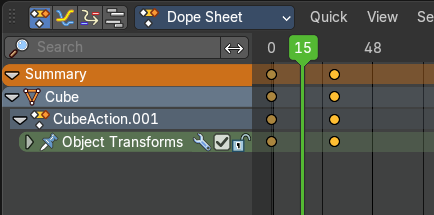
You will notice that the keyframes in the Dope Sheet editor are gone. They are now part of the Action strip.
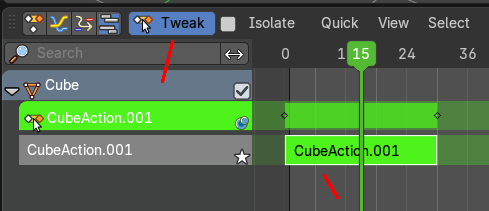
When you want to edit the keyframes of an Action strip then you need to enter the tweak mode by activating Tweak in the header.
This turns the strip to green to tell you that you are now in tweak mode. And it reveals the keyframes, which you can now edit in Dope Sheet editor.
To leave the edit mode click the Tweak button again, or press Tab key.