

































































Tracking Mode
The Clip panel contains movie related tools.
Track tab - Clip Panel
The Clip panel contains movie related tools.
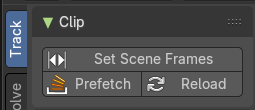
Set Scene Frames
Sets the length, means start and end frame of the tracking to match the start and end frame of the active movie.
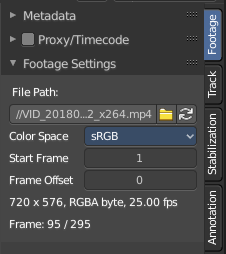
You can see the length of the active movie in the Properties sidebar in the Footage tab in the Footage Settings panel. And the tracking length and position can be seen and set in the time line.


The default range for tracking is from 1 to 250. But our movie is 295 frames long. Pressing the Set Scene Frames button makes the range going from 1 to 295 here.
| Entry | What it does |
|---|---|
| Prefetch | Prefetch Frames from disk for faster playback / tracking. |
| Reload | Reload Clip. |
Track tab - Marker Panel
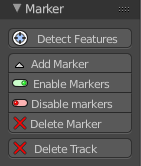
The marker panel contains marker related tools.
Detect Features
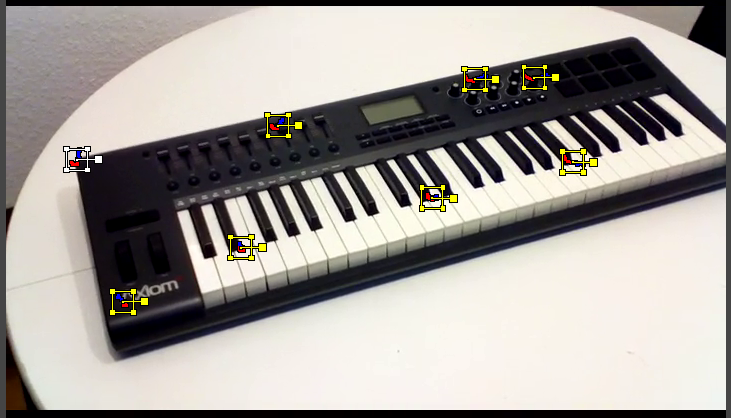
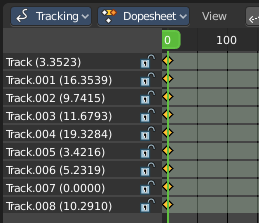
Adds automatically markers at the current movie position, and tries to detect marcant areas in the current frame that are useful for tracking. It also sets keyframes at this position.
When enough marcant areas are available then it adds up to eight markers that way.
Last Operator Detect Features
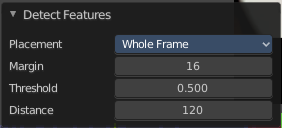
Placement
Placement is a drop down box where you can limit the placement of the markers.
Whole frame
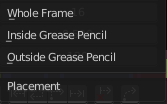
The markers can be at every position of the current frame image.
| Entry | What it does |
|---|---|
| Inside Grease Pencil | The markers have to be inside the Grease Pencil. |
| Outside Grease Pencil | The markers have to be outside Grease Pencil. |
| Entry | What it does |
|---|---|
| Margin | Gives a margin to the border of the frame image. Markers have to stay away from the border by the given amount. |
| Threshold | The threshold level to consider the current position of the marker as good enough for tracking. |
| Distance | The minimum distance between two markers. |
| Entry | What it does |
|---|---|
| Add Marker | Adds a marker by hand. First click the tool, then click at the location where you want to place it. You can reposition this marker afterwards by simply clicking at it and move it to a new position. |
| Enable Markers | Enables the currently selected marker(s). |
Disable Markers
Disables the currently selected marker(s)
Last operator Disable Markers
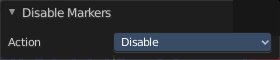
Action
Edit box to choose if you want to enable or disable the selected marker(s).
| Entry | What it does |
|---|---|
| Delete Marker | Deletes the currently selected marker(s) data. The track stays available. And the marker is still there too. But cleared. |
| Delete Track | Deletes marker, marker data and track data. |
Track tab - Tracking Settings Panel
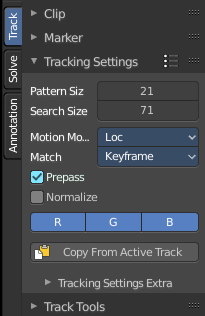
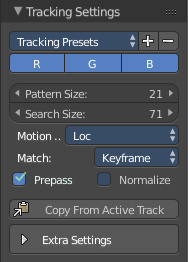
In the Tracking Settings Panel you will find some settings for Tracking.
Tracking Presets
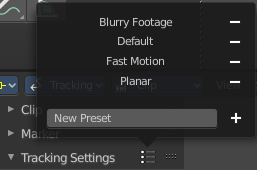
In the header is a drop down box to choose between some predefined tracking presets.
- Button adds a new preset with the current settings. First give the preset a name in the edit box.
- Button removes the current tracking preset.
Pattern Size
Size of pattern area for newly created tracks.
Search Size
Size of search area for newly created tracks.
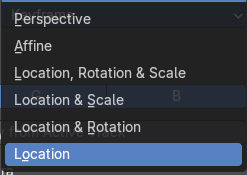
Motion Model
Choose between different motion models for tracking.
Match
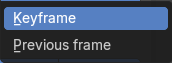
The pattern match method.
Keyframe matches the tracking from the keyframe.
Previous frame matches the tracking from the previous frame. Regardless if there is a keyframe recorded or not.
| Entry | What it does |
|---|---|
| Prepass | Use a Brute Force translation - only initialization when tracking. |
| Normalize | Normalize light intensities when tracking. |
| R G B | By default all three colors gets used for calculation. But you can enable or disable specific color range. |
| Copy from Active Track | Copy tracking settings from active track to default settings |
| Tracking Settings Extra | Extra settings is a sub menu that contains some not so often used settings. · Weight: Influence of newly created track on a final solution. · Correlation: Default minimum value of correlation between matched pattern and reference that is still treated as successful tracking. · Frames Limit: In every tracking cycle the numbers of given frames are tracked. · Margin: Default distance from image boundary at which markers stops tracking. · Use Mask: Use a Grease Pencil data block as a mask. |
Track tab - Track Tools Panel
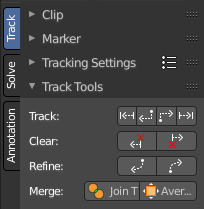
The tracking tools.
Track
Track selected markers in chosen direction. Usually you want to play them forward. But you can also track backwards. And by one step.
The two play buttons in the center tracks the whole range. The two outer buttons tracks just frame wise.
Tip: To select good points for tracking, use points in the middle of the footage timeline and track backwards and forwards from there. This will provide a greater chance of the marker and point staying in the camera shot.
Clear
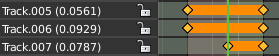
The left button clears the track before the chosen position. The right button clears the track after the chosen position.
Last Operator Clear Track Path
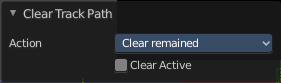
Action
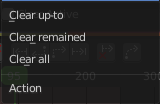
Choose the direction.
Clear up to clears the track before the chosen position.
Clear remained clears the track after the chosen position.
Clear all clears the whole track.
Clear active
When ticked, just the active track gets cleared.
Refine
Refine selected marker position in given direction from the current position.
Last operator Refine Markers
Backwards
Refine in backwards directory.
Merge
Join Track
Joins selected tracks.
Average Tracks
Averages selected tracks into active.
Last Operator Average Tracks
Keep Original
Keep the original track.
Solve tab - Plane Track Panel
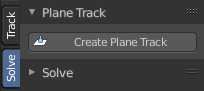
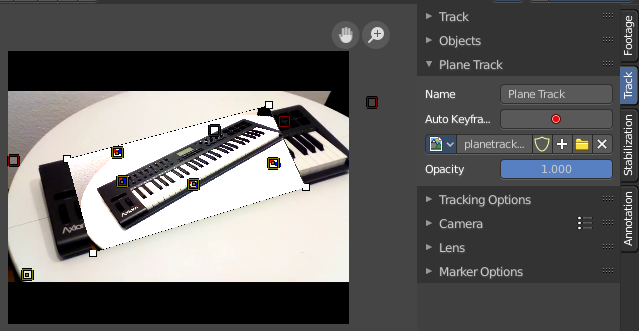
Create a plane track. A plane track can be used to map an image or a movie at an area in your clip. The Plane track.
A plane track can be used to replace things like billboards and screens on the footage with another image or video. It can also be used for masking.
It is also possible to have some tracks appear and disappear during the time. This required to have two neighbor frames have at least 4 common tracks.
You need to select at least four markers. And the four markers should preferably be at the corners of the area in which you want to map the image or movie.
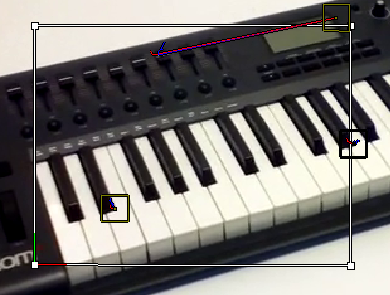
With the left mouse button and clicking at one of the corners of the cage you can move the plane track plane around in the view.
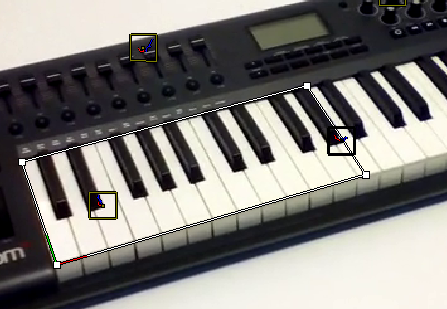
With the right mouse button and clicking at one of the corners of the cage you can move the single corners, and fit the plane into the area of the movie.
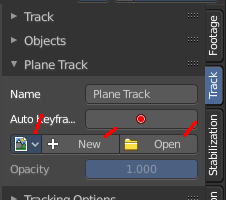
In the sidebar, open the Track tab and the Plane Track panel. Here you can now load an image or movie that gets displayed in this rectangle now, create a new image, or browse for already existing images in the project.
Solve tab - Solve Panel
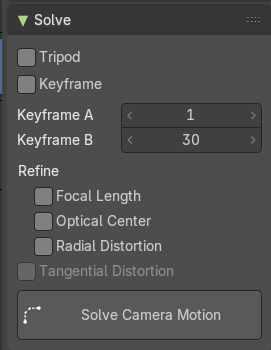
The Solve Panel contains functionality around solving the camera motion.
| Entry | What it does |
|---|---|
| Tripod | Tripod tracking is a special method to track a stable camera position, and uses special solver. Tripod Motion can be used for footage where the camera does not move and only rotates. Here you can enable Tripod camera tracking. Keyframe A and B are greyed out then. Note that Tripod behaves different from regular solver. More tracks doesn't imply to have more accuracy. 5-10 solver is recommended. |
| Keyframe | Automatically select Keyframes when solving camera / object motion |
| Keyframe A | The first keyframe for camera tracking. |
| Keyframe B | The last keyframe for camera tracking. |
Refine
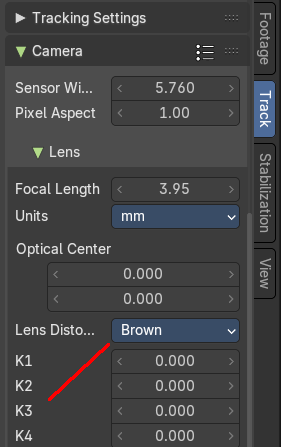
Choose between different refine methods. The method tangential distortion activates when you acticate the Brown model for the lens distortion in the sidebar in the track tab in the camera panel in the lens subpanel
Solve Camera Motion
Starts the calculation for the camera motion to match the track motion.
There should be at least eight common tracks on the both of the selected keyframes.
There should be noticeable parallax effects between these two keyframes.
The average re-projection error is reported to the information space and to the clip editor header. Re-projeciton error means the average distance between reconstructed 3D position of tracks projected back to footage and original position of tracks. Re-projection error below 0.3 means accurate re-projection, (0.3 - 3.0) means quite nice solving which still can be used. Values above 3 means some tracks should be tracked more accurately, or that values for focal length or distortion coefficients were set incorrectly.
Solve tab - Cleanup Panel
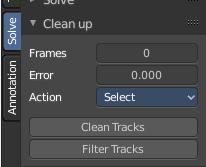
This panel contains tools to clean up tracks.
Clean Tracks
Cleans tracks with high error values or few frames. The tracks or segments in question can either be selected, or directly removed. Dependent of the settings.
Last Operator Clean Tracks
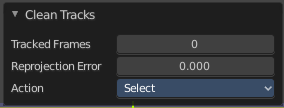
| Entry | What it does |
|---|---|
| Frames | Adjust the number of "few" frames for clean track. 0 means the feature gets ignored. |
| Error | Adjust the error value for Clean Tracks. See also Last Operator Clean Tracks. |
Select
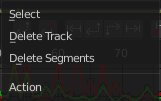
The action that should happen when you click at Clean Tracks. Default is select.
Filter Tracks
Removes tracks with too high spikes in their motion curve.
Last Operator Filter Tracks
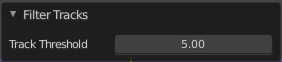
Track Threshold
Filter threshold to select problematic tracks.
Solve tab - Geometry Panel
3D Markers to Mesh
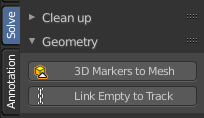
Creates a vertex cloud using the coordinates of the reconstructed tracks.
Link Empty to Track
Creates an Empty which will be copying movement of active track.
Solve tab - Orientation Panel
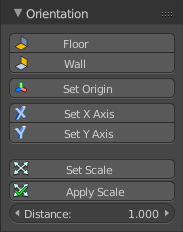
Here you will find some orientation functionality to match the geometry in the 3D view to the movie.
Floor
Set plane in the 3D space as a Floor plane, based at three selected markers. You need to have three markers selected. Or you will get an error message.
Wall
Set plane in the 3D space as a Wall plane, based at three selected markers.
Last Operator Set Plane
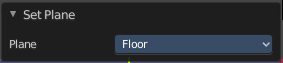
Plane
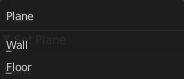
A drop down box to choose if you want to set the selected markers as plane or as floor.
Set Origin
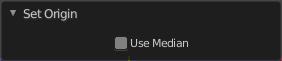
Set active marker as origin in 3D space.
Last Operator Set Origin
Use Median
Set Origin to Median Point of selected bundles.
Set X Axis
Set X axis rotation in 3D space, based at the selected marker. You need to have one marker selected. Or you will get an error.
Set Y Axis
Set X axis rotation in 3D space, based at the selected marker. You need to have one marker selected. Or you will get an error.
Last Operator Set Axis
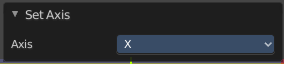
Axis
A drop down box to choose if you want to use the axis to X or to Y
Set Scale
Set scale of scene by scaling camera, based at two selected markers. You need to have two markers selected. Or you will get an error.
Last Operator Set Scale
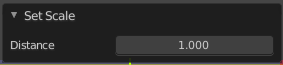
Distance
The distance between two bundles used for scene scaling.
Apply Scale
Apply scale to solution.
Last operator Apply Solution Scale
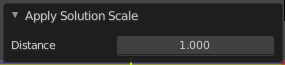
Distance
The distance between two bundles used for scene scaling.
Distance
The distance between two bundles used for scene scaling. This setting is a pre value, and gets used for Set Scale as well as for Apply Scale when you perform those tools.
Solve tab - Scene Setup Panel
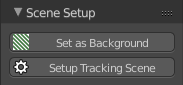
| Entry | What it does |
|---|---|
| Set as Background | Sets the current movie as background in the 3D view. You need to be in camera view to see the movie in the background. |
| Setup Tracking Scene | Prepare Scene for composing 3D objects into this footage. This feature will create a ground plane, which is used for shadow catching in the rendering. |
Annotation tab
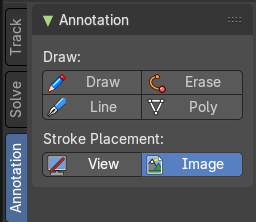
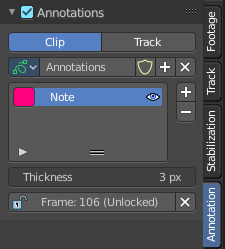
The annotation tool is available in multiple editors. With this tool you can write notes at the screen. The annotate tools is the little brother of the grease pencil object in the 3D view.
Further settings for annotations can be found in the sidebar. Here you can also remove an annotation when you don't longer need it. And here you can also adjust the size of the stroke.
Draw:
| Entry | What it does |
|---|---|
| Draw | Draw free-hand strokes in the main window. |
| Erase | Activate the eraser brush. |
| Line | Click and drag to create a line. |
| Poly | Click multiple times to create multiple connected lines. The current polygon is finished when Esc or RMB is pressed. When you hold down the right mouse button then you can activate and use the eraser tool to remove parts of the polygon again. |
| Stroke Placement | If the stroke should stick to the View or the Image. |