

































































Tracking Mode - Stabilization tab
The purpose of 2D Stabilization is to smooth out jerky camera handling on existing real world footage. To activate the 2D stabilizer, you need to set the toggle in the panel, and additionally you need to enable Show…
Tracking Mode - 2D Stabilization Panel
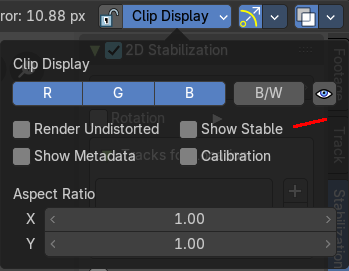
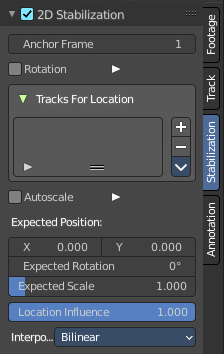
The purpose of 2D Stabilization is to smooth out jerky camera handling on existing real world footage. To activate the 2D stabilizer, you need to set the toggle in the panel, and additionally you need to enable Show Stable in the Display panel. Then you’ll need to set up some tracking points to detect the image movements. And you need to set a proper starting point, the anchor frame.
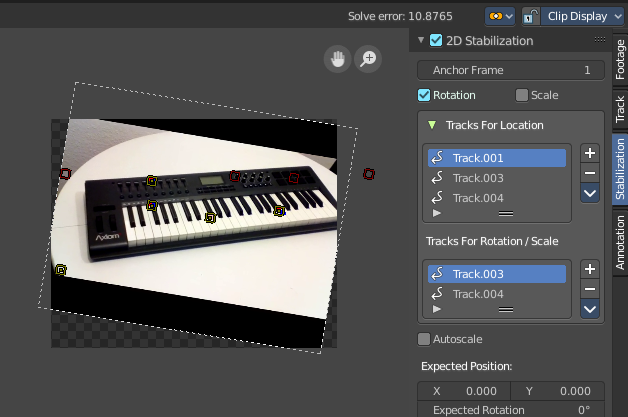
Anchor Frame
The first frame of the stabilization.
Rotation / Scale

Normally you just stabilize the position. Here you can stabilize rotation and scale too. Note that you can't activate scale independently here. It appears when you activate Rotation.
Tracks for Location
The list of markers that gets used for location stabilization.
With the plus and minus button at the right you can add selected markers, or remove the markers from the list.
Tracks for Rotation/Scale
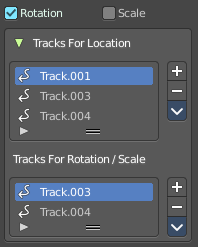
The list of markers that gets used for rotation/scale stabilization.
With the plus and minus button at the right you can add selected markers, or remove the markers from the list.
This list is just visible when you have at least Rotation activated.
Autoscale
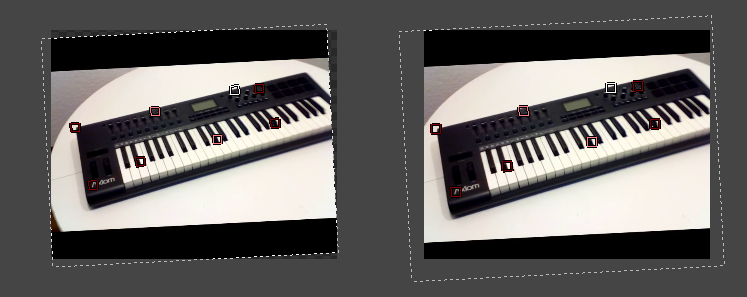
The stabilization will lead to areas where the movie doesn't show at the canvas anymore. Autoscale scales the content so that the whole canvas is covered again.
Max
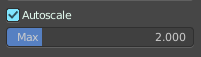
The maximum value for Autoscale. This slider appears when you activate Autoscale.
Expected Position
| Entry | What it does |
|---|---|
| X / Y | The position of the movie at the canvas. |
| Expected Rotation | Rotate the movie at the canvas manually. |
| Expected Scale | Scale the movie at the canvas manually. Note that this slider is not showing when you have Autoscale activated. |
Influence
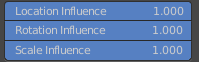
The influence of stabilization algorithm. You can independently adjust location, rotation and scale. When you have rotation off, then the sliders for rotation influence and scale influence are not showing.
Interpolate
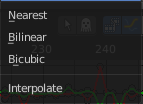
Adjust the interpolation mode for images. For rotation and scale the images needs to be recalculated.