

































































Footage Tab
Note that the correct mode is Tracking Mode in Clip View. In Graph and Dopesheet View there is no sidebar.
Preface
Note that the correct mode is Tracking Mode in Clip View. In Graph and Dopesheet View there is no sidebar.
Note also that some panels exists in both modes, tracking and masking. They have sometimes different content though.
Footage Tab - Metadata Panel
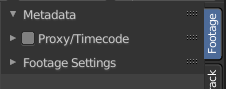
Displays the metadata of the footage if available. The panel stays empty if there is none.
Footage Tab - Proxy/Time code Panel
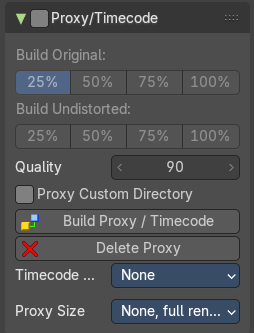
This content shows in Tracking Mode and Masking mode.
A proxy is a smaller replacement image for the main image. Think of it as a thumbnail. The creation may take some time. But once done, all other calculations happens much faster. So it can make sense to use proxies for bigger footage.
Make sure to disable the Proxy images before doing the final render!
| Entry | What it does |
|---|---|
| Use Proxy / Timecode | Use Proxy / Timecode for this clip. |
| Build Original | Define the resolution of the proxy images. |
| Build Undistorted | Builds the proxy images from the undistorted original images for the sizes set above. |
| Quality | Defines the quality of the JPEG images used for proxies. |
Proxy Custom Directory
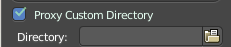
By default, all generated proxy images are storing to the <path of original footage>/BL_proxy/<clip name> folder. Define a custom directory.
| Entry | What it does |
|---|---|
| Build Proxy / Time code | (Re)creates the proxy images and the time code. |
| Delete Proxy | Deletes the proxy images and the time code. |
Time code Index
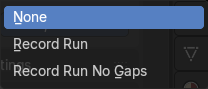
When you are working with footage directly copied from a camera without pre-processing it, then there might be a bunch of artifacts. In this case the calculation can give errant result. One way to avoid this is to use the Proxy / Time code option. Another method would be to use a external tool like Mencoder to repair the file header and insert correct keyframes.
Note: Record Run is recommended for most needs. Buf when the clip’s file is totally damaged, Record Run No Gaps will be the only chance of getting acceptable result.
Proxy Size
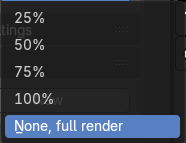
This setting defines which proxy image resolution is used for display in the viewport. If there is no generated proxies, render size is set to “No proxy, full render”.
Footage Tab - Footage Settings Panel
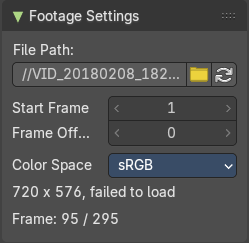
This content shows in Tracking Mode and Masking mode.
The panel contains some footage related settings.
| Entry | What it does |
|---|---|
| File Path | The file path for the currently loaded and active video. Here you can also load another video, or refresh the video. |
| Start Frame | The start frame for the currently loaded and active video. |
| Frame Offset | Define a frame offset. |
Color Space
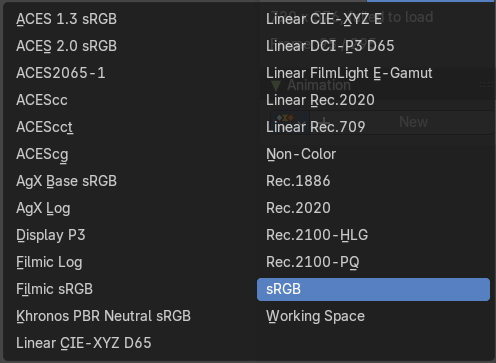
The color space for the currently loaded and active video.
Footage Information string
Here you will find some information about the footage. Size, color mode, fps, current position ...
Footage Tab - Animation Panel
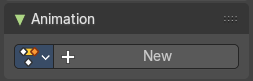
Load am action clip with animation. You need to generate it first.