

































































Tracking Mode - Clip Submode - Track Menu
Contains tracking functionality. Note that lots of this content is currently a double entry to the content in the tool shelf. The tool shelf content will most probably vanish in the future, in favour of a tool shelf…
Track Menu
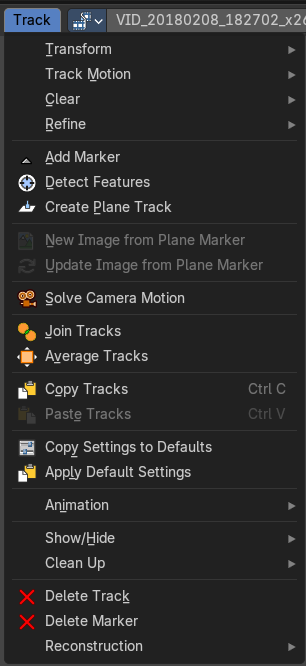
Contains tracking functionality. Note that lots of this content is currently a double entry to the content in the tool shelf. The tool shelf content will most probably vanish in the future, in favour of a tool shelf with buttons like in the 3d view.
Transform submenu

Track navigation.
Move
Move the selected track(s).
Last Operator Move
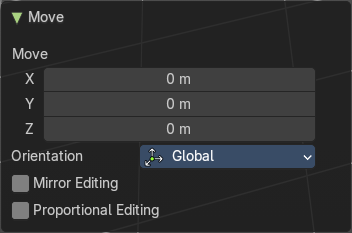
Move X, Y Z
The position. Attention, the actual world orientation and rotation does not matter here. It always starts with a value of zero, and moves relative to this zero then. For the actual location values have a look in the sidebar in the transform panel.
Orientation
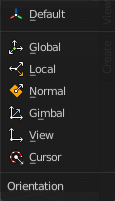
The widget can have different orientations. The menu items should be self explaining.
Mirror Editing
Enables mirror editing.
Proportional editing
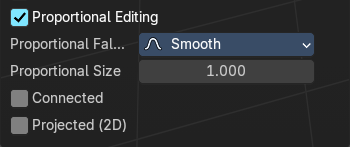
Enables proportional editing. Activating proportional editing reveals further settings.
| Entry | What it does |
|---|---|
| Proportional Falloff | Adjust the falloff methods. |
| Proportional Size | See and adjust the falloff radius. |
| Connected | The proportional falloff gets calculated for connected parts only. |
| Projected(2D) | The proportional falloff gets calculated in the screen space. Depth doesn't play a role. When it's in the radius, then it gets calculated. |
Rotate
Rotate the selected tracks.
Last Operator Rotate
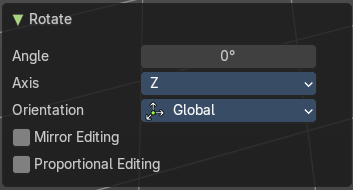
| Entry | What it does |
|---|---|
| Angle | The rotation. Attention, the actual world orientation and rotation does not matter here. It always starts with a value of zero, and rotates relative to this zero then. For the actual rotation values have a look in the sidebar in the transform panel. |
| Axis | Which axis to rotate. |
Orientation
The widget can have different orientations. The menu items should be self explaining.
Mirror Editing
Enables mirror editing.
Proportional editing
Enables proportional editing. Activating proportional editing reveals further settings.
| Entry | What it does |
|---|---|
| Proportional Falloff | Adjust the falloff methods. |
| Proportional Size | See and adjust the falloff radius. |
| Connected | The proportional falloff gets calculated for connected parts only. |
| Projected(2D) | The proportional falloff gets calculated in the screen space. Depth doesn't play a role. When it's in the radius, then it gets calculated. |
Resize
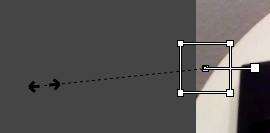
Resize the selected track(s).
Last Operator Resize
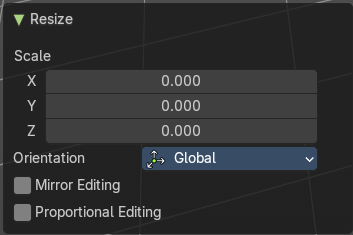
| Entry | What it does |
|---|---|
| Angle | The rotation. Attention, the actual world orientation and rotation does not matter here. It always starts with a value of zero, and rotates relative to this zero then. For the actual rotation values have a look in the sidebar in the transform panel. |
| Axis | Which axis to rotate. |
Orientation
The widget can have different orientations. The menu items should be self explaining.
Mirror Editing
Enables mirror editing.
Proportional editing
Enables proportional editing. Activating proportional editing reveals further settings.
| Entry | What it does |
|---|---|
| Proportional Falloff | Adjust the falloff methods. |
| Proportional Size | See and adjust the falloff radius. |
| Connected | The proportional falloff gets calculated for connected parts only. |
| Projected(2D) | The proportional falloff gets calculated in the screen space. Depth doesn't play a role. When it's in the radius, then it gets calculated. |
Track Motion submenu
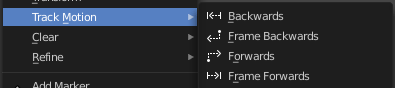
| Entry | What it does |
|---|---|
| Backwards | Track backwards the whole range. |
| Frame Backwards | Track backwards frame wise. |
| Forwards | Track forwards the whole range. |
| Frame Forwards | Track forwards frame wise. |
Clear submenu
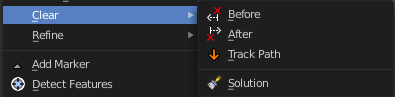
| Entry | What it does |
|---|---|
| Before | Clears track paths before the current position. |
| After | Clears track paths after the current position. |
| Track Path | Clears the currently active Track Path. |
| Solution | Clears all calculated data. |
| Entry | What it does |
|---|---|
| Refine submenu | Backwards: Refine selectet marker positions forwards. · Backwards: Refine selectet marker positions forwards. |
| Add Marker | Add a marker. The marker will appear under the mouse, and stick until you click. |
Detect Features
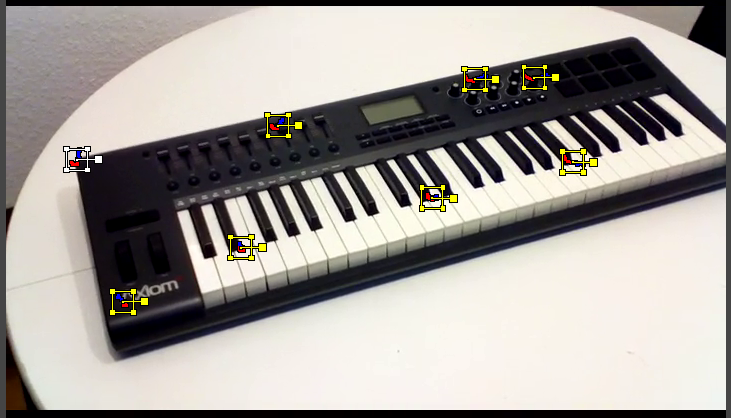
Adds automatically markers at the current movie position, and tries to detect marcant areas in the current frame that are useful for tracking. It also sets keyframes at this position.
When enough marcant areas are available then it adds up to eight markers that way.
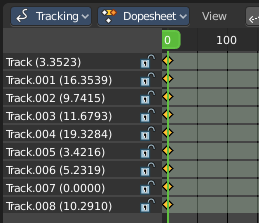
Last Operator Detect Features
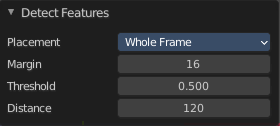
Placement
Placement is a drop down box where you can limit the placement of the markers.
Whole frame
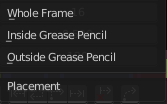
The markers can be at every position of the current frame image.
| Entry | What it does |
|---|---|
| Inside Grease Pencil | The markers have to be inside the Grease Pencil. |
| Outside Grease Pencil | The markers have to be outside Grease Pencil. |
| Entry | What it does |
|---|---|
| Margin | Gives a margin to the border of the frame image. Markers have to stay away from the border by the given amount. |
| Threshold | The threshold level to consider the current position of the marker as good enough for tracking. |
| Distance | The minimum distance between two markers. |
Create Plane Track
Creates a plane track. A plane track can be used to map an image or a movie at an area in your clip. The Plane track.
New Image from Plane Marker
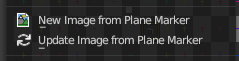
Create new image from the content of the plane markerfrom the pixels of the movie clip that the plane marker “sees” at the current frame. This allows you to create and impose an un-warped texture of any flat surface in the footage.
To use, create and select four tracking points then create a Plane Marker. Once you’ve selected the Plane Marker, create the new image - then edit the image in the Image Editor.
Update Image from Plane Marker
Update current image used by plane marker from the content of the plane marker. This updates the pixels of the active Plane Track’s image.
Allows you to update the texture of any flat surface in the footage.
Solve Camera Motion
Starts the calculation for the camera motion to match the track motion.
There should be at least eight common tracks on the both of the selected keyframes.
There should be noticeable parallax effects between these two keyframes.
The average re-projection error is reported to the information space and to the clip editor header. Re-projeciton error means the average distance between reconstructed 3D position of tracks projected back to footage and original position of tracks. Re-projection error below 0.3 means accurate re-projection, (0.3 - 3.0) means quite nice solving which still can be used. Values above 3 means some tracks should be tracked more accurately, or that values for focal length or distortion coefficients were set incorrectly.
| Entry | What it does |
|---|---|
| Join Tracks | Joins selected tracks. |
| Average Tracks | Average selected tracks into active. |
| Copy Tracks | Copy selected tracks to clipboard. |
| Paste Tracks | Pastes selected tracks from clipboard. |
| Copy Settings to Defaults | Copies track settings from active track to default settings. |
| Apply default settings | Copy tracking settings form active tracks to selected tracks. You need to select the source track first, then hold down shift, then select the target track. Then perform copy track settings. |
Animation submenu

Insert Keyframe
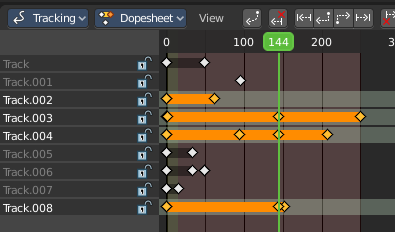
Inserts a keyframe at current position in spreadsheet sub mode panel.
Delete Keyframe
Deletes keyframes at current position in dope sheet sub mode panel.
Show/Hide submenu

Show or hide tracks.
| Entry | What it does |
|---|---|
| Show Hidden | Show all hidden tracks. |
| Hide Selected | Hide the selected tracks. |
| Hide Unselected | Hide the unselected tracks. |
Last operator Hide Tracks
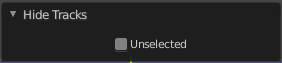
Unselected
Hide selected or unselected tracks.
Clean up submenu

| Entry | What it does |
|---|---|
| Clean Tracks | Clean tracks with high error values or few frames. |
| Filter Tracks | Filter out tracks that has weird looking spikes in motion curves. |
| Entry | What it does |
|---|---|
| Delete Track | Delete the selected track. |
| Delete Marker | Delete the selected marker. |
Reconstruction
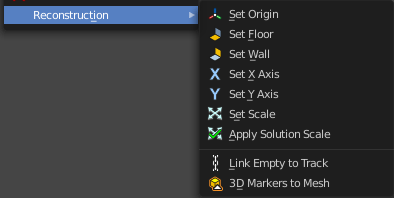
| Entry | What it does |
|---|---|
| Set Origin | Set active marker as origin in 3D space. |
| Set Floor | Set plane in the 3D space as a Floor plane, based at three selected markers. You need to have three markers selected. Or you will get an error message. |
Set Wall
Set plane in the 3D space as a Wall plane, based at three selected markers.
Last Operator Set Plane
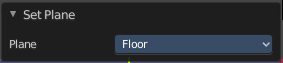
Plane
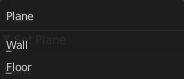
A drop down box to choose if you want to set the selected markers as plane or as floor.
Set X Axis
Set X axis rotation in 3D space, based at the selected marker. You need to have one marker selected. Or you will get an error.
Set Y Axis
Set X axis rotation in 3D space, based at the selected marker. You need to have one marker selected. Or you will get an error.
Last Operator Set Axis
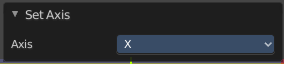
Axis
A drop down box to choose if you want to use the axis to X or to Y
Set Scale
Set scale of scene by scaling camera, based at two selected markers. You need to have two markers selected. Or you will get an error.
Last Operator Set Scale
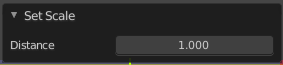
Distance
The distance between two bundles used for scene scaling.
Apply Scale
Apply scale to solution.
Last operator Apply Solution Scale
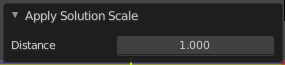
Distance
The distance between two bundles used for scene scaling.
| Entry | What it does |
|---|---|
| 3D Markers to Mesh | Creates a vertex cloud using the coordinates of the reconstructed tracks. |
| Link Empty to Track | Creates an Empty which will be copying movement of active track. |