

































































Header Tools and Options
The Movie Clip Editor has two modes, and is three editors in one. So we have to explain the single header tools and options at a one by one base.
Movie Clip Editor - Header
The Movie Clip Editor has two modes, and is three editors in one. So we have to explain the single header tools and options at a one by one base.

Tracking mode - Clip submode

Movie Clip property


Available in Tracking in Clip mode and Mask mode.
This property contains the list of loaded movie clips. When no movie clip is loaded or active, then it displays the Open Buttons. When a movie clip is loaded and active, then it displays the name of the currently active movie clip.
From left to right ...

| Entry | What it does |
|---|---|
| List of clips in the scene | This is a list of the movie clips in the scene. Allows you to witch to other images. · Search form: Search for specific clips. |
| Clip Edit Box | The name of the currently selected movie clip. You can rename the movie clip here too. |
| Number of Fake Users | In case this file has a fake user assigned, then this number displays the number of fake users. |
| Fake User | With this button you assign a fake user to this selected image. Data, like images, that is not longer linked to anything else gets removed when you save and reload a scene. Bforartists has the concept of fake users to go around this behavior. An image with a fake user is in fact linked to something. And so it is not lost when you save and reload the scene. |
| Open | Open a new movie clip. |
Remove
Removes the movie clip. Note that it will not be removed when it has a fake user assigned. Then the clip becomes simply inactive. You can still use it from the list again.
Pivot Point
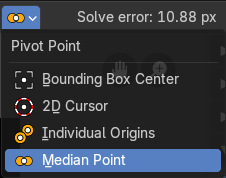
Adjust the pivot point for transform operations. The names should be self explaining.
Solve Error
Read only. The solve error for the current tracking.
Toggle Lock Selection

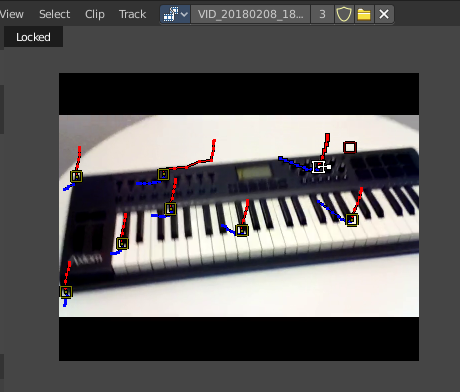
With lock to selection disabled the viewport stands still and the markers moves. With lock to selection enabled the view is centered at the current selected marker, and the video moves around.
Available in Tracking in Clip mode and Mask mode.
Clip Display
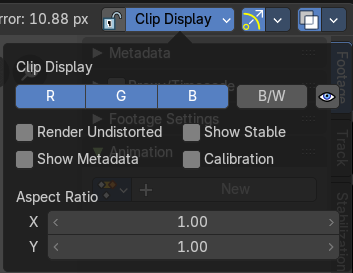
Display options for the tracking footage.
| Entry | What it does |
|---|---|
| R G B | Display the red green and blue channels of the footage |
| BW | Display the footage in black and white. |
| Mute Footage | Hide the footage. |
| Render Undistorted | Render Preview undistorted. |
| Show Metadata | Shows the metadata of the clip if available. |
| Show Stable | Show stable footage in editor. Stabilization needs to be enabled. |
| Grid | Displays a red grid over the footage that displays the lens distortion. |
| Aspect Ratio X Y | The aspect ratio to display the footage. |
Tracking mode - Graph submode

Tools to refine and modify the markers.
Refine Markers Backwards

Refine selected markers position by running the tracker from tracks reference to current frame.
| Entry | What it does |
|---|---|
| Clear Track Path Backwards | Clear tracks before the current position. |
| Track Markers Backwards | Track selected markers backwards. |
| Track Markers Sequence Backwards | Track selected marker sequence backwards. |
| Track Markers Sequence Forwards | Track selected marker sequence forwards. |
| Track Markers Forwards | Track selected markers forwards. |
| Clear Track Path Forwards | Clear tracks after the current position. |
| Refine Markers Forwards | Refine selected markers position by running the tracker from tracks reference to current frame. |
| Only selected | Only display channels relating to the current objects and data. |
| Display Hidden | Display also channels from objects/bones that are not visible. |
| Show Frames | Show curve for per frame average error. Camera motion should be solved first. |
| Show Track Motion | Display the speed curves for the selected tracks. Red is X direction. Green is Y direction. |
| Show Tracks Error | Display the reprojection error curve for the selected tracks. |
| Show Gizmo | Display gizmos. |
Gizmos
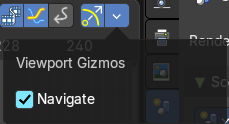
Viewport Gizmos
Navigate
Show the navigate viewport gizmos.
Tracking mode - Dope Sheet submode

Tools to refine and modify the markers.
Refine Markers Backwards
Refine selected markers position by running the tracker from tracks reference to current frame.
| Entry | What it does |
|---|---|
| Clear Track Path Backwards | Clear tracks before the current position. |
| Track Markers Backwards | Track selected markers backwards. |
| Track Markers Sequence Backwards | Track selected marker sequence backwards. |
| Track Markers Sequence Forwards | Track selected marker sequence forwards. |
| Track Markers Forwards | Track selected markers forwards. |
| Clear Track Path Forwards | Clear tracks after the current position. |
| Refine Markers Forwards | Refine selected markers position by running the tracker from tracks reference to current frame. |
| Only selected | Only display channels relating to the current objects and data. |
| Display Hidden | Display also channels from objects/bones that are not visible. |
Dope Sheet Sort Field
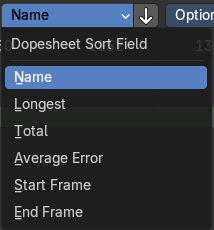
The method to sort the channels in dope sheet view.
Invert Dope Sheet Sort
Invert the dope sheet sorting.
Options panel
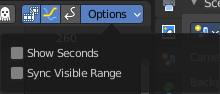
Show Seconds
Option. Display the timeline numbering in seconds instead of frames.

Sync Visible Range
Option. Synchronize the visible timeline range with other time based editors.
Gizmos
Viewport Gizmos
Navigate
Show the navigate viewport gizmos.
Mask mode

Movie Clip property
Available in Tracking in Clip mode and Mask mode.
This property contains the list of loaded movie clips. When no movie clip is loaded or active, then it displays the Open Buttons. When a movie clip is loaded and active, then it displays the name of the currently active movie clip.
From left to right ...
| Entry | What it does |
|---|---|
| List of clips in the scene | This is a list of the movie clips in the scene. Allows you to witch to other images. · Search form: Search for specific clips. |
| Clip Edit Box | The name of the currently selected movie clip. You can rename the movie clip here too. |
| Number of Fake Users | In case this file has a fake user assigned, then this number displays the number of fake users. |
| Fake User | With this button you assign a fake user to this selected image. Data, like images, that is not longer linked to anything else gets removed when you save and reload a scene. Bforartists has the concept of fake users to go around this behavior. An image with a fake user is in fact linked to something. And so it is not lost when you save and reload the scene. |
| Open | Open a new movie clip. |
Remove
Removes the movie clip. Note that it will not be removed when it has a fake user assigned. Then the clip becomes simply inactive. You can still use it from the list again.
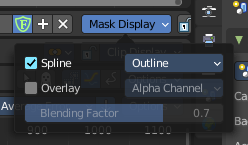
Mask Property
These are display options for mask overlays.
Mask Display
Spline
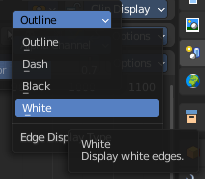
Display spline overlays.
| Entry | What it does |
|---|---|
| Edge Display | Changes the spline overlay to outline, dash, black or white edges. |
| Overlay | Displays an overlay overlays. |
Overlay Mode
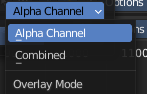
Show combined color channels or alpha channel. When using combined, the Blending Factor slider can be changed.
Pivot Point
Adjust the pivot point for transform operations. The names should be self explaining.
Proportional Editing
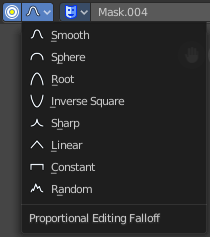
Enables proportional editing.
Proportional Editing is a way of transforming selected elements (such as vertices, or in this case the handlers for the mask spline curves) while having that transformation affect other nearby elements with a falloff. For example, moving a single vertex will move unselected vertices within a given range. And the falloff means that selected vertices that are closer to the selected vertex will move more than those farther from it.
Settings
Choose between different falloff methods for the proportional editing. The settings are hidden when you have proportional editing off.
Toggle Lock Selection
Toggle Lock Selection of the current clip editor
Clip Display
Display options for the tracking footage.
| Entry | What it does |
|---|---|
| R G B | Display the red green and blue channels of the footage |
| BW | Display the footage in black and white. |
| Mute Footage | Hide the footage. |
| Render Undistorted | Render Preview undistorted. |
| Show Metadata | Shows the metadata of the clip if available. |
| Show Stable | Show stable footage in editor. Stabilization needs to be enabled. |
| Grid | Displays a red grid over the footage that displays the lens distortion. |
| Aspect Ratio X Y | The aspect ratio to display the footage. |
Gizmos
Viewport Gizmos
Navigate
Show the navigate viewport gizmos.
Show Overlays
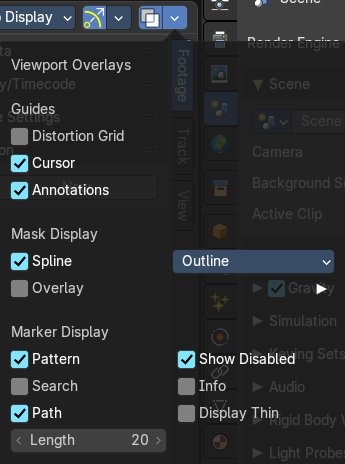
Viewport Overlays
Guides
| Entry | What it does |
|---|---|
| Distortion Grid | Show grid showing lens distortion. |
| Cursor | Display 2d cursor. |
| Annotations | Display annotations. |
Mask Display
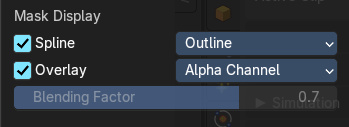
Spline
Edge Display type
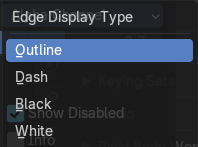
How to display the spline.
Overlay
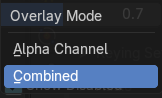
| Entry | What it does |
|---|---|
| Alpha Channel | Show the alpha channel of the mask |
| Combined | Combine space background image with the mask · Blending Factor: The blending factor between mask and space background. |