

































































Info Editor
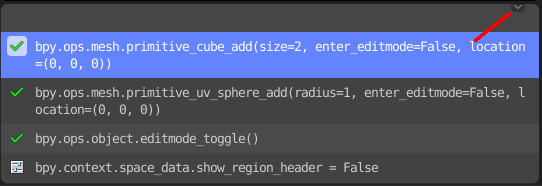
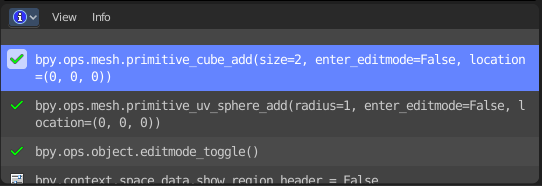
The Info Editor has just one purpose. It lists the performed operations in the current session. And displays them as Python commands. Here you can also find error messages.
Info Editor
The Info Editor has just one purpose. It lists the performed operations in the current session. And displays them as Python commands. Here you can also find error messages.
You can find the Info Editor in the scripting layout down left.
You can copy text from the Info Editor by marking some text, and then use the hotkey Ctrl + C to copy it.
Header
In the Scripting Layout the header of the Info Editor is collapsed. Pull it down to reveal it. The Editor Type menu is explained in chapter 6 Editors introduction.
View Menu
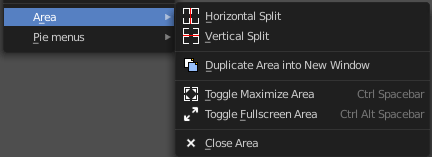
Area Menu
Area is a menu with window related settings.
Horizontal Split
Splits the editor horizontally into two editors.
Vertical Split
Splits the editor vertically into two editors.
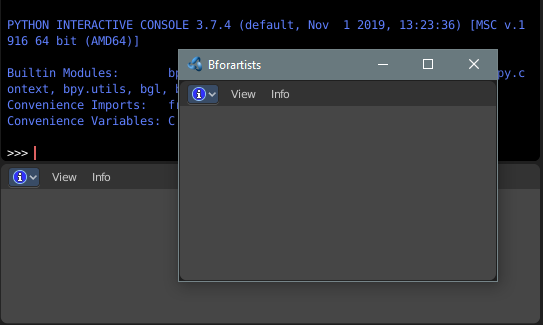
Duplicate Area into new Window
Creates a floating window out of the current editor.
Toggle Maximize Area
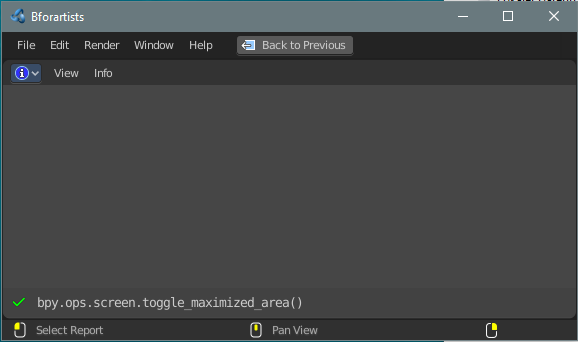
Displays the editor maximized with menus.
To return to split view press hotkey Ctrl Spacebar, click at the Back to Previous button, or reuse the menu item in the View menu.
Toggle Fullscreen Area
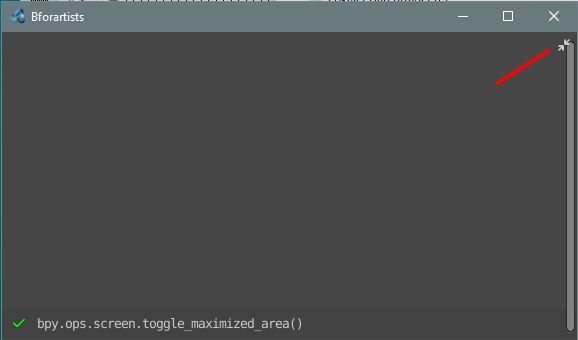
Displays the editor maximized without menus.
To return from the full screen view press hotkey Ctrl Alt Spacebar, or use the little button that appears up right when you move the mouse in this corner.
Close Area
Closes the area window.
Info Menu
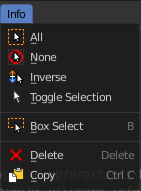
The Info menu provides some console editor window specific functionality.
| Entry | What it does |
|---|---|
| All | Select all. |
| None | Select nothing. |
| Inverse | Inverts the selection. |
| Toggle Selection | Toggles the selection. |
| Box Select | Box select text. |
| Delete | Deletes selected content. |
| Copy | Copies selected content. |
Hotkey only functionality
Important: These hotkeys works with the default Bforartists key map. And they do not list the Ndof hotkeys. Ndof is a 3d connexion mouse device that is also used for tablets.
Most of the tools can be found in the graphical UI. But there are still some tools that are hotkey only. Some have a UI brother with equal functionality. For example, Pick shortest path is the hotkey sister of Select shortest path. Some are hotkey only since they cannot be integrated in the graphical UI. Like calling the File menu under the mouse. Or mouse position dependent functionality like selecting an edge loop.
The navigation hotkeys and the context menus are excluded here since they are already covered.
Replay Operator - R
Replay Operator.