

































































Tool Shelf
This menu just appears when you are in Mask mode.
Tool Shelf in View Mode
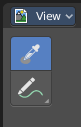
This menu just appears when you are in Mask mode.
In this menu you can create circle or square spline curves to use them for masking. They appear at the 2D cursor, and have four handlers.
They can be moved, rotated and resized with the usual W E R keys. See also mask menu, Transform. The handlers allows to change the shape and size too.
You can add multiple spline curves to a mask layer.
Sample
Samples the color under the mouse cursor. This sampled information is just an information. It has no real use, you don't pick up the color. There is no tool that could use it.
The sample result gets displayed in the footer.

Annotate Tools group
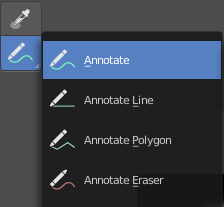
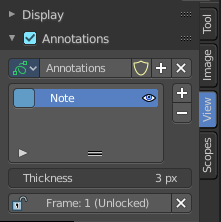
The annotation tool is available in multiple editors. With this tool you can write notes at the screen. The annotate tools is the little brother of the grease pencil objects.
Further settings for annotate can be found in the sidebar. Here you can also remove an annotation when you don't longer need it. And here you can also adjust the size of the stroke.
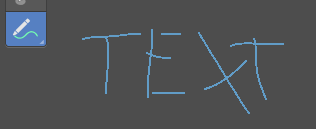
Annotate
Draw free-hand strokes in the main window.
Tool Settings
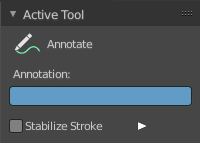
The tool settings for Annotate.
Color
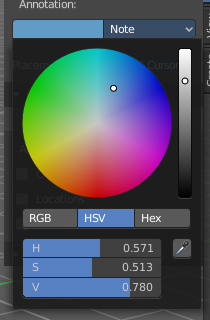
Clicking at the left color field reveals a color picker. Define the color for the annotation stroke.
Stabilize Stroke
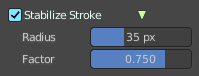
Helper to draw smooth and clean lines. Pressing shift inverts the effect.
| Entry | What it does |
|---|---|
| Radius | The radius for the stroke stabilization. |
| Factor | Stabilizer stroke factor. Higher values gives a smoother stroke. |
Annotate Line
Click and drag to create a line.
Tool Settings
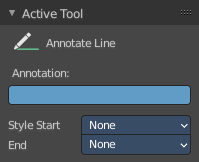
The tool settings for the Annotate tool.
Color
Clicking at the left color field reveals a color picker. Define the color for the annotation stroke.
Style Start
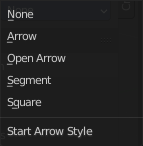
The stroke start style. With an arrow for example you place an arrow at the start of the stroke.
End
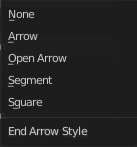
The stroke end style. With an arrow for example you place an arrow at the end of the stroke.
Annotate Polygon
Click multiple times to create multiple connected lines. The current polygon is finished when Esc or RMB is pressed.
Tool Settings
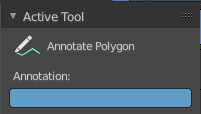
The tool settings for Annotate.
Color
Clicking at the left color field reveals a color picker where you can define the color for the annotation stroke.
Annotate Eraser
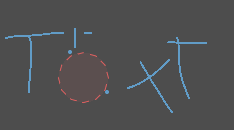
Click and drag to remove annotate lines.
Tool Settings
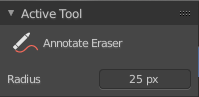
Radius
The radius of the eraser pencil.
Tool Shelf in Paint Mode
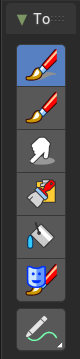
The settings for these tools are in the tools tab in the sidebar. This content is explained in the chapter Image Editor - Sidebar. Here we just explain what the tool does and how to use it.
| Entry | What it does |
|---|---|
| Brush | The draw brush allows you to draw at the canvas. The color can be adjusted in the brush panel in the sidebar. The Tools Tab provides you with further options and settings. |
| Blur | Softens the image under the brush. |
| Smear | Smears the image under the brush. |
Clone
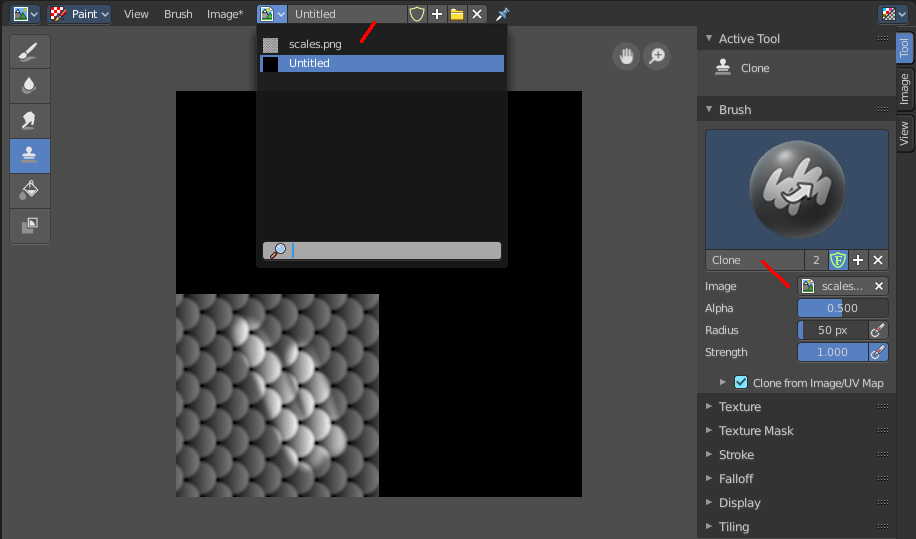
Despite the name it is not a clone tool. It is a stencil map paint tool. You load an image, and can then use it to paint parts of this stencil image onto the canvas.
You can move the stencil image around with the right mouse button.
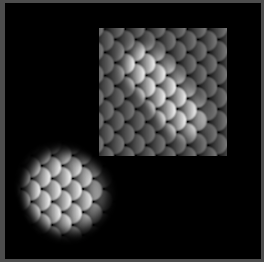
Last Operator Grab Clone
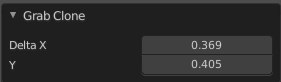
Delta X Y
The position of the stencil image. The position gets calculated from the lower left corner. It is not calculated in pixels, but relative to the source image. The width and height of it is the range between 0 and 1
| Entry | What it does |
|---|---|
| Fill | Fills areas with the same color with another color of your choice. The color can be set in the Brush panel in the sidebar. |
| Mask | This tool allows you to mask out image parts. |