

































































Scopes Tab
The Scopes tab contains several panels with analytic tools.
Scopes Tab
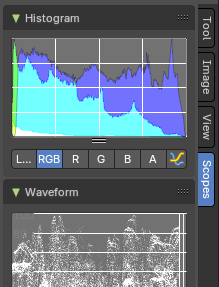
The Scopes tab contains several panels with analytic tools.
Histogram
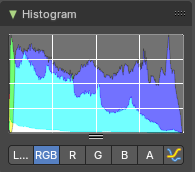
Histogram is a graph that displays the color distribution of the pixels in the image. The range from left to right goes from 0, which represents black, to 255, which represents white. And the height represents how much pixels in the image have this specific color.
The different display modes are:
| Entry | What it does |
|---|---|
| Luma | Shows the luminosity of an image. |
| RGB | Shows the RGB channels. |
| R/G/B/A | Shows the R, G, B, A channels. |
| Show line | Displays lines instead of filled shapes. |
Waveform
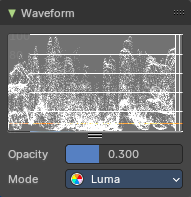
The waveform graph is another way to display the color information of the image.
Waveform Opacity
Adjust the opacity of the pixels in the waveform histogram.
Waveform Mode
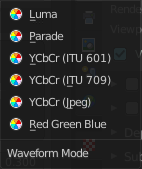
This is a drop down box menu where you can choose further options.
| Entry | What it does |
|---|---|
| Luma | Shows the luminosity of an image. |
| Parade | The RGB channels are shown side-by-side. |
| YCbCr (jpeg) | Displays the channels in the YCbCr standard, fitting to Jpg. |
| YCbCr (ITU 709) | Displays the channels in the YCbCr standard, fitting to ITU 709 standard. |
| YCbCr (ITU 601) | Displays the channels in the YCbCr standard, fitting to ITU 601 standard. |
| Red Green Blue | Shows the RGB channels overlaid as a “Full color” waveform. |
Vectorscope
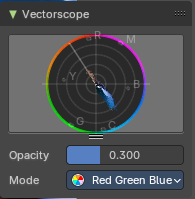
This is a graph to display the pixel color distribution in the image in a radial way. The radial arrangement allows to display data that is behind the maximum 255 of the normal histogram. This can happen with 32 bit float images for example.
Vectorscope Opacity
Adjust the opacity of the pixels in the waveform histogram.
Vectorscope Mode
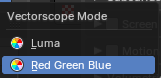
How to display the vectoscope.
Sample Line
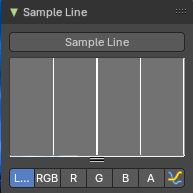
The Sample Line scope is a graph that allows you to get the sample data from a line.
Click at the Sample Line button above the histogram to draw a line. The pixels under this line will then be used to read the sample data from.
The different display modes are:
| Entry | What it does |
|---|---|
| Luma | Shows the luminosity of an image. |
| RGB | Shows the RGB channels. |
| R/G/B/A | Shows the R, G, B, A channels. |
| Show line | Displays lines instead of filled shapes. |
Samples
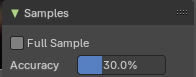
The general sample settings for the above histograms. More accurate or more fast.
| Entry | What it does |
|---|---|
| Full Sample | Sample every pixel of the image. |
| Accuracy | Proportion of original image source pixel lines to sample. |