

































































Mask menu
This menu appears when you are in Mask mode. It contains further functionality to modify the masking spline curves.
Image Editor - Mask menu
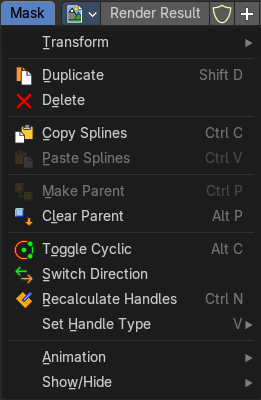
This menu appears when you are in Mask mode. It contains further functionality to modify the masking spline curves.
Transform submenu
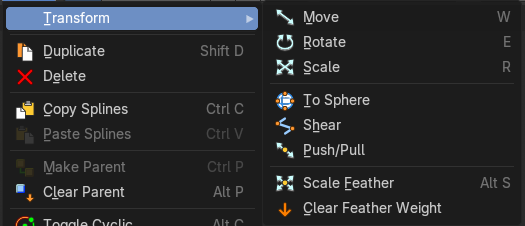
This is a sub menu with some transform menu items. This menu items are hotkey tools!
Translate
Move the selection.
Last Operator Move
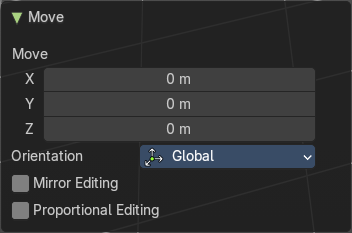
Move X, Y Z
The position. Attention, the actual world orientation and rotation does not matter here. It always starts with a value of zero, and moves relative to this zero then. For the actual location values have a look in the sidebar in the transform panel.
Orientation
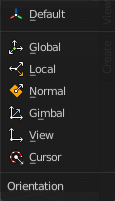
The widget can have different orientations. The menu items should be self explaining.
Mirror Editing
Enables mirror editing.
Proportional editing
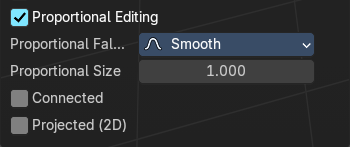
Enables proportional editing. Activating proportional editing reveals further settings.
| Entry | What it does |
|---|---|
| Proportional Falloff | Adjust the falloff methods. |
| Proportional Size | See and adjust the falloff radius. |
| Connected | The proportional falloff gets calculated for connected parts only. |
| Projected(2D) | The proportional falloff gets calculated in the screen space. Depth doesn't play a role. When it's in the radius, then it gets calculated. |
Rotate
Rotate the selection.
Last Operator Rotate
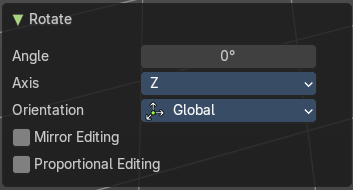
| Entry | What it does |
|---|---|
| Angle | The rotation. Attention, the actual world orientation and rotation does not matter here. It always starts with a value of zero, and rotates relative to this zero then. For the actual rotation values have a look in the sidebar in the transform panel. |
| Axis | Which axis to rotate. |
Orientation
The widget can have different orientations. The menu items should be self explaining.
Mirror Editing
Enables mirror editing.
Proportional editing
Enables proportional editing. Activating proportional editing reveals further settings.
| Entry | What it does |
|---|---|
| Proportional Falloff | Adjust the falloff methods. |
| Proportional Size | See and adjust the falloff radius. |
| Connected | The proportional falloff gets calculated for connected parts only. |
| Projected(2D) | The proportional falloff gets calculated in the screen space. Depth doesn't play a role. When it's in the radius, then it gets calculated. |
Scale
Scale the selection.
Last Operator Resize
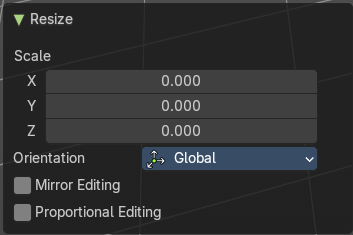
| Entry | What it does |
|---|---|
| Angle | The rotation. Attention, the actual world orientation and rotation does not matter here. It always starts with a value of zero, and rotates relative to this zero then. For the actual rotation values have a look in the sidebar in the transform panel. |
| Axis | Which axis to rotate. |
Orientation
The widget can have different orientations. The menu items should be self explaining.
Mirror Editing
Enables mirror editing.
Proportional editing
Enables proportional editing. Activating proportional editing reveals further settings.
| Entry | What it does |
|---|---|
| Proportional Falloff | Adjust the falloff methods. |
| Proportional Size | See and adjust the falloff radius. |
| Connected | The proportional falloff gets calculated for connected parts only. |
| Projected(2D) | The proportional falloff gets calculated in the screen space. Depth doesn't play a role. When it's in the radius, then it gets calculated. |
To Sphere
Shapes a selection of objects into the shape of a sphere. The calculation happens with the object origins.
In Object mode this tools requires to have more than one object selected.
Usage
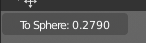
Select the vertices, activate the tool, then drag the mouse in the 3D viewport. In the header you will read the current factor then. Which tells you how close you are towards the sphere shape.
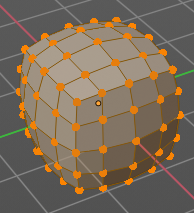
Last Operator To Sphere
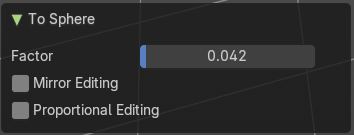
| Entry | What it does |
|---|---|
| Factor | The factor to transform the selection into a shape form. |
| Mirror Editing | Enable mirror editing. |
Proportional editing
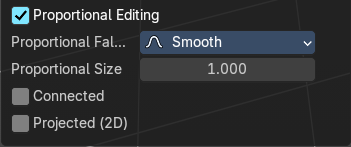
Enables proportional editing. Activating proportional editing reveals further settings
| Entry | What it does |
|---|---|
| Proportional Falloff | Adjust the falloff methods. |
| Proportional Size | See and adjust the falloff radius. |
| Connected | The proportional falloff gets calculated for connected parts only. |
Projected(2D)
The proportional falloff gets calculated in the screen space. Depth doesn't play a role. When it's in the radius, then it gets calculated.
´
Shear
Shear shears the selection.
In Object mode this tools requires to have more than one object selected.
The shear tool works along a imaginary 2d plane. The shear axis controls if the items are sheared along the x or the y axes of this plane. This is the plane along which the transformation happens. You can shear along the x or the y axis of this plane.
To make things even more complicated, the orientation of this imaginary plane is defined by the Axis and Axis Ortho items below.
Last Operator Shear
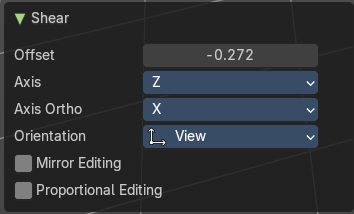
Offset
Adjust an offset.
Axis
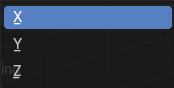
Defines one axis of the imaginary shear axis plane.
Axis Ortho
Defines the other axis of the imaginary shear axis plane.
Orientation
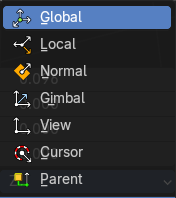
Choose the orientation for the shear action.
Mirror Editing
Enable mirror editing.
Proportional editing
Enables proportional editing. Activating proportional editing reveals further settings.
| Entry | What it does |
|---|---|
| Proportional Falloff | Adjust the falloff methods. |
| Proportional Size | See and adjust the falloff radius. |
| Connected | The proportional falloff gets calculated for connected parts only. |
| Projected(2D) | The proportional falloff gets calculated in the screen space. Depth doesn't play a role. When it's in the radius, then it gets calculated. |
Push/Pull
It pushes or pulls the object positions relative to the center of the selection.
In Object mode this tool requires to have more than one object selected.
Last Operator Push/Pull
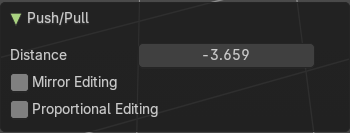
| Entry | What it does |
|---|---|
| Distance | Adjust the distance of influence of the tool. |
| Mirror Editing | Enable mirror editing. |
Proportional editing
Enables proportional editing. Activating proportional editing reveals further settings.
| Entry | What it does |
|---|---|
| Proportional Falloff | Adjust the falloff methods. |
| Proportional Size | See and adjust the falloff radius. |
| Connected | The proportional falloff gets calculated for connected parts only. |
| Projected(2D) | The proportional falloff gets calculated in the screen space. Depth doesn't play a role. When it's in the radius, then it gets calculated. |
Scale Feather
Scale feather weight for the selected points.
The curve type that is used to create mask splines is almost a Bezier curve. But it has some differences. Smooth edges of the mask are defined by feathering. The curve needed to support feathering in a way that stuck to the curve as you edited it, for ease of editing an animation. These are called S-Curves.
Besides the handles, every control point also has points that define the feather between the current point and the next point on the spline. Each feather point is stored in UV space, where U means position across spline segment, and V means distance between main spline and feather points.
Last Operator Transform
Values
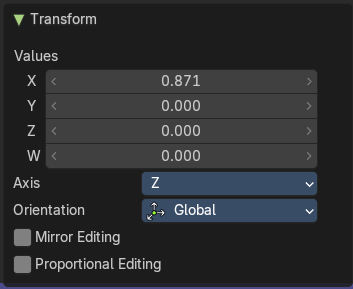
Adjust the scale amount.
X, Y and Z defines the position. W defines the rotation.
Axis
Around which axis to rotate. X, Y or Z.
Orientation
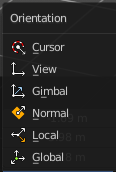
Orientation is a drop-down box to choose the type of orientation for the transform action.
Mirror Editing
Enable mirror editing.
Proportional editing
Enables proportional editing. Activating proportional editing reveals further settings.
| Entry | What it does |
|---|---|
| Proportional Falloff | Adjust the falloff methods. |
| Proportional Size | See and adjust the falloff radius. |
| Connected | The proportional falloff gets calculated for connected parts only. |
| Projected(2D) | The proportional falloff gets calculated in the screen space. Depth doesn't play a role. When it's in the radius, then it gets calculated. |
| Entry | What it does |
|---|---|
| Duplicate | Deletes the selected spline(s) or spline points. |
| Delete | Deletes the selected spline(s) or spline points. |
| Copy Splines | Copy the selected spline(s) or spline points. |
| Paste Splines | Pastes the copied spline(s) or spline points. |
| Make Parent | Parents the selected spline points. Mask splines can be parented to motion tracker markers. |
| Clear Parent | Clears the parent relationship. |
Toggle Cyclic
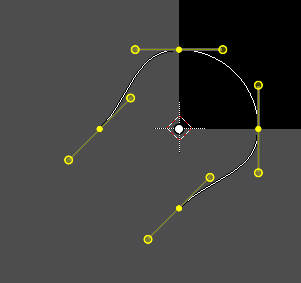
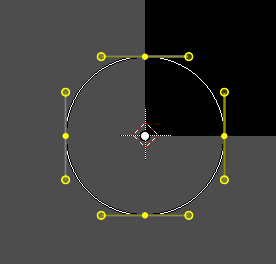
Closes or opens the spline.
Switch Direction
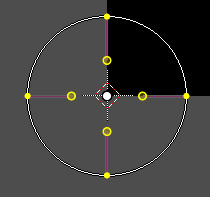
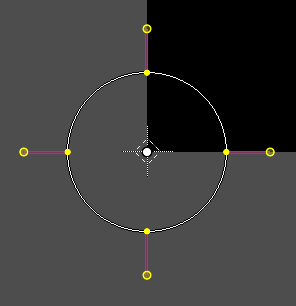
A curve has a start point and a end point. Here you can switch them. The end point becomes the starting point and vice versa. As a consequence the handler can switch their location too. With handle type aligned single they can appear outside or inside of the circle.
Recalculate Handles
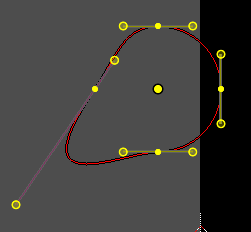
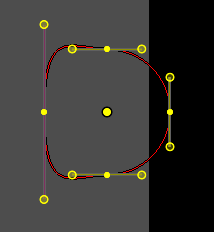
Recalculating the normals smoothens out the curve, and realigns the handlers. A square shape with handle type aligned would become round.
Set Handle Type submenu
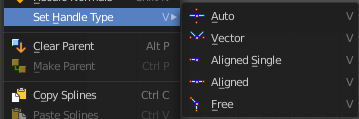
Opens a sub menu where you can choose different handle types.
Last Operator Set Handle Type
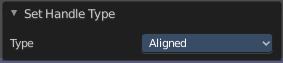
Type
Choose the handle type again.
Animation
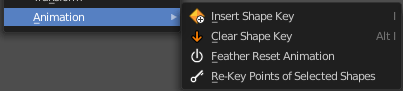
Masks can be animated.
| Entry | What it does |
|---|---|
| Insert Shape Key | Inserts a shape key for the currently selected curve points |
| Clear Shape Key | Removes the shape keys for the currently selected curve points at the current frame. |
| Feather Reset Animation | Resets the feather weight on all selected curve points at the current frame. |
| Re-Key Points of Selected Shapes | Recalculate animation data for the currently selected curve points for frames that are selected in the dope sheet. |
Show/Hide submenu
Show/Hide Faces

This is a sub menu where you can show or hide the selection.
| Entry | What it does |
|---|---|
| Show Hidden | Makes hidden splines visible again. |
| Hide Selected | Hides the selected spline(s). |
| Hide Unselected | Hides the not selected spline(s). The selected spline(s) stays visible. |