

































































Header Tools and Options
The header contains several tools, depends on what you do and what toolset is selected. The render result has some additional functionality.
Image Editor - Header Tools
The header contains several tools, depends on what you do and what toolset is selected. The render result has some additional functionality.





Image Prop

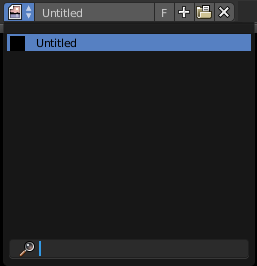
This property contains the list of loaded images. When no image is loaded then it displays the New and Open Buttons. When an image exists then it displays the name of the currently selected image.
From left to right ...

| Entry | What it does |
|---|---|
| List of images in the scene | This is a list of the images in the scene. This list allows you to switch to other images. |
| Image Edit Box | Read the name of the currently selected image. And you can rename the image here too. |
| Fake User | Wit this button you assign a fake user to this selected image. Data, like images, that is not longer linked to anything else gets removed when you save and reload a scene. Bforartists has the concept of fake users to go around this behavior. An image with a fake user is in fact linked to something. And so it is not lost when you save and reload the scene. |
Search form
Search for specific images.
New Image
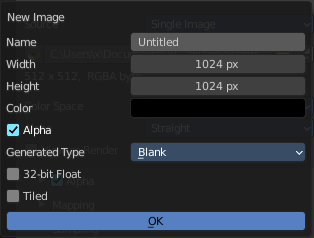
Create a new image.
Creates a new image. You will get a dialog where you can define settings for the new image.
| Entry | What it does |
|---|---|
| Name | The name of the new image |
| Width | The width of the new image. |
| Height | The height of the new image. |
Color
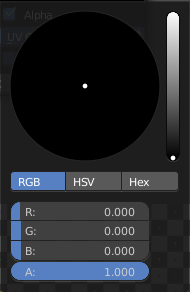
Adjust the color of the new image. A click will call a color picker.
Alpha
Check this checkbox if the new image should have an alpha channel.
Generated Type
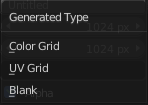
Here you can define what kind of texture you want to create.
Blank is one plain color.
UV Grid is a checker texture in black and white.
Color Grid is a colored checker texture.
32 Bit Float
Check this checkbox if the image should be in 32 Bit floating point bit depth per channel. Else it is in 8 bit per channel.
Duplicate
Not supported here.
Unlink Datablock
This deletes the selected image. Unfortunately not immediately. You need to save the scene and to reload it.
And you need to make sure that it is not linked to anything else. A mesh or a fake user for example. Have a look if there is a number besides the F button. When this is the case then the image has still a user, and so still loads with loading the scene.
| Entry | What it does |
|---|---|
| Fake User | Wit this button you assign a fake user to this selected image. Data, like images, that is not longer linked to anything else gets removed when you save and reload a scene. Bforartists has the concept of fake users to go around this behavior. An image with a fake user is in fact linked to something. And so it is not lost when you save and reload the scene. |
| Open Image | Opens the file browser to load an image. |
| Unpack | Unpack packed files to a directory. |
| User | The number of users that uses this data. Data with a user number of 0 will be removed with closing Bforartists. |
Use Image Pin

When you select another object. for UV mapping for example, then usually the connected images for this object gets displayed. Use image pin nails the currently selected image so that it stays displayed.
Mask Prop

When you are in Mask mode then you can create a new mask, and work with this mask then.
Masks have many purposes. They can be used to mask out, or influence a particular object in the footage in Motion tracking. They can be used for manual rotoscoping to pull a particular object out of the footage. They can be used as a rough matte for green-screen keying.
Masks are independent from a particular image of movie clip, and so they can also be used for creating motion graphics or other effects in the compositor.
Masks can be driven over the time so that they follow some object from the footage. For example a running actor. This can be achieved with shape keys or parenting the mask to tracking markers.
List of Masks

This is a list of the masks in the scene. Here you can switch to other masks.
Mask Edit Box
Read the name of the currently selected mask. And you can rename the image mask too.
Fake User
Wit this button you assign a fake user to this selected mask. Masks gets created with a fake user already. Means when you save the scene and reopen it, then this mask will still be there.
Data, like images, that is not longer linked to anything else gets removed when you save and reload a scene. Bforartists has the concept of fake users to go around this behavior. An image with a fake user is in fact linked to something. And so it is not lost when you save and reload the scene.
| Entry | What it does |
|---|---|
| Search form | Search for specific images. |
| Create Mask | Adds a new mask. |
Unlink Datablock
This deletes the selected mask. Unfortunately not immediately. You need to save the scene and to reload it.
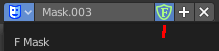
And you need to make sure that it is not linked to anything else. A mesh or a fake user for example. Have a look if there is a number besides the F button. When this is the case then the image has still a user, and so still loads with loading the scene.
Pivot
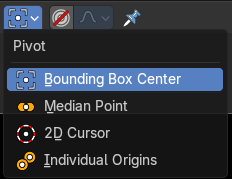
In Mask mode. Adjust what pivot point the mask uses for transformation.
Proportional Editing
In Mask mode. Enable proportional editing.
Proportional Editing Settings
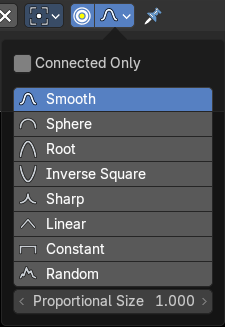
Proportional Editing is a way of transforming selected elements (such as vertices) while having that transformation affect other nearby elements with a falloff. For example, moving a single vertex will move unselected vertices within a given range. And the falloff means that selected vertices that are closer to the selected vertex will move more than those farther from it.
Proportional Size
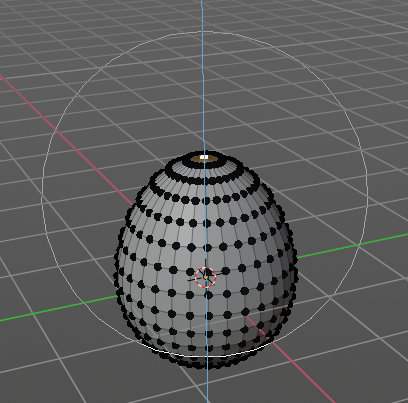
The influence of the proportional editing is defined by a radius. It is by default one standard unit.
You can change the influence radius for proportional editing with the mouse wheel or the Page up Page down arrows while keeping the mouse button pressed down and do the translation.

The exact radius value can be read in the header while transformation.
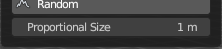
And it can also be read and edited at the Proportional Size slider in the Proportional Editing panel.
Show Gizmos
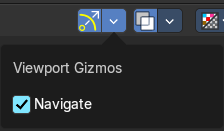
Display the viewport gizmos.
Navigate
Display the navigation gizmos in the Image Editor
Overlays
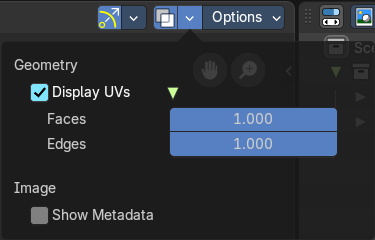
Display the overlays in the viewport.
Overlays settings
Geometry
Display UV’s
Display overlay of UV layer.
| Entry | What it does |
|---|---|
| Faces | The opacity of the faces of the UV layer. |
| Edges | The opacity of the edges of the UV layer. |
Image
Show Metadata
Display existing metadata in the viewport.
In Mask mode
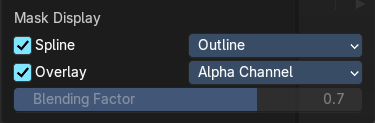
Spline
Edge Display type
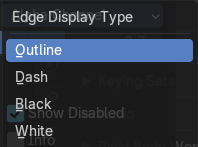
How to display the spline.
Overlay
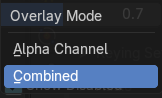
Alpha Channel
Show the alpha channel of the mask.
Display Channels
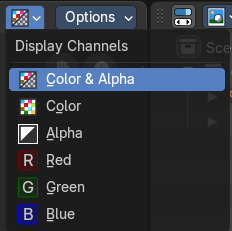
Adjust what channels of the image gets displayed.
| Entry | What it does |
|---|---|
| Color and Alpha | Displays the whole image, including alpha channel. |
| Color | Displays the whole image, but without alpha channel. |
| Alpha | Displays the alpha channel of the image. |
| Red | Displays the red channel of the image. |
| Green | Displays the green channel of the image. |
| Blue | Displays the blue channel of the image. |
Mask Display
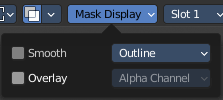
In Mask mode and with a Render result. Adjust the display of the mask.
Smooth
Smoothens the outline of the mask curve.
Overlay
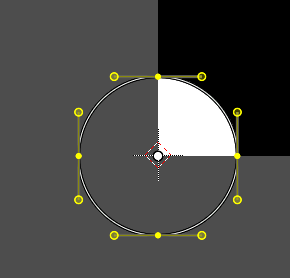
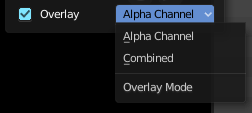
When it's a closed curve then this closed area gets displayed as filled where it covers the image. When you tick Overlay then the drop down box becomes active where you can choose the overlay method.
Edge Display Type
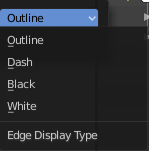
The mask curve can be displayed in different styles.
Slot
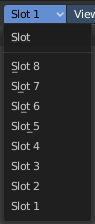
Just with a render result. Here you can render a new image into a new slot, which allows you to compare the two images then.
You need to render into this slot. So you need to choose it beforehand. Slots without a render result does not show the Render and Pass drop down boxes.

Layers
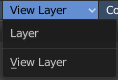
Here you can choose in which layer the render result is.
Renders can be separated into layers. This allows you to composite them back together afterwards.
For example blurring the background and foreground layers separately for depth of field, or rendering different lighting variations of the same scene.
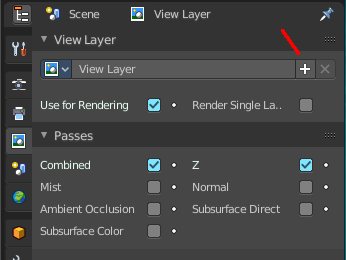
Using View Layers can also save you from having to re-render your entire image each time you change something, allowing you to instead re-render only the layer(s) that you need.
You can create more View Layers in the Properties editor. In the View Layer Tab.
Pass
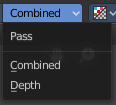
Here you can set the pass mode. Combined or Depth.
| Entry | What it does |
|---|---|
| Combined | The final combination of render passes with everything included. |
| Depth | Just the Depth render pass. |
Show Stereo

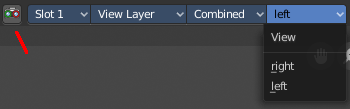
Just with stereoscopy enabled. Shows either the stereoscopic image. Or a single image from one of the cameras.
View
Show the image from one of the cameras in the list.
Options Panel
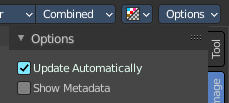
In View and Mask mode
| Entry | What it does |
|---|---|
| Update Automatically | Update other editor windows simultaneously with the changes in the Image Editor. |
| Show Metadata | Draw Metadata properties of the image. |
In Paint Mode
Update Automatically
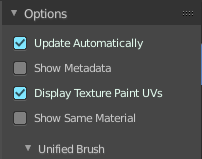
Update other editor windows simultaneously with the changes in the Image Editor.
Show Metadata
Draw Metadata properties of the image.
Display Texture Paint UV's
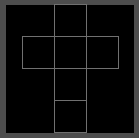
Display the UV wire from the active mesh. It needs to be in edit mode.
Show same material
This is for the case that you work at a texture for the current mesh. Just show faces of the mesh where the material with this texture is assigned to.