

































































Image Editor
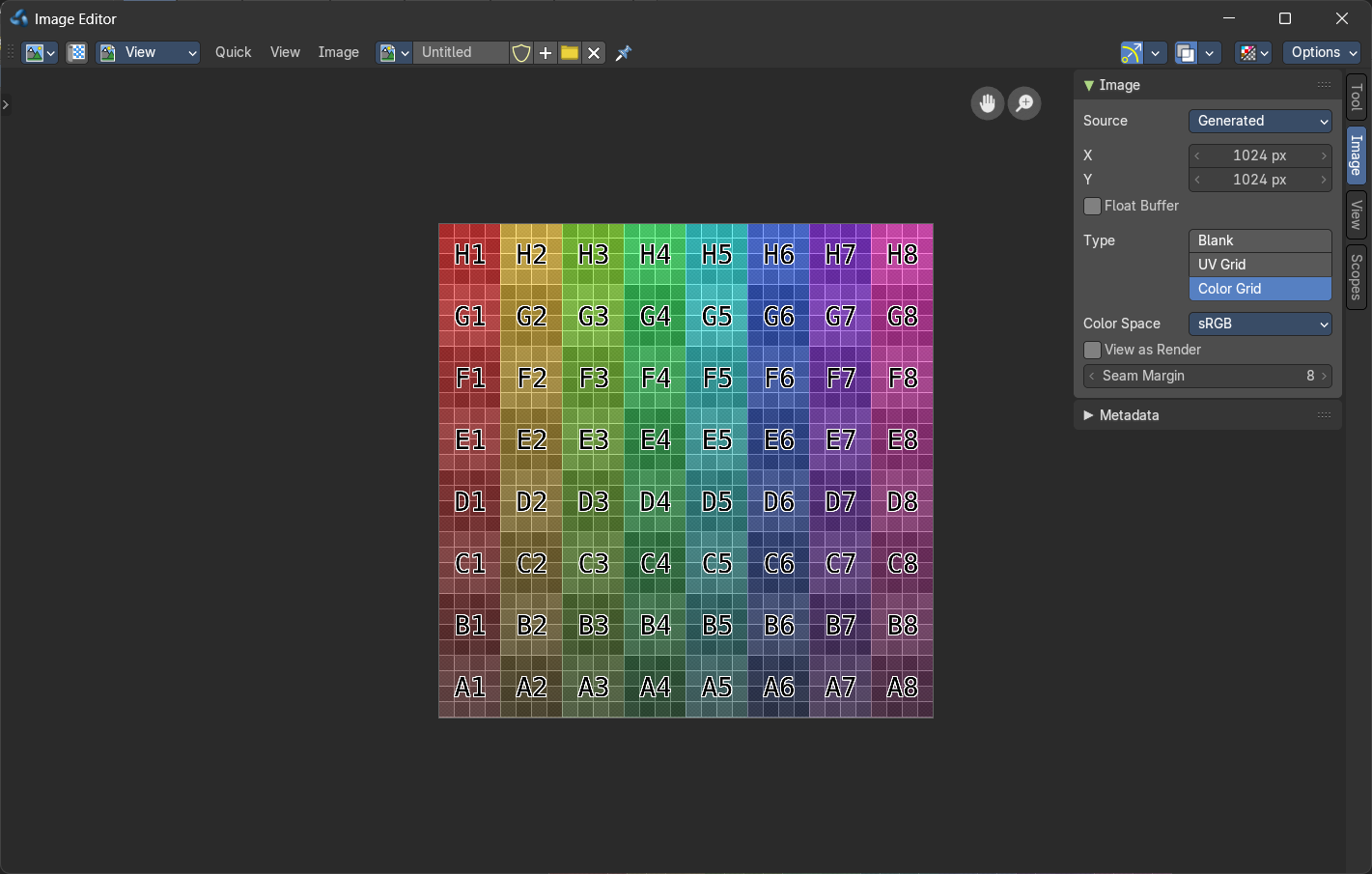
In the Image Editor you can show and edit 2D Assets like textures or images. Images created or edited in the Image editor can also be used in the UV Editor and in the different Node Editors.
Image Editor
In the Image Editor you can show and edit 2D Assets like textures or images. Images created or edited in the Image editor can also be used in the UV Editor and in the different Node Editors.
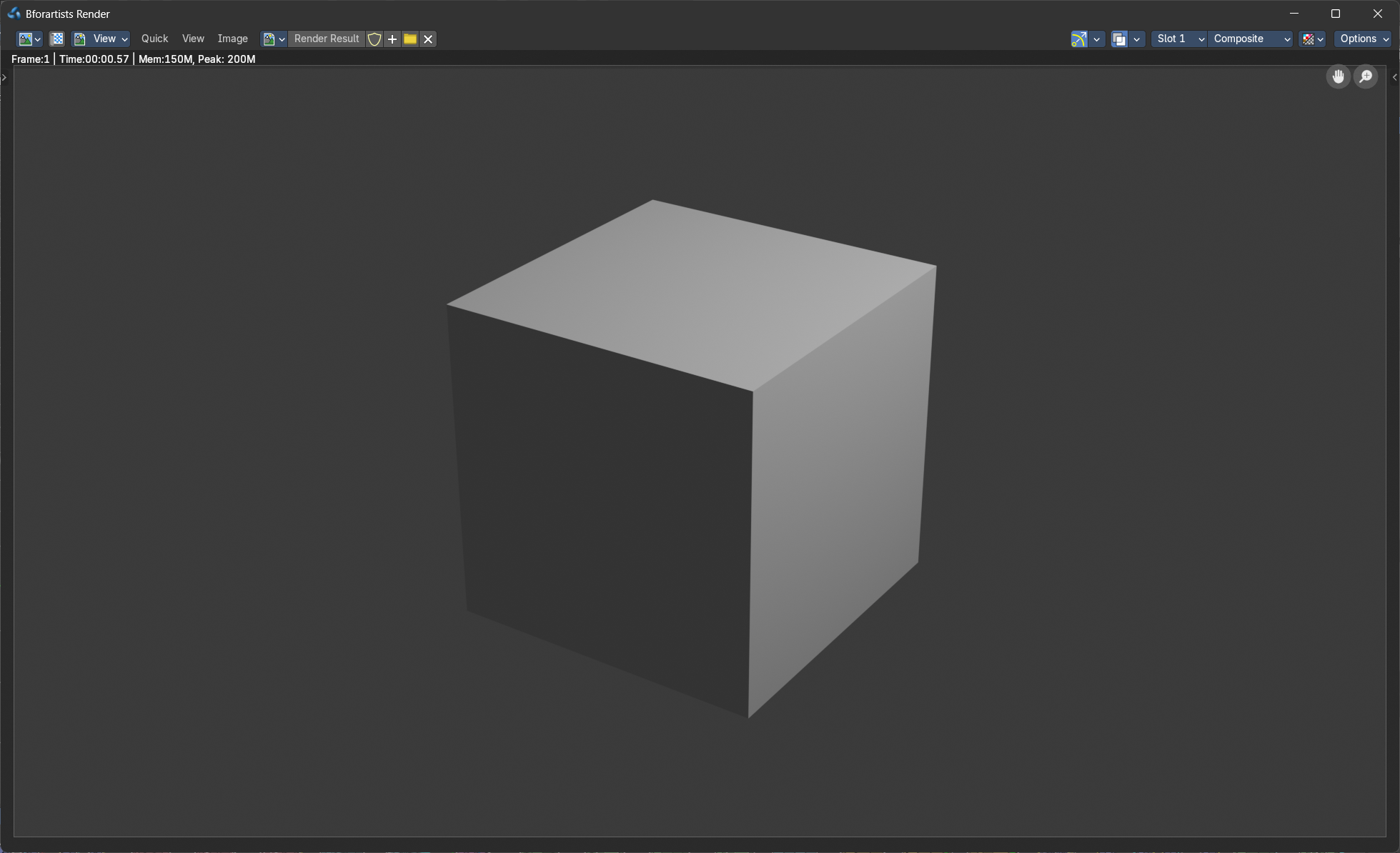
It is also the editor type in which the final renderings are displayed.
The Image editor is divided into several areas has several tool areas. Tool Settings Area, Viewport, Header, Tool Shelf and Sidebar.
The Tool Settings area contains the same functionality than the Tools tab in the Sidebar. So we won't cover it.
Navigating in the Image Editor viewport
The Viewport is the place where you view and edit your image content.
Hotkeys
Pan the view - MMB
Zoom - Mouse Wheel, LMB + Ctrl, Numpad + / -
View All - Home
View Fit - Numpad Period
Navigation Elements
There are also two navigation elements for panning and zoom in the upper right corner. Click at them, hold the mouse button down, and move.
2D Cursor
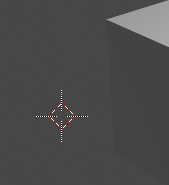
In Mask mode you will see a 2D cursor. It is the center point for tool operations. And can be set with Alt + Right Mouse click.
Viewport context menus
When you double right click into the viewport, then you will open a menu. Its content is to 100% double content to already existing menus. And it is despite the name not contextual.
There are two different menus. One in Paint mode. And one in Mask mode. The View mode has no right click menu.
Paint context menu
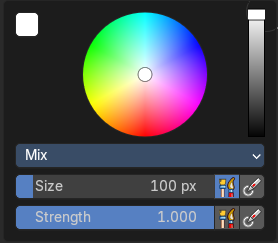
A right click in paint mode opens a color picker with some further settings.
| Entry | What it does |
|---|---|
| Blend Mode | Choose the blend mode for drawing. |
| Radius | The Brush radius. |
| Strength | The Brush strength. |
Mask context menu
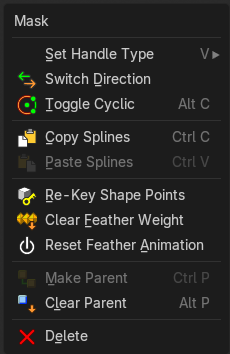
Set Handle Type
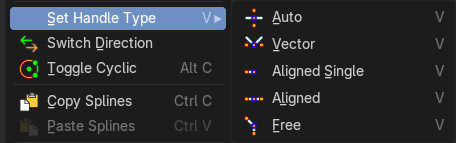
Opens a sub menu where you can choose different handle types.
Last Operator Set Handle Type
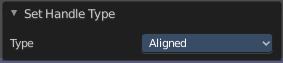
Type
Choose the handle type again.
Switch Direction
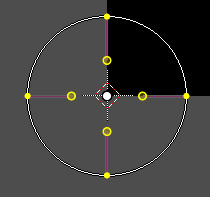
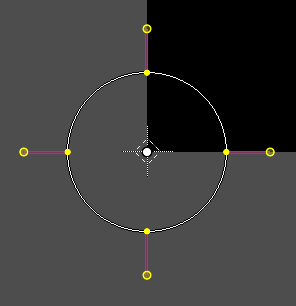
A curve has a start point and a end point. Here you can switch them. The end point becomes the starting point and vice versa. As a consequence the handler can switch their location too. With handle type aligned single they can appear outside or inside of the circle.
Toggle Cyclic
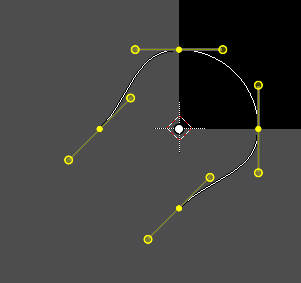
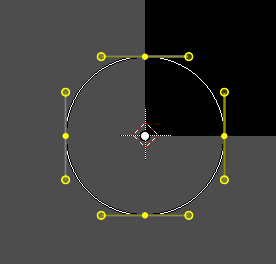
Closes or opens the spline.
| Entry | What it does |
|---|---|
| Re-Key Shape Points | Recalculate animation data for the currently selected curve points for frames that are selected in the dope sheet. |
| Clear Feather Weight | Resets the scale to its original dimensions. |
| Reset Feather Animation | Resets the feather weight on all selected curve points at the current frame. |
| Make Parent | Parents the selected spline points. Mask splines can be parented to motion tracker markers. |
| Clear Parent | Clears the parent relationship. |
| Delete | Deletes the selected spline(s) or spline points. |
Quick Favorites menu

When you right click at a menu or a button, then a right click menu will open. Tools have usually a Add to Quick Favorites menu entry.
The Quick Menu is empty by default. With Add to Quick favorites you can add this menu to the Quick menu.

In the 3D view we have a menu called Quick in the header, which shows this content then. In the Image Editor you can just call it with its hotkey. Q. It has no regular menu entry here.
Slider snapping

Snapping also works at sliders. Hover with the mouse over the slider, start to slide, and holding down Ctrl will snap the sliders in incremental steps.
When it's a default value between 0 and 1 then it usually snaps in 0.1 steps. When it's a default value over 1 then it usually snaps in steps of 10.
Hotkey only functionality
Important: These hotkeys works with the default Bforartists key map And they do not list the Ndof hotkeys. Ndof is a 3d connexion mouse device that is also used for tablets.
Most of the tools can be found in the graphical UI. But there are still some tools that are hotkey only. Some have a UI brother with equal functionality. For example, Pick shortest path is the hotkey sister of Select shortest path. Some are hotkey only since they cannot be integrated in the graphical UI. Like calling the File menu under the mouse. Or mouse position dependent functionality like selecting an edge loop.
The navigation hotkeys and the context menus are excluded here since they are already covered.
Radial Control
In Paint modes you can set the strength or radius of the brush not only by the sliders. But also by hotkeys.
Sets the brush radius - X
Sets the brush strength - C
Sets the brush direction - V