

































































Graph Editor
The Graph Editor allows you to adjust animation curves for your animations. So called Function curves. In short F-Curves
Graph Editor
The Graph Editor allows you to adjust animation curves for your animations. So called Function curves. In short F-Curves
The Graph editor has several areas.
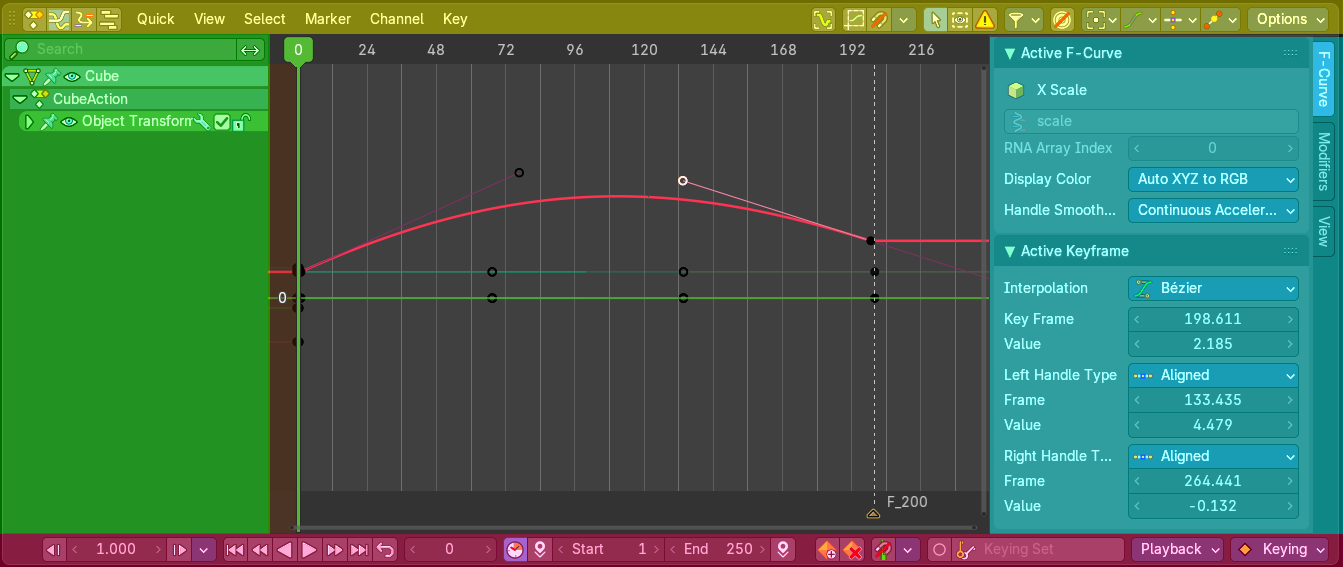
- Header (yellow)
- Channel list (green)
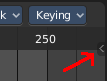
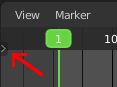
- Sidebar (blue): The sidebar can be revealed by clicking at the little buttons or in the view menu.
- Viewport (no color)
- Footer (pink): The header is divided into two parts. Left tools and menus. Right Options. And in the middle the playback elements for the animation.
- Menus (green)
- Options (yellow)

Time cursor
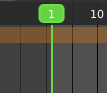
The Time Cursor is the green line. It is used to set and display the current time frame.
F-Curves
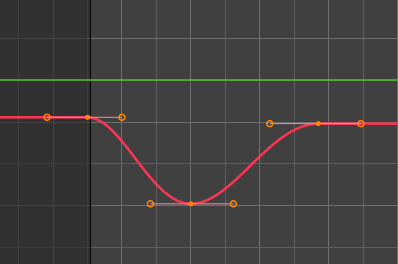
The timeline displays the function curves for the animation. This curve can also be manipulated in various ways.
| Entry | What it does |
|---|---|
| Keyframes | In the Graph editor every keyframe is represented by a dot and the handlers for it. |
| Handles | Every keyframe has handles assigned. The curve can be manipulated by dragging these handlers. You can also change the handle type in the Keyframe Handle Type menu in the header. To make the curve sharp at this keyframe for example. |
Markers
Markers are visible hints to denote frames with key points or significant events within an animation. A marker could mark a character’s animation starts, the position change of a camera, or a door that opens.
Markers can be added, deleted and renamed from the Marker menu. Once created they reside at the bottom of the viewport.
To select a marker click at it.
To move a marker click and drag.
The active marker is highlighted, and shows a dotted line upwards.
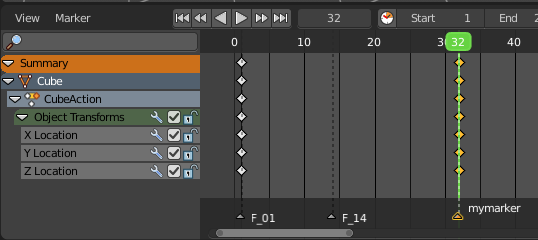
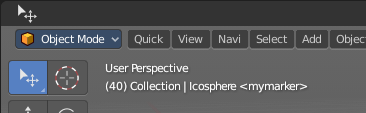
When a frame matches the marker position then the info string in the 3D view shows the name of this marker too.
Viewport Navigation
Navigation in the viewport happens by mouse or hotkeys. Some of them does not have a menu entry. And needs to be explained here.
Viewport navigation
Right mouse button moves the frame marker.
Clicking left at the number bar moves the frame marker.
Middle mouse button pans the view.
Holding Ctrl + MMB zooms the view.
Scroll Wheel zooms the view.
To drag a keyframe click at it and drag the mouse.
To manipulate a keyframe, grab one of its handlers and drag.
Channel Context Menu
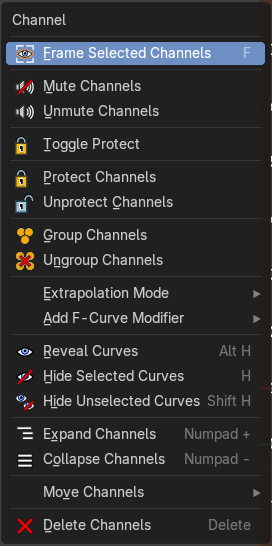
When you right click into the channel area, then you will call the Channel context menu.
| Entry | What it does |
|---|---|
| Frame selected channels | Centers the selected channels in view. |
| Mute Channel | This channel is not calculated. |
| Unmute Channel | This channel is calculated. |
| Protect Channels | Protect channels from editing. |
| Unprotect Channels | Enables editing of channels again. |
| Group Channels | Groups channels together. |
| Ungroup Channels | Ungroup grouped channels. Beware, the channels will not return to their initial group. |
| Toggle Channel Editability | Protects or unprotects the selected channels. |
Extrapolation Mode submenu
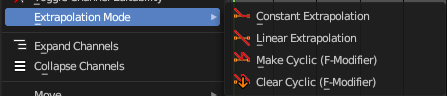
Sets the extrapolation mode for the selected F-Curves. Means how the curve acts at the beginning and the end of the F-Curve.
| Entry | What it does |
|---|---|
| Constant Extrapolation | The animation curve continues straight at the end. |
| Linear Extrapolation | The animation curve continues the last direction. |
| Make Cyclic | Makes the animation loopable. The interpolation curves are adjusted so that the first frame fits to the last frame. |
| Clear Cyclic | Removes the cyclic extrapolation. |
Add F-Curve Modifier submenu
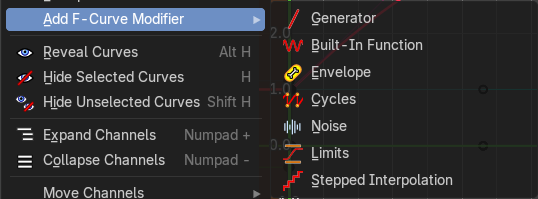
This group of operators addes modifiers to the the selected curve channel. This is useful for procedural animation. To access the modifier stack, open the Property Shelf and switch to the Modifier tab.
| Entry | What it does |
|---|---|
| Generator | Generator creates a polynomial function. These are basic mathematical formulas that represent lines, parabolas, and other more complex curves, depending on the values used. |
| Built-In Function | These are additional formulas, each with the same options to control their shape. |
| Envelope | Allows you to adjust the overall shape of a curve with control points. |
| Cycles | Cycles allows you add cyclic motion to a curve that has two or more control points. The options can be set for before and after the curve. |
| Noise | Modifies the curve with a noise formula. This is useful for creating subtle or extreme randomness to animated movements, like camera shake. |
| Limits | Limit curve values to specified X and Y ranges. |
| Stepped Interpolation | Gives the curve a stepped appearance by rounding values down within a certain range of frames. |
Reveal Curves
Reveals all hidden curves.
Last Operator Reveal Curves
Select
Select all revealed curves.
Hide selected Curves
Hides the selected curves.
Hide unselected curves
Hides the unselected curves.
Last Operator Hide Curves
Unselected
Hide the unselected or selected curves.
| Entry | What it does |
|---|---|
| Expand Channels | Expands the channels. |
| Collapse Channels | Collapses the channels. |
Move submenu
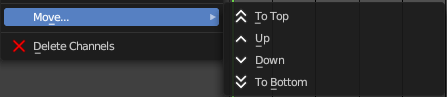
Sort the order of the channels. The menu items should be self explaining.
Delete Channels
Removes the selected channels.
F-Curve Context Menu
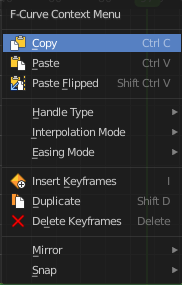
When you right click into the viewport then you will call the F-Curve context menu.
| Entry | What it does |
|---|---|
| Copy | Copies the currently selected keyframe(s). |
| Paste | Pastes copied keyframe(s) |
Paste Flipped
Pastes copied keyframe(s), but flipped.
Last operator Paste Keyframes / Flipped
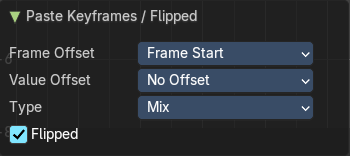
Frame Offset
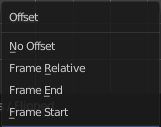
Define a time offset to paste the keys.
Value Offset
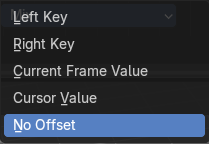
Define a value offset to paste the keys.
Type
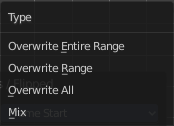
The paste method.
Flipped
Paste copied curve point(s) flipped.
Handle Type submenu
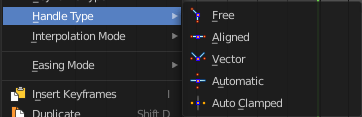
Set the handle type for the currently selected keyframes.
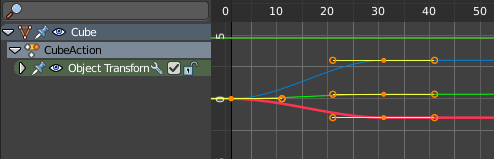
This is a feature for the Graph editor, where each curve point has its own handler with which you can influence the curve behavior. But the handler type also influences how the animation curve acts at the chosen keyframes. So it has its use in the dope sheet editor too.
Last Operator Set Keyframe Handle Type
Type
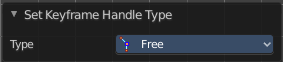
Set the handle type for the currently selected curve point.
Interpolation Mode submenu
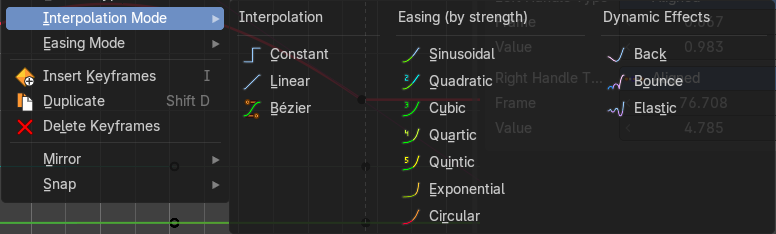
The Interpolation mode defines how the curve acts from keyframe to keyframe. You can have a linear curve between two keyframes instead of a bent one for example.
The easing methods here in the interpolation mode menu are for the easing shape. There is also an easing menu where you can choose a easing method.
Last Operator Set Keyframe Interpolation
Type
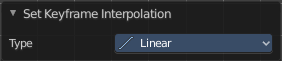
Set the interpolation mode.
Easing Mode submenu
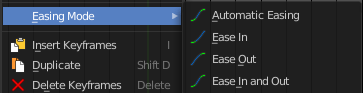
The easing methods in the interpolation mode menu are for the easing shape. This menu allows you to choose an easing method.
Last Operator Set Keyframe Easing Type
Type
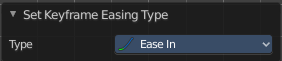
Set the easing type.
Insert Keyframes
Insert a keyframe at the current position.
Duplicate
Duplicate the selected keyframe(s).
Last Operator Duplicate
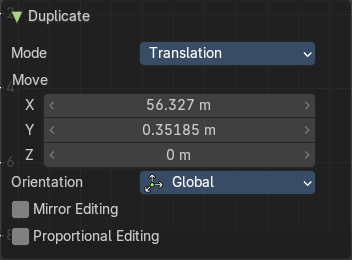
| Entry | What it does |
|---|---|
| Mode | — |
| Values X / Y | The x and y values for the pasted keyframes. Note that these values starts at the position of the original copied keyframe. These values are relative. Values Z and W have no effect here. |
| Axis | These values have no effect. |
Orientation
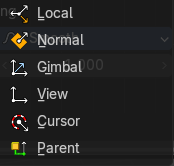
These values have no effect.
Mirror Editing
Enables mirror editing.
Proportional editing
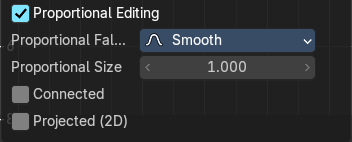
Enables proportional editing. Activating proportional editing reveals further settings.
| Entry | What it does |
|---|---|
| Proportional Falloff | Adjust the falloff methods. |
| Proportional Size | See and adjust the falloff radius. |
| Connected | The proportional falloff gets calculated for connected parts only. |
| Projected(2D) | The proportional falloff gets calculated in the screen space. Depth doesn't play a role. When it's in the radius, then it gets calculated. |
Delete Keyframes
Delete the selected keyframe(s).
Mirror
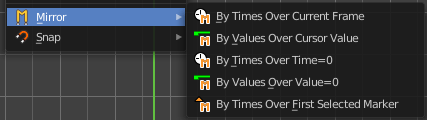
Mirrors the animation by the given method.
Last Operator Mirror Keys
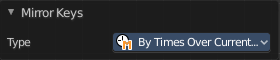
Type
Flips the selected keyframes over the current frame position by the chosen method.
Snap
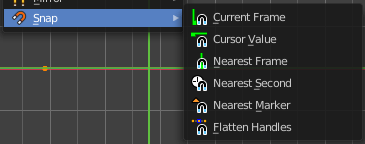
Snaps the selected keyframes by the given method.
Last Operator Snap Keys
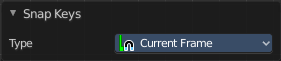
Type
Snaps the selected keyframes by the chosen method.
Animated Properties Context Menu
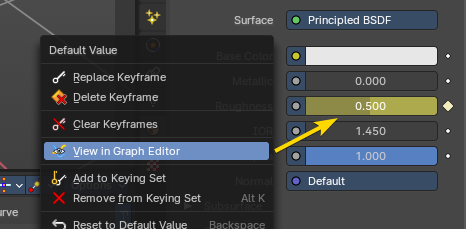
When you right click on any animated property in the interface, you can quickly view all animated fcurves in the Graph Editor.
If there is not Graph Editor open, then it will warn you that there is no Graph Editor found.
View in Graph Editor
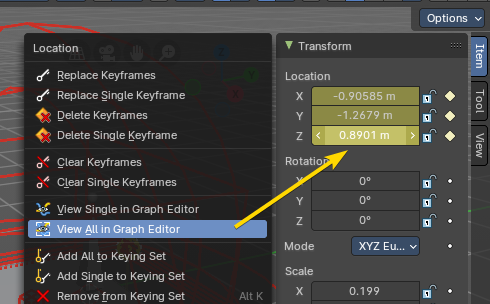
Frame the individual property under the cursor in an open Graph Editor
| Entry | What it does |
|---|---|
| View Single in Graph Editor | Frame one property of a set of properties under the cursor in an open Graph Editor |
| View All in Graph Editor | Frame a set of properties under the cursor in an open Graph Editor. |
Slider snapping

Snapping also works at sliders. Hover with the mouse over the slider, start to slide, and holding down Ctrl will snap the sliders in incremental steps.
When it's a default value between 0 and 1 then it usually snaps in 0.1 steps. When it's a default value over 1 then it usually snaps in steps of 10.
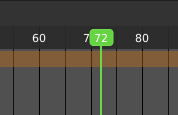
The increment snapping also works at the frame slider. Here the incremental snapping happens by the frame rate that you have defined. With a frame rate of 24 it will snap in steps of 24 frames when holding down ctrl.
Quick Favorites menu

When you right click at a menu or a button, then a right click menu will open. Tools have usually a Add to Quick Favorites menu entry.

The Quick Menu is empty by default. With Add to Quick favorites you can add this menu to the Quick menu.
In the 3D view we have a menu called Quick in the header, which shows this content then. In the Dope Sheet Editor you can just call it with its hotkey. Q. It has no regular menu entry here.