

































































Tools and Options
This chapter here is about the tools, modes and options elements in the header of the geometry nodes editor.
Introduction
This chapter here is about the tools, modes and options elements in the header of the geometry nodes editor.
The text menus are covered in an individual chapter each. They vary too much, dependent of mode and object type.
Header Tabs

The tabs at the very left allows you to switch between the most important node editor types by one click. Compositor Editor, Geometry Nodes Editor and Shader Editor.
Geometry Nodes Type
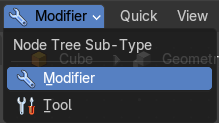
This drop down is to change the Geometry Nodes Type, which are contextual modes that you can choose to create a node-group-defined tool that will later show in the interface as act once operators or as procedural modifiers.
Any geometry node group can then be stored as assets, linked and/or appended to other files.
Example: You can create a node tree in the Tools mode of the Geometry Nodes editor that randomly extrudes then deletes faces, then use that as an Act Once operator on your meshes to model destructively in a linear workflow.
| Entry | What it does |
|---|---|
| Modifier | The context mode to create procedural modifier stack tool. |
| Tool | The context mode to create act once operator tools. In this mode some exclusive nodes are displayed in the Add header menu and Add sidebar. |
Use
Creating a Tool
Switch the Geometry Nodes Type to Tool, then create a new Node Group Tool. Create your operation using Geometry Nodes.
When ready, define the Mode and Data-Type, Asset status, and Catalog assigned to this Node Group Tool, then the Node Group will now become an act-once operator accessible from in the interface.
Note: New node groups created in the tool context will be enabled as Tool in the sidebar by default, though to share them in other files you may need to link, append or mark as asset with the Asset Browser for later use.
Defining as an Asset
To share a node group as a tool in other *.blend files, you need to store the node group as an asset for the Asset Browser. The asset catalog you assign the asset to will be used to determine where the tool will go in the designated menus.
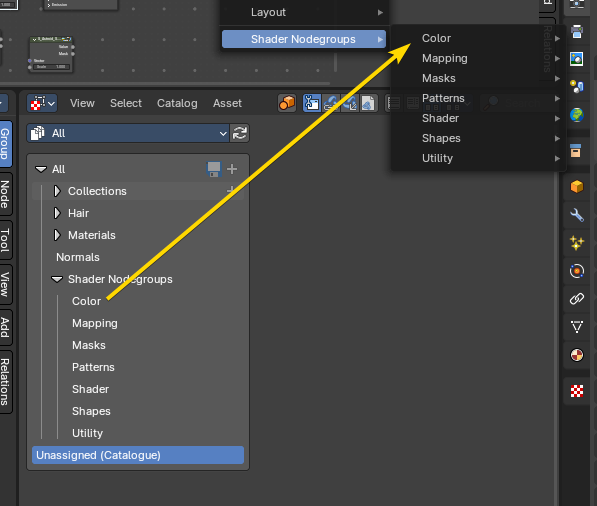
To define where the Node Group Tool is located in the interface, you need to assign the asset to a catalogue in the Asset Browser Editor. If the catalog name matches an existing menu in the interface, the tool will be appended to that specific menu. Assets that have no catalog assigned to them, or local tools, are exposed in the “Unassigned (Catalogue)” menu.
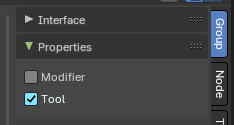
Note: To define if a node group is exposed in the Modifier add menu or into the Tool add menus, go to the sidebar to define it.
Modifier
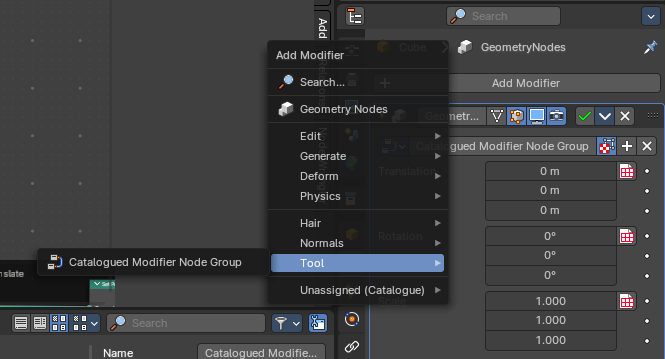
When assigning as a Modifier, the nodegroup asset will show up in the Add menu of the Modifier Stack in the Properties Editor under the assigned asset catalogue name.
Example: In the image to the right, the marked nodegroup has the catalogue “Tool” assigned. You can also see the “Essentials” node groups also designated as modifier nodegroups.
Tool
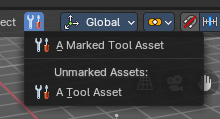
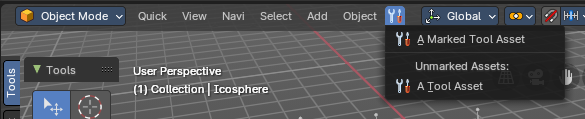
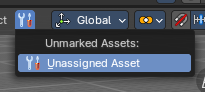
When assigning as a Tool, the geometry nodes tool nodegroup will show up in the 3D View Editor in the header under the assigned Asset catalogue name – otherwise it will be assigned to the Unassigned (Catalogue) header menu.
Note: You can have both a geometry nodes tool and modifier stack nodegroup simultaneously.
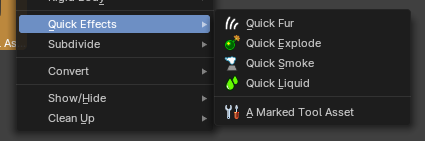
Example: In the image to the right, the marked nodegroup has the catalogue “Object” and a sub catalogue “Quick Effects” assigned. It now is located in the existing in the header.
Unassigned (Catalogue)
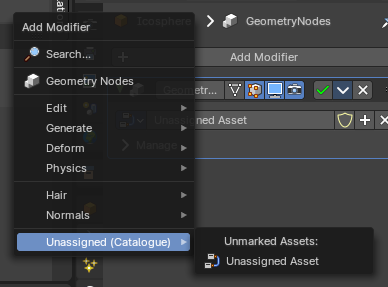
When a nodegroupd stored as a Modifier or Tool without a catalogue, it will be exposed in the submenu called “Unassigned (Catalogue)”. Both marked and unmarked nodegroups will display here if there is not catalogue assigned from the Asset Browser.
Defining Modes and Data-Types
Node group tools must specify which modes and object types they support to determine where the tool is exposed in the user interface.
Types
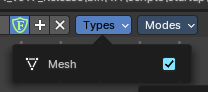
The type of object where the tool is contextually accessible.
Modes
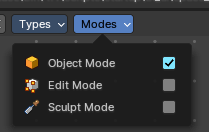
The mode where the tool is contextually accessible.
Tool-specific Nodes
The following nodes are only supported in the Tool context:
- Add>Input>Scene>3D Cursor Node
<!-- -->
- Add>Mesh>Read>Face Set Node
- Add>Geometry>Read>Selection Node
- Add>Mesh>Read>Set Face Set Node
- Add>Geometry>Write>Set Selection Node
Note: The Self Object node returns the Active object when inside a Tool node group.
Geometry Nodes Prop

Manage the nodes. If there is no geometry node tree for the current object, then you will see the New button

Data Browser
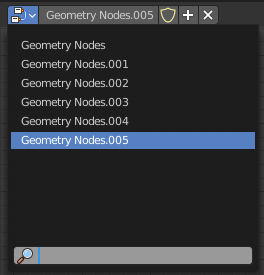
The list of available geometry node trees in the scene.
Edit box
The name of the current active geometry node tree. Here you can also rename the node tree.
Add Fake User
Wit this button you assign a fake user to this selected geometry node tree.
Data, like node trees, that is not longer linked to anything else gets removed when you save and reload a scene. Bforartists has the concept of fake users to go around this behavior. An image with a fake user is in fact linked to something. And so it is not lost when you save and reload the scene.
| Entry | What it does |
|---|---|
| Fake User | The number of users that uses this data. Data with a user number of 0 will be removed with closing Bforartists. |
| Duplicate | Duplicates the current node group. |
| Remove | Removes the geometry node tree. To delete it completely you need to purge it. See Fake user. |
Options

At the right side you will see some options.
| Entry | What it does |
|---|---|
| Pin (pin icon) | The pin button will keep the current node tree selection fixed. When a node tree is pinned, it will remain visible in the shader editor even when another object is selected. |
| Snap | Activates snapping. The snapping happens relative to the groundgrid. |
Geometry node Overlays
Show Overlays
Show or hide the overlays.
Node Editor Overlays
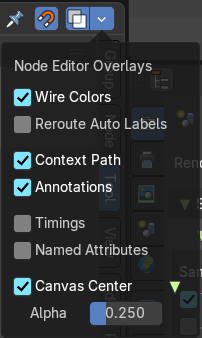
Activates the node editor overlays. When the tool is activated, then you will also overlays settings in the editor. The drop down arrow to the right shows different overlay types.
Wire Colors
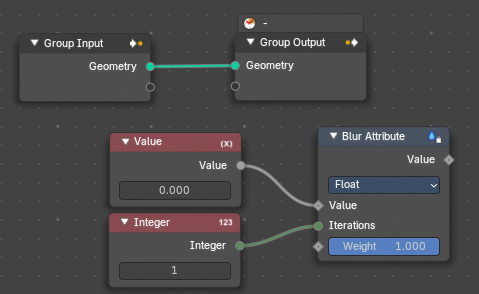
Color node links based on their connected sockets.
Example: The Geometry socket is green that makes a green line, and the Integer socket is dark green that makes a dark green line.
Reroute Auto Labels
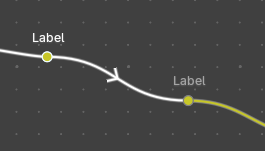
Label reroute nodes based on the label of connected reroute nodes.
Example: The first reroute label to the right has concurring reroute labels down the line. If you toggle this off, the concurring reroute labels down the line won’t contain labels.
Context Path

Display breadcrumbs for the editor’s context.
Annotations
Shows annotations for this editor view that have been drawn by the annotation tool.
Timings
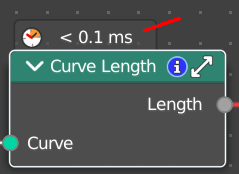
Shows a timing box above each node to indicate the evaluation time of it.. This option is only available for compositing and geometry nodes.
Named Attributes
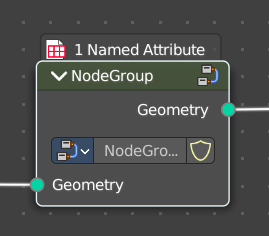
Adds an overlay that helps users to see where named attributes are used with node groups
This helps to see where named attributes are used.
Canvas Center
Show the canvas center and its lines.
Alpha
The transparency of the red and green center line.