

































































Node menu
This menu contains further node functionality.
Node menu
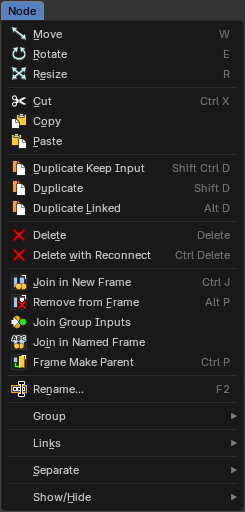
This menu contains further node functionality.
| Entry | What it does |
|---|---|
| Move | Moves the selected nodes. |
| Rotate | You can't rotate single nodes, obviously. But when you have more than one selected then you can rotate them around their center point. |
| Resize | You can't resize single nodes, obviously. But when you have more than one selected then you can scale them around their center point. |
| Cut | Cuts the selected node(s) and copies to clipboard, then removes it from the current material node setup, while reconnecting any nodes links that were connected. |
| Copy | Copies the selected node(s) to the clipboard, for reuse with the paste operator in the current or other instances of Bforartists that are open. |
| Paste | Pastes the selected node(s) from the above mention copy operator that are in the clipboard, in the current session of Bforartists or another instance that are open. |
| Duplicate Keep Input | This works at nodes that have a connected input. Duplicating will keep the input connections established in the duplicated node. The output connections will be removed. |
| Duplicate | Duplicates the selected node(s). All connections will be removed in the duplicated node. |
| Delete | Deletes the selected node(s). |
| Delete with Reconnect | Deletes the selected node(s). When this node is in the middle of a connection, then the connections will be reconnected. |
| Join new Frame | Frame node functionality. Adds the selected node to a frame. |
| Remove from Frame | Frame node functionality. Removes the selected node from a frame. |
| Join Group Inputs | Merge selected group input nodes in one if possible. |
Join in Named Frame
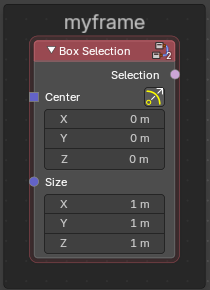
Create a new frame node around the selected nodes and name it immediately.
To remove the node from the frame , right click and choose Remove from Frame.
Frame Make Parent
Frame node functionality. Adds the selected node to a frame.
Rename
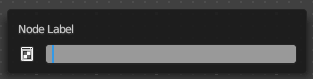
Allows you to rename the selected node. A popup dialog will appear where you can change the name of the node. Press enter to make it real.
Group
Make Group
Groups the selected nodes together.
Select the nodes that you want to group together. Choose Make Group. You will now see a green background. This indicates that the group is created, and that you are in edit mode for the group now.
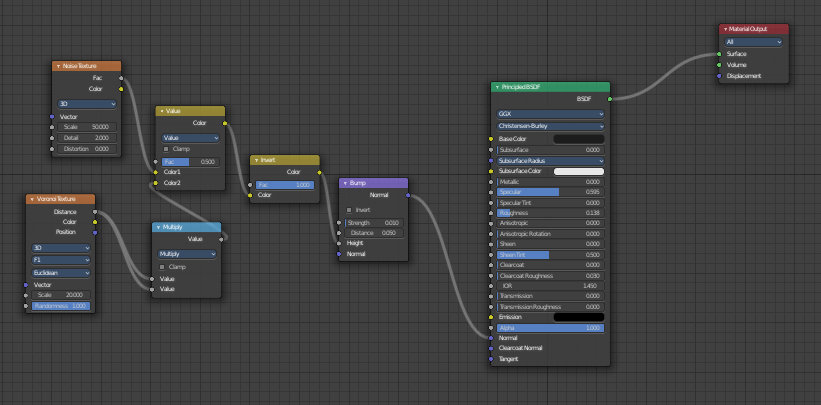
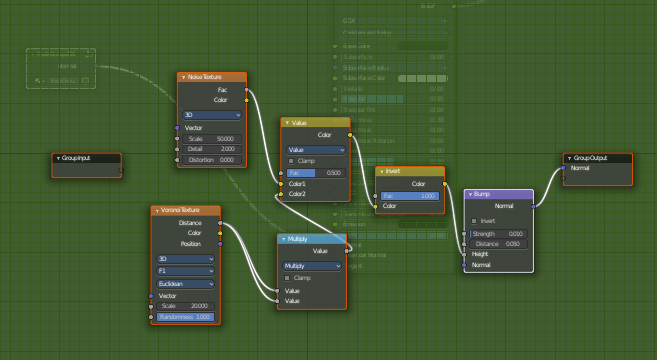
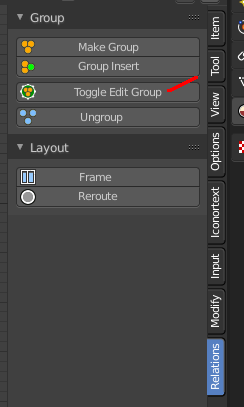
To exit the group edit mode press Tab key, or choose Toggle Edit Group menu item in the sidebar in the Relations tab in the Group panel. That way you can also enter the Group Edit mode again.
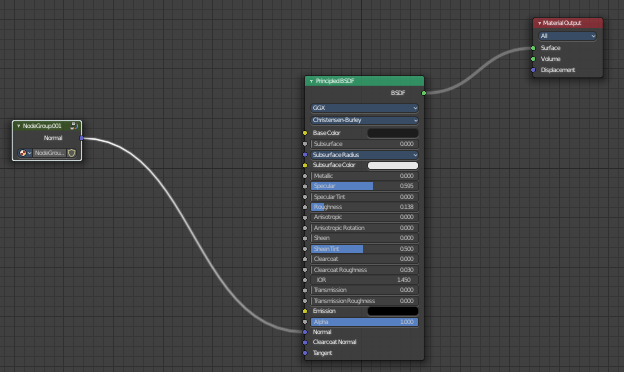
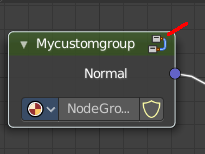
There is a third way to enter the group edit mode. Click at the right upper icon of the group node.
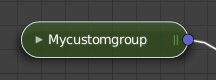
A group can be further collapsed by clicking at the triangle button in the upper left corner.
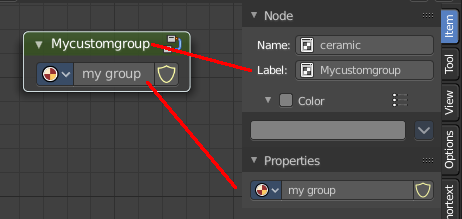
The group can be renamed in the sidebar in the Item tab and in the Properties tab in the Node panel.
| Entry | What it does |
|---|---|
| Insert into Group | Allows you to insert a node into a node group. Select the node, hold down Shift, then select the node group so that both are selected. Then perform the operator. |
| Ungroup | Ungroups an existing group. You need to be outside of the group edit mode. |
| Toggle Edit Group | Enters a node group for editing. Or when you are in a node group, exits the node group editing. |
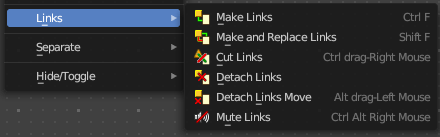
Links
| Entry | What it does |
|---|---|
| Make Links | Tries to connect nodes where it makes sense. |
| Make and Replace Links | Same as Make Links. But it will replace existing links. |
| Cut Links | Mouse only tool. Cut links by moving with the mouse over the connection |
| Detach Links | Removes all connections from the selected node, but tries to reconnect the remaining nodes. |
| Detach Links Move | Removes all connections from the selected node by dragging. |
Mute Links
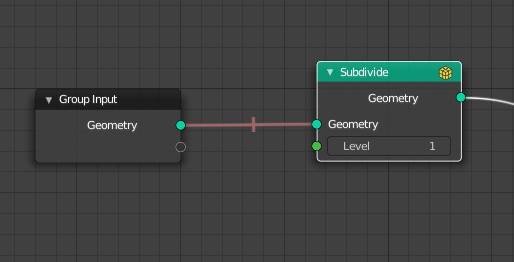
Allows you to mute links instead of disconnecting it by painting over the link connection. To unmute, use the tool again. Hotkey only tool. Please use the hotkey.
Separate

Node group functionality. You need to be in edit group mode.
| Entry | What it does |
|---|---|
| Copy | Copies the selected node, and pastes a copy of it outside of the node group. The node group remains unchanged. |
| Move | Moves the selected to outside of the node group, and removes it from the node group. |
Hide / Toggle
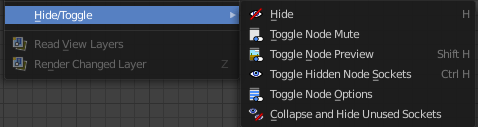
Here you find hide options to make the display of nodes
more compact.
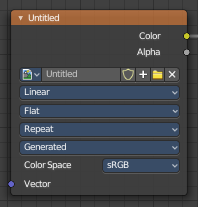
Demonstration happens at an image node.
Hide
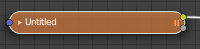
Hides everything but input and output dots. To view the full node again perform the operator again. It's a toggle. Or click at the triangle left besides the node name.
Toggle Node Mute
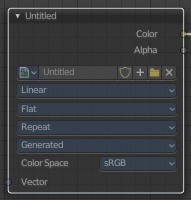
Deactivates the node.
Toggle Node Preview
This is a compositor feature for the preview image. It does not belong here, but shares the same menu. It shows or hides the preview image.
Toggle hidden node sockets
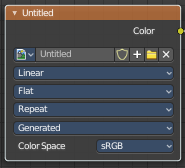
Toggles away the unused node sockets. In this case the vector input node socket and the alpha output node socket will be hidden.
Toggle Node Options
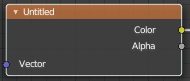
Hides away the properties.
Collapse and Hide Unused Sockets
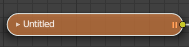
Like Hide. Hides everything but the node sockets. But it also hides the unused node sockets.