

































































Add Menu - Utilities - Math
Utility nodes are mainly for mathematical operations.
Add menu - Utilities - Math
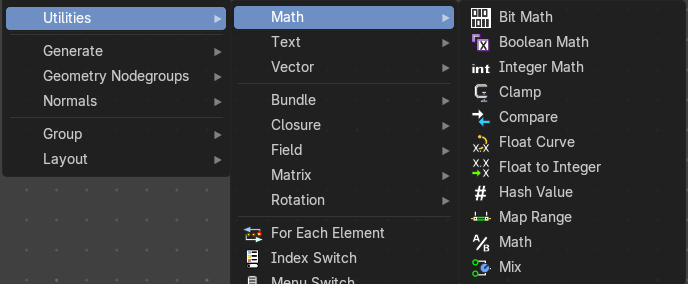
Utility nodes are mainly for mathematical operations.
Bit Math
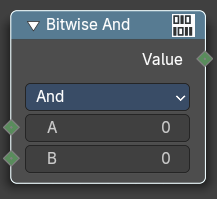
Performs a bit math operation between its inputs.
Inputs
The inputs depends of the chosen method.
Properties
Operation
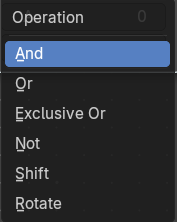
| Entry | What it does |
|---|---|
| And | Returns a value where the bits of A and B are both set. |
| Or | Returns a value where the bits of either A or B are set. |
| Exclusive Or | Returns a value where only one bit of A and B is set. |
| Not | Returns the opposite bit value of A, in decimal it is equivalent of A = -A -1 |
| Shift | Shifts the bit values of A by the specified Shift amount. Positive values shift left, negative values shift right. |
| Rotate | Rotates the bit values of A by the specified Shift amount. Positive values rotates left, negative values rotates right. |
Output
Boolean
Standard Boolean output.
Boolean Math
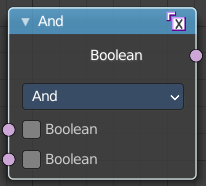
The Boolean Math node performs a basic logical operation between its inputs.
Inputs
Boolean
Two standard Boolean inputs.
Properties
Operation
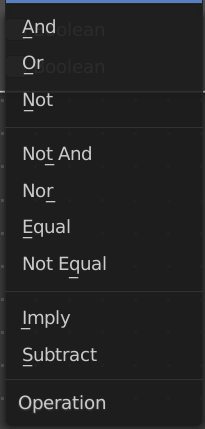
| Entry | What it does |
|---|---|
| And | True if both inputs are true. |
| Or | True if either or both inputs are true. |
| Not | True if both inputs are false. |
| Not And (NAND) | True when at least one input is false. |
| Nor (NOR) | True when both inputs are false. |
| Equal (XNOR) | True when both inputs are equal. |
| Not Equal (XOR) | True when both inputs are different. |
| Imply (IMPLY) | True unless the first input is true and the second is false. |
| Subtract (NIMPLY) | True when the first input is true and the second is false. |
Output
Boolean
Standard Boolean output.
Integer Math
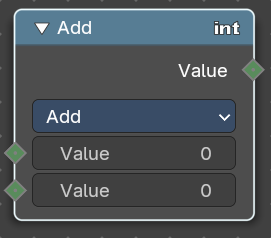
The Boolean Math node provides mathematical operations with integers.
Inputs
Value
Two standard value inputs.
Properties
Functions
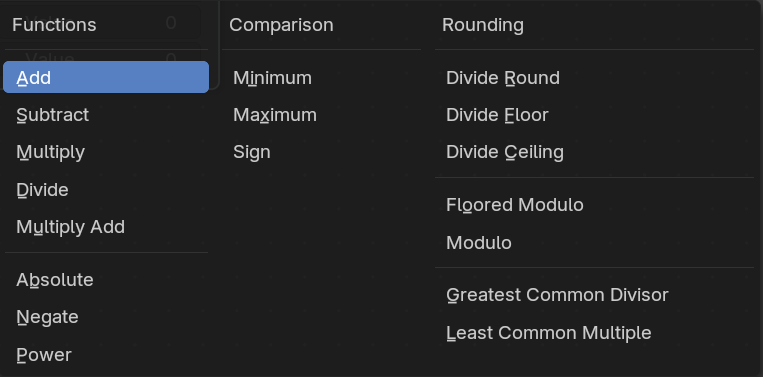
The available mathematical functions to manipulate the input integers.
Output
Value
The value output.
Clamp
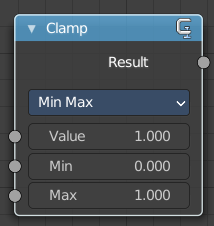
Clamps a value between a minimum and a maximum.
Inputs
| Entry | What it does |
|---|---|
| Value | The input value to be clamped. |
| Min | The minimum value. |
| Max | The maximum value. |
Properties
Clamp Type
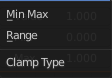
| Entry | What it does |
|---|---|
| Min Max | Clamp values using Min and Max values. |
| Range | Clamp values between Min and Max range. |
Outputs
Result
The input value after clamping.
Compare
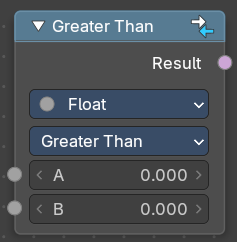
The Compare node takes two inputs and does a math comparison between them.
Inputs
A, B
Standard float value input.
Properties
Input Type
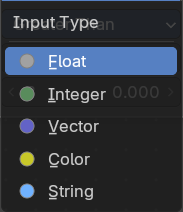
What kind of data to compare.
Operation
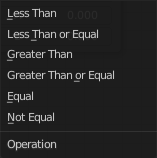
| Entry | What it does |
|---|---|
| A is less than B | True if A is smaller than B. |
| A is lesser than or equal B | True if A is smaller or equal than B. |
| A is greater than B | True if A is bigger than B. |
| A is greater than or equal B | True if A is bigger or equal than B. |
| A is equal B | True if A and B are the same. |
| A is not equal B | True if A and B are different. |
Output
Result
Standard Boolean output.
Float Curve
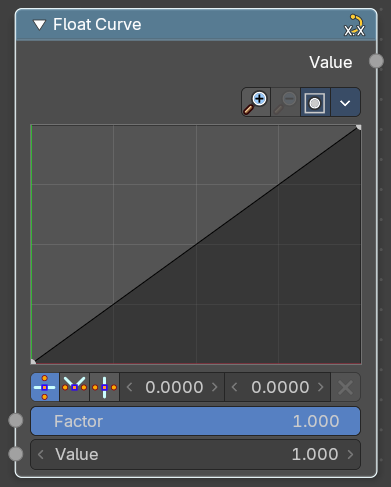
The Float Curve node maps an input float to a curve and outputs a float value. This curve can then be used for profiles for example.
Inputs
| Entry | What it does |
|---|---|
| Factor | How strong the input influences the output value. |
| Attribute | The input value. |
Properties
Curve Field
Channel buttons

Clicking on one of the channels displays the curve for each.
C (Combined RGB), R (Red), G (Green), B (Blue).
Navigation elements
They are described from left to right.
Zoom in and out
The two buttons with the magnifying glass at it zooms in and out in the curve window.
Clipping Options
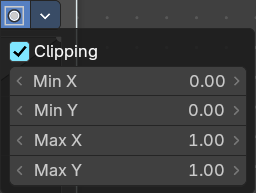
Clipping options. Set up clipping for the stroke.
Tools
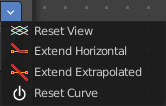
Tools is a menu where you can find some curve related tools.
| Entry | What it does |
|---|---|
| Reset View | Resets the curve windows zoom. |
| Extend horizontal | Extends the curve before the first curve point and behind the last curve point horizontally. |
| Extend extrapolated | Extends the curve before the first curve point and behind the last curve point extrapolated. |
| Reset Curve | Resets the curve to the initial shape. |
Curve edit field
Create and tweak a Bezier curve that varies the input levels (X axis) to produce an output level (Y axis).
Selecting Points
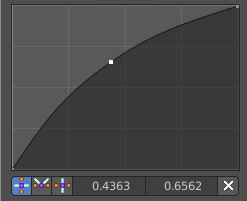
You can select curve points. This reveals two edit boxes for the x and y coordinate of this point.
Selected points can be moved around. Left click at them, hold the mouse button down and move them to a new location.
Adding Points
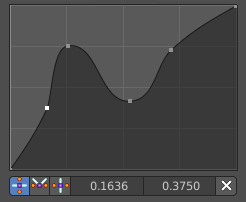
You can add new curve points by simply left clicking at the curve. Move the mouse to position them where you need it.
Curve point settings

When you have a point selected then you will reveal further settings at the bottom.
| Entry | What it does |
|---|---|
| Vector Handle | Set handle type to Vector. |
| Auto Handle | Set handle type to Auto. |
| Auto Clamped Handle | Set handle type to Auto Clamped. |
Output
Value
The output value.
Float to Integer
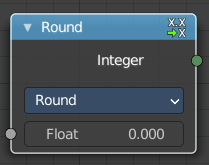
Converts a floating point value into an integer value.
Inputs
Float
The input float value.
Properties
Rounding Mode
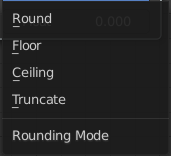
How the float value should be converted.
Outputs
Integer
The output integer value.
Hash Value
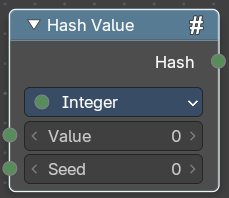
The hash value converts a value input into a hashed value.
Note that Hashes cannot be relied upon to be used as unique identifiers because they are not guaranteed to be unique. It can be used to generate somewhat stable randomness especially in cases where White Noise does not offer enough flexibility.
Input
| Entry | What it does |
|---|---|
| Value | The input value. |
| Seed | A seed to randomize the value. |
Properties
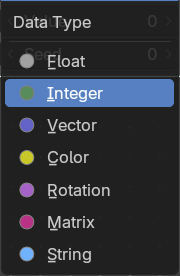
Data Type
What data type to create.
Output
Hash
The hash value output.
Map Range
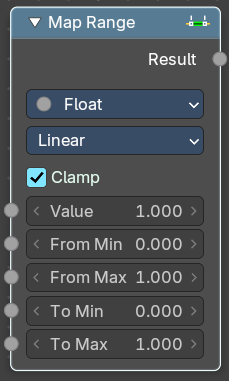
This node converts (maps) an input value range into a destination range. By default, values outside the specified input range will be proportionally mapped as well. This node is similar to Map Value node but provides a more intuitive way to specify the desired output range.
Inputs
| Entry | What it does |
|---|---|
| Value | Standard value input. |
| From Min | Start of the input value range. |
| From Max | End of the input value range. |
| To Min | Startof the destination range. |
| To Max | End of the destination range. |
Properties
Data Type
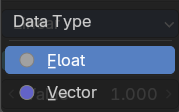
The data type to calculate.
Interpolation Type
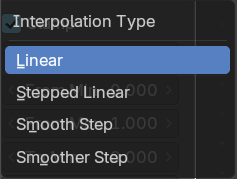
how to interpolate the values between min and max.
Clamp
Clamps values to Min/Max of the destination range.
Outputs
Value
Standard value output.
Math
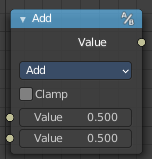
The Math Node performs math operations.
Inputs
The inputs of the node are dynamic. Some inputs are only available with certain operations. For example, the Addend input is only available in the Multiply Add operator.
| Entry | What it does |
|---|---|
| Value | Input Value. Trigonometric functions read this value as radians. |
| Addend | Input Addend. |
| Base | Input Base. |
| Exponent | Input Exponent. |
| Epsilon | Input Epsilon. |
| Distance | Input Distance. |
| Min | Input Minimum. |
| Max | Input Maximum. |
| Increment | Input Increment. |
| Scale | Input Scale. |
| Degrees | Input Degrees. |
| Radians | Input Radians. |
Properties
Operation
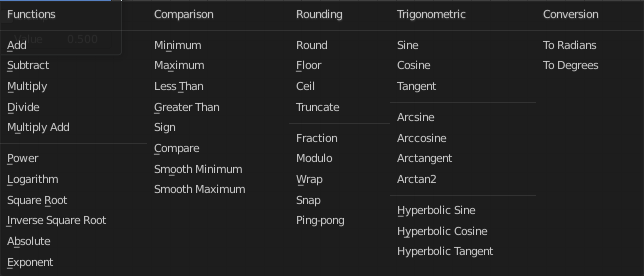
The mathematical operator to be applied to the input values:
| Entry | What it does |
|---|---|
| Functions | Add: The sum of the two values. · Subtract: The difference between the two values. · Multiply: The product of the two values. · Divide: The division of the first value by the second value. · Multiply Add: The sum of the product of the two values with Addend. |
| Power | The Base raised to the power of Exponent. · Logarithm: The log of the value with a Base as its base. · Square Root: The square root of the value. · Inverse Square Root: One divided by the square root of the value. · Absolute: The input value is read with without regard to its sign. This turns negative values into positive values. · Exponent: Raises Euler’s number to the power of the value. |
| Comparison | Minimum: Outputs the smallest of the input values. · Maximum: Outputs the largest of two input values. · Less Than: Outputs 1.0 if the first value is smaller than the second value. Otherwise the output is 0.0. · Greater Than: Outputs 1.0 if the first value is larger than the second value. Otherwise the output is 0.0. · Sign: Extracts the sign of the input value. All positive numbers will output 1.0. All negative numbers will output -1.0. And 0.0 will output 0.0. · Compare: Outputs 1.0 if the difference between the two input values is less than or equal to Epsilon. · Smooth Minimum: Smooth Minimum. · Smooth Maximum: Smooth Maximum. |
Rounding
| Entry | What it does |
|---|---|
| Round | Round the input value to the nearest integer. |
| Floor | Rounds the input value down to the nearest integer. |
| Ceil | Rounds the input value up to the nearest integer. |
| Truncate | Outputs the integer part of the value. |
| Fraction | Fraction. |
| Modulo | Outputs the remainder once the first value is divided by the second value. |
| Wrap | Outputs a value between Min and Max based on the absolute difference between the input value and the nearest integer multiple of Max less than the value. |
| Snap | Round the input value to down to the nearest integer multiple of Increment. |
| Ping-pong | The output value is moved between 0.0 and the Scale based on the input value. |
Trigonometric
| Entry | What it does |
|---|---|
| Sine | The Sine of the input value. |
| Cosine | The Cosine of the input value. |
| Tangent | The Tangent of the input value. |
| Arcsine | The Arcsine of the input value. |
| Arccosine | The Arccosine of the input value. |
| Arctangent | The Arctangent of the input value. |
| Arctan2 | Outputs the Inverse Tangent of the first value divided by the second value measured in radians. |
| Hyperbolic Sine | The Hyperbolic Sine of the input value. |
| Hyperbolic Cosine | The Hyperbolic Cosine of the input value. |
| Hyperbolic Tangent | The Hyperbolic Tangent of the input value. |
Conversion
| Entry | What it does |
|---|---|
| To Radians | Converts the input from degrees to radians. |
| To Degrees | Converts the input from radians to degrees. |
| Clamp | Limits the output to the range (0.0 to 1.0). See Clamp. |
Outputs
Value
Numerical value output.
Mix
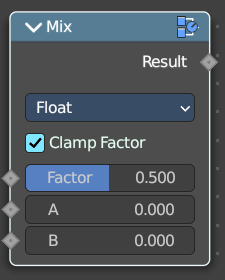
Allows to mix values and vectors in various ways. The node has three different modes. Float, Vector and Color. This node covers the Float mode
Input
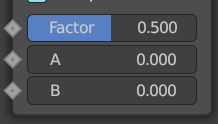
Float
| Entry | What it does |
|---|---|
| Factor | The mix factor. |
| A | Float value A input. |
| B | Float value B input. |
Properties
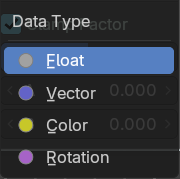
Data Type
The data type to calculate.
Output
Result
The output value or vector.