

































































Add Menu - Utilities
Utility nodes are mainly for mathematical operations with fields, values and elements.
Add menu - Utilities
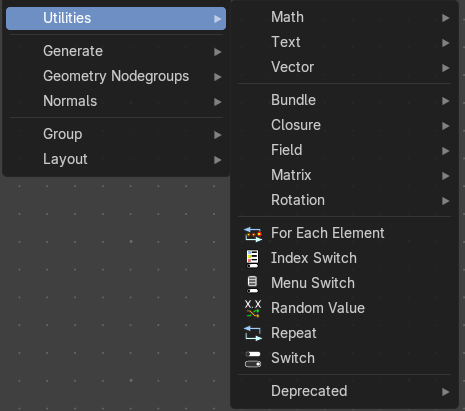
Utility nodes are mainly for mathematical operations with fields, values and elements.
For Each Element
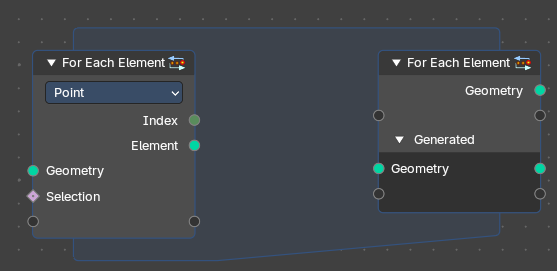
The For Each Element Node enables iterative operations on individual elements of a geometry. This node is ideal for tasks requiring unique processing for each element, such as creating distinct objects or attributes for every element: a face, vertex, or curve or other domain.
Note: The For Each Element Node is best for creating detailed or complex geometry for every element of an input. For instance, you can use it to generate a unique tree for each curve or a distinct building on every face of a mesh.
However, it's less efficient for handling tiny elements, like individual strands of hair. Processing small parts separately can slow things down because Blender isn’t able to optimize the operation effectively. For projects with many elements, it's better to design your node setup to avoid working on very small pieces one at a time. In this case, it is best to run operations directly on field domains.
For Each Element Input
Inputs
| Entry | What it does |
|---|---|
| Geometry | The input geometry whose elements will be processed individually. This can include meshes, curves, or other geometry types. |
| Selection | Specifies which subset of elements to process. This allows filtering based on boolean attributes or conditions per field – typically used as a true/false mask. |
Properties
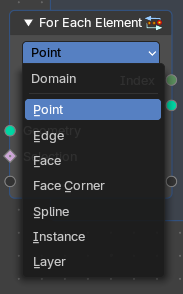
Element
Defines which element of which domain will be used.
The input geometry is divided into individual geometries, each corresponding to a single element. During each iteration, the node processes one of these single-element geometries.
Note: However, this functionality does not apply to the Face Corner domain, as face corners are inherently tied to their parent face and cannot exist independently.
Output
| Entry | What it does |
|---|---|
| Index | Provides the Index integer of the current elements of the selected domain to be processed. |
| Element | Returns a Geometry output with the list of elements for iteration. |
For Each Element Output
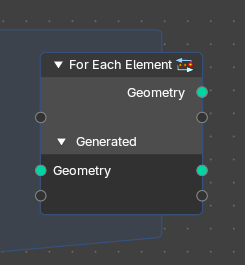
Inputs
Main Geometry
The Main Geometry outputs create attributes on the "main" output geometry (the first output). Each value calculated within the zone becomes part of the attribute at the corresponding index of this output.
Note: Default is blank.
Generated
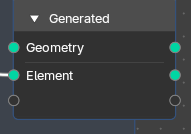
Result of joining generated geometries from each iteration.
The Generated inputs contain the individual geometry elements processed inside the zone. This includes any fields and attributes from different domains associated with these elements.
Note: Default is the result of joining generated geometries for each iteration.* *You can connect any new attribute or filed and output new generated elements and custom fields from the zone.
Properties
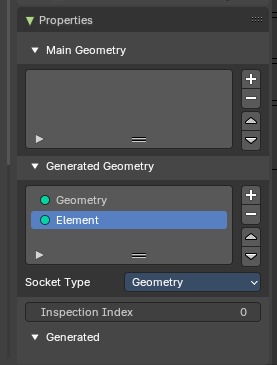
| Entry | What it does |
|---|---|
| Main Geometry | The main geometry sockets. |
| Generated Geometry | The generated geometry sockets from the zone. |
Socket Type
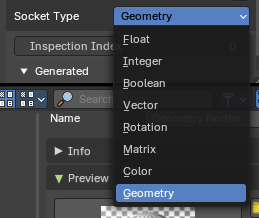
What input input and output socket type to evaluate from each iteration in the zone.
Inspection Index
Iteration index that is used by inspection features like the viewer node or socket inspection
Output
| Entry | What it does |
|---|---|
| Geometry | The original input geometry with potentially new attributes that are output by the zone. |
| Element | Result of joining generated geometries or attributes from each iteration. |
Index Switch
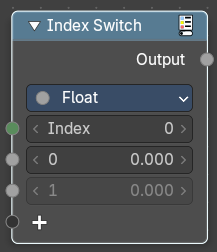
The Index Switch node is meant as a simpler version of the Menu Switch node. It doesn't allow naming items or displaying them in a dropdown, but still allows choosing between an arbitrary number of items, unlike the regular Switch node where you can just switch between two states.
Inputs
Index
Wich input to choose.
0 , 1 ...
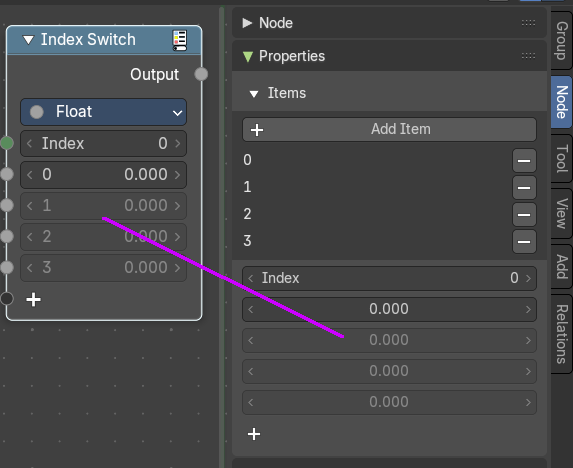
The available input index types that you want to switch between. You can define more input sockets in the sidebar.
Properties
Data Type
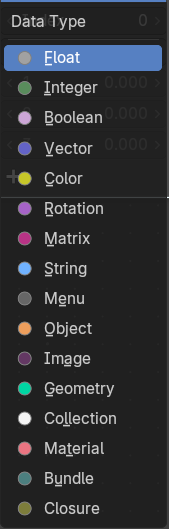
What input type to evaluate.
Outputs
Output
The output index.
Menu Switch
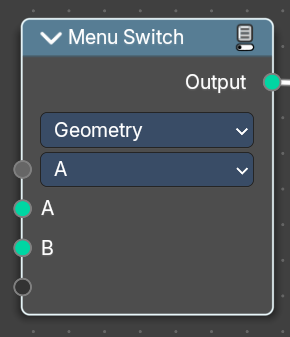
The Menu Switch node selects and computes one input based on a user-defined menu. Only the selected input is computed.
Menu entries can be added, removed, renamed, and reordered. Renaming keeps existing input links.
The menu can be used in node groups and the nodes modifier UI. Connecting the menu to a Group Input node exposes it as a group input. A menu needs to be connected to a Menu Switch node to work. An unconnected menu is empty.
Connecting multiple Menu Switch nodes to the same output creates a conflict. To avoid this, a menu switch can be grouped. Multiple groups of the same type can connect to the same menu.
Note: You cannot plug in the same value socket into the Menu selector. If you’d like to use the same value for various Menu Switches, group the Menu Switch into a Node Group and use the top-level switch override.
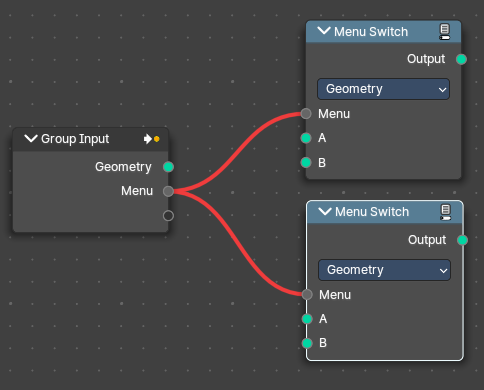 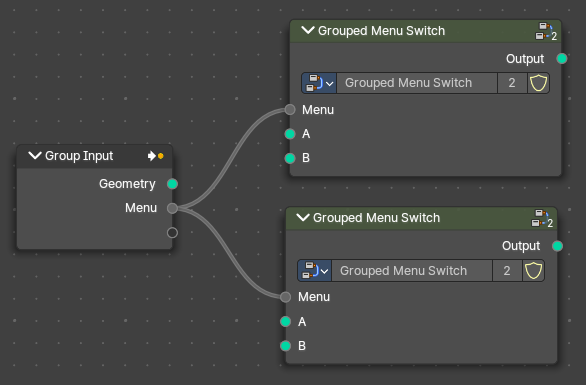 Top Level Grouped Menu Switches with same inputs: Top Level Grouped Menu Switches with same inputs: | Conflict caused by Same Level menu Switch inputs: |
Inputs
A / B
Becomes the output if the value is chosen.
Menu
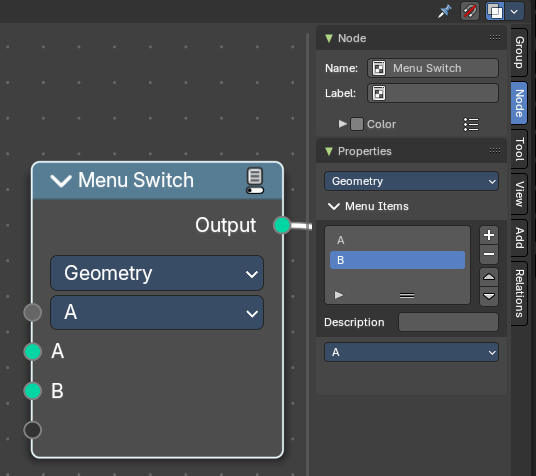
Determines which of the input options will be selected and passed through as the default.
A , B ...
The available input index types that you want to switch between. You can define more input sockets in the sidebar Menu Switch panel.
Note: You can add more menu switch options to the empty socket.
Properties
Data Type
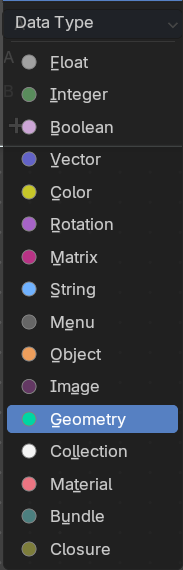
Determines the type of the data that is handled by the node.
Outputs
Output
The output index.
Random Value
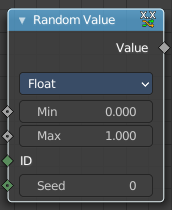
Generates a random value.
Input
| Entry | What it does |
|---|---|
| Min | The minimum value of the range. This input is only available for Float, Integer, and Vector types. |
| Max | The maximum value of the range. This input is only available for Float, Integer, and Vector types. |
| ID | An ID to drive the random number generator seed. By default, this input uses the same value as if the ID Node, which is the id attribute of the context geometry if it exists, and otherwise the index. |
| Seed | The random seed for the random number generation. |
Properties
Data Type
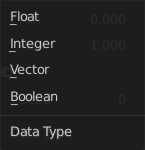
What kind of random value to create. The items should be self explaining.
Output
Value
The output value.
Repeat
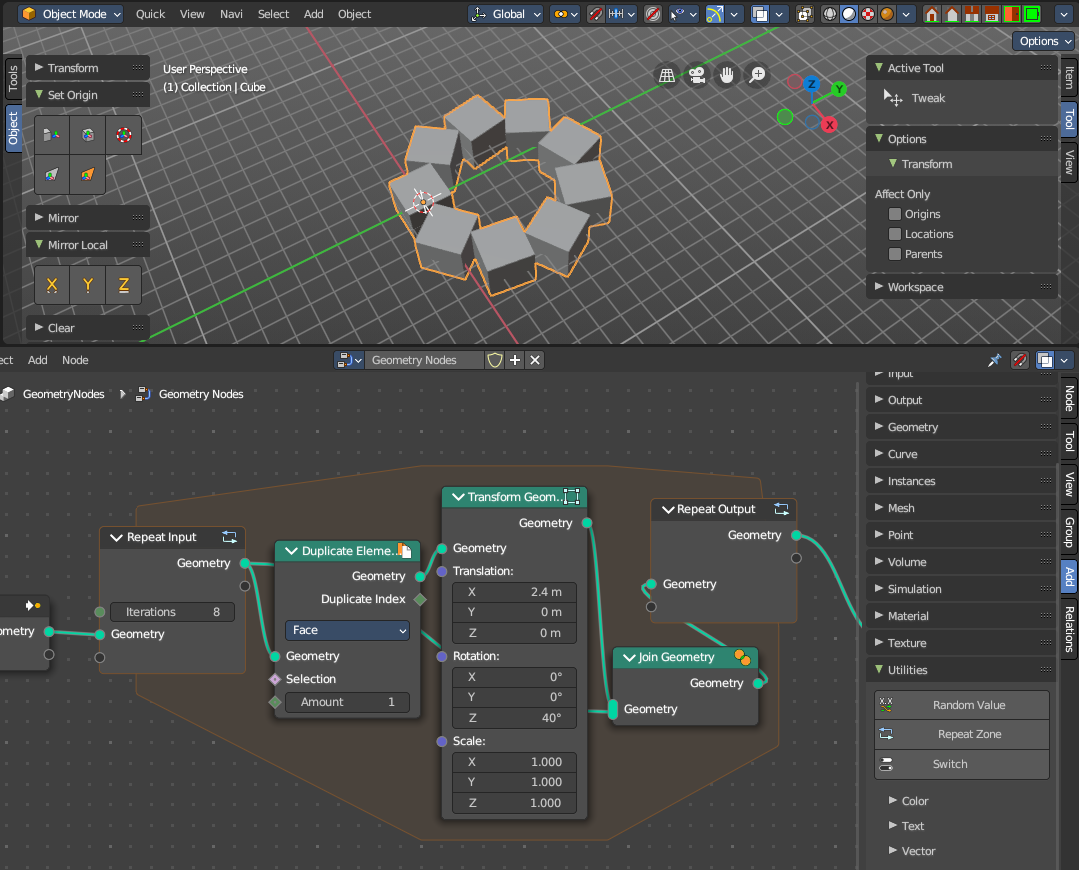
When adding a repeat zone, two nodes are added with a “zone” set between them. The inputs connected to the Repeat Input node reads and gets data at the beginning of the loop before starting the looping - then the data is processed within the zone, here you can set any changes to the data to then repeat the execution again at the beginning of the chain for the next iteration of the loop. This chain of operations is repeated the specified number of times in the Repeat Input node.
In the example in the image above, we duplicate the cube, transform it with a rotation, then join it together again. We do this 8 times in a loop, creating a circular array.
Note: It is not possible to set data outside the Repeat Zone, you can only get data from outside the Repeat Zone. Any data connected from the outside of the zone are constant throughout every iteration based on their value at the current frame. The result of the looping can only be accessed via the Repeat Output node.
Repeat Zone Input
The beginning of the iteration or loop.
Input
Iterations
Number of repetitions or loops.
Geometry
Standard geometry input.
Output
Geometry
Standard geometry output.
Repeat Zone Output
The result and output of the iteration or loop. You can define custom attributes outputs here from the
| Entry | What it does |
|---|---|
| Input | Geometry: Standard geometry output. |
| Output | Geometry: Standard geometry output. |
Switch
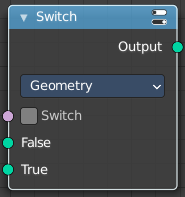
Switch between two inputs values based on a boolean.
Inputs
| Entry | What it does |
|---|---|
| Switch | The boolean switch. |
| A | The input value A. Used when the switch is off. |
| B | The input value B. Used when the switch is on. |
Properties
Input Type
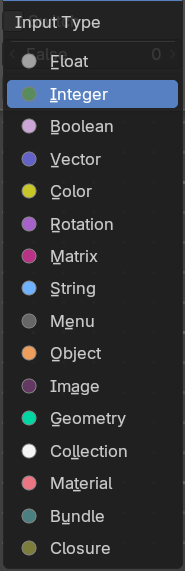
What input type the values are, which defines what type to output then.
Outputs
Output
Numerical value output.