

































































Add Menu - Simulation
Here you add nodes to use a simulation zone. Simulation zones allow the result of one frame to influence the next one. The most common use is physics simulation, with specific solvers for physical phenomena.
Add menu - Simulation

Here you add nodes to use a simulation zone. Simulation zones allow the result of one frame to influence the next one. The most common use is physics simulation, with specific solvers for physical phenomena.
Note: In the example above every frame will transform the geometry by 0.2m in the X axis. With this principle you can set rules that will evaluate per frame.
Simulation
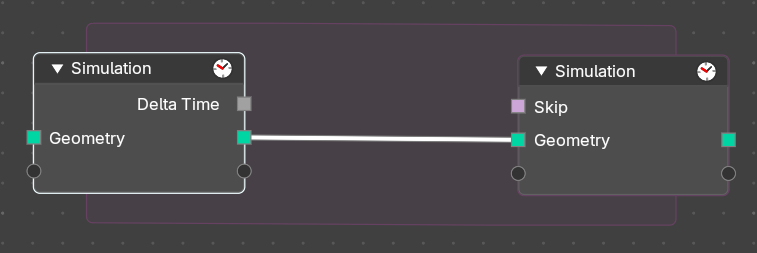
When adding a simulation zone, two nodes are added, defining between them a “Simulation Zone”.
The Geometry inputs that are connected to the Simulation Input node are evaluated once per frame. At the beginning of the simulation, geometry is passed to the next frame and eventually output at the end of the zone in the Simulation Output node.
You can also get other nodes with their data and link them into the simulation region from the outside to re-evaluate geometry data per frame.
Note: It is not possible to set data outside the Simulation Zone, you can only get data from outside the Simulation Zone. The result of the simulation can only be accessed via the Simulation Output node.
Clock
The simulation is tied to the animation system found in the Animation Editor, with support for sub-steps. The simulation will only be evaluated while the animation frame changes, and each frame is cached during playback.
Properties
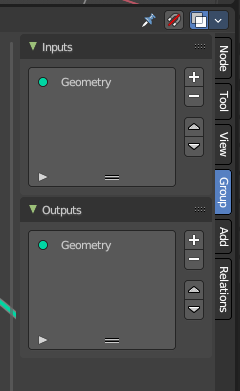
In the Node Editor the inputs can be renamed, shuffled and removed in the Group tab of the Node Editor Property shelf to the right.
Note: When you add a new input or output, both nodes input and output nodes will update their sockets.
Baking

The simulation is automatically cached during playback. The evaluated cache can be seen as a colored line in the Timeline editor.
Cached frames in the Timeline show up as a coloured bar at the bottom.
Caching to Disk
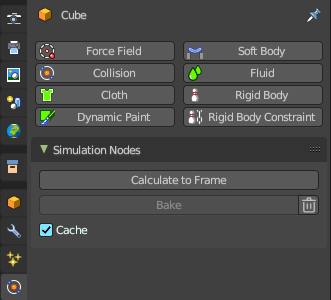
To render, the simulation should be cached to disk. To do this, switch to the Properties Editor > Physics Properties > Simulation Nodes panel, then Bake or Calculate to Frame.
Note: You can also playback from the timeline to bake.
Calculate to Frame
Calculate the simulations in Geometry Nodes modifiers from the start to current frame.
Bake
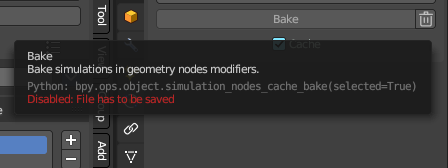
Bake simulations in all geometry node modifiers to disk. You can define the path where these will bake per Geometry Nodes modifier. If not defined, it will default to the *.blend file location. To bake, you must save the file first.
| Entry | What it does |
|---|---|
| Delete Cached Bake | The trashcan icon will erase the baked collection from disk. |
| Cache | This checkbox toggles the feature to cache frames on playback. When you turn this off, then the automatic caching on playback will not bake to disk. Note: Baking the simulation will bake all the simulations in all modifiers in the scene. |
Simulation Bake Directory
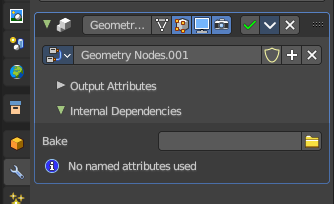
In the Geometry Nodes modifier in the Modifier stack under the Internal Dependencies sub-panel, here you can define the path and location of the cached bake data.
Note: The path is automatically generated the first time the modifier is baked through a timeline playback.The default path is relative to the .blend file.
Simulation Zone Input
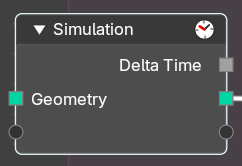
This node is the beginning of the Simulation Zone. Custom input and output sockets can be defined in the property shelf to the right in the Group tab.
Inputs
Geometry
Standard geometry input.
Output
| Entry | What it does |
|---|---|
| Delta Time | Returns a float value with the amount of elapsed time that has passed in a linear way. This is used to ensure that the simulation runs smoothly and consistently based on elapsed time, regardless of the playback frame rate or starting frame. |
| Geometry | Standard geometry output. |
Simulation Zone Output
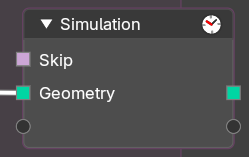
This node is the end of the Simulation Zone. Custom input and output sockets can be defined in the property shelf to the right in the Group tab.
Properties
Skip
A boolean. This forwards the output of the simulation input node directly to the output node and ignore the nodes in the simulation zone – like a bypass. This will essentially “skip” the evaluation like an overall switch boolean of all evaluated nodes in the simulation zone.
| Entry | What it does |
|---|---|
| Inputs | Geometry: Standard geometry input. |
| Output | Geometry: Standard geometry output. |