

































































File browser
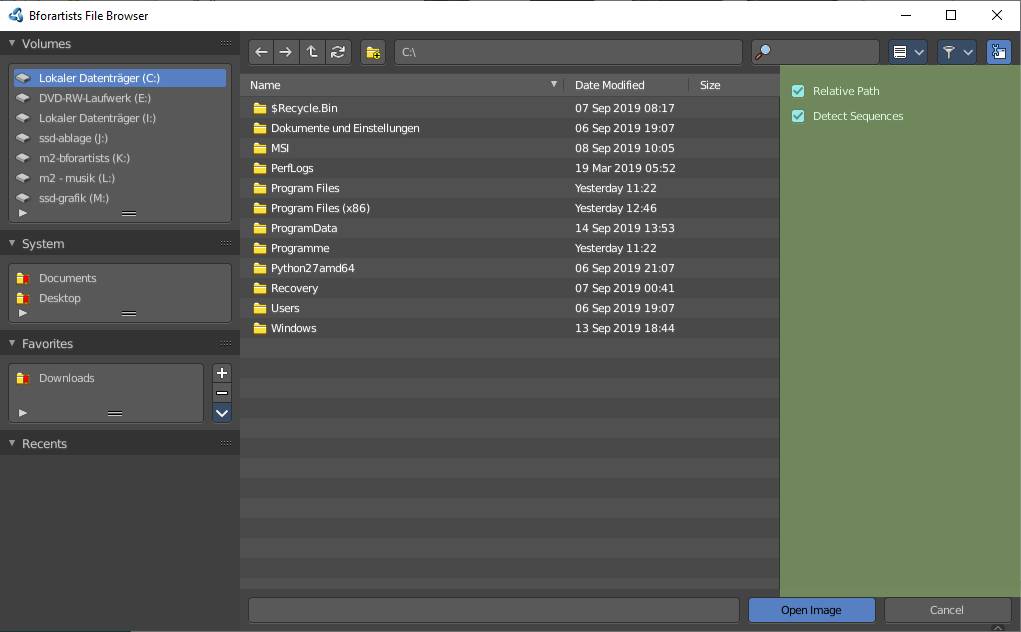
The file browser is an explorer dialog that allows you to browse for locations and files, and allows you to load and save them.
File Browser
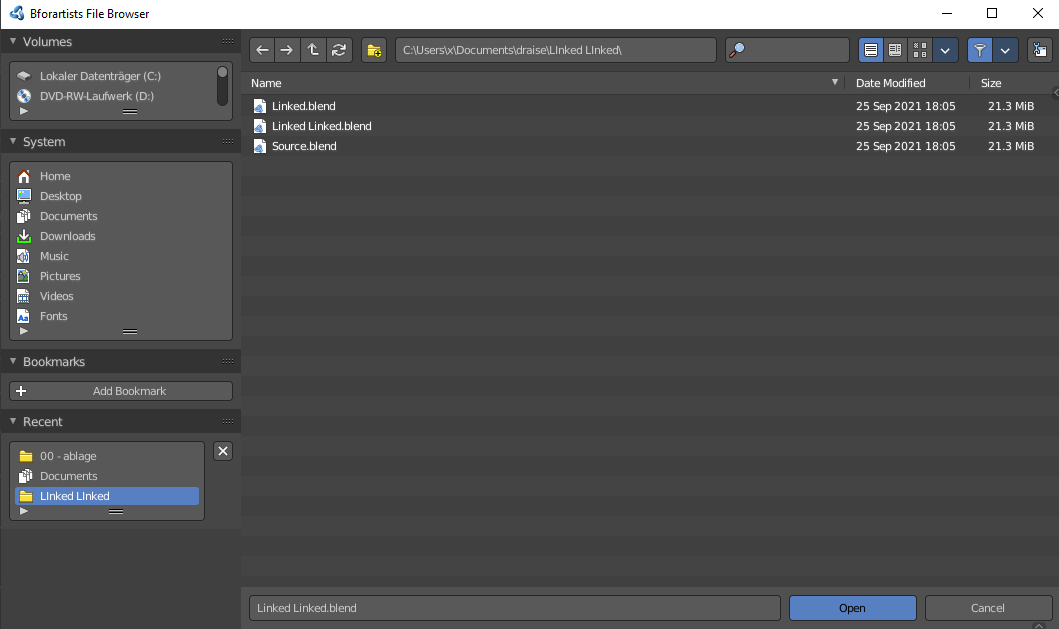
The file browser is an explorer dialog that allows you to browse for locations and files, and allows you to load and save them.
The file browser has multiple uses. While its often used for save/load, it can be kept open for other uses too.
In the file browser you can:
- Opening and Saving Blend files.
 Import/Export other file formats.
- Picking new locations for existing file-paths (images, video’s, fonts... etc).
- Browsing inside other .blend files, when using Append and Link.
You can also keep the file selector open, as with any other window type. In this case the buttons to load files is removed. This is for example done in the Shader editor workspace. This allows you to drag files directly into the editor where you need it.
File Browser Header
There are several tools in the header to find. The range goes from navigation elements across filters up to display options.

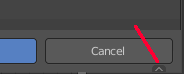
There are two header areas. The header area that contains the navigation and filter elements. And the editor header like in a traditional editor. This header is hidden when you use the file browser as a file selector. But it is still available. It resides at the bottom, and can be revealed by clicking at the small triangle button down right.
For this content see Footer Header chapter below.
| Entry | What it does |
|---|---|
| Navigation | Navigate in the folder hierarchy. · Previous Folder: Navigate to the previous folder. · Next Folder: Navigate to the next folder. · Parent File: Go upwards in the hierarchy. · Refresh: Refresh the file list. |
 New Folder New Folder | Creates a new folder. |
File path

The current directory.
Search
Name Filter. Allows you to search for specific files and folders.
Display As

Vertical List
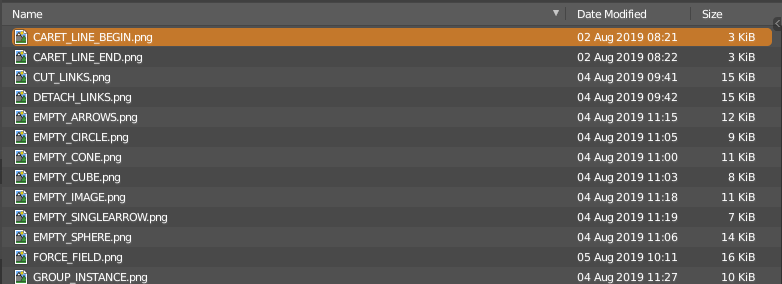
Displays the content of the file browser as a vertical list.
Horizontal List
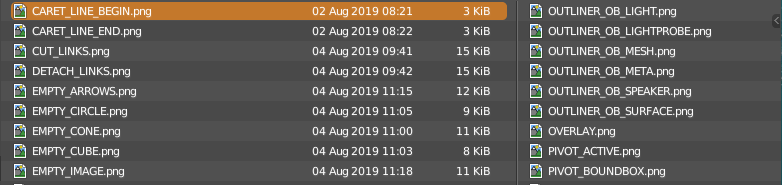
Displays the content of the file browser as a horizontal list.
Thumbnails
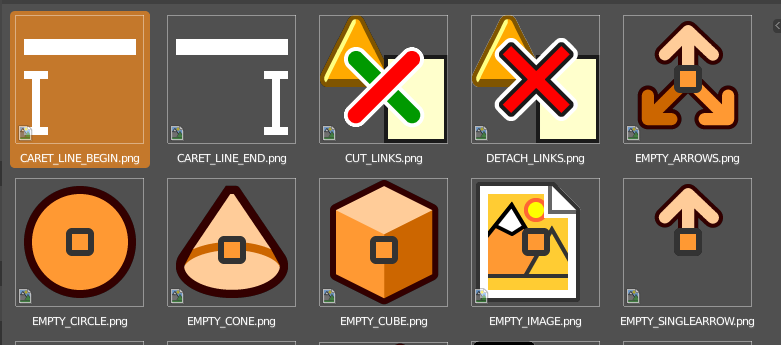
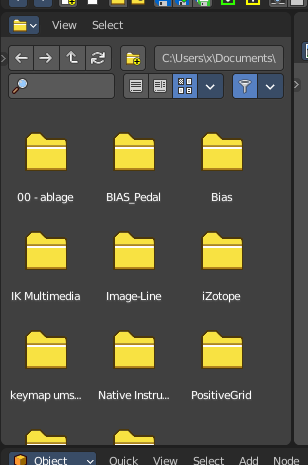
Displays the content of the file browser as thumbnails. This is especially of use for images or blend files with thumbnail preview.
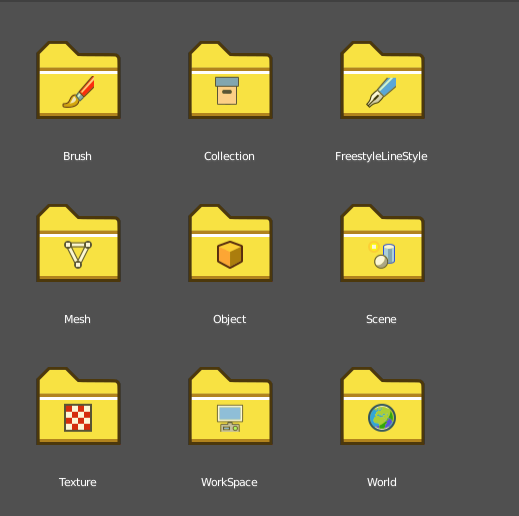
When you link or append from a blend file then the thumbnails also shows folders with icons for the different content of the library blend file.
Display Options
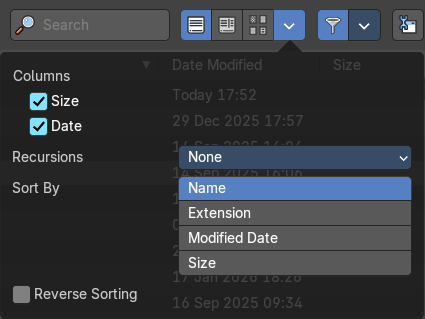
Columns
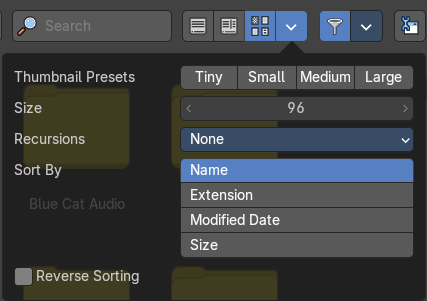
First shot is from when in columns and horizontal list view. Second is from Thumbnails View.
Size
Display the size of the files. Or the size of the thumbnails.
Date
Display the creation date of the files.
Thumbnail Presets
Thumbnail Presets – Quick sizes for the thumbnails
Recursion
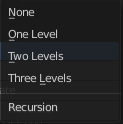
Adjust how deep the explorer should dig. Normally it just lists the content of the currently selected directory. But it is also possible to list the content of the folders three levels lower.
The recursion direction is always downwards. Default is None.
Sort by
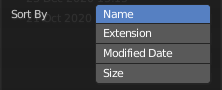
Sort the files by chosen method. The methods are self explaining.
Reverse Sorting
Reverts the sorting direction.
Filter
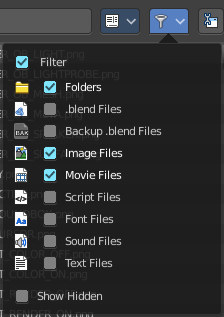
| Entry | What it does |
|---|---|
| Filter | Enable the filtering. |
| Folders, etc. | The different file types that should be filtered. What is ticked here and what file types shows depends of what file browser you call. If you want to load a blend file. Or a FBX file from the File menu in the header. Or an image in the UV Editor for example. |
| Show Hidden | Shows hidden Dot files. This is a Unix feature. Unix systems like Linux or Mac hides files from file browsers and explorers by having a dot before the file. A good example is the .htaccess file at servers. Show hidden Dot Files makes such files visible to the file browser. |
Toggle Region
Toggles the sidebar at the right. The sidebar contains various im- and export settings for the single file types.
Tool Shelf
The Tool Shelf at the left provides you with some panels for quick access to files and bookmarks.
System Panel
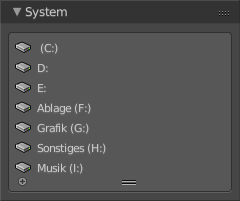
Lists your drives.
System Bookmarks
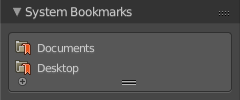
Lists some system libraries.
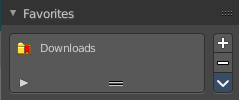
Bookmarks
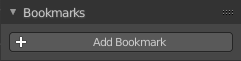
Add your own bookmarks. A direct bookmark towards the Downloads folder for example.
Recent
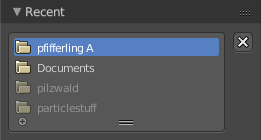
A list of the recent accessed folders.
Greyed out folders are not longer existing directories. There is unfortunately no way to remove them from within Bforartists. You would need to do this manually in the History text files in the settings folder.
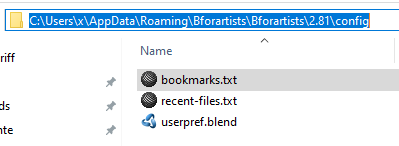
Under Windows this is the bookmarks.txt file in the Appdata folder.
Clear recent

Removes the selected item from the recent panel.
Sidebar
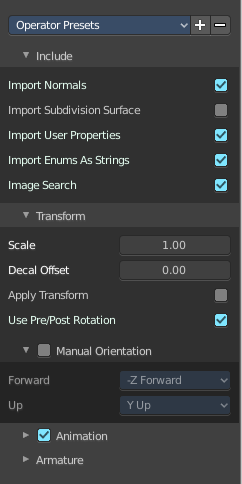
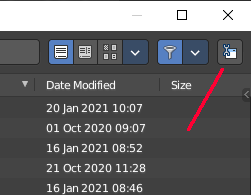
The sidebar is usually closed in most cases. Sometimes you need to open it. This can be done with a click at the Toggle Region button up right.
In the sidebar you will for example find the special Import or Export settings for the current file format. And here you will also find further settings. loading a Blend file you will just see two entries. When you append from a file then it's a bit more settings. And for file formats like FBX you will find all the settings for the current file format.
At the right you see the import dialog for FBX.
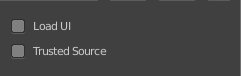
As an example, and to explain the two settings for loading a blend file:
| Entry | What it does |
|---|---|
| Load UI | Bforartists comes with the feature *Load UI* unticked. This means the Bforartists UI will not change when you load a scene. Here you can temporary enable to load the scene with the layout and UI arrangement in which the scene was saved. |
| Trusted Source | With Load UI you can also load script files, which can execute. This is a potential security risk when the file comes from an unknown source. |
Advanced panel
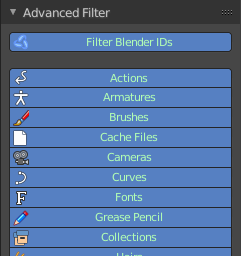
When you append from a blend file, then you will find an Advanced panel with further filter settings in the sidebar. This filter allows you to filter the content for exact object types.
File dialog
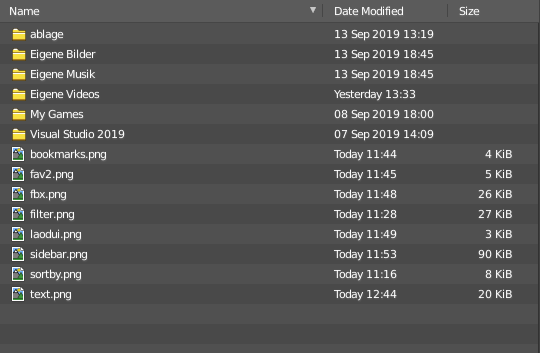
The file dialog is the actual place where your files and directories gets listed.
| Entry | What it does |
|---|---|
| Click navigation. | Double clicking at a folder enters the folder. To go upwards in the hierarchy see Parent File button in the header. |
| Double Click to load | Double clicking at a file loads the chosen file when you are in a load dialog. The file dialog will then close. |
| Double click to save | Double clicking at a file overwrites the chosen file when you are in a save dialog. The file dialog will then close. |
| Select and load more than one file | Holding down shift allows you to select and to load more than one file. |
Box select
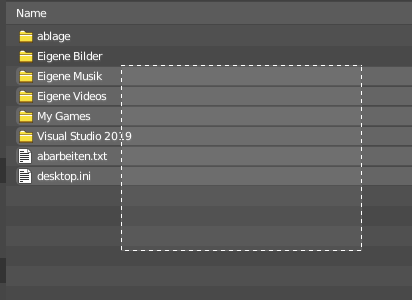
You can drag a box around the files by simply left clicking and moving the mouse.
Renaming
You can rename files and folders from within this list. Holding down ctrl and clicking at a file enters the edit file name mode.
File Name

The file that you want to load or to save.
| Entry | What it does |
|---|---|
| Open / Save | Open or save the current file(s). |
| Cancel | Cancel the loading or save process and close the file browser. |
Footer / Header

The footer is hidden by default when you call the file browser to load and save scenes and files. But contains some more functionality. And when you integrate the file browser into a workspace then the header shows at the top. In the Shading workspace for example.
You can reveal the footer by clicking at the triangle button at the right.

And then you will see the footer bar. Which will reveal two menus. View and Select.
View Menu
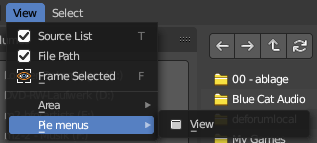
| Entry | What it does |
|---|---|
| Source List | Shows or hides the tool shelf at the left side. |
| File Path | Shows the header region with the file path and the navigation and filter elements. |
| Frame selected | Centers the selected elements. |
Area Menu
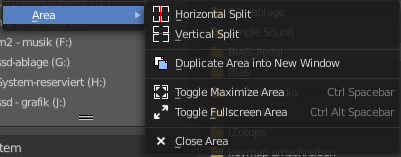
Area is a menu with window related settings.
| Entry | What it does |
|---|---|
| Horizontal Split | Splits the editor horizontally into two editors. |
| Vertical Split | Splits the editor vertically into two editors. |
| Duplicate Area into new Window | Creates a floating window out of the current editor. |
| Toggle Maximize Area | Displays the editor maximized with menus. To return to split view press hotkey Ctrl Up Arrow, or reuse the menu item in the View menu. |
Close Area
Closes the area window.
Pie Menus
Every editor usually has also a few pie menus that can be called by hotkeys. Here you can manage the hotkeys. And see which pie menus even exists.
View
Reveals the View pie menu.
Select menu
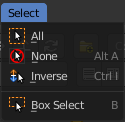
| Entry | What it does |
|---|---|
| Box Select | Allows you to box select files. Note that this is an old obsolete operator. You don't need to press the hotkey anymore for box select. |
| Inverse | Inverts the selection. |
| None | Select none. |
| All | Select all. |
Files context menu
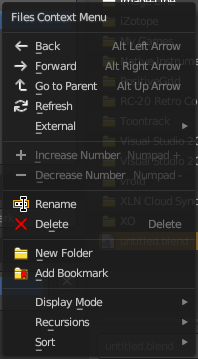
When you right click into the view at one of the browser items, then a files context menu opens. This menu comes from the File browser, and contains a few menu items that are not vaild for the asset browser. Like create a folder. And the importer does not have the possibility to incresase Number for example.
| Entry | What it does |
|---|---|
| Back | Go to previous folder. |
| Forward | Go to next folder. |
| Go to Parent | Go upwards the hierarchy by one. |
| Refresh | Refresh the file list. |
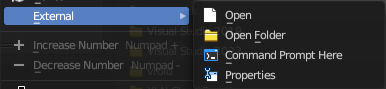
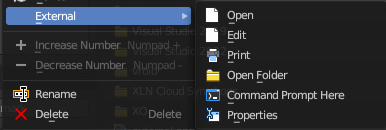
External submenu

The menu content differs, dependant from which editor you call the file browser, and which menu item is chosen.
Open
Opens the file in Bforartists.
Open Folder
Opens the folder that contains the file in the explorer.
Command Prompt Here
Opens the command prompt at the location of the file.
Properties
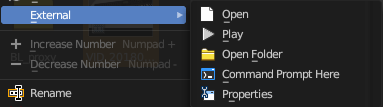
Shows the file properties.
| Entry | What it does |
|---|---|
| Edit | Opens the file in the corresponding software that is defined as the software to open the file with. A bitmap with Windows Paint for example. |
| Prints the file. | |
| Play | Plays the selected file. A movie in the Windows Media Player for example. |
| Find | Search for files of this type. |
| Show | Show this file in the explorer |
| Browse | Browse this file. |
| Preview | Preview this file. |
| Install | Install this file. |
| Runas | Run this file as a specific user. |
| Find in Folder | Search for items in this folder. |
| Entry | What it does |
|---|---|
| Increase Number | Increases the number at the selected data file in the file name edit box. |
| Decrease Number | Decreases the number at the selected data file in the file name edit box. |
| Rename | Rename the selected item. |
| Delete | Delete the selected item. |
| New Folder | Add a new folder. |
| Add Bookmark | Adds a bookmark in the file browser tool shelf in the Bookmark panel. |
Display Mode

Display the content as a list or as icons.
Display Size
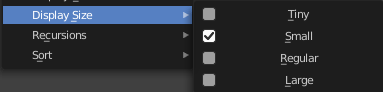
Set the display size of the file browser to four predefined sizes.
Recursion
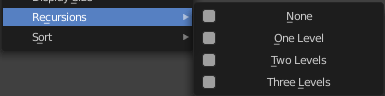
Recursion is a menu where you can adjust how deep the explorer should dig. Normally it just lists the content of the currently selected directory. But it is also possible to list the content of the folders three levels lower.
The recursion direction is always downwards. Default is None.
Sort
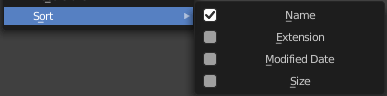
Sort the content by the chosen method.