
































































Editors

Select Menu
The Select menu contains various tools to select elements.
Drivers Editor - Select Menu
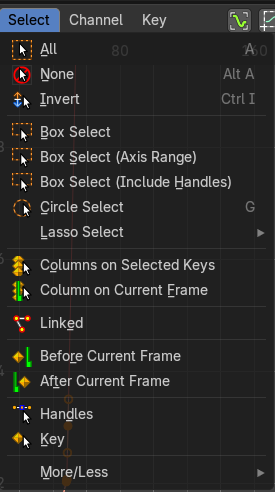
The Select menu contains various tools to select elements.
The content is the same in all modes. With one exception. Grease Pencil mode is missing the More / Less menu items.
| Entry | What it does |
|---|---|
| All | Select everything. |
| None | Select nothing. |
| Inverse | Invert the current selection. |
| Box Select | Box select enters the Border Select mode. Select elements by dragging a rectangle around it. Just what's inside of the rectangle gets selected then. It adds to selection by default. To subtract from selection hold down Shift key. The selection gets applied when you release the mouse. You leave the mode automatically when you release the mouse. |
| Box Select(Axis Range) | Box select enters the Border Select mode. Select elements by dragging a rectangle around it. And what's inside the horizontal range of the rectangle gets selected then. Even when the keyframes are outside of the rectangle. It adds to selection by default. To subtract from selection hold down Shift key. The selection gets applied when you release the mouse. You leave the mode automatically when you release the mouse. |
| Box Select(Include Handles) | Box select enters the Border Select mode. Select elements by dragging a rectangle around it. And what's inside the horizontal range of the rectangle gets selected then. Even when the keyframes are outside of the rectangle. And it selects all involved handlers too. |
| Circle Select | Circle select enters the Circle Select mode. This is a special select mode where you can select elements by moving with the mouse over it. It adds to selection by default. To subtract from selection hold down Shift key. To exit the Circle select click with the right mouse button. The pencil radius of the circle select tool can be adjusted with the scroll wheel. |
Lasso Select

A sub menu with the available lasso select modes.
| Entry | What it does |
|---|---|
| Columns on Selected Keys | Select the keyframes in the columns of the currently selected keyframe. |
| Columns on Current Frame | Select the keyframes in the columns of the current frame. |
| Linked | Select all UV vertices linked to the active UV map. The previous selection gets cleared. |
| Before current Frame | Select the keyframes before the current frame. |
After current Frame
Select the keyframes after the current frame.
Last Operator Select Left/Right
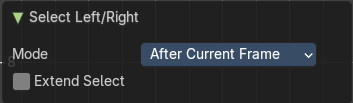
Mode
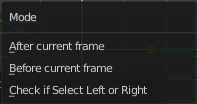
The selection mode to use.
Extend Select
Extend the current selection.
Handles
For selected keyframes, also select the handles.
Key
For selected keyframes, only select the keyframe, and deselect the handles.
Last Operator Select Key / Handles
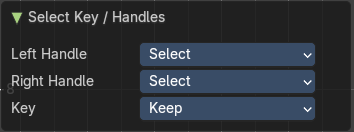
| Entry | What it does |
|---|---|
| Left Handle | What to do with the left handle. |
| Right Handle | What to do with the right handle. |
| Keep | What to do with the keyframe. |
More / Less submenu
| Entry | What it does |
|---|---|
| More | Grow the selection. |
| Less | Shrink the selection. |