

































































Key Menu
This menu contains functionality to manage the keyframes.
Drivers Editor - Key Menu
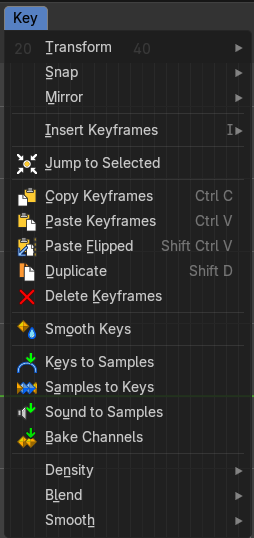
This menu contains functionality to manage the keyframes.
Transform
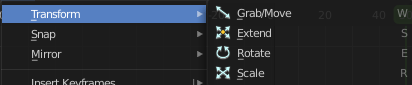
Grab/Move
Moves the selected keyframe(s).
Last Operator Move
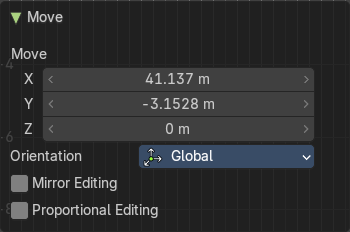
Move X, Y Z
The position. Attention, the actual world orientation and rotation does not matter here. It always starts with a value of zero, and moves relative to this zero then. For the actual location values have a look in the sidebar in the transform panel.
Orientation
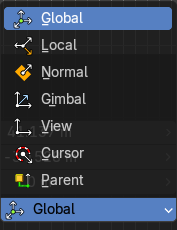
The widget can have different orientations. The menu items should be self explaining.
Mirror Editing
Enable Mirror Editing.
Proportional editing
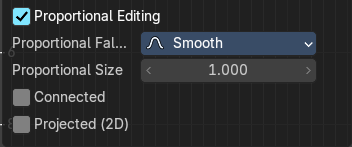
Enables proportional editing. Activating proportional editing reveals further settings.
| Entry | What it does |
|---|---|
| Proportional Falloff | Adjust the falloff methods. |
| Proportional Size | See and adjust the falloff radius. |
| Connected | The proportional falloff gets calculated for connected parts only. |
| Projected(2D) | The proportional falloff gets calculated in the screen space. Depth doesn't play a role. When it's in the radius, then it gets calculated. |
Extend
Moves the last keyframes of the selection.
Last Operator Transform
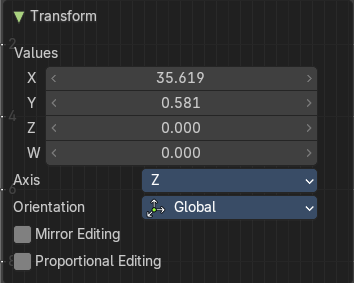
| Entry | What it does |
|---|---|
| Values X, Y Z, W | The new position. |
| Axis | Which axis to transform. |
Orientation
The widget can have different orientations. The menu items should be self explaining.
Mirror Editing
Enable Mirror Editing.
Proportional editing
Enables proportional editing. Activating proportional editing reveals further settings.
| Entry | What it does |
|---|---|
| Proportional Falloff | Adjust the falloff methods. |
| Proportional Size | See and adjust the falloff radius. |
| Connected | The proportional falloff gets calculated for connected parts only. |
| Projected(2D) | The proportional falloff gets calculated in the screen space. Depth doesn't play a role. When it's in the radius, then it gets calculated. |
Rotate
Rotates the selection.
Last Operator Rotate
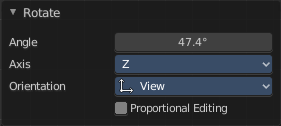
| Entry | What it does |
|---|---|
| Angle | The rotation. Attention, the actual world orientation and rotation does not matter here. It always starts with a value of zero, and rotates relative to this zero then. For the actual rotation values have a look in the sidebar in the transform panel. |
| Axis | Which axis to rotate. |
Orientation
The widget can have different orientations. The menu items should be self explaining.
Mirror Editing
Enable Mirror Editing.
Proportional editing
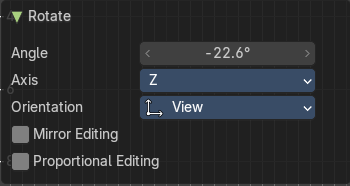
Enables proportional editing. Activating proportional editing reveals further settings.
| Entry | What it does |
|---|---|
| Proportional Falloff | Adjust the falloff methods. |
| Proportional Size | See and adjust the falloff radius. |
| Connected | The proportional falloff gets calculated for connected parts only. |
| Projected(2D) | The proportional falloff gets calculated in the screen space. Depth doesn't play a role. When it's in the radius, then it gets calculated. |
Scale
Scales the selected keyframes. You need to have more than one keyframe selected.
Last Operator Resize
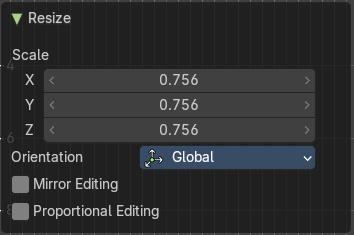
| Entry | What it does |
|---|---|
| Angle | The rotation. Attention, the actual world orientation and rotation does not matter here. It always starts with a value of zero, and rotates relative to this zero then. For the actual rotation values have a look in the sidebar in the transform panel. |
| Axis | Which axis to rotate. |
Orientation
The widget can have different orientations. The menu items should be self explaining.
Mirror Editing
Enable Mirror Editing.
Proportional editing
Enables proportional editing. Activating proportional editing reveals further settings.
| Entry | What it does |
|---|---|
| Proportional Falloff | Adjust the falloff methods. |
| Proportional Size | See and adjust the falloff radius. |
| Connected | The proportional falloff gets calculated for connected parts only. |
| Projected(2D) | The proportional falloff gets calculated in the screen space. Depth doesn't play a role. When it's in the radius, then it gets calculated. |
Snap
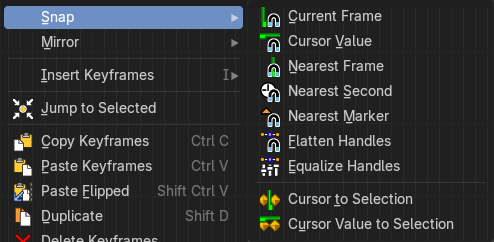
Snaps the selected keyframes by the chosen method.
Last Operator Snap Keys
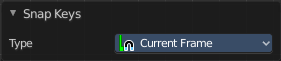
Type
Snaps the selected keyframes by the chosen method.
Mirror
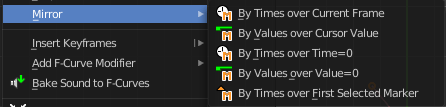
Flips the selected keyframes over the current frame position.
Last Operator Mirror Keys
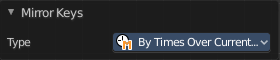
Type
Flips the selected keyframes over the current frame position by the chosen method.
Insert Keyframes
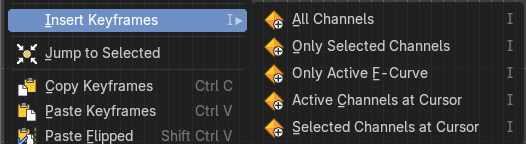
Choose a method how to insert a new keyframe at the current frame position.
Last Operator Insert Keyframes
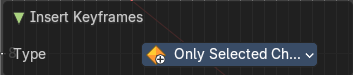
Type
Choose a method how to insert a new keyframe at the current frame position.
| Entry | What it does |
|---|---|
| Jump to Selected | Sets the frame marker at the average position of the currently selected keyframes. |
| Copy Keyframes | Copy selected keyframes. |
| Paste Keyframes | Pastes copied keyframes. |
Paste Flipped
Pastes copied keyframes, but flipped.
Last Operator Paste Keyframes / Flipped
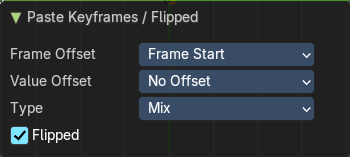
Offset
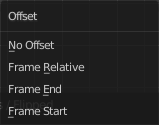
Define an offset for the paste position.
Type
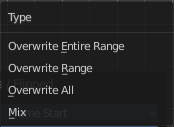
Choose a method how to paste the copied keyframes.
Flipped
Pastes keyframes from mirrored bones if they exists.
Duplicate
Duplicate selected keyframes.
Last Operator Duplicate
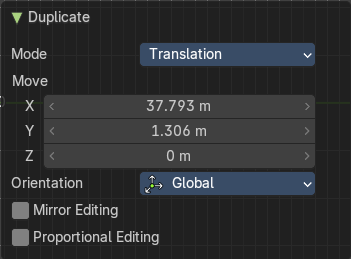
| Entry | What it does |
|---|---|
| Mode | — |
| Values X / Y | The x and y values for the pasted keyframes. Note that these values starts at the position of the original copied keyframe. These values are relative. Values Z and W have no effect here. |
| Axis | These values have no effect. |
Orientation
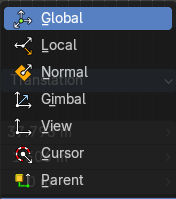
Transformation orientation. These values have no effect.
Mirror Editing
Enables Mirror Editing. These values have no effect.
Proportional editing
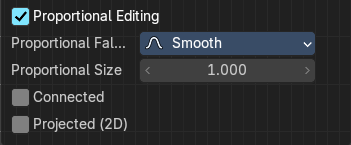
Enables proportional editing. Activating proportional editing reveals further settings.
| Entry | What it does |
|---|---|
| Proportional Falloff | Adjust the falloff methods. |
| Proportional Size | See and adjust the falloff radius. |
| Connected | The proportional falloff gets calculated for connected parts only. |
| Projected(2D) | The proportional falloff gets calculated in the screen space. Depth doesn't play a role. When it's in the radius, then it gets calculated. |
| Entry | What it does |
|---|---|
| Delete Keyframes | Deletes selected keyframes. |
| Smooth Keys | Smoothens the curve for the selected keys |
Keys to Samples
Bake selected F-Curves to a set of sampled points. This makes the curve not longer editable.
Sample to Keys
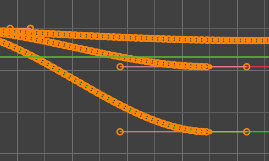
Un-bake a sampled point F-Curve to make it editable again.
Sound to Samples

Thisoperator takes a sound file and uses its sound wave to create the animation data. When running it, you will be prompted to load an audio file to apply to the selected channels.
Bake Channels

Creates keyframes following the current shape of F-Curves of selected channels for the entire channel within the frame range.
Density submenu
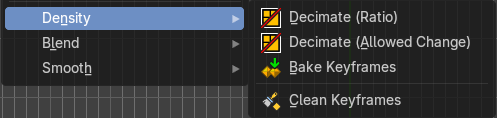
Decimate (Ratio)
Decimate F-Curves by removing keyframes that that has the least influence to the curve shape.
Decimate (Allowed Change)
Decimate F-Curves by specifying how much it can derivate from the original curve.
Last Operator Decimate Keyframes
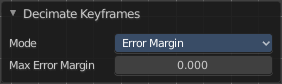
| Entry | What it does |
|---|---|
| Mode | The decimate mode. Error margin is Allowed change. |
| Remove or Max Error Margin | The percentage of keyframes to remove. |
| Entry | What it does |
|---|---|
| Bake Keyframes | Add keyframe on every frame between selected keyframes. |
| Clean Keyframes | Simplify FCurces by deleting keyframes that are close to each other in all channels. |
Blend submenu
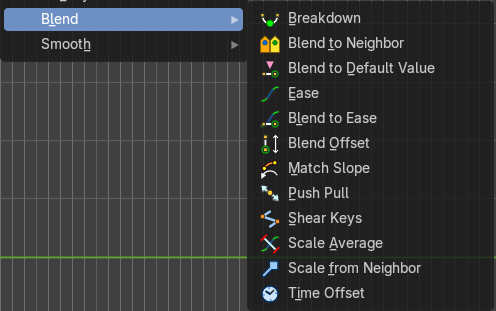
Blending methods.
Breakdown
Move selected keyframes to an inbetween position relative to adjacent keys.
Adjust Last operator Breakdown
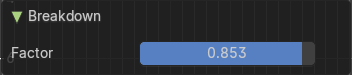
Factor
Favour either the left or the right key. The range goes from -1 to +1
Blend to Neighbor
Blend the keyframe to either the left or the right neighbor.
Adjust Last operator Blend to Neighbor
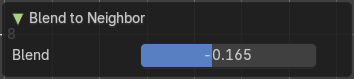
Blend
Blend factor.
Blend to Default Value
Blend selected keys to their default value from their current position.
Adjust Last operator Blend to Default Value
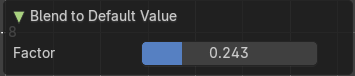
Factor
Blend factor.
Ease
Align keyframes on an ease in or ease out curve.
Adjust Last operator Ease Keyframes
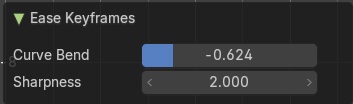
| Entry | What it does |
|---|---|
| Curve Blend | Blend factor. |
| Sharpness | Higher values makes the change more abrupt. |
Blend to Ease
Blends keyframes from current state to an ease in or ease out curve.
Adjust Last operator Blend to Ease Keyframes
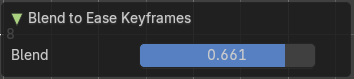
Blend
Blend factor.
Blend Offset
Shift selected keys to ther value of the neighboring keys as a block.
Adjust Last operator Blend Offset Keyframes
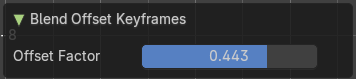
Offset Factor
The offset factor.
Match Slope
Blend selected keys to the slope of neighboring ones.
Adjust Last operator Match Slope
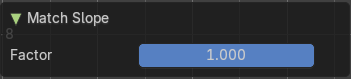
Factor
Blend factor.
Push Pull
Exaggerate or minimize the value of the selected keys.
Adjust Last operator Push Pull Keyframes
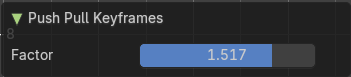
Factor
Blend factor.
Shear Keys
Shears the selected keys linearly. But keeps the same relationship between them. By either using the left or the right key as a reference.
Adjust Last operator Push Pull Keyframes
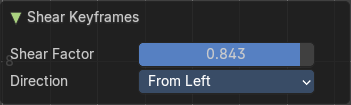
Shear Factor
The shear factor.
Direction
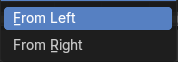
Which end of the segment to use as a reference to shear from.
Scale Average
Scale selected key values by their combined average.
Adjust Last operator Scale Average Keyframes
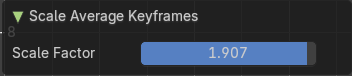
Scale Factor
Scale factor.
Scale from Neighbour
increase or decrease the value of selected keys in relationship to the neighbor keyrframe.
Adjust Last operator Scale from Neighbor
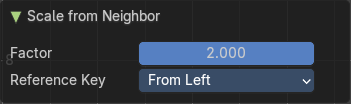
Factor
The blend factor.
Reference Key
Which key to use as the reference key.
Time Offset
Shifts the selected keyframes in time.
Adjust Last operator Frame Offset
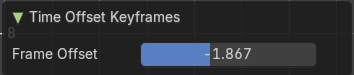
Frame Offset
The frame offset.
Smooth submenu

Make selected curves less bumpy.
Smooth Gaussian
Smoothens the curve with the method Gaussian.
Adjust Last operator Frame Offset
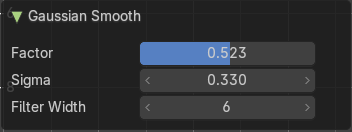
| Entry | What it does |
|---|---|
| Factor | Blend factor. |
| Sigma | The strength of the gaussian distribution. Higher value makes it smoother. |
| Filter Width | How much keyframes at the left or right are influenced. |
Smooth Legacy
Smoothens the curve with a simple method.
Butterworth Smooth
Smooth the f-curve while maintaining the general shape of the curve.
Adjust Last operator Butterworth Smooth
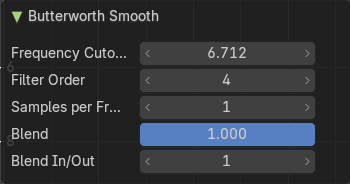
| Entry | What it does |
|---|---|
| Frequency Cutoff | The frequency cutoff in Hz. Lower values gives a smoother curve. |
| Filter Order | Higher values gives a harder frequency cutoff. |
| Samples per Frequency | How many samples to calculate per frame. |
| Blend | Blend factor. |
| Blend In/Out | How much keyframes at the left or right are influenced. |