

































































Channel list
The channel list contains your objects and their animation channels. See also the different modes.
Drivers Editor - Channel List
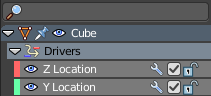
The channel list contains your objects and their animation channels. See also the different modes.
The channel list area can be resized by dragging the right border to left or right.
The list has several elements, to turn on or off different features, Or to expand or collapse the hierarchy.
Hotkeys
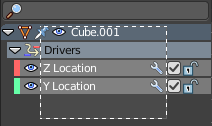
Hotkey A selects all channels.
Hotkey Alt A deselects everything.
Left mouse and dragging activates box select.
Clicking at a channel selects it.
Clicking at a channel while holding down shift adds to the selection or removes from the selection.
Search field
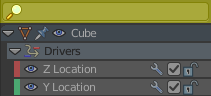
At the top is a search field that allows you to filter the channel list by search terms.
Expand / collapse triangle
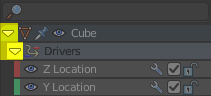
The triangle icon at the left allows you to expand or collapse the hierarchy.
Object type Icon
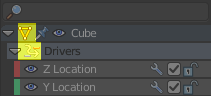
This icon shows what kind of object this channel belongs to. These icons have no functionality.
| Entry | What it does |
|---|---|
| Pin | Normally just the channels for selected objects are visible. With Pin the channels remains visible in Drivers Editor, even when you select another object. |
| Visibility | Hide the channel. |
Channel name
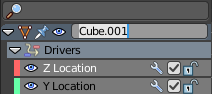
The name of the channel name and element. Some elements can be renamed. Like the action or object type.
To rename an element double click at it. Type in the new name. Then press Enter or click elsewhere.
Enable F-Curve Modifiers
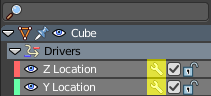
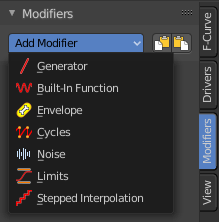
In the Drivers editor you can add F-Curve modifiers in the sidebar. Enable or disable these modifiers by the Enable F-Curve Modifiers setting in the channel list.
Mute Channel
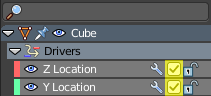
Mutes the selected channel. It will not be calculated.
Lock Channel
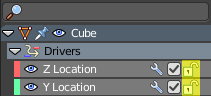
Locks the selected channel. It is not longer editable.
Slider values
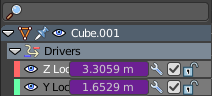
F-Curves can show a slider value in the channel list. This can be adjusted in the sidebar in the View options panel. Show Sliders is off by default.
You can edit these values. Double click to make it editable. Enter or click elsewhere to confirm. When you confirm, then the original keyframe gets updated.
When no keyframe exists at the current position, then this keyframe gets created.