

































































Group tab
The Compositor sidebar Group tab at the right side contains options and settings for node groups and socket input and output properties.
Group tab - Introduction
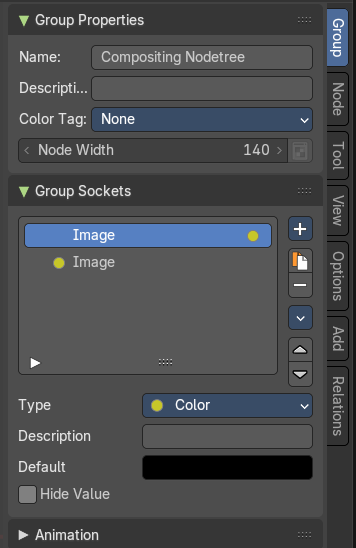
The Compositor sidebar Group tab at the right side contains options and settings for node groups and socket input and output properties.
Group Properties Panel
Name
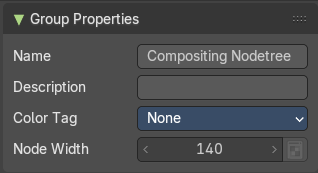
Change the name of the current node group. Type in a new name and hit enter.
Description
Change the description of the current node group. Type in a new name and hit enter.
Color Tag
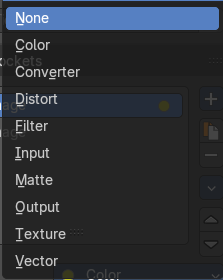
Changes the header color of the current node group.
Node Width
The width for newly created group nodes.
Group Sockets Panel
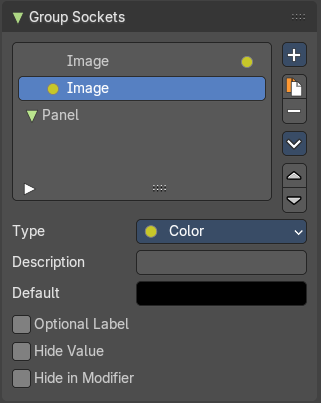
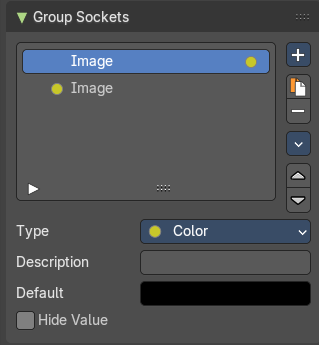
Manage the input and output properties of the Group Input and Output nodes.
More than one input and output slot can be useful when you want to modify compositor sockets in the node group in more than one way.
Group Socket List
List of available input and output sockets.
Note: The list can be sorted by dragging the items around.
List
The list of input and output sockets.
| Entry | What it does |
|---|---|
| Socket Name | Change the name of the current selected input socket by double clicking on the socket in the list. Type in a new name and hit enter. |
| Searchbar | Clicking at the white arrow button down left of the list will reveal a search input box. |
| Resize Handle | The list can be resized by pulling at the resize handle in the center of the list at the bottom. |
New Item
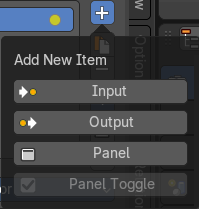
Adds a new input sockets to the list.
| Entry | What it does |
|---|---|
| Input | Adds a new input sockets to the list. |
| Output | Adds a new output socket to the list. |
| Panel | Adds a new panel socket to the list. |
Panel Toggle
When you create a panel, then the panel toggle button becomes active. By default the checkbox is ticked. And all available panel toggles are on. When you untick it then you reveal a Panel Toggle subpanel, where you have more fine control over the toggles.
Panel toggle subpanel
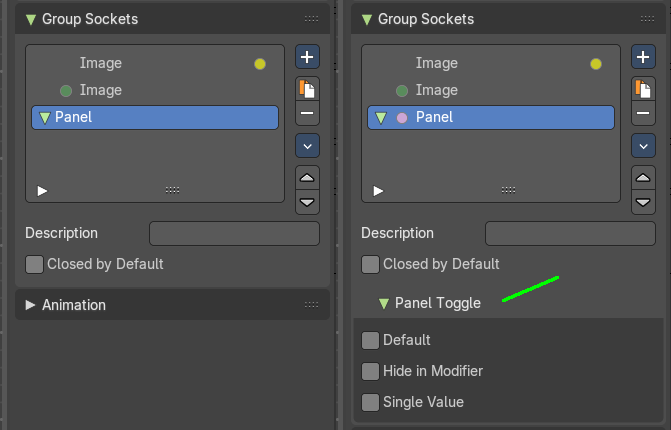
| Entry | What it does |
|---|---|
| Default | Input value for unconnected socket. |
| Hide in Modifier | Don’t show the modifier in the geometry nodes modifier interface. |
| Single Value | Only allow single value input rather than field. |
| Entry | What it does |
|---|---|
 Duplicate Item Duplicate Item | Duplicates the active socket. |
 Remove Item Remove Item | Removes the selected input socket from the list. |
Move Item Up/Down

Moves the active item to the specified direction. You can move the active item up or down the list.
Note: You can also alternatively drag and drop the active item to re-order.
Inputs
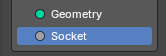
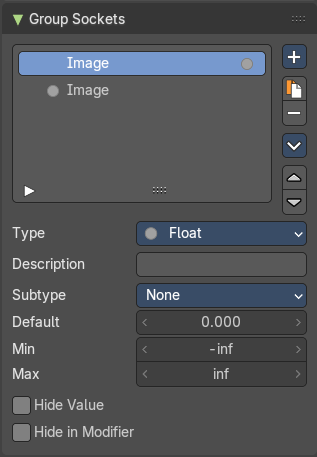
Inputs are characterized by the colored dot to the left. These are manifested in the Group Input node.
Outputs
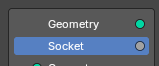
Outputs are characterized by the colored dot to the right. These are manifested in the Group Output node.
Type
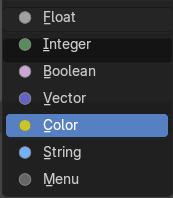
What kind of node group input or output type it is.
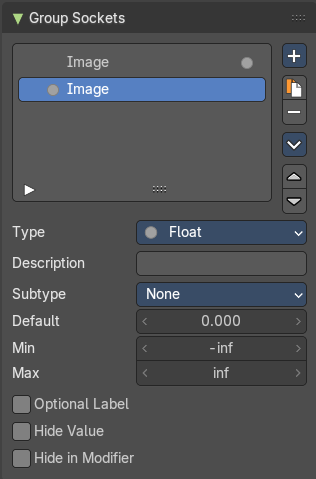
Type Float
Description
Add a tooltip to the socket description.
Subtype
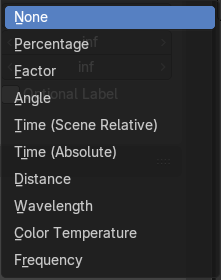
What special math operation is required. The subtype menu allows you to define the socket type sliders and read-out.
| Entry | What it does |
|---|---|
| Default | The default value for the socket. |
| Min | The minimum value for the socket. Note: This is only available for vector and float types. |
| Max | The maximum value for the socket. Note: This is only available for vector and float types. |
| Optional Label | This label is not necessary to understand its meaning. |
| Hide Value | Hide the input value even when the socket is not connected. |
| Hide in Modifier | Don’t show the input value in the geometry nodes modifier interface. |
Type Integer
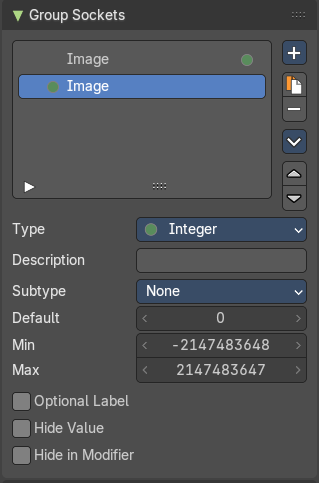
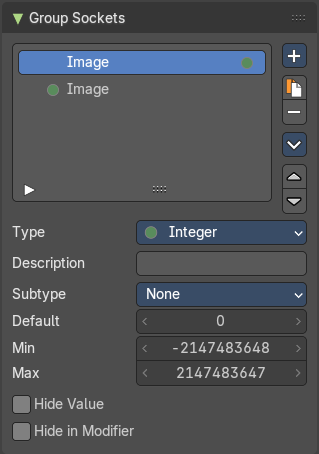
Description
Add a tooltip to the socket description.
Subtype
What special math operation is required. The subtype menu allows you to define the socket type sliders and read-out.
| Entry | What it does |
|---|---|
| Default | The default value for the socket. |
| Min | The minimum value for the socket. Note: This is only available for vector and float types. |
| Max | The maximum value for the socket. Note: This is only available for vector and float types. |
| Optional Label | This label is not necessary to understand its meaning. |
| Hide Value | Hide the input value even when the socket is not connected. |
| Hide in Modifier | Don’t show the input value in the geometry nodes modifier interface. |
Type Boolean
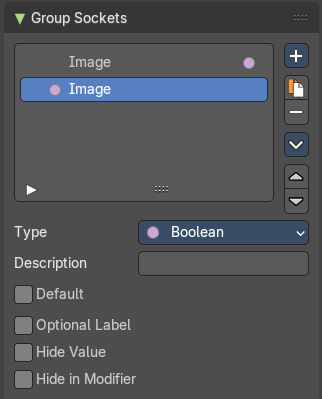
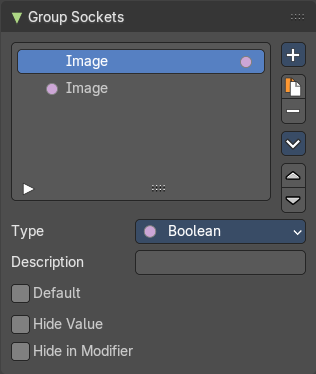
| Entry | What it does |
|---|---|
| Description | Add a tooltip to the socket description. |
| Default | The default value for the socket. |
| Optional Label | This label is not necessary to understand its meaning. |
| Hide Value | Hide the input value even when the socket is not connected. |
| Hide in Modifier | Don’t show the input value in the geometry nodes modifier interface. |
Type Vector
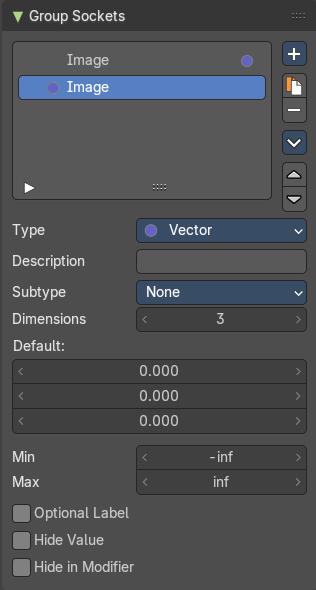
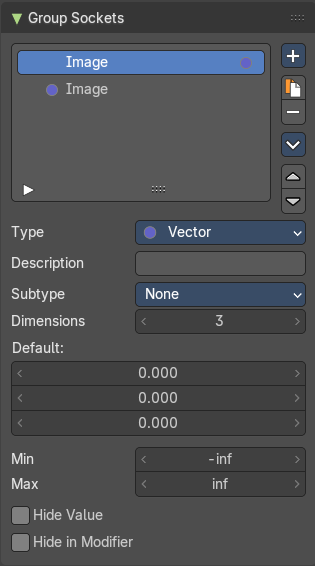
Description
Add a tooltip to the socket description.
Subtype
What special math operation is required. The subtype menu allows you to define the socket type sliders and read-out.
| Entry | What it does |
|---|---|
| Dimensions | How much dimensions to calculate. |
| Default | The default vector. It changes, dependant of what dimensions you use. |
| Min / Max | Minimum value and maximum value. |
| Optional Label | This label is not necessary to understand its meaning. |
| Hide Value | Hide the input value even when the socket is not connected. |
| Hide in Modifier | Don’t show the input value in the geometry nodes modifier interface. |
Type Color
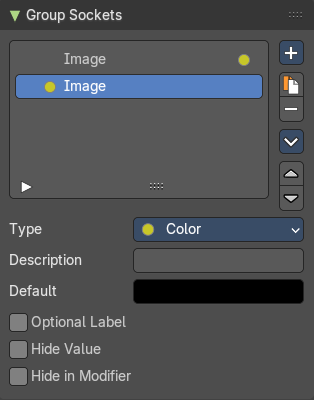
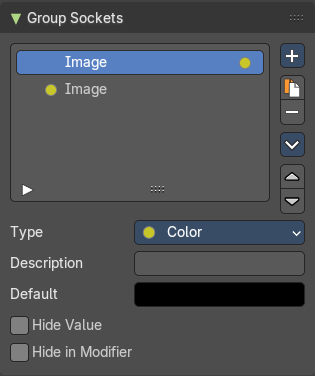
| Entry | What it does |
|---|---|
| Description | Add a tooltip to the socket description. |
| Default | The default color for the socket. |
| Optional Label | This label is not necessary to understand its meaning. |
| Hide Value | Hide the input value even when the socket is not connected. |
| Hide in Modifier | Don’t show the input value in the geometry nodes modifier interface. |
Type String
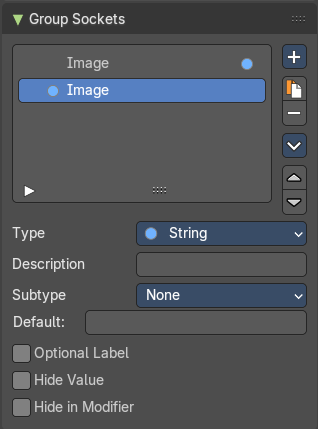
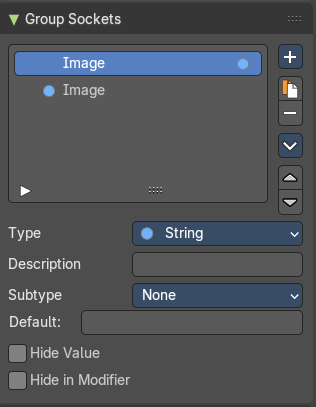
Description
Add a tooltip to the socket description.
Subtype
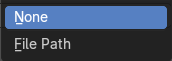
What special math operation is required. The subtype menu allows you to define the socket type sliders and read-out.
| Entry | What it does |
|---|---|
| Default | The default string. |
| Optional Label | This label is not necessary to understand its meaning. |
| Hide Value | Hide the input value even when the socket is not connected. |
| Hide in Modifier | Don’t show the input value in the geometry nodes modifier interface. |
Type Menu
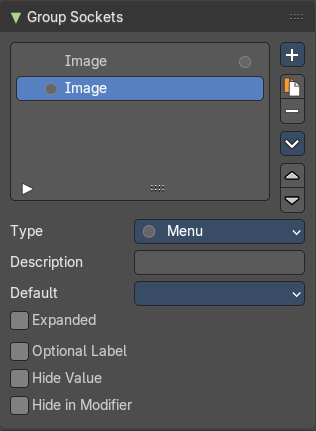
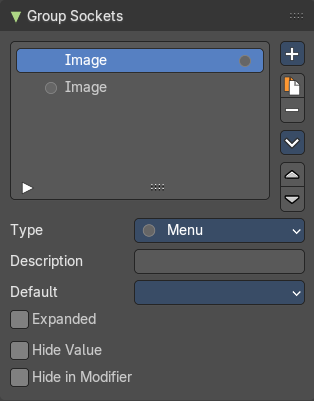
| Entry | What it does |
|---|---|
| Description | Add a tooltip to the socket description. |
| Default | The default menu. |
| Expanded | Draw the menu socket as an expanded drop down menu. |
| Optional Label | This label is not necessary to understand its meaning. |
| Hide Value | Hide the input value even when the socket is not connected. |
| Hide in Modifier | Don’t show the input value in the geometry nodes modifier interface. |
Group Sockets Panel - Type Panel
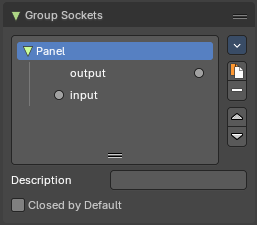
TODO
Closed by default
Panel is closed by default on new nodes.
Panel Toggle
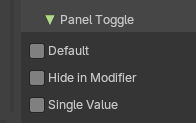
Note: The Panel Toggle properties are only for the Panel Boolean type of panels.
| Entry | What it does |
|---|---|
| Default | The default value for the boolean toggles. |
| Hide in Modifier | Hides the panel boolean toggle from the modifier stack. |
| Single Value | The default value for the panel boolean toggle. |
Animation Panel
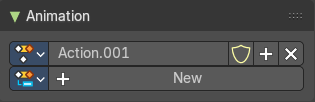
Animation panels are about the Animation Slots for scene wide animation clips.
| Entry | What it does |
|---|---|
| New | Create a new action clip for the light, used in the Dopesheet Editor - Action Clip mode. |
| Action Selector | This selector allows users to manage actions associated with a particle system, ensuring that the correct animation data is applied. · Fake User: Assigns a "fake user" to the action, preventing it from being automatically deleted when it is no longer in use. · Add: Make a copy of the current action, including all animation data. · Remove: Delete the selected action, removing it from the light source. |