

































































View Menu
The View menu contains all View related tools.
View Menu
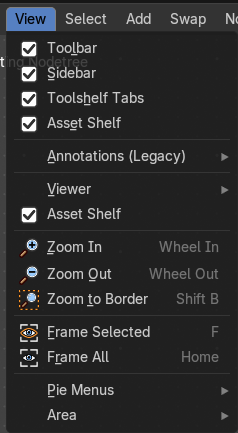
The View menu contains all View related tools.
The content is the same in all sub modes.
Toolbar
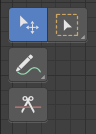
Shows or hides the toolbar at the left.
Sidebar
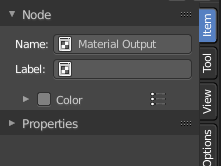
Shows or hides the sidebar at the right in the viewport.
Asset Shelf
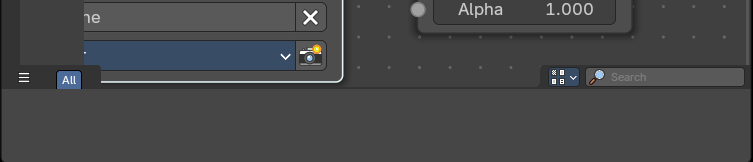
Shows or hides the Asset Shelf to the bottom of the Shader Editor.
Annotations (Legacy)
This group of operators is useful to take notes without changing tool-shelf operators. These notes can be colored in the View tab of the Property Shelf. Each layer is a single color. You can also animate the notes with keyframes, editable in the dopesheet.
Note: These are legacy operators, meaning they are equally available in the Toolshelf as a modal operator.
| Entry | What it does |
|---|---|
| Draw Annotation | Starts the annotation free hand draw tool in the editor. |
| Draw Line Annotation | Starts the annotation line draw tool to draw straight lines in the editor. |
| Draw Polyline Annotation | Starts the annotation Polyline draw tool in the editor which allows to draw multiple connected straight lines in the editor. |
| Erase Annotation | Starts the annotation erase tool in the editor which erases any strokes in the editor. |
| Add Annotation Layer | Starts a new annotation layer. |
| Erase Annotation Active Keyframe | Erases the active keyframe of the annotation. |
Viewer
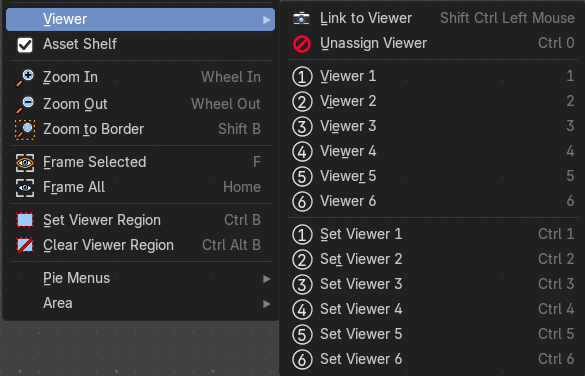
The viewer contains a series of quick actions to link a node to a viewer to preview compositor results.
| Entry | What it does |
|---|---|
| Link to Viewer | Creates a temporary connection to the Viewer Node, allowing to quickly preview the output of any node within the compositor by clicking on it. Note: This operator only works under the mouse cursor and is shown in this menu for discoverability purposes only. |
| Unassign Viewer | Removes any quick number assignment linked to a Viewer, allowing it to revert to an unassigned state. |
| Viewer 1-6 | Activates a viewer that has been assigned a quick number. When you press a number from the keyboard numbers row, it will toggle the Viewer in the Image Preview Editor. |
| Set Viewer 1-6 | Sets a viewer to a quick number assigment. When you assign a number, you can use the numbers row on the keyboard to toggle the Viewer for the Image Preview Editor. |
Zoom In
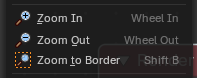
Zooms into the viewport.
| Entry | What it does |
|---|---|
| Zoom Out | Zooms out of the viewport. |
| Zoom Border | Draws a rectangle and zooms then to fit the size of this rectangle. Zooming in is done with drawing the rectangle with left mouse button. Zooming out is done with drawing the rectangle with middle mouse button. |
| Frame Selected | Zooms to the selection. |
| Frame All | View all zooms in or out in the viewport until all objects in the scene are displayed fitting in the viewport. |
Pie menus

Lists the available pie menus, and gives you the ability to read the hotkeys and assign own hotkeys.
Area
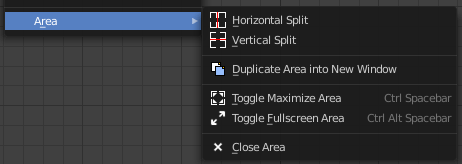
This menu contains general view functionality. And exists in most other editor types too.
| Entry | What it does |
|---|---|
| Horizontal Split | Splits the current view horizontally into two independent editor windows. |
| Vertical Split | Splits the current view vertically into two independent editor windows. |
Duplicate Area into New Window
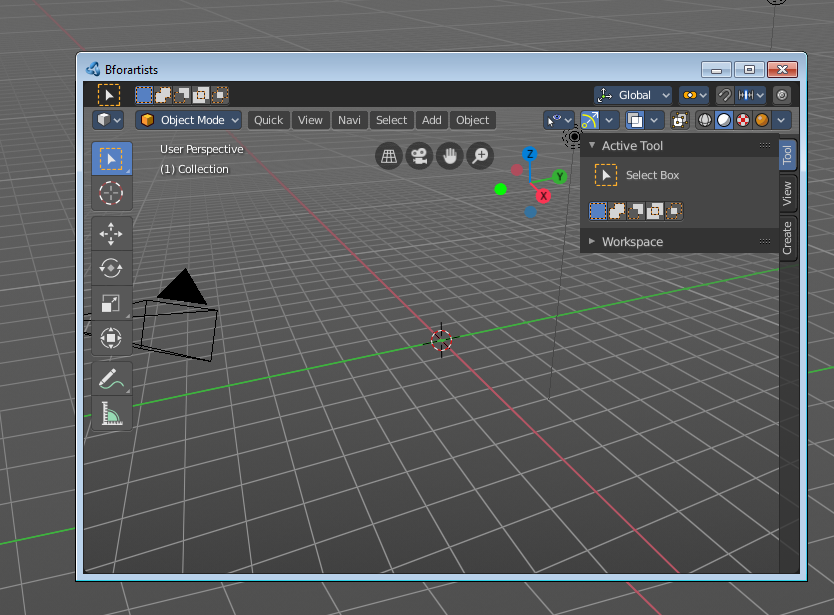
Duplicate Area into New Window makes the selected editor window floating. You can then drag it around at the monitor. It is not connected with the rest of the UI anymore.
A separated window cannot be merged into the main window again. You have to close it when not longer needed.
| Entry | What it does |
|---|---|
| Toggle Maximize Area | Displays the editor maximized with menus. To return from the maximized view press hotkey Ctrl + Space. Or reuse the menu item in the area menu. |
| Toggle Full screen Area | Displays the editor maximized without menus. To return from the full screen view press hotkey Ctrl + Alt + Space. |
| Close Area | Closes the editor. |
View Menu with Backdrop
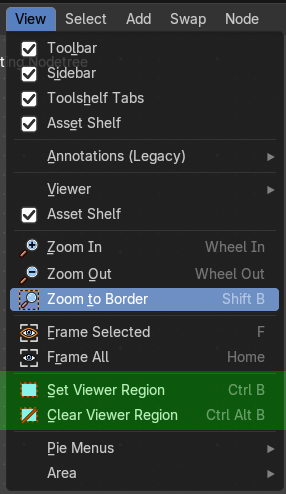
When you activate the Backdrop in the header, then the View menu reveals some more functionality.
| Entry | What it does |
|---|---|
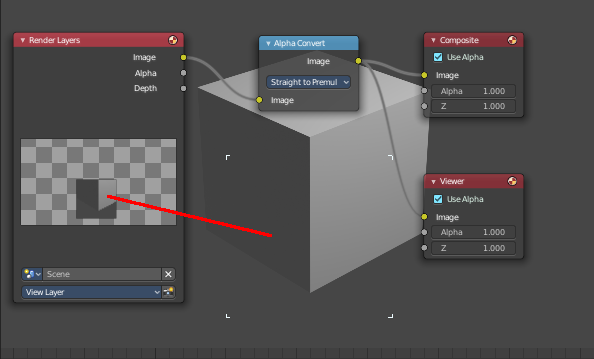
| Set Viewer Region | Allows you to define an area of the Backdrop. Then just this are gets processed. |
| Clear Viewer Region | Removes the Viewer Region. |