

































































Tools and Options
Manage the compositing nodetrees.
Nodetree property

Manage the compositing nodetrees.
Nodetree list
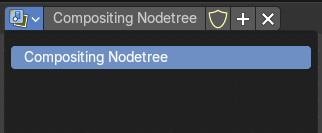
The list of the available nodetrees.
| Entry | What it does |
|---|---|
| Nodetree name | The name of the active nodetree. |
| Fake User | Protect this nodetree to be removed when it has no user. |
| New compositing node group | Generate a new compositing node group. |
| Remove | Remove the active compositing node group. |
Options

At the right side of the header you will see the options.
| Entry | What it does |
|---|---|
| Pin (pin icon) | The pin button will keep the current material selection fixed. When a material is pinned, it will remain visible in the shader editor even when another object or material is selected elsewhere. |
| Parent Node Tree | Grouping nodes can simplify a node tree by allowing instancing and hiding parts of the tree. Both material and composite nodes can be grouped. This button becomes active when you work with such grouped nodes, and you are in a child group. it allows you to switch to the parent group. |
Backdrop


By adding a viewer node you can display the compositing result as a background in the viewport. Here you can activate it, and adjust the look. It also contains controls to adjust the zoom and position of the backdrop image.
| Entry | What it does |
|---|---|
| Background Image Move | Move the background image. A click confirms. Watch the hotkey. |
| Background Image Zoom in and out | Zoom in and out the Background image. |
| Background Image Fit | Fits the background image into the view. |
| Display channels | What channels to display in the backdrop. |
Viewport Gizmos

Toggles showing node editor gizmos.
Active Node
Shows the active node gizmo, specifically for the Split viewer node.
Snap
Activates snapping.
Node Editor Overlays
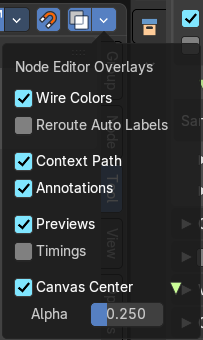
Activates the node editor overlays. When the tool is activated, then you will also overlays settings in the editor. The drop down arrow to the right shows different overlay types.
Show Overlays
Show or hide the overlays.
Wire Colors
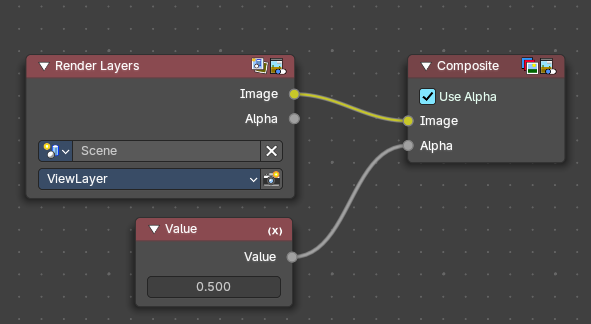
Color node links based on their connected sockets.
Example: The color Image socket is yellow that makes a yellow line, and the Value socket is grey that makes a grey line.
Reroute Auto Labels
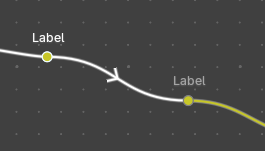
Label reroute nodes based on the label of connected reroute nodes.
Example: The first reroute label to the right has concurring reroute labels down the line. If you toggle this off, the concurring reroute labels down the line won’t contain labels.
Context Path
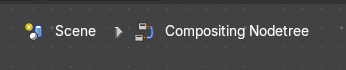
Display breadcrumbs for the editor’s context up left.
| Entry | What it does |
|---|---|
| Annotation | Shows annotations for this editor view that have been drawn by the annotation tool. |
| Previews | Shows each nodes preview thumbnails if the node has previews toggled on. |
| Timings | Shows a timing box above each node to indicate the evaluation time of it.. This option is only available for compositing and geometry nodes. |
| Canvas Center | Display the canvas center. · Alpha: How transparent the green and red canvas center lines are displayed |