

































































Add Menu - Utilities - Vector
Here you find mainly nodes for vector data manipulation.
Add menu - Utilities - Vector
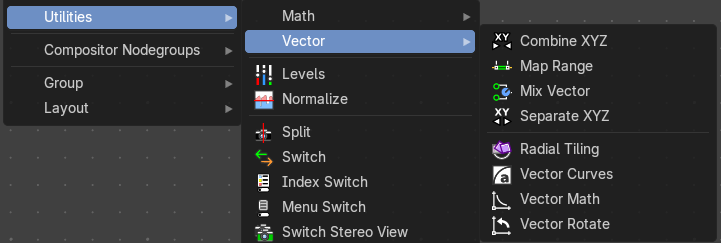
Here you find mainly nodes for vector data manipulation.
Combine XYZ
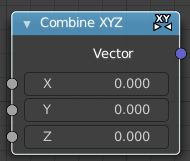
Same as with Combine RGB node. It combines color values. But instead combining rgb values, which are in the range of 0 to 255, it uses values in the range from 0 to 1.
| Entry | What it does |
|---|---|
| Input | X Y and Z: X, Y and Z values. |
| Output | Color: Color output. |
Map Range
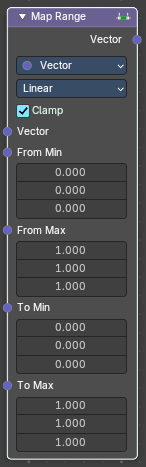
This node allows to convert (map) an input value range into a destination range. By default, values outside the specified input range will be proportionally mapped as well. This node is similar to Map Value node but provides a more intuitive way to specify the desired output range.
| Entry | What it does |
|---|---|
| Usage | One important use case is to easily map the original range of the Z-depth channel to a more usable range (i.e: 0.0 - 1.0) for use as a matte for colorization or filtering operations. |
| Inputs | This chapter deals with the input type Float. The same node exists in the Math menu too. With preselected type Float. · Vector: Standard vector input. · From Min/Max: Vector 3 of the Start/End of the input value range. · To Min/Max: Vector 3 of the Start/End of the destination range. · Steps: The amount of steps. Note: Only shows when using the Stepped Linear interpolation type. |
Properties
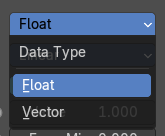
Data Type
Selects between float or vector values to map the range.
Interpolation Type
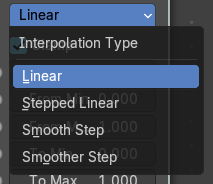
Selects between a linear, stepped linear, smooth step or smoother step interpolation types.
Clamp
Clamps values to Min/Max of the destination range.
Outputs
vector
Standard value output.
Mix Vector
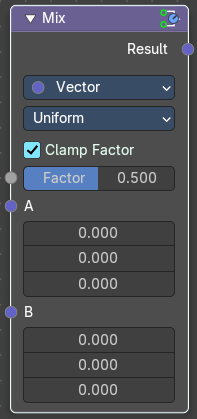
The Mix Vector node blends two vector inputs using a specified factor. It’s useful for compositing tasks that involve motion vectors, directional effects, or spatial blending, offering precise control over how two sets of vector data are combined
Inputs
| Entry | What it does |
|---|---|
| Factor | Controls the amount of influence the node exerts on the output result. |
| Value A | The back value. |
| Value B | The top value. |
Properties
Data Type
Set to Vector, indicating the node mixes vector values.
Factor Mode
The method of mixing.
- Uniform: A single float controls the mix across all vector components.
- Non-Uniform: A vector input controls the mix per component (X, Y, Z).
Clamp Factor
Limit the highest color value to not exceed 1.
Outputs
Result
Vector output.
Separate XYZ
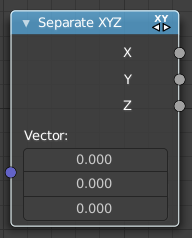
Same as with Separate RGB node. It separates color values. But instead separating rgb values, which are in the range of 0 to 255, it uses a vector with the values in the range from 0 to 1.
| Entry | What it does |
|---|---|
| Input | Vector: The Input vector. |
| Output | X, Y and Z: The output vectors for X, Y and Z |
Radial Tiling
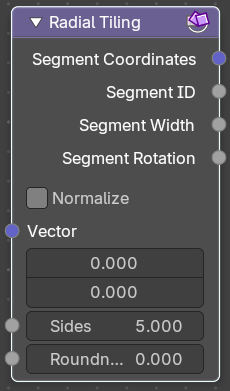
Transform coordinate system for radial tiling.
| Entry | What it does |
|---|---|
| Input | Vector: Vector 2 input · Sides: Number of angular segments for tiling. A non integer value results in an irrgeluar segment. · Roundness: Roundness of the segment coordindates system. |
| Properties | Normalize: Normalize the X coordinate of the segment coordinates output to a [ 0 / 1 ] interval and offset the Y coordinate into a [0, infinity] interval. This stretches the textures to fit into each angular segment. Else they are cropped. |
Vector Curves
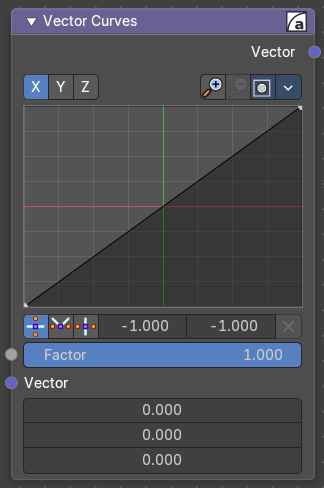
The Vector Curves node maps an input vector components to a curve.
Inputs
In the shader context the node also has an additional Factor property.
Vector
Standard vector 3 input.
Properties
Channel
Channel buttons

X, Y, Z. Clicking on one of the channels displays the curve for each.
Curve edit field
Create and tweak a Bezier curve that varies the input levels (X axis) to produce an output level (Y axis).
Selecting Points
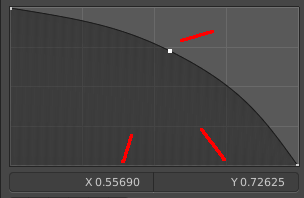
You can select curve points. This reveals two edit boxes for the x and y coordinate of this point.
Selected points can be moved around. Left click at them, hold the mouse button down and move them to a new location.
Adding Points
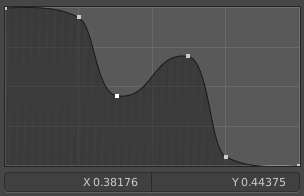
You can add new curve points by simply left clicking at the curve. Move the mouse to position them where you need it.
Zoom in and out
The two buttons with the magnifying glass at it zooms in and out in the curve window.
Clipping options
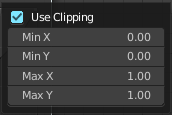
Clipping options. Set up clipping for the stroke.
Tools
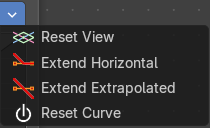
Tools is a menu where you can find some curve related tools.
| Entry | What it does |
|---|---|
| Reset View | Resets the curve windows zoom. |
| Extend horizontal | Extends the curve before the first curve point and behind the last curve point horizontally. |
| Extend extrapolated | Extends the curve before the first curve point and behind the last curve point extrapolated. |
| Reset Curve | Resets the curve to the initial shape. |
Vector Handle

Set handle type to Vector.
| Entry | What it does |
|---|---|
| Auto Handle | Set handle type to Auto. |
| Auto Clamped Handle | Set handle type to Auto Clamped. |
| X / Y position | The x y coordinate of the selected curve point. The range goes from -1 to +1 |
| Delete Points | Deletes selected curve points. |
Outputs
Vector
Standard vector 3 output.
Vector Math
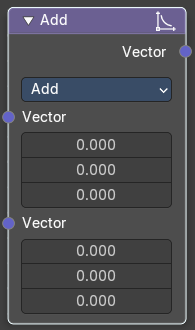
The Vector Math Node performs math operations.
Inputs
| Entry | What it does |
|---|---|
| Vector | First numerical value. The trigonometric functions accept values in radians. |
| Vector | Second numerical value. This value is not used in functions that accept only one parameter like the trigonometric functions, Round and Absolute. |
Properties
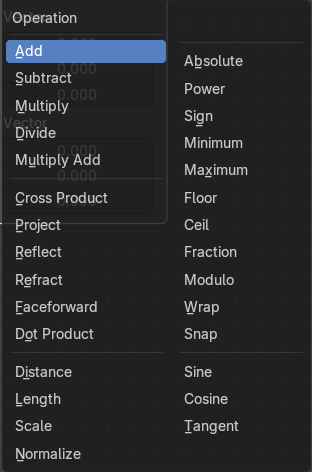
Operation
Here you can choose what mathematical operation to perform.
Outputs
Value
Numerical value output.
Vector Rotate
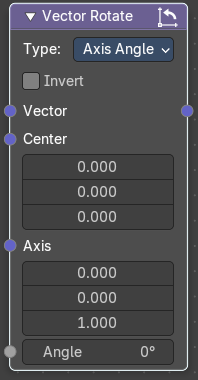
The Vector Rotate node rotates a vector around a specified axis and center point. It’s useful for compositing tasks involving directional transformations, such as rotating motion vectors, normals, or custom vector fields
Inputs
| Entry | What it does |
|---|---|
| Vector | The input vector to be rotated. |
| Center | The pivot point around which the vector is rotated. |
| Axis | The axis of rotation, defined as am XYZ based 3D vector |
| Angle | The amount of rotation in degrees. |
Properties
Type
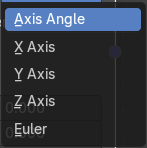
Determines the rotation method.
- Axis Angle: Rotates around a custom axis by a specified angle.
- **X/Y/Z Axis: **Rotates the vector around the X/Y/Z-axis.
- **Euler: **Applies rotation using Euler angles in XYZ order.
Invert
When enabled, reverses the direction of the rotation.
Outputs
Vector
The rotated vector result.