

































































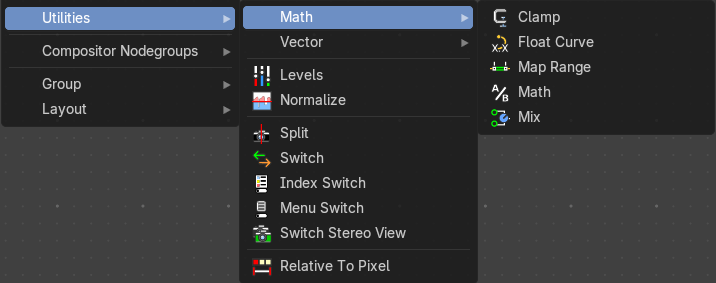
Add Menu - Utilities - Math
The Clamp node restricts a value to lie within a specified range. It’s commonly used in compositing to prevent values from exceeding a desired minimum or maximum, which helps avoid unwanted brightness spikes or clipping…
Add menu - Utilities - Math
Clamp
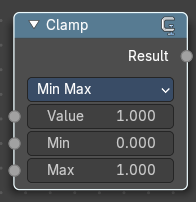
The Clamp node restricts a value to lie within a specified range. It’s commonly used in compositing to prevent values from exceeding a desired minimum or maximum, which helps avoid unwanted brightness spikes or clipping in image processing.
| Entry | What it does |
|---|---|
| Inputs | Value: Standard Value input. (Value refers to each vector in the set.) |
| Properties | Clamp Type: A dropdown that determines how the clamping is applied: Min / Max or Range. · Min / Max: The minimum and maximum allowed value. Any input lower or higher than this will be lowered or raised to this value. |
| Outputs | Value: Standard value output. |
Float Curve
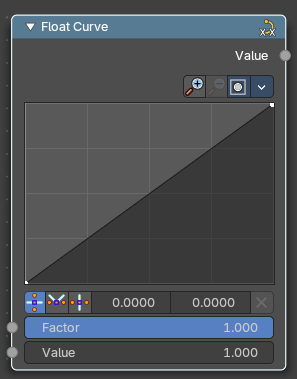
The Float Curves node maps an input value to a curve.
| Entry | What it does |
|---|---|
| Inputs | Factor: Input factor. |
| Value | Standard float value input. |
Properties
Curve edit field
Create and tweak a Bezier curve that varies the input levels (X axis) to produce an output level (Y axis).
Selecting Points
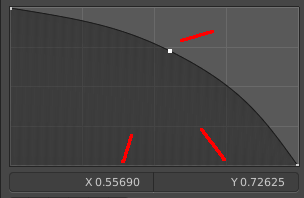
You can select curve points. This reveals two edit boxes for the x and y coordinate of this point.
Selected points can be moved around. Left click at them, hold the mouse button down and move them to a new location.
Adding Points
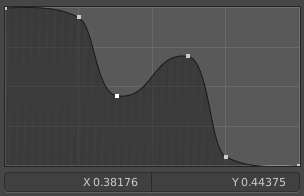
You can add new curve points by simply left clicking at the curve. Move the mouse to position them where you need it.
| Entry | What it does |
|---|---|
| Zoom in and out | The two buttons with the magnifying glass at it zooms in and out in the curve window. |
| Tools | Tools is a menu where you can find some curve related tools. · Reset View: Resets the curve windows zoom. · Extend horizontal: Extends the curve before the first curve point and behind the last curve point horizontally. · Extend extrapolated: Extends the curve before the first curve point and behind the last curve point extrapolated. · Reset Curve: Resets the curve to the initial shape. |
Clipping Options
Use Clipping
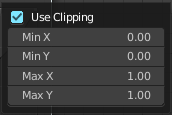
Clipping options. Set up clipping for the stroke.
Delete Points
Deletes selected curve points.
Vector Handle

Set handle type to Vector.
| Entry | What it does |
|---|---|
| Auto Handle | Set handle type to Auto. |
| Auto Clamped Handle | Set handle type to Auto Clamped. |
| X / Y value | The position of the selected curve point. |
| Delete | Deletes the selected curve point. |
Outputs
Value
Standard float value output.
Map Range
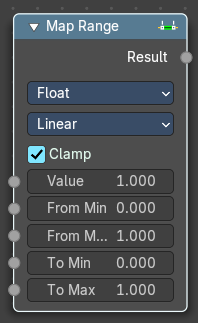
This node allows to convert (map) an input value range into a destination range. By default, values outside the specified input range will be proportionally mapped as well. This node is similar to Map Value node but provides a more intuitive way to specify the desired output range.
| Entry | What it does |
|---|---|
| Usage | One important use case is to easily map the original range of the Z-depth channel to a more usable range (i.e: 0.0 - 1.0) for use as a matte for colorization or filtering operations. |
| Inputs | This chapter deals with the input type Float. The same node exists in the Vector menu too. With preselected type Vector. · Value: Standard value input. · From Min/Max: Start/End of the input value range. · To Min/Max: Start/End of the destination range. · Steps: The amount of steps. Note: Only shows when using the Stepped Linear interpolation type. |
Properties
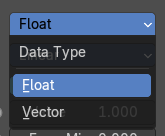
Data Type
Selects between float or vector values to map the range.
Interpolation Type
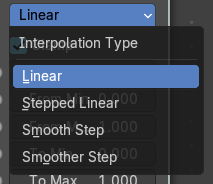
Selects between a linear, stepped linear, smooth step or smoother step interpolation types.
Clamp
Clamps values to Min/Max of the destination range.
Outputs
Value
Standard value output.
Math
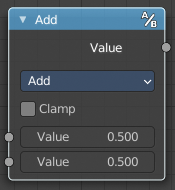
The Math Node performs math operations.
Inputs
| Entry | What it does |
|---|---|
| Value | First numerical value. The trigonometric functions accept values in radians. |
| Value | Second numerical value. This value is not used in functions that accept only one parameter like the trigonometric functions, Round and Absolute. |
Properties
Operation
Here you can choose what mathematical operation to perform.
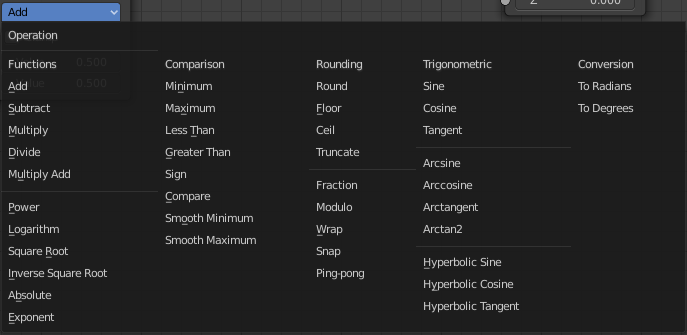
Clamp
Limits the output to the range (0 to 1). See clamp.
Outputs
Value
Numerical value output.
Mix
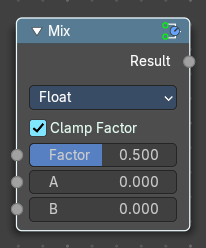
The Mix Node mixes float values by working on the individual and corresponding pixels of the two input values. Called “Mix” in the shader, Geometry Nodes and texture context.
| Entry | What it does |
|---|---|
| Inputs | Factor: Controls the amount of influence the node exerts on the output Value. · Value A: The back value. · Value B: The top value. |
| Properties | Clamp Factor: Limit the highest color value to not exceed 1. |
| Outputs | Result: Value output. |