

































































Add Menu - Utilities
Here you find nodes that are used as utilities.
Add menu - Utilities
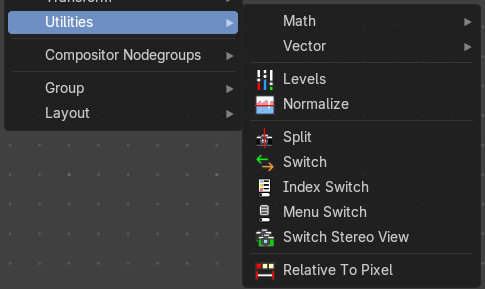
Here you find nodes that are used as utilities.
Levels
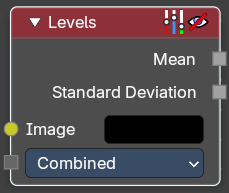
The Levels Node reads the inputs color channels and outputs analytical values. It’s useful for evaluating image brightness and contrast, and for driving effects based on image intensity.
Inputs
Image
The image input.
Properties
| Entry | What it does |
|---|---|
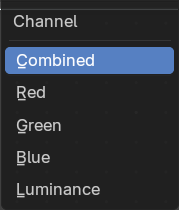
| Channel | The Red, Green, Blue or Luminance channels |
| Outputs | 1D values based on the levels of an image. |
| Mean | The mean is the average value of all image pixels in specified channel (combined, red, green, blue, luminance). It tells you how dark or bright the image is and can be used as such for setups that depend on how is input “bright” or “dark”. |
| Standard Deviation | How much those pixel values differ from the mean. A low standard deviation indicates that the pixel values tend to be very close to the mean. A high standard deviation indicates that the values are spread out over a large range of values. The visualization of such data is just a gray rectangle. |
Normalize
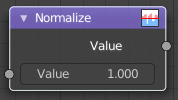
Find the minimum and maximum values of a single channel. Then map the values to a range of 0 and 1.
| Entry | What it does |
|---|---|
| Inputs | Value: Standard value input. |
| Outputs | Value: Standard value output. |
Split
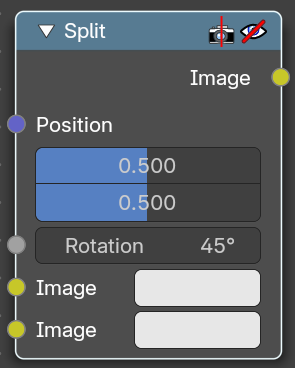
Allows to combine two images horizontally or vertically
| Entry | What it does |
|---|---|
| Inputs | Position: Line position where the image should be split. · Rotation: Line angle where the image should be split. · Image: The first image. · Image: The second image. |
| Outputs | Image: Image output. |
Switch
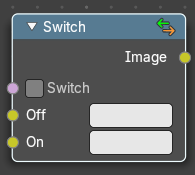
The Switch node is akin to a boolean, where you can use a toggle to choose what is shown with on or off.
| Entry | What it does |
|---|---|
| Properties | Switch: The toggle that turns the switch on or off resulting in the final output being whatever is in the on or off input. |
| Inputs | Off: The image that is shown when the toggle is off. · On: The image that is shown when the toggle is on. · Image: Standard RGB image output. |
Index Switch
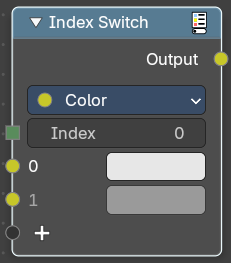
Choose between an arbitrary number of values with an index.
Properties
Data Type
What data type to evaluate.
Inputs
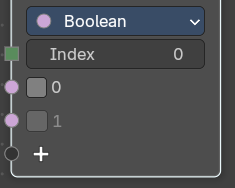
The content changes. dependant of the data type.
| Entry | What it does |
|---|---|
| Index | The index input value. |
| 0 | The 0 value |
| 1 | The 1 value |
Output
Output
The output index value.
Menu Switch
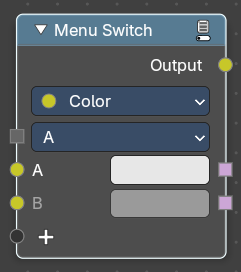
Select from multiple inputs by name.
Properties
Data Type
What data type to evaluate.
Inputs
The content changes. dependant of the data type.
Menu input
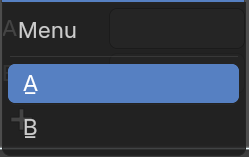
The default menu.
| Entry | What it does |
|---|---|
| A | The A input. |
| B | The B input. |
Output
| Entry | What it does |
|---|---|
| Output | The output string. |
| A | The A output |
| B | The B output |
Switch Stereo View
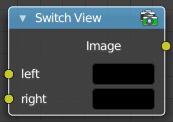
The Switch View node combines the views (left and right) into a single Stereo 3D output. This can be useful if for example, you need to treat the view as separate images by combining each of the views.
| Entry | What it does |
|---|---|
| Inputs | Left: Left-eye image input. · Right: Right-eye image input. |
| Outputs | Image: Stereo 3D image output. |
Relative to Pixel
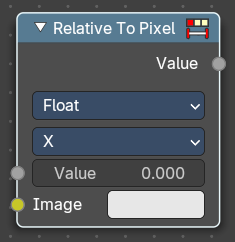
The Relative to Pixel node converts values expressed as relative factors (e.g., percentages of image size) into absolute values. This is especially useful when working with nodes that require pixel-based inputs, such as filters or masks, while still allowing for resolution-independent setups.
Example: Converting a Value of 10 Using “Per Dimension”
Let’s say you’re working with an image that’s 1920 pixels wide and 1080 pixels tallwith the following input value and properties.
- Mode: Per Dimension
- Input Value: 10% (or 0.10 as a relative value)
- Value Type: 2D Vector (0.10, 0.10)
Using **Per Dimension **type, each component of the vector is multiplied by its respective X and Y image dimension:
- X = 0.10 × 1920 = 192 pixels
- Y = 0.10 × 1080 = 108 pixelsResulting Pixel Value: (192, 108)
Inputs
| Entry | What it does |
|---|---|
| Value | The input float value to convert. This would be your absolute value. |
| Image | The reference image used to determine pixel dimensions. If not connected, the active compositing image is used. |
Properties
Data Type
Specifies whether the input is a Float or a Vector. This affects how the conversion is applied.
Reference Dimension
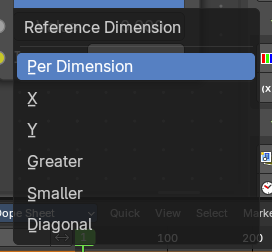
Determines how the relative value is interpreted.
Per Dimension: Converts each component (X and Y) relative to its corresponding image dimension.
X: Converts the value relative to the image width.
Y: Converts the value relative to the image height.
Greater: Uses the larger of the image’s width or height as the reference.
Smaller: Uses the smaller of the image’s width or height.
Diagonal: Uses the diagonal length of the image as the reference.
Outputs
Value
The converted float value, based on the selected mode and input type.