

































































Add Menu - Transform
These nodes distort the image in some fashion. They work either on the whole image, or by using a mask to vary the effect over the image.
Add menu - Transform
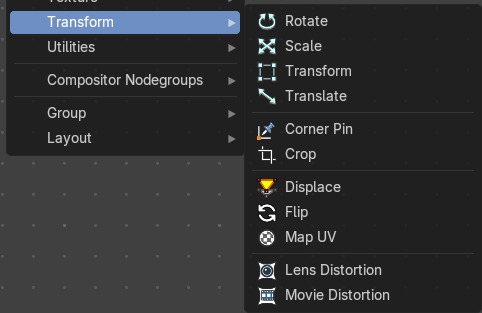
These nodes distort the image in some fashion. They work either on the whole image, or by using a mask to vary the effect over the image.
Rotate
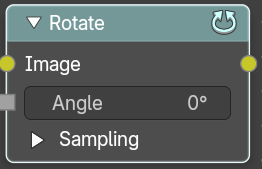
This node rotates an image.
Inputs
| Entry | What it does |
|---|---|
| Image | Standard image input. |
| Angle | Rotation angle in degree. Positive values rotate clockwise and negative ones counterclockwise. |
Sampling Subpanel
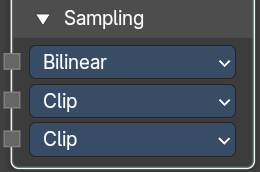
Interpolation
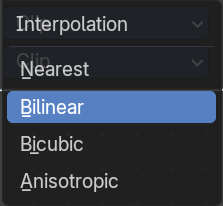
The interpolation mode.
| Entry | What it does |
|---|---|
| Nearest | No interpolation. This method uses the nearest neighboring pixel. |
| Bilinear | Simple interpolation between adjacent pixels. |
| Bicubic | Highest quality interpolation. |
Anisotropic
Anisotropic interpolation.
Extension X
The extension mode applied to the X axis.
Extension Y
The extension mode applied to the Y axis.
Outputs
Image
Standard image output.
Scale
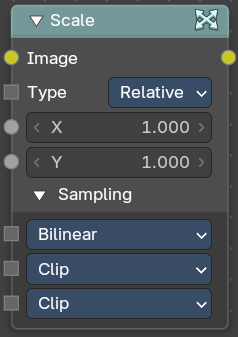
The Scale node scales the size of an image.
Inputs
Image
Standard image input.
Type
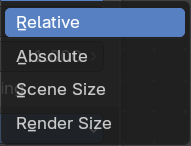
Coordinate Space to scale relative to.
| Entry | What it does |
|---|---|
| Relative | Percentage values relative to the dimensions of the image input. |
| Absolute | Size of an image by using absolute pixel values. |
| Scene Size | Sizes an image to the size of the final render resolution for the scene. For example, rendering a scene at the standard 1080p resolution but setting the render percentage at 50%, will produce a 1080p image with the scene scaled down 50% and leaving the rest of the image as alpha. |
Render Size
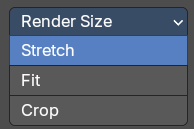
Image dimensions set in the Render panel.
Stretch, Fit, Crop
Render Size setting. Stretch distorts the image so that it fits into the render size. Fit scales the image until the bigger axis “fits” into the render size. Crop cuts the image so that it is the same aspect ratio as the render size.
X, Y
Scale in the axis directions, only available if Space is set to Relative or Absolute.
Sampling Subpanel
Interpolation
The interpolation mode.
| Entry | What it does |
|---|---|
| Nearest | No interpolation. This method uses the nearest neighboring pixel. |
| Bilinear | Simple interpolation between adjacent pixels. |
| Bicubic | Highest quality interpolation. |
Anisotropic
Anisotropic interpolation.
Extension X
The extension mode applied to the X axis.
Extension Y
The extension mode applied to the Y axis.
Outputs
Image
Standard image output.
Transform
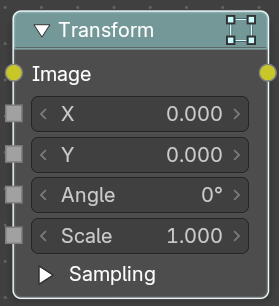
The Transform node combines the functionality of three other nodes: Scale, translate, and rotate nodes.
Inputs
| Entry | What it does |
|---|---|
| Image | Standard image input. |
| X, Y | Used to move the input image horizontally and vertically. |
| Angle | Used to rotate an image around its center. Positive values rotate counter-clockwise and negative ones clockwise. |
| Scale | Used to resize the image. The scaling is relative, meaning a value of 0.5 gives half the size and a value of 2.0 gives twice the size of the original image. |
Sampling Subpanel
Interpolation
The interpolation mode.
| Entry | What it does |
|---|---|
| Nearest | No interpolation. This method uses the nearest neighboring pixel. |
| Bilinear | Simple interpolation between adjacent pixels. |
| Bicubic | Highest quality interpolation. |
Anisotropic
Anisotropic interpolation.
Extension X
The extension mode applied to the X axis.
Extension Y
The extension mode applied to the Y axis.
Outputs
Image
Standard image output.
Translate
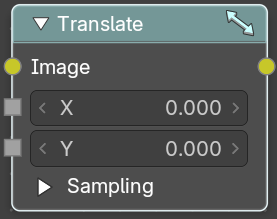
The Translate node moves an image.
Could also be used to add a 2D camera shake.
Inputs
| Entry | What it does |
|---|---|
| Image | Standard image input. |
| X, Y | Used to move the input image horizontally and vertically. |
Sampling Subpanel
Interpolation
The interpolation mode.
| Entry | What it does |
|---|---|
| Nearest | No interpolation. This method uses the nearest neighboring pixel. |
| Bilinear | Simple interpolation between adjacent pixels. |
| Bicubic | Highest quality interpolation. |
Anisotropic
Anisotropic interpolation.
Extension X
The extension mode applied to the X axis.
Extension Y
The extension mode applied to the Y axis.
Outputs
Image
Standard image output.
Corner Pin
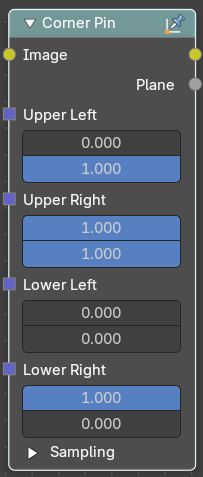
The Corner Pin node uses explicit corner values for a plane warp transformation. It works like the Plane Track Deform node, but without using “plane track” data from the Movie Clip Editor.
Inputs
Image
Standard image input.
Corners ( Upper left, Upper Right, etc. )
Four vector inputs to define the plane warping. (Z component of vector inputs is ignored.)
Sampling Subpanel
Interpolation
The interpolation mode.
| Entry | What it does |
|---|---|
| Nearest | No interpolation. This method uses the nearest neighboring pixel. |
| Bilinear | Simple interpolation between adjacent pixels. |
| Bicubic | Highest quality interpolation. |
Anisotropic
Anisotropic interpolation.
Extension X
The extension mode applied to the X axis.
Extension Y
The extension mode applied to the Y axis.
Outputs
| Entry | What it does |
|---|---|
| Image | Standard image output. (The image after distorting.) |
| Plane | A black-and-white alpha mask of the plane. |
Crop
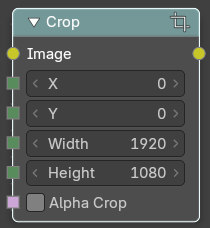
The Crop Node takes an input image and crops it to a selected region.
| Entry | What it does |
|---|---|
| Inputs | Image: Standard image input. · X / Y: X and Y position of the origin. · Width / Height: The size of the crop area. · Alpha Crop: Make the outer areas of the area transparent instead of cropping the image. |
| Outputs | Image: Standard image output. |
Displace
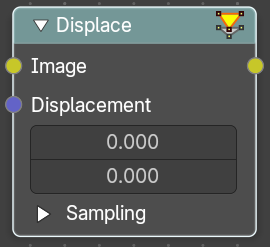
The Displace Node displaces the pixel position based on an input vector.
This node could be used to model phenomena, like hot air distortion, refraction's of uneven glass or for surreal video effects.
Inputs
| Entry | What it does |
|---|---|
| Image | Standard image input. |
| Displacement | Input of the displacement map. If the a color output is implicitly converted in the vector input, the first channel (red) value determines displacement along X axis. The second channel (green) the displacement along Y axis. If the input is a greyscale image, where both the channel values are equal, the input image will be displaced equally in both X and Y directions. |
| Scale X, Y | Separate scaling of the vector input in X and Y direction. Acting as multipliers by increasing or decreasing the strength of the displacement along their respective axes. |
Sampling Subpanel
Interpolation
The interpolation mode.
| Entry | What it does |
|---|---|
| Nearest | No interpolation. This method uses the nearest neighboring pixel. |
| Bilinear | Simple interpolation between adjacent pixels. |
| Bicubic | Highest quality interpolation. |
Anisotropic
Anisotropic interpolation.
Extension X
The extension mode applied to the X axis.
Extension Y
The extension mode applied to the Y axis.
Outputs
Image
Standard image output.
Flip
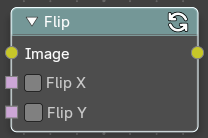
This node flips an image at defined axis.
You can use this node to just flip or use it as a part of mirror setting. Mix half of the image to be mirrored with its flipped version to produce mirrored image.
| Entry | What it does |
|---|---|
| Inputs | Image: Standard image input. |
| Flip X | Flip the image along the X axis. · Flip Y: Flip the image along the Y axis. |
| Outputs | Image: Standard image output. |
Map UV
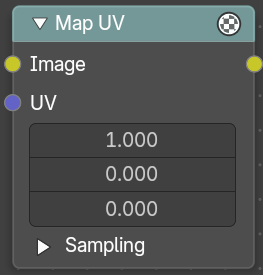
With the Map UV node objects can be “re-textured” after they have been rendered.
To apply a texture to individual enumerated objects the ID Mask Node could be used.
Inputs
| Entry | What it does |
|---|---|
| Image | The new 2D texture. |
| UV | The input for UV render pass. See Cycles render passes. Hint. To store the UV pass a multi-layer OpenEXR format could be used. |
Sampling Subpanel
Interpolation
The interpolation mode.
| Entry | What it does |
|---|---|
| Nearest | No interpolation. This method uses the nearest neighboring pixel. |
| Bilinear | Simple interpolation between adjacent pixels. |
| Bicubic | Highest quality interpolation. |
Anisotropic
Anisotropic interpolation.
Extension X
The extension mode applied to the X axis.
Extension Y
The extension mode applied to the Y axis.
Outputs
Image
The resulting image is the input image texture distorted to match the UV coordinates. That image can then be overlay mixed with the original image to paint the texture on top of the original. Adjust alpha and the mix factor to control how much the new texture overlays the old.
Hint. When painting the new texture, it helps to have the UV maps for the original objects in the scene, it is recommended to keep those UV texture outlines around even, when shooting is done.
Lens Distortion

Use this node to simulate distortions that real camera lenses produce.
Inputs
Image
Standard image input.
Type
The lens distortion type.
Type Radial
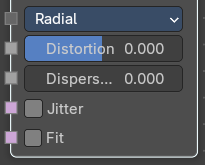
| Entry | What it does |
|---|---|
| Distortion | This creates a bulging or pinching effect from the center of the image. |
| Dispersion | This simulates chromatic aberrations, where different wavelengths of light refract slightly differently, creating a rainbow colored fringe. |
| Jitter | Adds jitter to the distortion. Faster, but noisier. |
| Fit | Scales image so black areas are not visible. Only works for positive distortion. |
Type Radial
Dispersion
This simulates chromatic aberrations, where different wavelengths of light refract slightly differently, creating a rainbow colored fringe.
Outputs
Image
Standard image output.
Movie Distortion

In the real world, all camera lenses produce some or the other sort of lens distortion. But, whatever we render has got no distortion. So, this node helps in removing distortion from movies or adding distortion to render to make our render blend in with the movie clip.
Usually, it is used while motion tracking.
Distortion vs Undistortion
Although, both, distortion of render and undistortion of movie clip are possible, and produce similar results, there is a difference between these two methods.
There are two kinds of lens distortion possible and, in simple terms, they can be said as:
When the movie clip is bulging out.
When the movie clip is bulging in.
For the first case, it is recommended to distort the render and leave the movie clip as it is, because, undistorting the movie clip will require extra pixel information, which is not available to Blender. Similarly, in the second case, it is recommended to undistort the movie clip and leave the render as it is, because, distorting the render will require those extra unavailable pixels. Doing the wrong method in the wrong case can create weird results around the edges, such as in the image shown.
Calculating Distortion
Before using this node, one has to calculate the lens distortion of the clip. This can be done by adjusting K1, K2 and K3 values in Movie Clip Editor > Properties ? Lens. For more information on how to edit those values, check this out.
Inputs
Image
Standard image input.
Type
Undistort
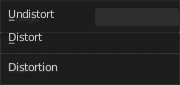
Used to undistort the image received, and is usually used for the raw distorted movie clip.
Distort
Used to distort the image received, and is usually used for rendered images.
Movie Clip
Used to select the movie clip whose distortion is to be used. This can be useful if more than one movie clips are present, each having a different distortion setting. For controls see Data-Block Menu.
Outputs
Image
Standard image output.