

































































Add Menu - Tracking
The Tracking menu contains nodes for tracking motion data.
Add menu - Tracking

The Tracking menu contains nodes for tracking motion data.
Plane Track Deform
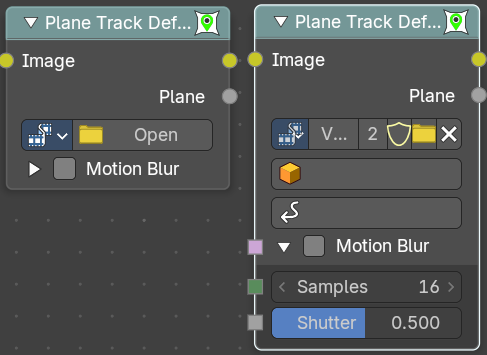
The Plane Track Deform Node is used to incorporate the special “plane track” in your composite by checking areas which are planes, and replacing their footage with some other image.
Before using this node, plane track for the footage should be made in the Movie Clip Editor.
Inputs
Image
Image to put in place of the plane track, and thus, override that area in the movie clip.
Properties
| Entry | What it does |
|---|---|
| Movie Clip | Used to select the movie clip whose plane track to use. For controls see Data-Block Menu. |
| Object | Used to select the object to which the plane track is linked. |
| Plane Track | Used to select the plane track to use. |
Motion Blur subpanel
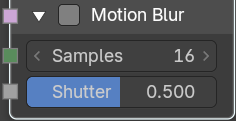
Specify whether to use blur caused by motion of the plane track or not.
| Entry | What it does |
|---|---|
| Samples | Motion Blur setting. Set the number of samples to take for each frame. The higher this number, the smoother the blur effect, but the longer the render, as each virtual intermediate frame has to be rendered. Note. Samples are taken only from the next frame, not the previous one. Therefore the blurred object will appear to be slightly ahead of how it would look without motion blur. |
| Shutter | Motion Blur setting. Time (in frames) the shutter is open. If you are rendering at 24 fps, and the Shutter is set to 0.5, the time in between frames is 41.67 ms, so the shutter is open for half that, 20.83 ms. |
Outputs
| Entry | What it does |
|---|---|
| Image | The output by perspective wrapping the image to that plane track. |
| Plane | Produces a black-and-white mask of the plane track. |
Stabilize 2D
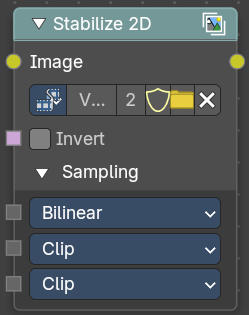
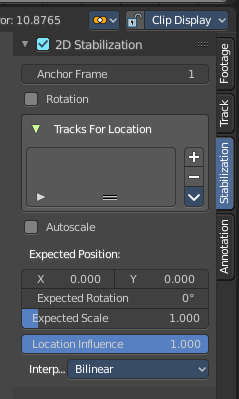
The Stabilize 2D node stabilizes the footage according to the settings set in Movie Clip Editor in the Sidebar in the Stabilization tab in the 2D Stabilization panel. For more information, see the chapter there.
Inputs
| Entry | What it does |
|---|---|
| Image | Standard image input. |
| Invert | Invert the stabilization. If the stabilization calculated is to move the movie clip up by 5 units, this will move the movie clip down by 5 units. |
Properties
Movie Clip

The movie clip whose stabilization to use.
| Entry | What it does |
|---|---|
| Clip browser | The available loaded clips |
| Name | The name of the active clip. |
| Number of users | How much users this clip has. |
| Fake User | Keep it in the scene even if it has no users. |
| Open Clip | Open a new clip. |
| Remove Clip | Remove the active clip. The clip will remain in the scene, and will be removed when you close Bforartists and it has no user anymore. See Fake User. |
Sampling subpanel
Interpolation
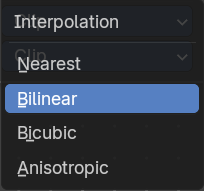
Filter methods for the stabilization.
Extension X
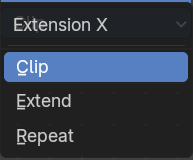
How to extend the image in x direction.
Extension Y
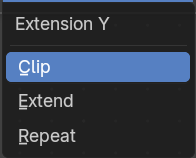
How to extend the image in x direction.
Outputs
Image
Standard image input.
Track Position
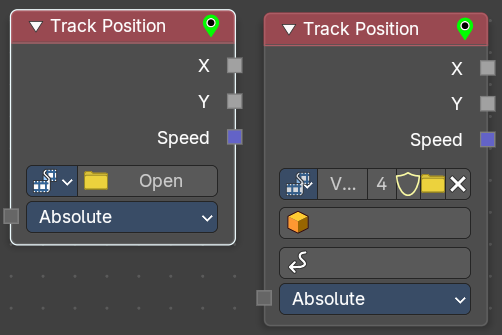
The Track Position node is used to return information about a tracking marker to the Compositor. You need a tracking project here.
Properties
Movie Clip browser
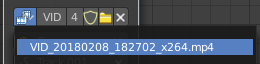
Choose a loaded movie file.
Open
Open a movie file.
| Entry | What it does |
|---|---|
| Name | Read and edit the name of the video. |
| Fake User | Assign a fake user to this video. Fake users is an odd concept to keep data in the scene even if it has no user somewhere. The fake user is then a dummy user so that the object is not deleted when saving the scene. |
| Load File | Load a new video. |
| Delete File | Delete this video. |
| Entry | What it does |
|---|---|
| Tracking Object | Camera object to get track information from. |
| Track Name | The name of the track to get track information from. |
Mode
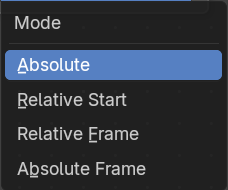
Which marker position to use for output.
| Entry | What it does |
|---|---|
| Absolute | Outputs an absolute position of a marker. |
| Relative Start | Outputs the positions of a marker relative to the first marker of a track. |
| Relative Frame | Outputs the positions of a marker relative to the markers of the given Frame. |
| Absolute Frame | Outputs the absolute positions of a marker at the given Frame. |
Outputs
| Entry | What it does |
|---|---|
| X/Y | The marker’s X and Y location. |
| Speed | The velocity of the marker, measured in pixels per frame. This could be used to fake effects like motion blur by connecting it to the Vector Blur Node. |