

































































Add Menu - Output
This menu contains nodes to output the result.
Add menu - Output
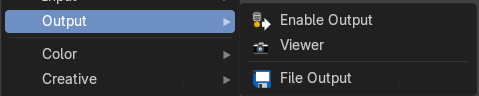
This menu contains nodes to output the result.
Enable Output
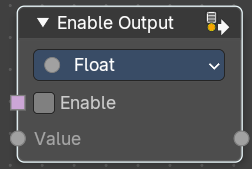
This node allows dynamic control over output visibility in node groups. It simplifies logic where certain output sockets should only be exposed under specific conditions—like menu selections or switch toggles.
This is especially useful for building clean, context-sensitive node groups.
Use
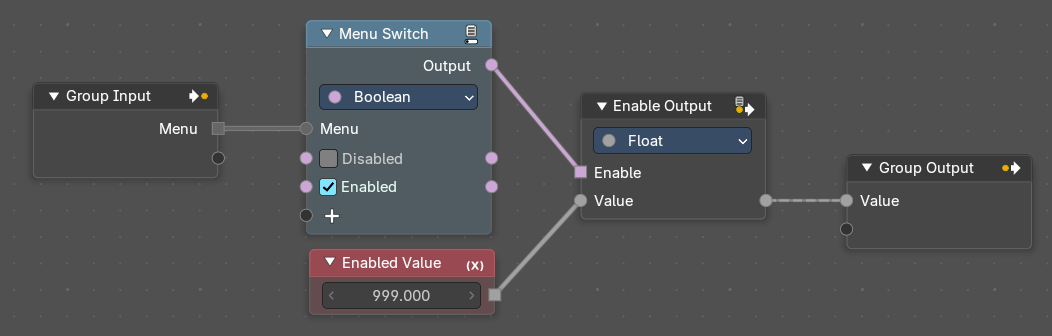
When used inside a Node Group, this node helps to automatically filter or detect outputs.
- If the output always returns a fallback value (e.g. 0, false, empty geometry), this will hide the output socket from the node group output socket interface.
- This behavior is more efficient and user-friendly than using a Switch node, which requires manually setting fallback values per type and will always expose the output socket.
- It’s especially useful in menu-driven setups, where only certain outputs are relevant depending on user selection based on the menu they choose – like the example below
Properties
Data Type
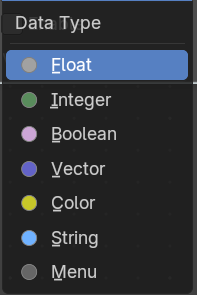
Defines the type of the Value input and output. Options include Float, Vector, Color, Boolean, Geometry, etc. This ensures compatibility with the group output socket.
| Entry | What it does |
|---|---|
| Inputs | Enable: When True, the node passes the input value through to the output socket. When False, it outputs a fallback value and hides the output socket from the group. · Value: The data to be conditionally passed to the output. Can be Float, Vector, Color, Geometry, etc., depending on the selected Data Type. |
| Outputs | When True, the node passes the input value through to the output socket. When False, it outputs a fallback value and hides the output socket from the group output interface. |
Viewer
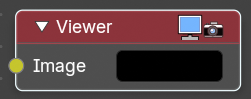
Displays the output as a backdrop in the viewport or in the Image editor. This allows you to inspect the outputs everywhere in the node hierarchy.
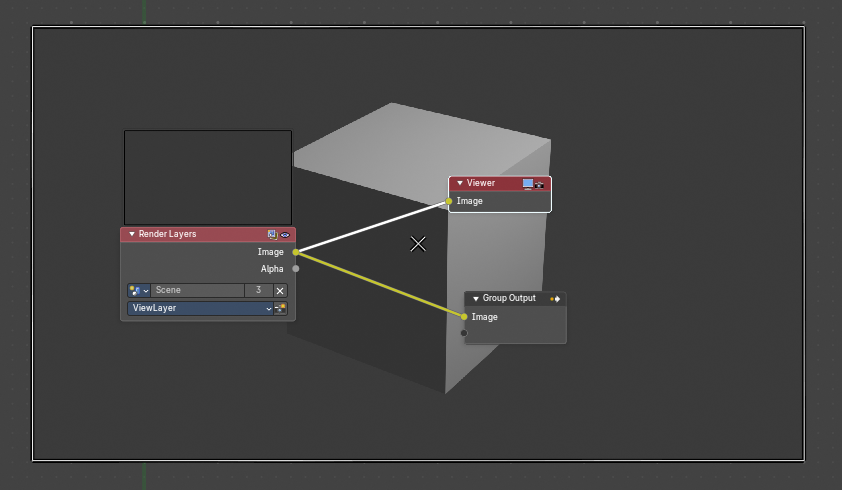
You can have more than one viewer nodes in the node editor. Just the output of the active Viewer node will be displayed. Click at a node to set it active.
When a Viewer node is selected, then the backdrop shows a widget cage that allows you to resize the backdrop image by its handlers.

Furhter settings can be adjusted in the header. In the Backdrop toolsgroup.
Input
Image
RGB image. The default is black, so leaving this node unconnected will result in a blank image.
File Output
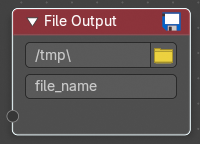
This node writes out an image as part of a frame set sequence. This happens for each specified frame range and specified to the entered filename.
This node can be used as a way to automatically save the image after a render; In addition, since this node can be hooked in anywhere in the node tree, it can also save intermediate images automatically.
Inputs
Image
The image(s) will be saved on rendering, writing to the current frame. An entire sequence of images will be saved, when an animation is rendered.
Note. To support subsequent arrangement and layering of images, the node can supply a Z-depth map. However, please note that only the OpenEXR image formats save the Z information.
Properties
| Entry | What it does |
|---|---|
| Directory | The directory to store the images in. |
| Browse | Open a directory browser to choose a directory to store the images in. |
File Name
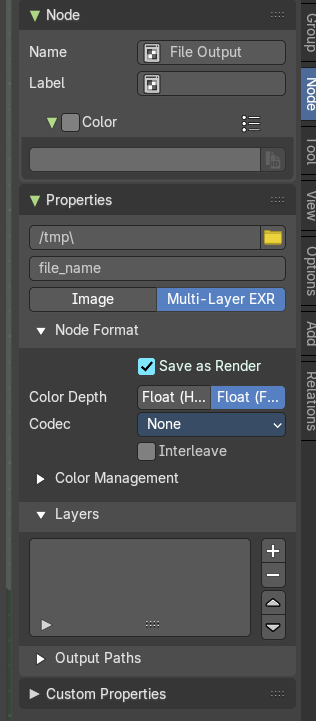
The base name of the file.
You can find further export options in the sidebar in the Item tab in the Properties panel.