Add Menu - Mask
These nodes give you the essential tools for creating a Matte for images that do not already have their own Alpha Channel. One usage scenario is blue-screen or green-screen footage, where live action is shot in front of…
Add menu - Matte
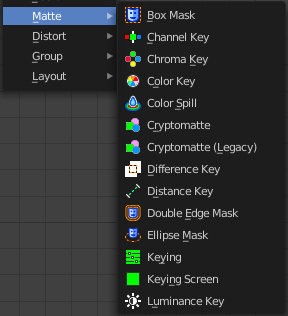
These nodes give you the essential tools for creating a Matte for images that do not already have their own Alpha Channel. One usage scenario is blue-screen or green-screen footage, where live action is shot in front of a blue or green backdrop for replacement by a matte painting or virtual background.
In general, hook up these nodes to a viewer, set your Image Editor to show the Viewer node, and play with the sliders in real-time using a sample image from the footage, to get the settings right. In some cases, small adjustments can eliminate artifacts or foreground image degradation. Taking out too much green can result in foreground actors looking flat or blueish/purplish.
You can and should chain these nodes together, improving your masking and color correction in successive refinements, using each node’s strengths to operate on the previous node’s output. Keying Node is the closest to a “does-it-all” node for green screens, but the best results stem from a combination of techniques.
Note:
Garbage Matte is not a node, but a technique selecting what to exclude from an image. It is a Mask used to identify content to be removed from an image that cannot be removed by an automatic process like chroma keying. It is used either to select specific content to be removed, or it is the inverse of a rough selection of the subject; removing everything else.
Some nodes accept a garbage matte directly. For those that don’t, you can still apply one by subtracting the garbage matte from the matte generated by the node.
Simple garbage mattes can be created with the Box Mask or the Ellipse Mask. More complicated matte shapes using a Double Edge Mask or using a Mask.
Cryptomatte
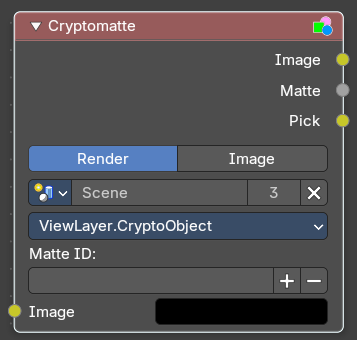
The Cryptomatte node uses the Cryptomatte standard to efficiently create mattes for compositing. Cycles outputs the required render passes, which can then be used in the Compositor or another Compositor with Cryptomatte support to create masks for specified objects.
Unlike the Material and Object Index passes, the objects to isolate are selected in compositing, and mattes will be anti-aliased and take into account effects like motion blur and transparency.
Usage
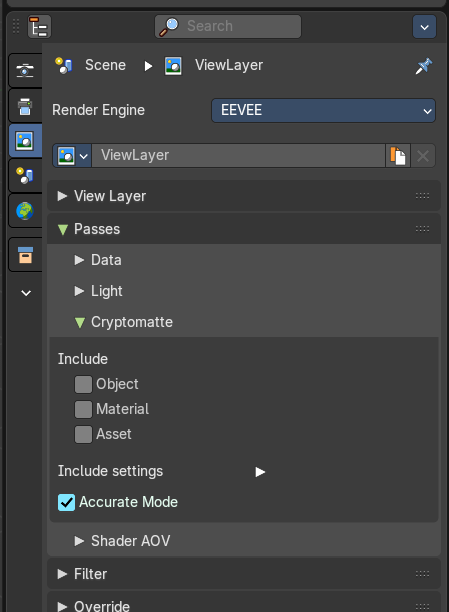
Enable Cryptomatte Object render pass in the Passes panel, and render.
In the compositing nodes, create a Cryptomatte node and link the Render Layer matching Image and Cryptomatte passes to it.
Attach a Viewer node to the Pick output of the Cryptomatte node.
Use the Cryptomatte Add/Remove button to sample objects in the Pick Viewer node.
Use the Matte output of the Cryptomatte node to get the alpha mask.
Inputs
Image
Standard image input.
Properties
Render / Image
Use the render result or an external image as the base image for cryptomatte.
Render
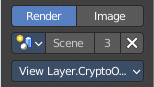
Use Cryptomatte data that are stored as part of the render.
Scene Property
Pick the scene that you want to use.
Cryptomatte Layer
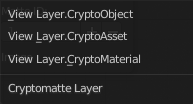
Pick the cryptomatte layer that you want to use.
Image
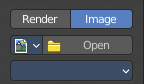
Use Cryptomatte data that are stored inside a multilayered OpenEXR image.
Image Property
Pick the image that you want to use.
Cryptomatte Layer

Pick the cryptomatte layer that you want to use.
Matte ID
List of object and material crypto IDs to include in matte. This can be used for example to quickly clear all mattes by deleting the text or used to copy-and-paste crypto IDs from other software.
Outputs
| Entry | What it does |
|---|---|
| Image | A colored output of the input image with the matte applied to only include selected layers. |
| Matte | A black-and-white alpha mask of the all the selected crypto layers. |
| Pick | A colored representation of the Cryptomatte pass which can be used with a Viewer node to select which crypto passes are used to create the matte image. |
Cryptomatte (Legacy)
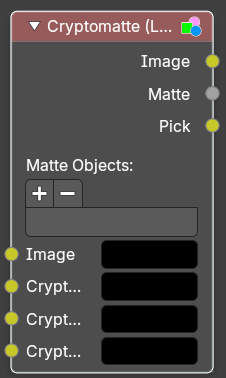
This is the legacy node version.
The Cryptomatte node uses the Cryptomatte standard to efficiently create mattes for compositing. Cycles outputs the required render passes, which can then be used in the Compositor or another Compositor with Cryptomatte support to create masks for specified objects.
Unlike the Material and Object Index passes, the objects to isolate are selected in compositing, and mattes will be anti-aliased and take into account effects like motion blur and transparency.
Usage
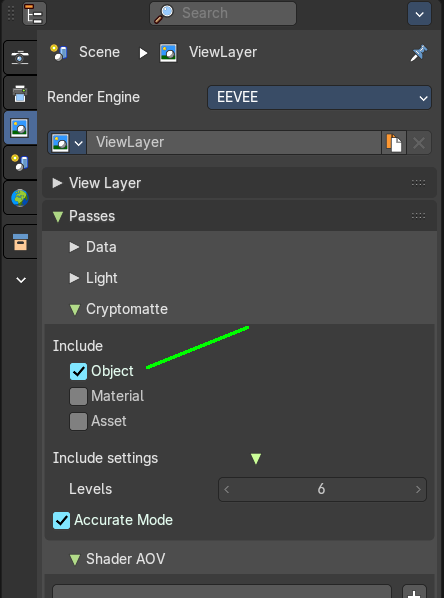
Enable Cryptomatte Object render pass in the Passes panel, and render.
In the compositing nodes, create a Cryptomatte node and link the Render Layer matching Image and Cryptomatte passes to it.
Attach a Viewer node to the Pick output of the Cryptomatte node.
Use the Cryptomatte Add/Remove button to sample objects in the Pick Viewer node.
Use the Matte output of the Cryptomatte node to get the alpha mask.
Adding/Removing Layers
By default there are only four crypto layers available as inputs to the Cryptomatte node. You can add or remove layer inputs through Sidebar > Item > Properties > Add/Remove Crypto Layer. These operators will add/remove layers from the bottom of the pass inputs.
| Entry | What it does |
|---|---|
| Inputs | Image: Standard image input. · Crypto Passes: Each crypto layer will be given its own render pass; each of these render passes must be connected to one of these crypto layer inputs. By default there are only four layers, see Adding/Removing Layers to add more. |
| Properties | Add/Remove: Adds/Removes an object or material from matte, by picking a color from the Pick output. · Matte ID: List of object and material crypto IDs to include in matte. This can be used for example to quickly clear all mattes by deleting the text or used to copy-and-paste crypto IDs from other software. |
| Outputs | Image: A colored output of the input image with the matte applied to only include selected layers. · Matte: A black-and-white alpha mask of the all the selected crypto layers. · Pick: A colored representation of the Cryptomatte pass which can be used with a Viewer node to select which crypto passes are used to create the matte image. |
Box Mask
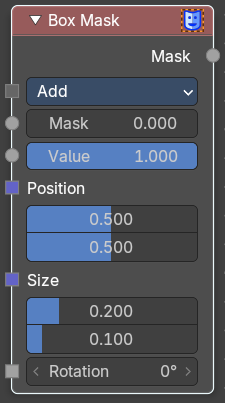
The Box Mask node creates an image suitable for use as a simple matte.
Inputs
Operation
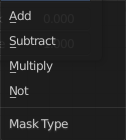
Operation to use against the input mask.
| Entry | What it does |
|---|---|
| Add | This yields the union of the input mask and the generated mask: Areas covered by the generated mask are set to the specified Value. Other parts of the input masked are passed through unchanged, or set to black if there is no input mask. |
| Subtract | Values of the input mask have the specified Value subtracted from them. Multiply This yields the intersection of this generated mask and the input mask: Values of the input mask are multiplied by the specified Value for the area covered by the generated mask. All other areas become black. |
| Not | Any area covered by both the input mask and the generated mask becomes black. Areas covered by the generated mask that are black on the input mask become the specified Value. Areas uncovered by the generated mask remain unchanged. |
| Entry | What it does |
|---|---|
| Mask | An optional mask to use as the base for mask operations. |
| Value | Intensity of the generated mask. |
| Position | Position of the center of the box as a fraction of the total width or height in X and Y direction. (0.5, 0.5 creates a centered box; 0.0, 0.0 creates a box in the lower left.) |
| Size | The size of the masking box as a fraction of the total width or height in X and Y direction. (0.5, 0.5 creates a centered box; 0.0, 0.0 creates a box in the lower left.) |
| Rotation | Rotation of the box around its center point. |
Outputs
Mask
A generated rectangular mask merged with the input mask. The created mask is the size of the current scene render dimensions.
Tip. For soft edges, pass the output mask through a slight Blur node.
Ellipse Mask

The Ellipse Mask node creates an image suitable for use as a simple matte or vignette mask.
Inputs
Operation
Operation to use against the input mask.
| Entry | What it does |
|---|---|
| Add | This yields the union of the input mask and the generated mask: Areas covered by the generated mask are set to the specified Value. Other parts of the input masked are passed through unchanged, or set to black if there is no input mask. |
| Subtract | Values of the input mask have the specified Value subtracted from them. Multiply This yields the intersection of this generated mask and the input mask: Values of the input mask are multiplied by the specified Value for the area covered by the generated mask. All other areas become black. |
| Not | Any area covered by both the input mask and the generated mask becomes black. Areas covered by the generated mask that are black on the input mask become the specified Value. Areas uncovered by the generated mask remain unchanged. |
| Entry | What it does |
|---|---|
| Mask | An optional mask to use as the base for mask operations. |
| Value | Intensity of the generated mask. |
| Position | Position of the center of the ellipse as a fraction of the total width or height in X and Y direction. (0.5, 0.5 creates a centered box; 0.0, 0.0 creates a box in the lower left.) |
| Size | The size of the masking ellipse as a fraction of the total width or height in X and Y direction. (0.5, 0.5 creates a centered box; 0.0, 0.0 creates a box in the lower left.) |
| Rotation | Rotation of the box around its center point. |
Outputs
Mask
A generated rectangular mask merged with the input mask. The created mask is the size of the current scene render dimensions.
Tip. For soft edges, pass the output mask through a slight Blur node.
Double Edge Mask

The Double Edge Mask node creates a gradient between two masks.
| Entry | What it does |
|---|---|
| Inputs | Outer Mask: A mask representing the outside shape, which will fade from black at its edges to white at the Inner Mask. · Inner Mask: A mask representing the inside shape, which will be fully white. · Image Edges: The edges of the image that intersect sthe outer mask will be considered edges of the outer mask. Otherwise, the outer mask will be considered open-ended · Only Inside Outer: Only edgfes of the inner mask that lie inside the outer mask will be considered. Otherwise, all edges of the inner mask will be considered. |
| Outputs | Mask: Standard mask output. |
ID Mask

The ID Mask Node can be used to access an alpha mask per object or per material.
| Entry | What it does |
|---|---|
| Inputs | ID value: Input for the Object Index or Material Index render pass. Which is an output of the Render Layers node or the Image node with a multi-layer format. · Index: Selection of the previously specified index. · Anti-Aliased: This post-process function refines the mask. See anti-aliasing. |
| Outputs | Alpha: The mask is white where the object is and black where it is not. If the object is transparent, the alpha mask represent that with gray values. |
Setup
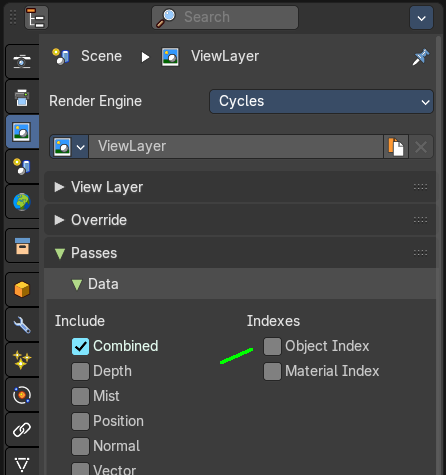
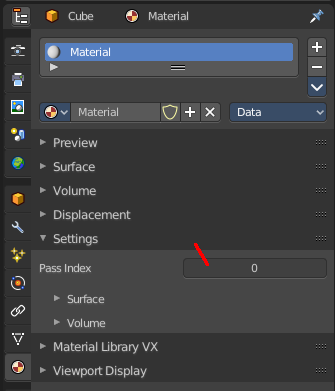
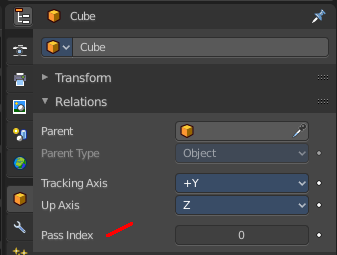
An index can be specify for any object or Cycles material in the scene. The Object Index can be set in the Relations panel in the Object tab in the Properties Editor. And for Cycles in the Settings Panel in the Material tab in the Properties editor. To be accessible after rendering, Object Index or Material Index render pass has to be enabled in the Passes panel in the View Layer properties tab in the Properties editor.